

ABP Application
On the Application page, you can set up and manage settings for your applications. This involves tasks like adding new applications, checking application details, changing the application's name, and setting up login protection.
Click into each application to view its traffic insights and configurations.
Application Information
The table on the Application page displays all the applications currently under your FortiAppSec Cloud account.
|
Column |
Description |
|---|---|
| Application Name | The internal name by which this application is displayed within the web portal GUI. |
|
Application ID |
This field does not display the Application ID for security reasons. However, you can click the copy icon to securely copy the Application ID to your clipboard. |
| Region | The region of the ABP service that processes the traffic of your application |
| Domain Name | The domain name of your application. For example, www.fortinet.com. This field cannot be edited. |
| Updated Time | The date and time when this application was last modified. |
| Status |
The current state or condition of the security service for your application. Initially "Pending" after creation, it transitions to "Ready" when the PET team finishes configurations and provisioning. |
|
Advanced Settings |
This field provides more context for the Status of your application. Pending – The input URL has been saved, and is now awaiting validation from the Professional Engagement Team (PET). Failed – PET has inspected the URL and deemed it invalid. Guidance will be offered through feedback to assist in achieving the "Verified" status. Verified – The input URL has been validated by the PET and is now under protection. |
Onboard ABP Applications
-
Click Add Application.
-
Basic Information
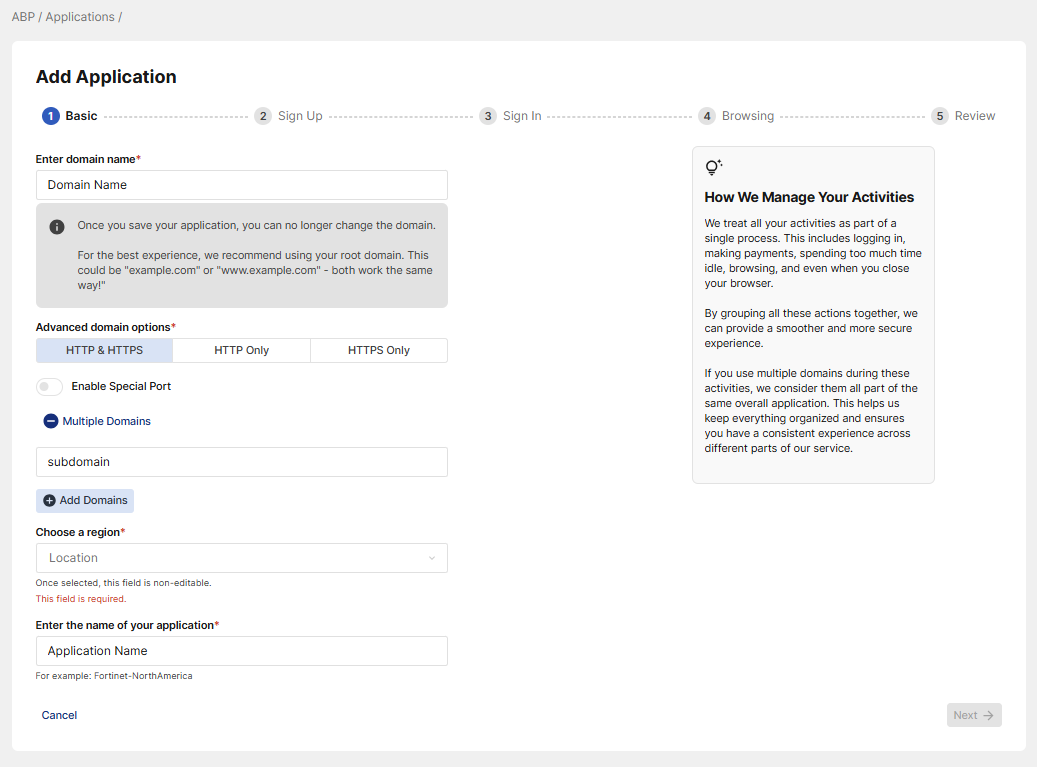
Enter the following mandatory fields:
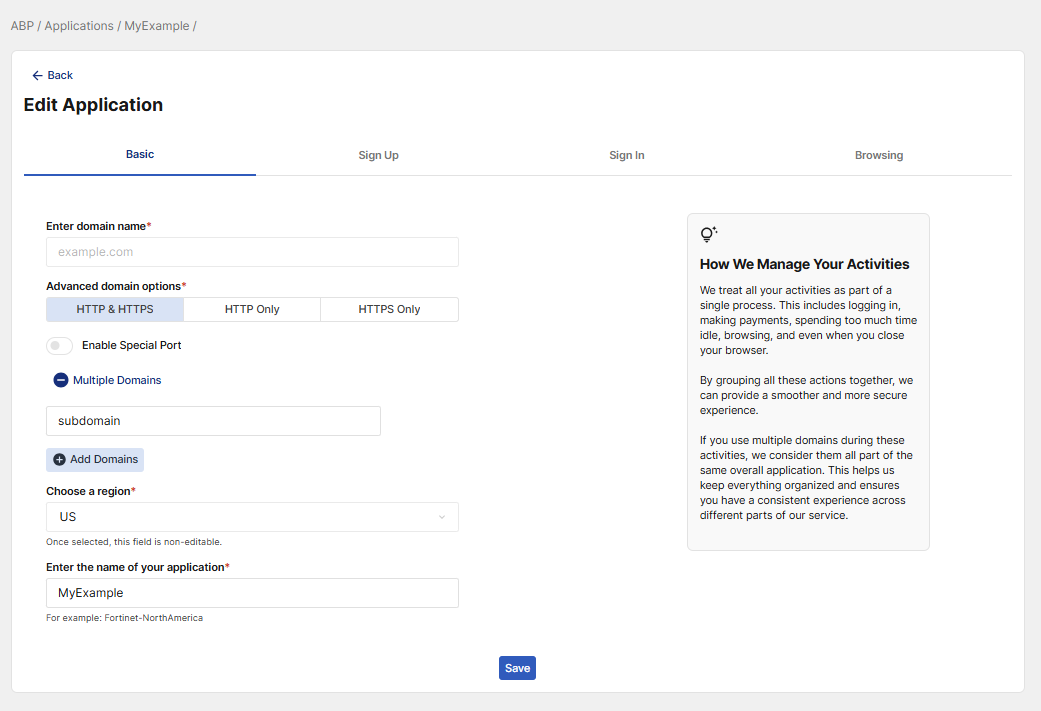
Field Description Example Input Domain Name The domain name of your application. This field does not support wildcard, and cannot be edited. www.fortinet.com Advanced domain options
Select the ports used by your application.
If you restrict traffic to only HTTP or HTTPS, you can Enable Special Port if you are not using the default ports (80 for HTTP or 443 for HTTPS).Multiple Domains
Enter up to 10 subdomains of your application to ensure comprehensive protection
store.fortinet.com
Region The location of the Advanced Bot Protection service that processes the traffic of your application US Application Name The internal name by which this application is displayed within your web portal GUI. Fortinet-NA -
Sign Up

While Sign Up URLs are automatically detected during pre-provisioning, manually entering additional information about your application pages helps us do the following:
-
Prevent Fake Registrations: By collecting detailed information, we can better identify and prevent fake accounts from being created by automated bots.
-
Protect Against Resource Exhaustion Attacks: Bots sometimes try to overload systems by submitting a large number of requests. By verifying user information during the signup process, we can protect your resources and maintain a smooth experience for everyone.
For details, see Pre-Provisioning Application resources.
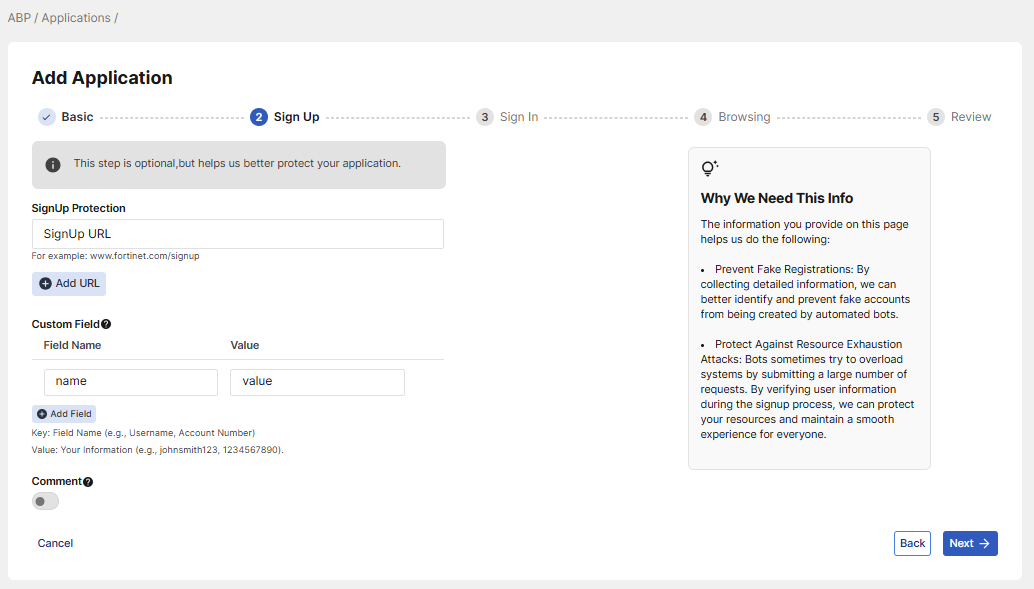
Enter the following:
Field
Description
Example Input
SignUp Protection
Enter your application's sign up URL(s).
If you have multiple signup pages, click Add URL to add additional input fields.
http://www.fortinet.com/register
Custom Field
Optional: Enable this option to specify input fields that contain user verification values beyond sign-in or sign-up credentials, and provide a test input value.
For Value, enter a valid test value that will direct us to the pages accessed by a user. This helps us analyze more user-accessed pages without impacting your actual user data.
Field name: phone number
Value: 1234567890
Comment
Optional: Use this space to give us any additional information on your application you would like us to know.
-
-
Sign In
While Sign In URLs are automatically detected during pre-provisioning, manually entering additional information about your application pages helps us do the following:
-
Preventing Credential Stuffing and Brute Force Attacks: By verifying user identities, we can protect against automated attacks that attempt to guess passwords.
-
Avoiding Account Takeovers: Additional checks ensure that only the account owner can access the account, preventing unauthorized access.
-
Defending Against Application DDOS: Your cooperation helps us manage your resources and maintain a smooth experience for all users.
For details, see Pre-Provisioning Application resources.
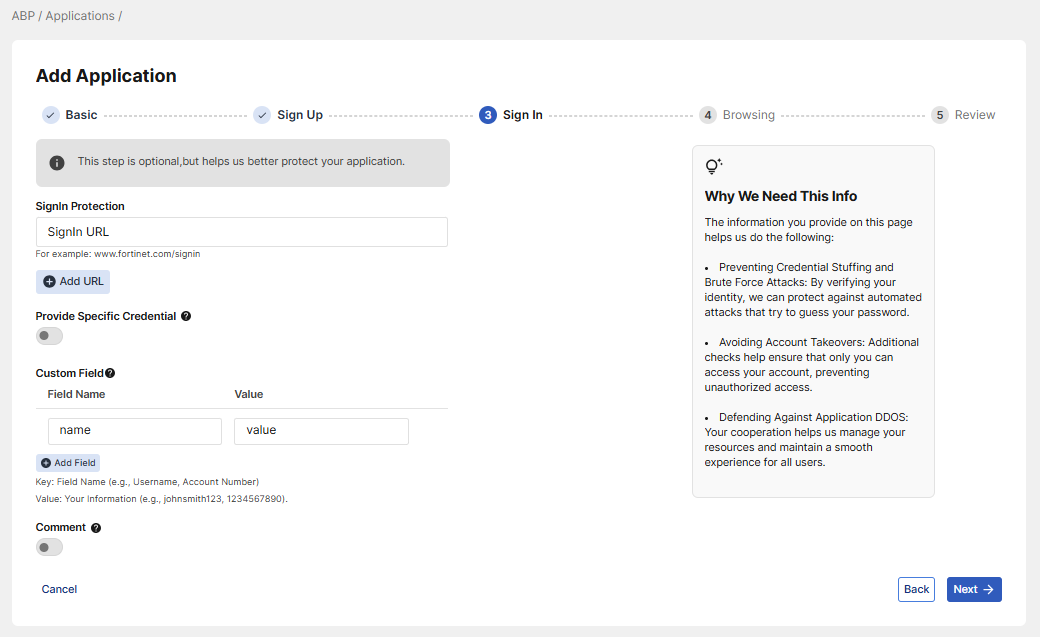
Enter the following:
Field
Description
Example Input
Sign In Protection
Enter your application's sign in URL. If you have multiple login pages, use the plus sign (+) to add additional input fields.
http://www.fortinet.com/login
Provide Specific Credential
Optional: Enable this if you'd like to provide test account credentials for logging into your application. This allows us to analyze additional user-accessed pages without impacting your user data.
Username: test_account_1
Password: MySecurePass!2024
Custom Field Optional: Enable this option to specify input fields that may contain verification values for users other than sign-in credentials.
For Value, enter a valid test value that will direct us to the pages accessed by a user. This helps us analyze more user-accessed pages without impacting your actual user data.
Field name: phone number
Value: 01234567890
Comment
Optional: Use this space to give us any additional information on your application you would like us to know.
-
-
Browsing Protection
While Browsing Protection URLs are automatically detected during pre-provisioning, manually entering additional information about your application pages helps us do the following:
-
Preventing DDOS Attacks: By verifying your activity, we can protect your site from being overwhelmed by malicious traffic.
-
Stopping Content and Price Scraping: Extra checks help us prevent automated tools from stealing your content and pricing information.
-
Maintaining Data Integrity: Your cooperation helps protect your data from unauthorized access and ensures the platform runs smoothly.
For details, see Pre-Provisioning Application resources.
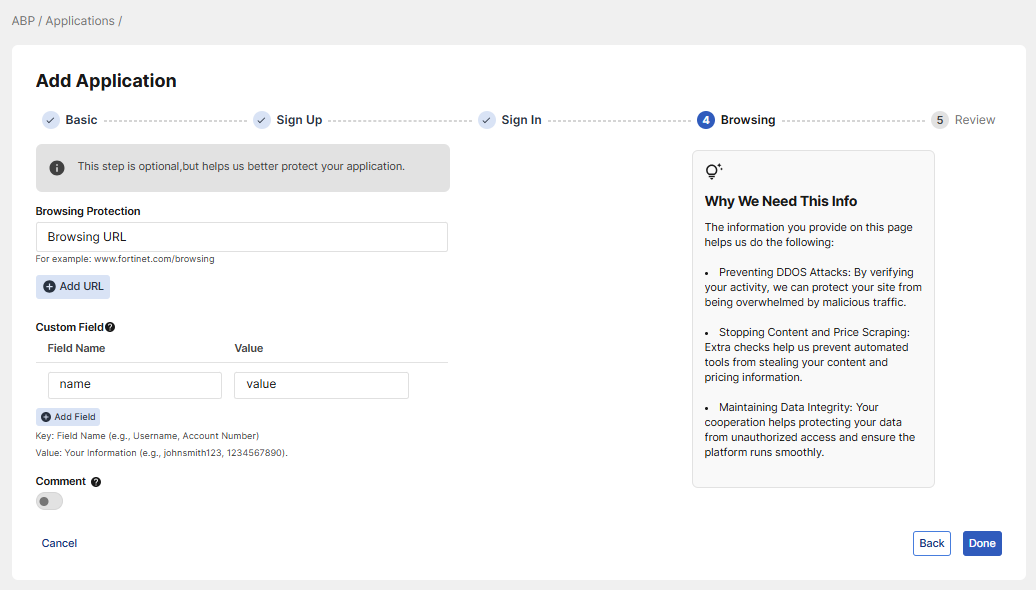
Browsing Protection
Enter URLs for pages that enable user browsing, such as those featuring product categories, online directories, or content exploration feeds.
If you have multiple browsing pages, click Add URL to add additional input fields.
http://www.fortinet.com/products
Custom Field Optional: Enable this option to specify browsing-related input fields that contain verification values.
For Value, enter a valid test value that will direct us to the pages accessed by a user. This helps us analyze more user-accessed pages without impacting your actual user data.
Field name: tracking number
Value: 9876543210
Comment
Optional: Use this space to give us any additional information on your application you would like us to know.
-
-
Review information and submit
Please ensure all application information is correct before submitting. Note that once submitted, the domain name cannot be edited.
When your URL is verified and the status changes to Ready, this means your application is now being protected by FortiAppSec Cloud. You can now navigate to CONFIGURATIONS > Pre-Provisioning to see where scripts have been inserted into your application for gathering user behavior.
Please note that manually entering URL entries through FortiAppSec Cloud is not supported. If you wish to protect additional URLs, visit the Support site (https://support.fortinet.com) and submit a ticket.
If you are using ABP in tandem with FortiWeb or FortiADC, please see Integrating Advanced Bot Protection into the Fortinet Security Fabric for additional information.
Edit Application
-
Find the row containing the preferred application name.
-
Click the Edit icon to open the Edit Application wizard. The pages in this wizard contain the same fields as the Create Application wizard. Please note, the domain name cannot be edited.
Delete Application
-
Find the row containing the preferred application name.
-
Click Delete.
