

Bootloader
The FortiAnalyzer-BigData Bootloader is a system software that manages the FortiAnalyzer-BigData host's firmware. The Bootloader can be accessed during host reboot. The Bootloader can be accessed on all the hosts.

|
Improper selection of options in FortiAnalyzer-BigData Bootloader can have an adverse impact on the whole system, and even lead to system failure. Approach these options with great care and when in doubt, err on the side of caution. |
To access the Bootloader for a FortiAnalyzer-BigData:
- Connect to the CMM web management utility.
See Connect to the Chassis Management Module in the FortiAnalyzer-BigData Getting Started Guide for your appliance: 4500F or 4500G.
- Select one of the hosts to enter its bootloader.
See Remotely control blades via CMM in the FortiAnalyzer-BigData Getting Started Guide for your appliance: 4500F or 4500G.
For example: Go to Blade System > Summary and select Blade A2 to access the BMC (Blade Management Console).
- Click the BMC IPV4 link to enter the BMC for the host.
The default login credentials are on the Fortinet Product Credentials card
- Go to Remote Control > Console Redirection or iKVM/HTML5.
- Click Power Control > Set Power Reset.
- Wait for the following options to appear. Use the arrow keys to select
bootloaderto open the bootloader's main page.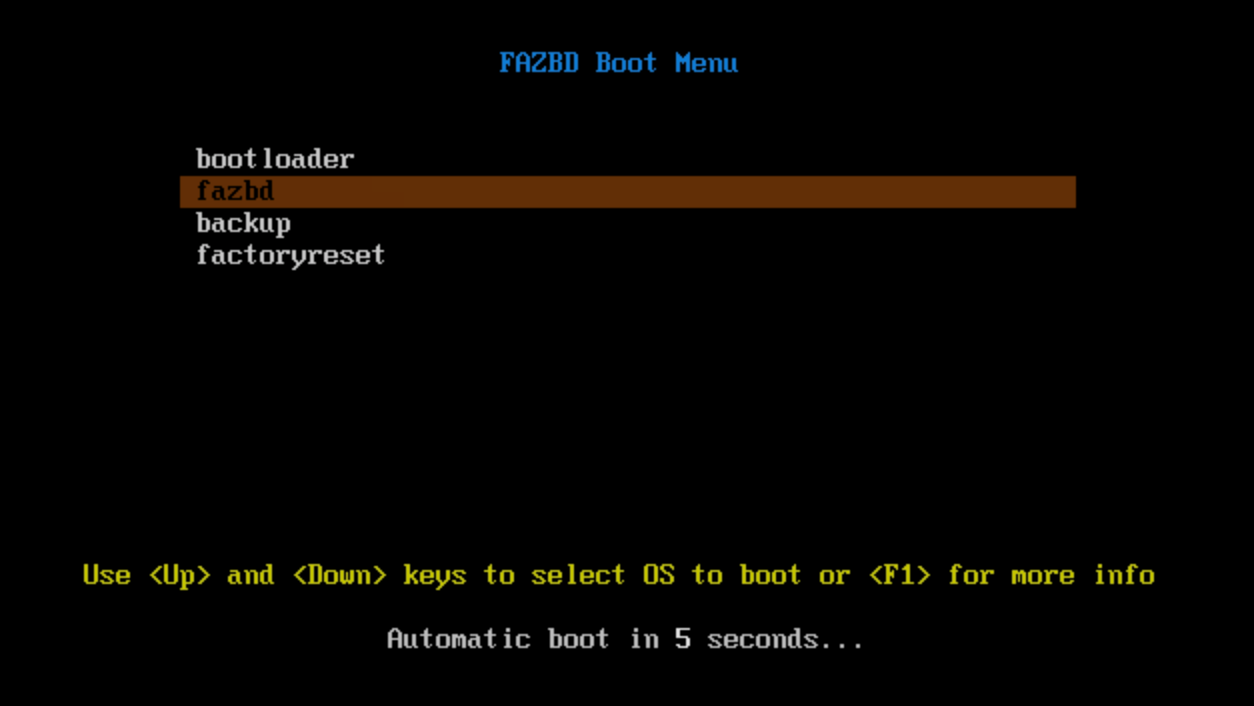
Bootloader Main Page
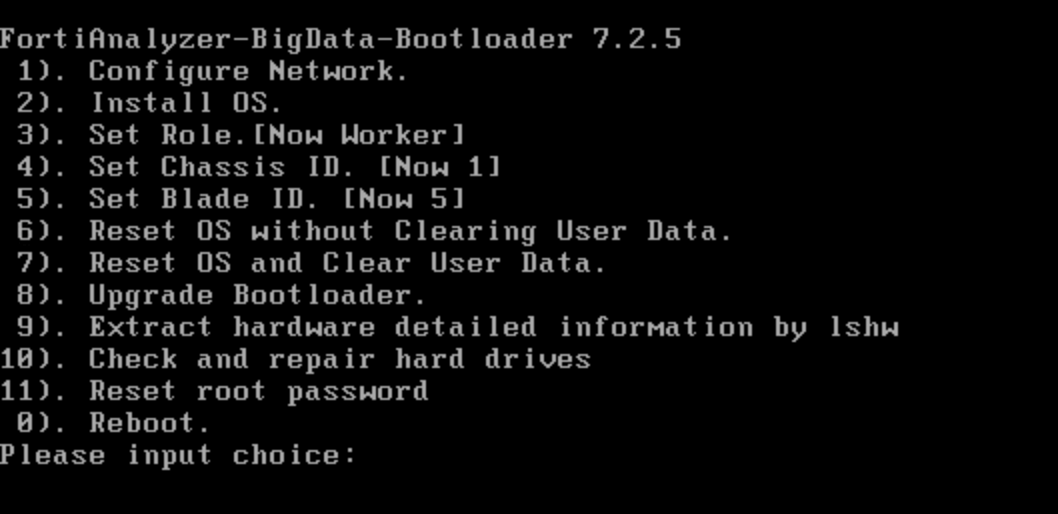
From the main page of the bootloader, you can select the following options:
- 1. Configure Network
- 2. Install OS
- 3. Set Role
- 4. Set Chassis ID
- 5. Set Blade ID
- 6. Reset OS
- 7. Reset OS and Clear User Data
- 8. Upgrade Bootloader
- 9. Extract hardware detailed information by lshw
- 10. Check and repair hard drives
- 11. Reset root password
- 12. Reboot
- sh. shell
1. Configure Network
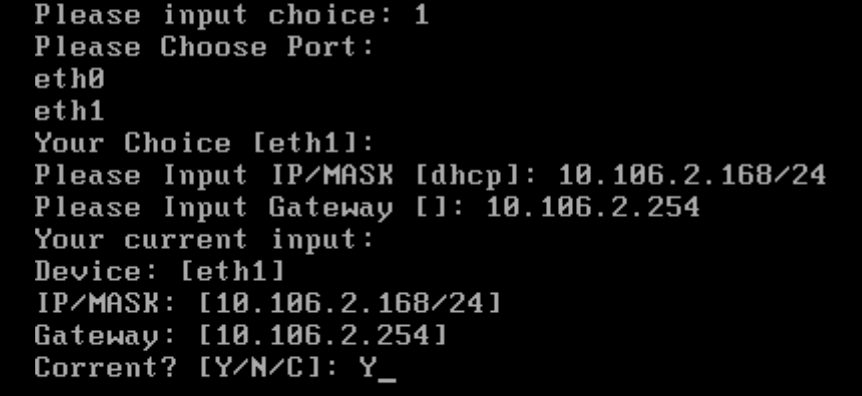
The Configure Network option enables users to configure their IP, network mask, and network gateway information for the bootloader on the host in order to communicate with external servers hosting bootloader or FortiAnalyzer-BigData firmware images. Users can choose to specify static or DHCP IP addresses when available.

|
This option only configures the network for the bootloader, not the OS of the FortiAnalyzer-BigData host. |
Before users can use this option to configure the network, they need to have the network interface associated with the external network. By default, the external network interface defaults to eth1.
2. Install OS
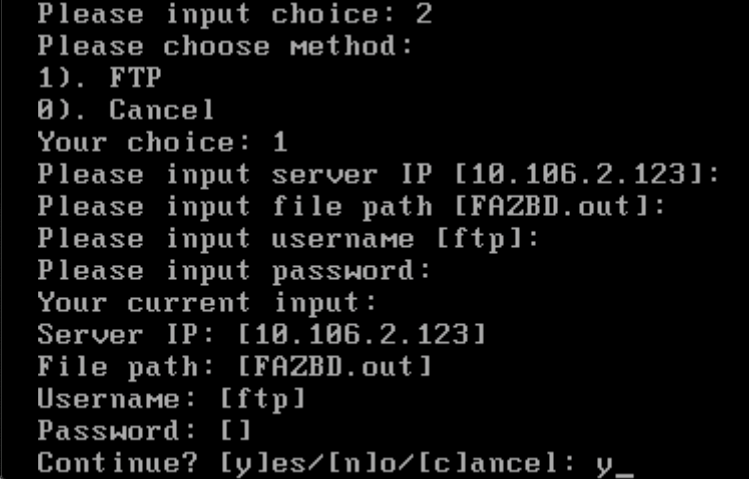
The Install OS option enables users to install FortiAnalyzer-BigData OS images on the host. Upon selection, users are prompted to provide server and image information. After confirmation, the FortiAnalyzer-BigData OS is downloaded from the server and installed.
Generally, users should use the fazbdctl upgrade fazbd command in FortiAnalyzer-BigData OS to upgrade the system software instead of using the bootloader Install OS option.
3. Set Role
The Set Role option enables users to select a role for each host. You can see the current role of the host by the option.
In a FortiAnalyzer-BigData Security Event Manager architecture, each host has a designated role in order to collaborate with other hosts. There are two roles from the bootloader perspective: controller and worker.
- Controller: Refers to the Security Event Manager Controller and acts as the master of the other hosts.
- Worker: Nodes that are managed by the controller.
In a given cluster, only one active controller is allowed.

4. Set Chassis ID
The Set Chassis ID is used to identify the chassis in multi-chassis cluster use case. Chassis IDs may range from 1 to 254. By default, it is 1. When you connect an extension chassis to an existing chassis cluster, the chassis ID needs to be changed to a unique number in 1 to 254 range. You can see the current Chassis ID by option.

5. Set Blade ID
A Blade ID is used to identify the blade slot within a chassis. The order of the blade slots starts from the left side of the FortiAnalyzer-BigData appliance, starting from 1 to 14.
By default, all Blade IDs are set to reflect its physical slot number and users should not change the Blade ID. For example, the controller is in blade slot #2 and has a Blade ID of 2.
If you need to add a replacement blade to the chassis, you must first set the Blade ID to reflect its slot number so the firmware running on the blade knows its physical slot and its role.

6. Reset OS
The Reset OS option enables users to soft reset the FortiAnalyzer-BigData firmware of this BigData host. To soft reset the whole Security Event Manager, use fazbdctl CLI commands on the BigData Controller instead (see Soft reset FortiAnalyzer-BigData).

|
A soft reset only restores the firmware and will not touch the data volume. |
|
|
If this action is performed on the BigData Controller, all the BigData member hosts will have to be rebooted during the progress in order to sync with the BigData Controller. |
7. Reset OS and Clear User Data
The Reset OS and Clear User Data option enables users to hard reset the FortiAnalyzer-BigData firmware of this BigData host. To hard reset the whole Security Event Manager, use fazbdctl CLI commands on the BigData Controller instead (see Hard reset FortiAnalyzer-BigData).
|
|
This will restore the firmware AND clear all the data volume. |
8. Upgrade Bootloader
The Upgrade Bootloader option enables users to specify server and image information to perform upgrades to the existing bootloader. You can upgrade the bootloader from the Security Event Manager Controller CLI or the GUI.
To upgrade Bootload using the GUI:
-
In the banner, open the Account menu and click Upgrade Firmware.
-
Click More > here.
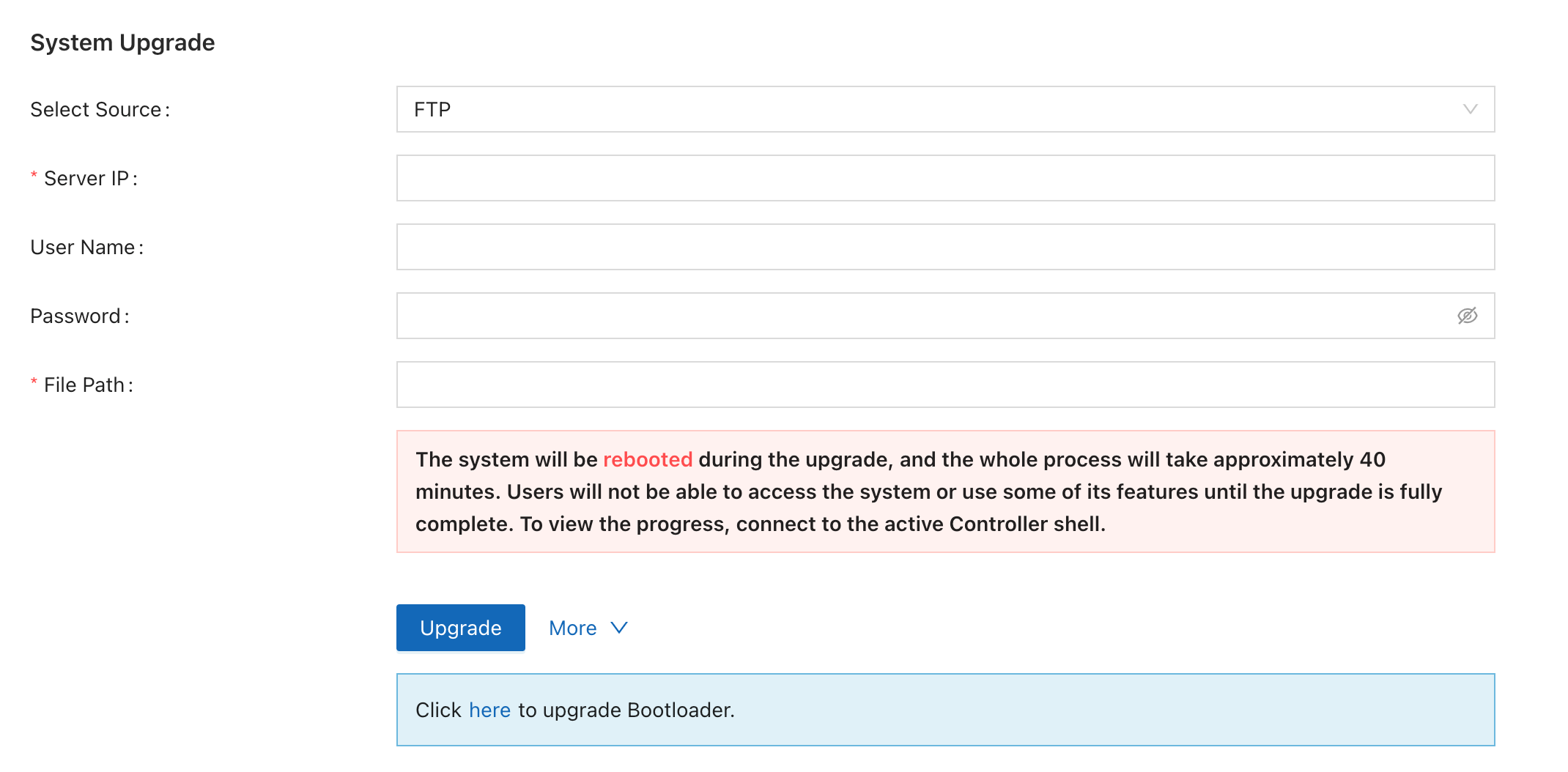
The Bootloader Upgrade dialog displays.
-
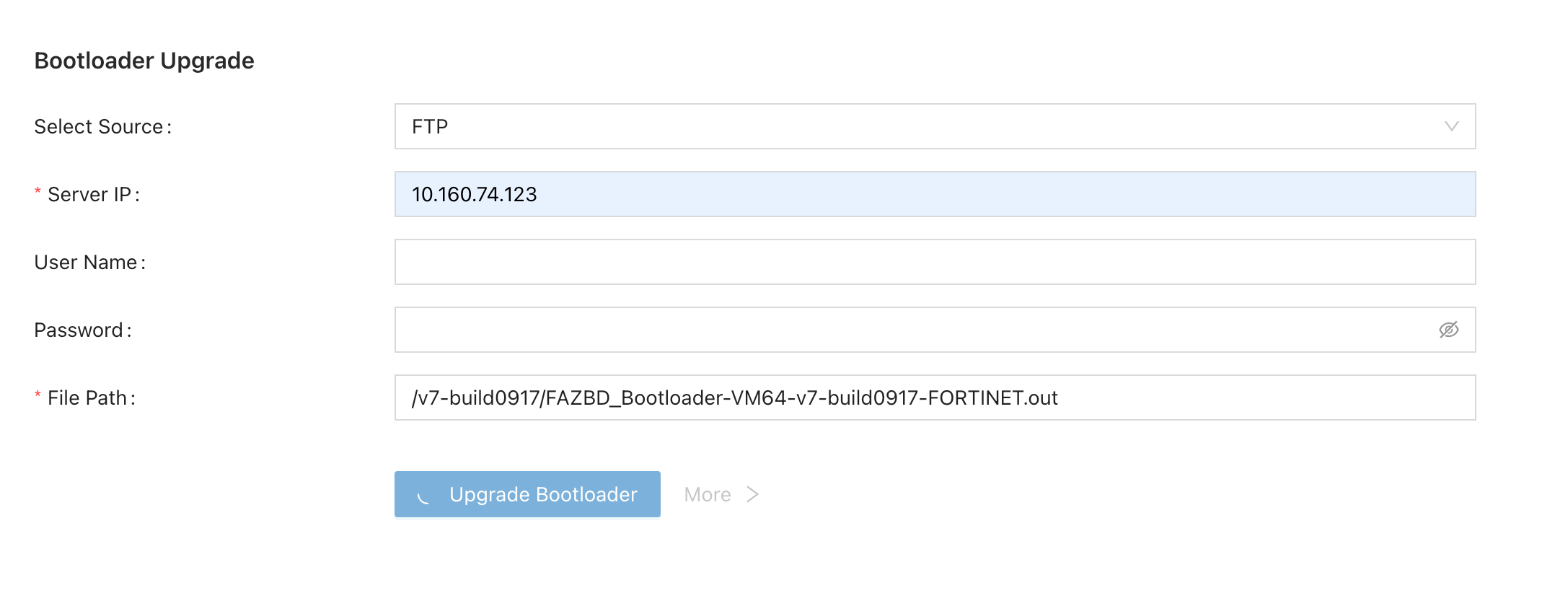
In the Bootloader Upgrade dialog, enter the following:
Select Source Select FTP, SFTP, HTTP, HTTPS, or Upload File. Server IP Enter the source server's IP address. User Name
Enter the user name. If not applicable, leave this field blank.
Password
Enter the password. If not applicable, leave this field blank.
File Path
Enter the file path for the new version of bootloader.
-
Click Upgrade Bootloader.
The bootloader begins to upgrade. The upgrade takes approximately one to two minutes.
Do not leave this page while the upgrade is in progress.
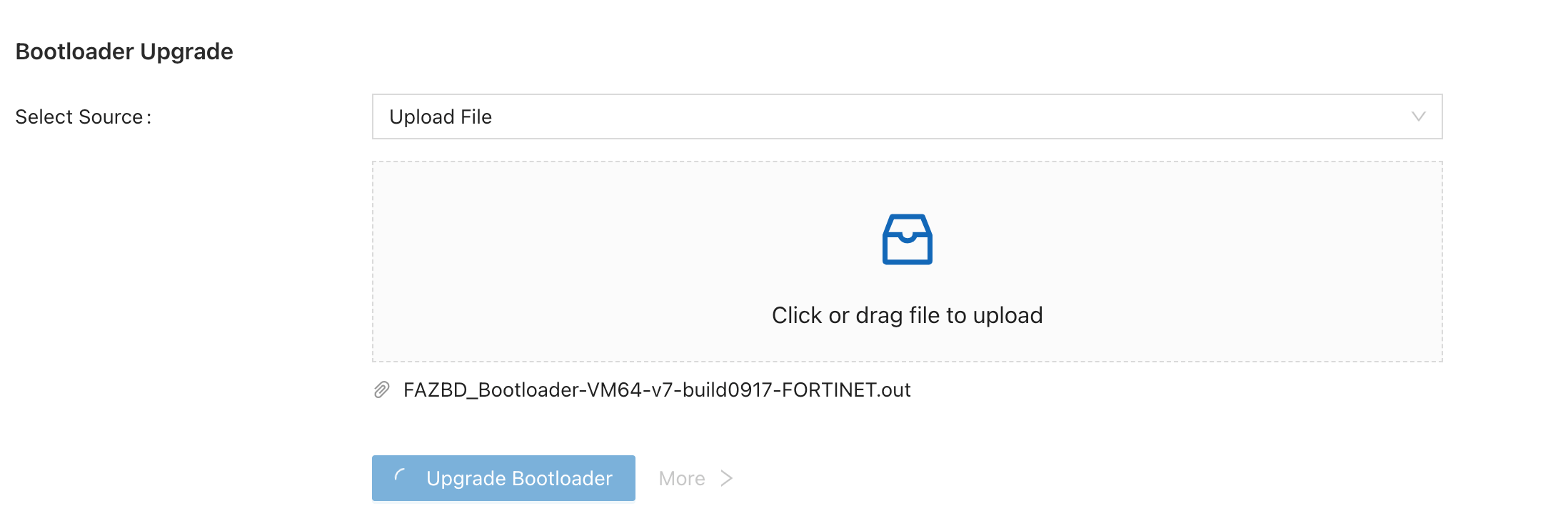
When the upgrade is successful, the following message displays.

To upgrade Bootloader using the CLI:
Use the following command from the Security Event Manager Controller:
fazbdctl upgrade bootloader
This command allows you to upgrade the bootloader for all hosts at once.
-
Access the Security Event Manager Controller CLI by establishing an SSH connection to the Cluster Management IP. See Connect to the FortiAnalyzer-BigData CLI.
-
Run the following command:
fazbdctl upgrade bootloader -U <ftp_path> -u <user> -p <password>
Or, interactively,
fazbdctl upgrade bootloader
-
Follow the onscreen instructions to select the source from FTP, SFTP, HTTP or HTTPS, and enter your server URL, upgrade bootloader file's zip file path, and FTP username and password.
-
Wait approximately 30 seconds to a few minutes, and then check the bootloader version using the following command:
fazbdctl show version
9. Extract hardware detailed information by lshw
This command extracts hardware detailed information using the lshw command.
10. Check and repair hard drives
This command is used to verify and repair the integrity of file systems on storage devices.
11. Reset root password
This command resets the OS password of this host to the default "fortinet@123".
12. Reboot
The Reboot option enables you to reboot and restart the host.
sh. shell
If you enter sh into the Bootloader prompt, you can access the shell and use tools under /sbin/. For example, you can use xfs_repair to fix root disk errors if they occur.