
Fortinet white logo
Fortinet white logo

User Guide

Installing FortiAIOps on Nutanix

Installing FortiAIOps on Nutanix

Perform the following steps to deploy FortiAIOps on Nutanix.

  1. Obtain FAO_VM64_HV-v2.0.1-[build0xxx]-FORTINET.out.hyperv.zip from Fortinet and extract it to obtain the files FAOWHV.vhd and DATADRIVE.vhd.

  2. Log in into the Nutanix Prism user interface and click the icon. Select Image Configuration.
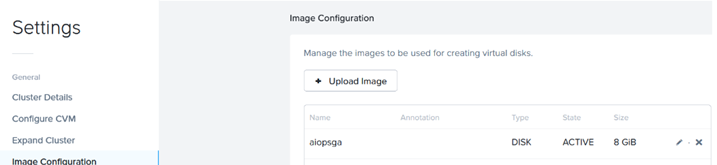
  3. Upload both the FAOWHV.vhd and DATADRIVE.vhd files in the order as mentioned here. To upload FAOWHV.vhd, click Upload Image and update the following fields.
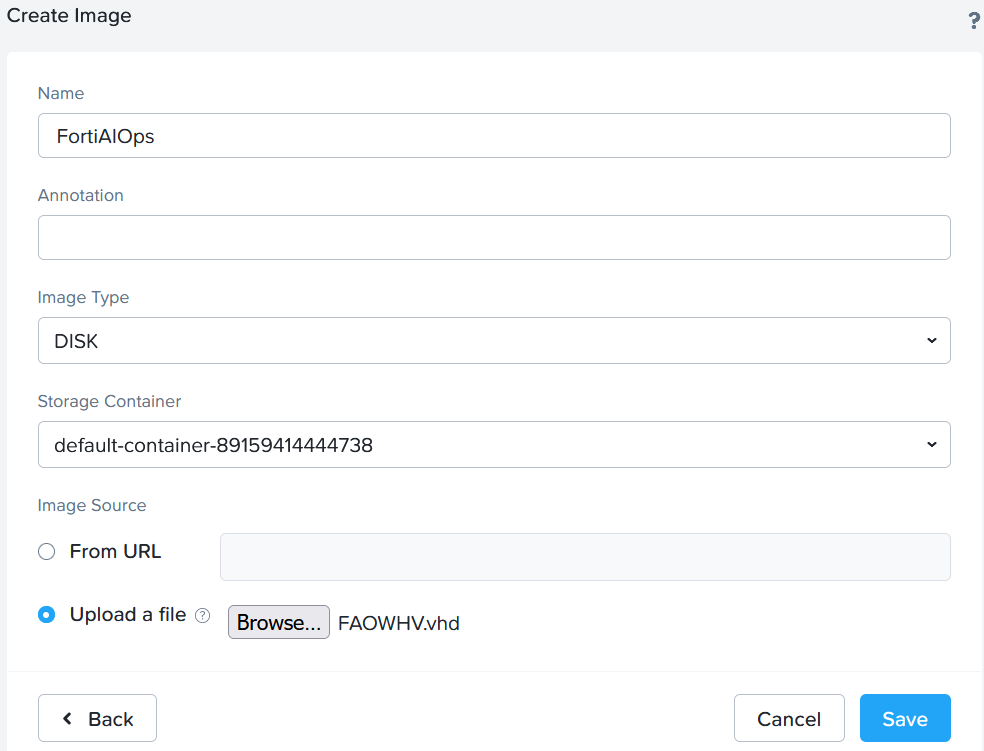
    • Enter a Name for the FortiAIOps image file.

    • Select Disk in as the Image Type.

    • Select the Storage Container.

    • In the Image Source section, click Upload a file and browse to the FortiAIOps image file FAOWHV.vhd.

  4. Click Save.

  5. Repeat steps 3 and 4 to upload DATADRIVE.vhd.
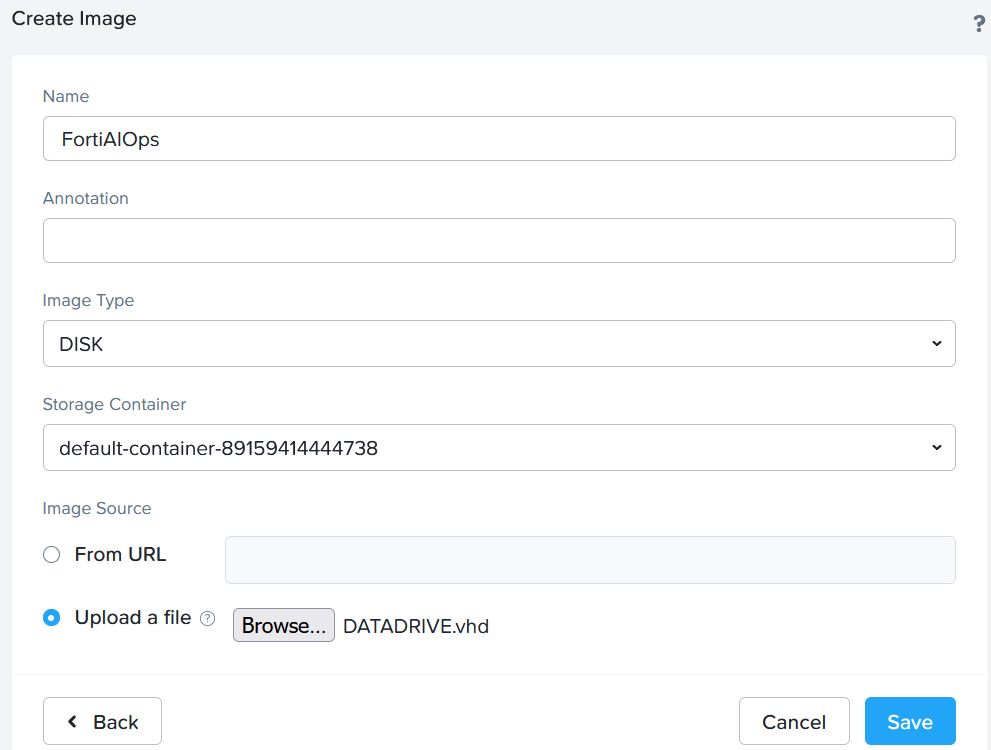
  6. Refresh the browser after a few seconds and the newly created images are listed in the Image Configuration page.

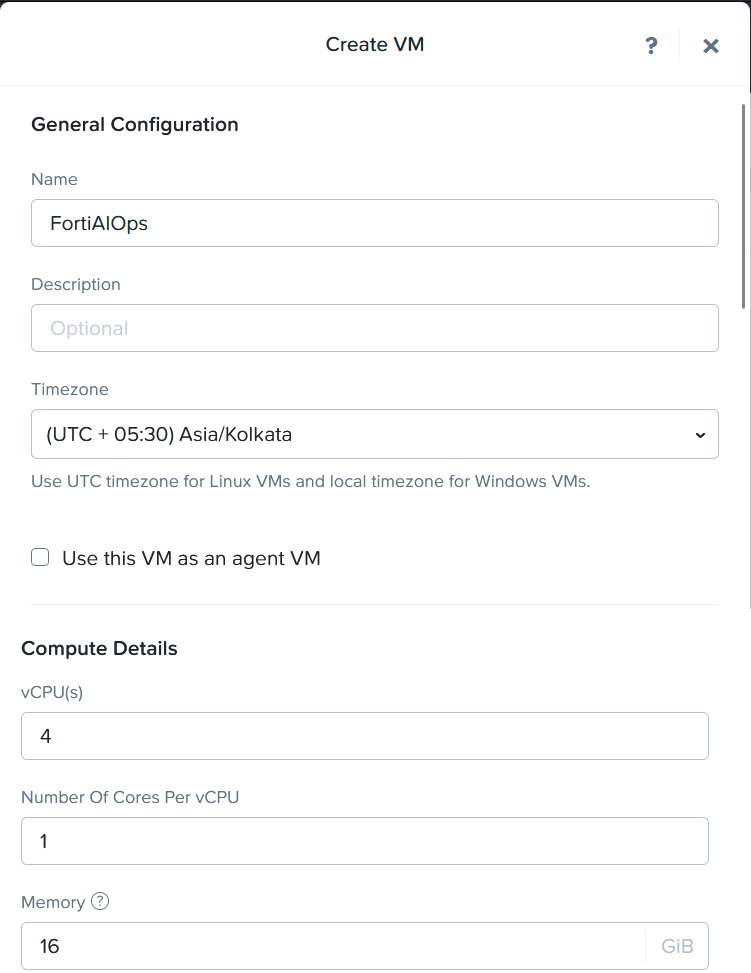
  7. To create a VM, navigate to the VM dashboard and click Create VM and enter the following configuration.

    • Enter a Name for the FortiAIOps VM.

    • Select your Timezone.

    • In the Compute Details section, enter 4 vCPU(s) and 8 GB of Memory.
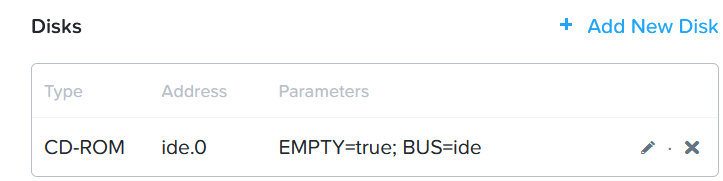
      Note: By default, a CD-ROM is listed under Disks, delete this CD-ROM.
  8. To create a new Boot disk, click Add New Disk and enter the following configuration.

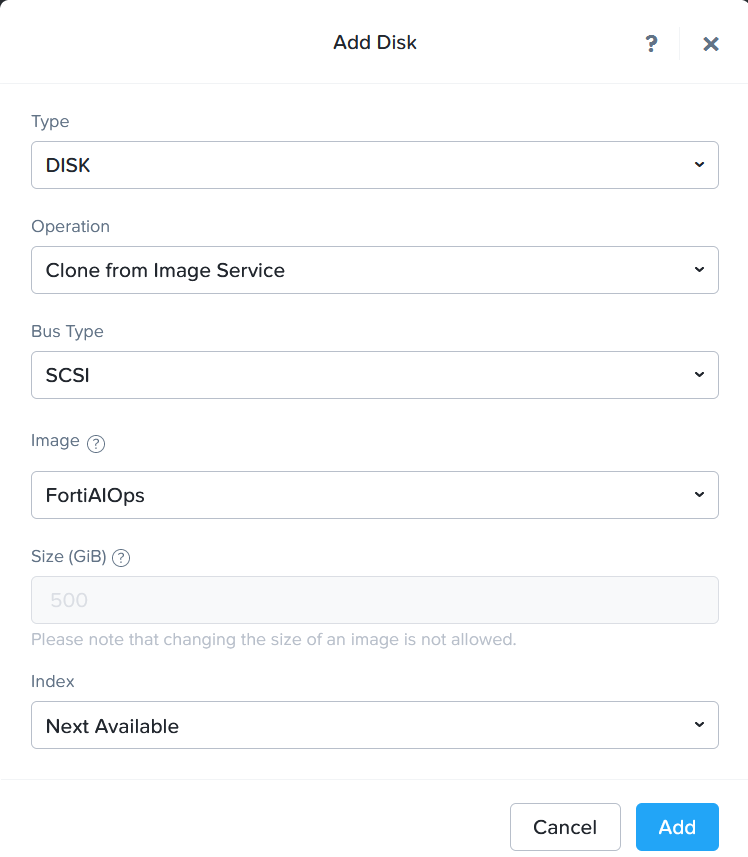
    • Select Clone from Image Service as the Operation and the disk is cloned from the FortiAIOps image files uploaded earlier in this procedure.

    • Select SCSI as the Bus Type.

    • Select the uploaded FortiAIOps disk Image - FAOWHV.vhd.
  9. Click Add.

  10. Add another disk for DATADRIVE.vhd following the previous step.
    Note: Ensure to create a new disk for FAOWHV.vhd first and then for DATADRIVE.vhd.

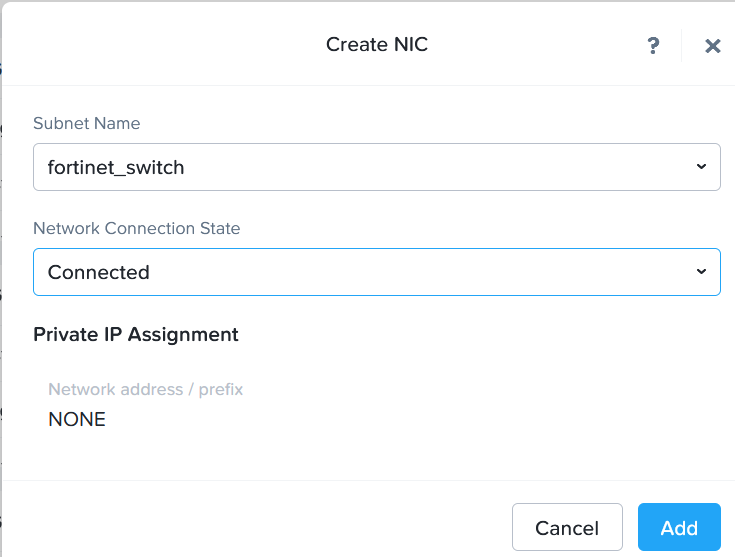
  11. Add 4 Network Adapters, click Add New NIC.
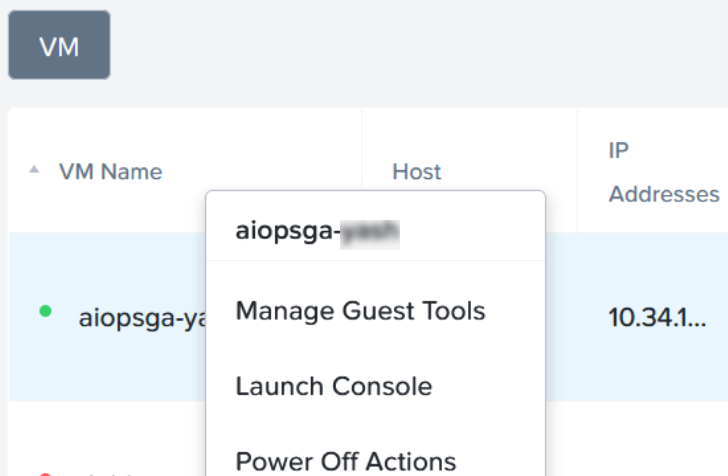
  12. Power on the VM and launch the console.
  13. Configure the FortiAIOps static IP address on starting the VM. See Post-installation Tasks.

Installing FortiAIOps on Nutanix

Installing FortiAIOps on Nutanix

Perform the following steps to deploy FortiAIOps on Nutanix.

  1. Obtain FAO_VM64_HV-v2.0.1-[build0xxx]-FORTINET.out.hyperv.zip from Fortinet and extract it to obtain the files FAOWHV.vhd and DATADRIVE.vhd.

  2. Log in into the Nutanix Prism user interface and click the icon. Select Image Configuration.

  3. Upload both the FAOWHV.vhd and DATADRIVE.vhd files in the order as mentioned here. To upload FAOWHV.vhd, click Upload Image and update the following fields.

    • Enter a Name for the FortiAIOps image file.

    • Select Disk in as the Image Type.

    • Select the Storage Container.

    • In the Image Source section, click Upload a file and browse to the FortiAIOps image file FAOWHV.vhd.

  4. Click Save.

  5. Repeat steps 3 and 4 to upload DATADRIVE.vhd.

  6. Refresh the browser after a few seconds and the newly created images are listed in the Image Configuration page.

  7. To create a VM, navigate to the VM dashboard and click Create VM and enter the following configuration.

    • Enter a Name for the FortiAIOps VM.

    • Select your Timezone.

    • In the Compute Details section, enter 4 vCPU(s) and 8 GB of Memory.

      Note: By default, a CD-ROM is listed under Disks, delete this CD-ROM.

  8. To create a new Boot disk, click Add New Disk and enter the following configuration.

    • Select Clone from Image Service as the Operation and the disk is cloned from the FortiAIOps image files uploaded earlier in this procedure.

    • Select SCSI as the Bus Type.

    • Select the uploaded FortiAIOps disk Image - FAOWHV.vhd.

  9. Click Add.

  10. Add another disk for DATADRIVE.vhd following the previous step.
    Note: Ensure to create a new disk for FAOWHV.vhd first and then for DATADRIVE.vhd.

  11. Add 4 Network Adapters, click Add New NIC.

  12. Power on the VM and launch the console.

  13. Configure the FortiAIOps static IP address on starting the VM. See Post-installation Tasks.