Fortinet white logo
Fortinet white logo

User Guide

Installing FortiAIOps on Proxmox

Installing FortiAIOps on Proxmox

Perform the following steps to deploy FortiAIOps on the Proxmox KVM platform.

  1. Obtain FAO_VM64_KVM-v2.0.1-[build0xxx]-FORTINET.out.kvm.zip from Fortinet.
  2. Use SCP to transfer this file to a Proxmox machine and extract it.
    unzip FAO_VM64_KVM-v2.0.1-[build0xxx]-FORTINET.out.kvm.zip
    -rwxrwxr-x 1 root root 3653632 May 9 12:06 OVMF_CODE_4M.secboot.fd
    -rwxrwxr-x 1 root root 540672 May 9 12:06 Fimg_VARS.fd
    -rw-r--r-- 1 root root 1394802688 May 9 12:20 FAOKVM.qcow2
    -rwxr-xr-x 1 root root 1964 May 9 12:20 deploy_pmx
    -rwxr-xr-x 1 root root 4112 May 9 12:20 deploy_kvm
    -rw-r--r-- 1 root root 204608 May 9 12:20 datadrive.qcow2
    -rw-r--r-- 1 root root 4521984 May 9 12:20 OVMF.qcow2
    -rwxr-xr-x 1 root root 2749 May 9 12:20 KVM.xml.tmpl
    -rw-r--r-- 1 root root 1358948555 May 9 16:48 FAO_VM64_KVM-v2.0.1-[build0xxx]-FORTINET.out.kvm.zip
  3. Import the FortiAIOps disk image manually in the Proxmox shell to create the VM.
    ./deploy_pmx -n <name> -v <volume> -b <bridge> [-i <vmid>] [-c <cores>] [-m <memory>]
    where
    <name>is the name of the VM, for example, fortiaiops.
    <volume> is the target storage ID, for example, local-lvm.
    <bridge> is the network bridge to use, for example, vmbr0.
    <vmid> is the ID assigned to the new VM; the default is to use the next available free ID.
    <cores> is the number of CPU cores to allocate; the default is 8.
    <memory> is the amount of RAM to allocate (in MB); the default is 32768 MB.
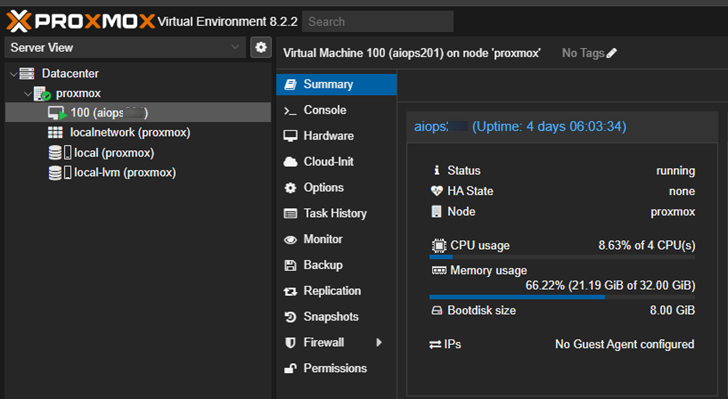
  4. The VM is now deployed.

  5. Configure the FortiAIOps static IP address on starting the VM.

Installing FortiAIOps on Proxmox

Installing FortiAIOps on Proxmox

Perform the following steps to deploy FortiAIOps on the Proxmox KVM platform.

  1. Obtain FAO_VM64_KVM-v2.0.1-[build0xxx]-FORTINET.out.kvm.zip from Fortinet.
  2. Use SCP to transfer this file to a Proxmox machine and extract it.
    unzip FAO_VM64_KVM-v2.0.1-[build0xxx]-FORTINET.out.kvm.zip
    -rwxrwxr-x 1 root root 3653632 May 9 12:06 OVMF_CODE_4M.secboot.fd
    -rwxrwxr-x 1 root root 540672 May 9 12:06 Fimg_VARS.fd
    -rw-r--r-- 1 root root 1394802688 May 9 12:20 FAOKVM.qcow2
    -rwxr-xr-x 1 root root 1964 May 9 12:20 deploy_pmx
    -rwxr-xr-x 1 root root 4112 May 9 12:20 deploy_kvm
    -rw-r--r-- 1 root root 204608 May 9 12:20 datadrive.qcow2
    -rw-r--r-- 1 root root 4521984 May 9 12:20 OVMF.qcow2
    -rwxr-xr-x 1 root root 2749 May 9 12:20 KVM.xml.tmpl
    -rw-r--r-- 1 root root 1358948555 May 9 16:48 FAO_VM64_KVM-v2.0.1-[build0xxx]-FORTINET.out.kvm.zip
  3. Import the FortiAIOps disk image manually in the Proxmox shell to create the VM.
    ./deploy_pmx -n <name> -v <volume> -b <bridge> [-i <vmid>] [-c <cores>] [-m <memory>]
    where
    <name>is the name of the VM, for example, fortiaiops.
    <volume> is the target storage ID, for example, local-lvm.
    <bridge> is the network bridge to use, for example, vmbr0.
    <vmid> is the ID assigned to the new VM; the default is to use the next available free ID.
    <cores> is the number of CPU cores to allocate; the default is 8.
    <memory> is the amount of RAM to allocate (in MB); the default is 32768 MB.
  4. The VM is now deployed.

  5. Configure the FortiAIOps static IP address on starting the VM.