Fortinet white logo
Fortinet white logo

User Guide

Installing FortiAIOps on Hyper-V

Installing FortiAIOps on Hyper-V

Perform the following steps to deploy FortiAIOps.

  1. Download the installation file from Fortinet Support portal and unzip the file FAO_VM64_HV-vx.x.xdevbuildxxxx-FORTINET.out.hyperv.zip. This folder contains 2 installation files.
  2. Open the Start menu, search for Hyper-V Manager, and click on the application to launch it.
  3. Click New in the Actions pane and select Virtual Machine to start the New Virtual Machine Wizard. Click Next.
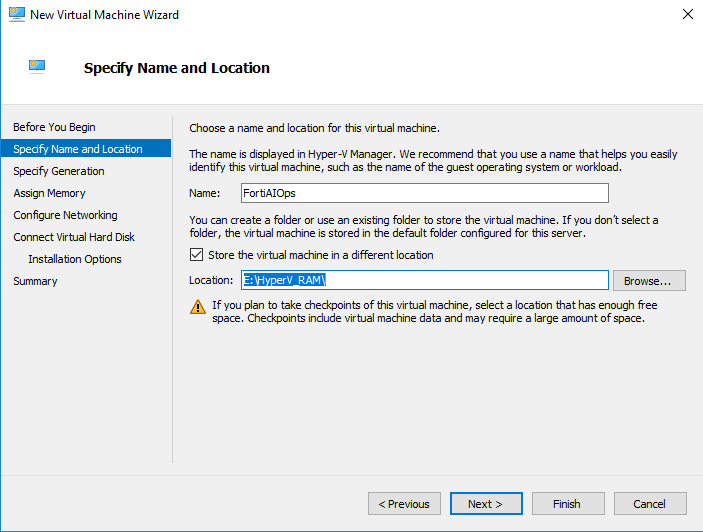
  4. Enter a name and select location for FortiAIOps. Click Next.
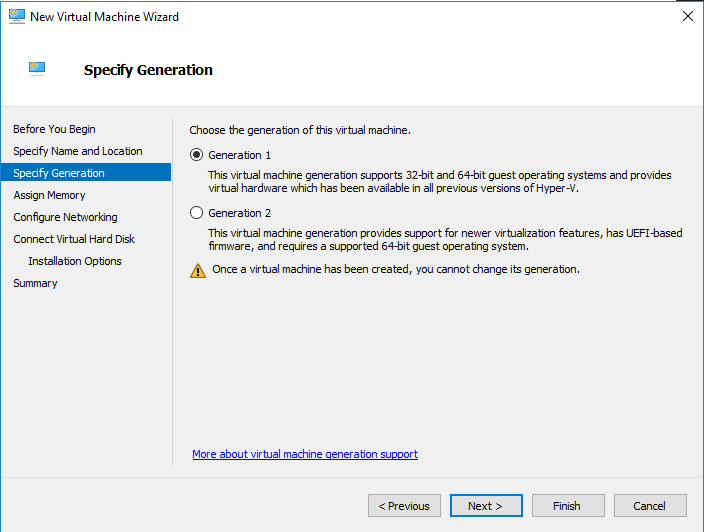
  5. Select Generation 1 and click Next.

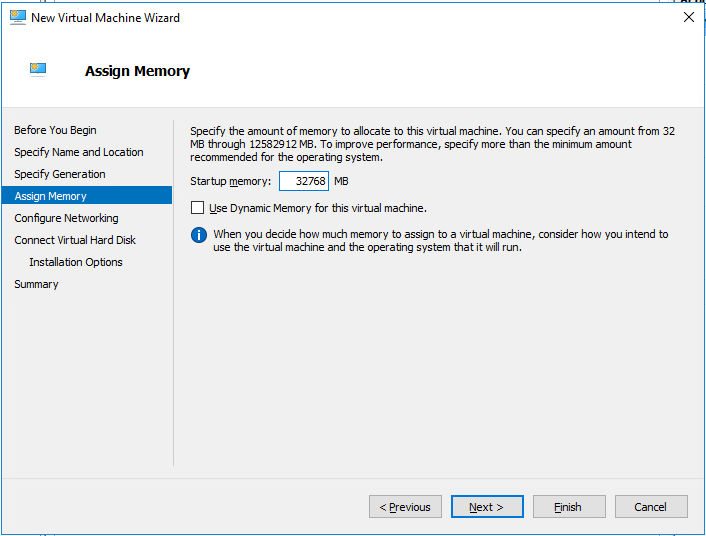
  6. Specify the memory that needs to be allocated. Click Next. See Pre-installation Requirements.
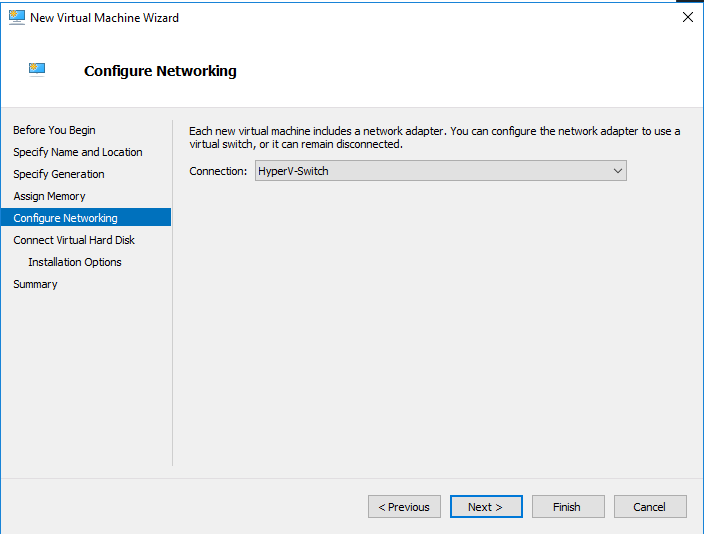
  7. Select network adapter and click Next.
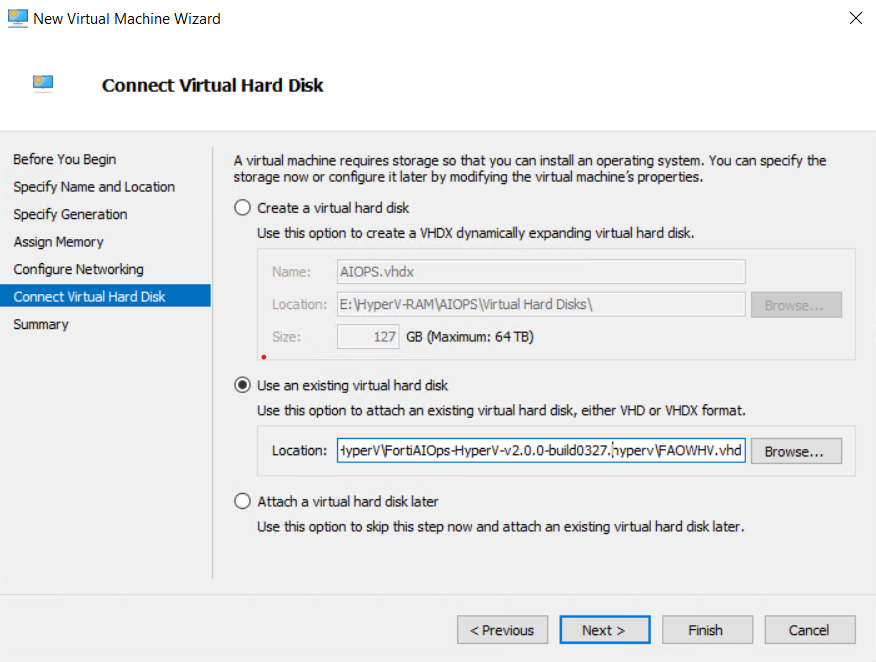
  8. Select Use an existing virtual hard disk. Browse and select FAOWHV.vhd image locally stored. Click Next.
  9. Review the settings and click Finish.
  10. Right click on the new virtual machine created and select Settings.
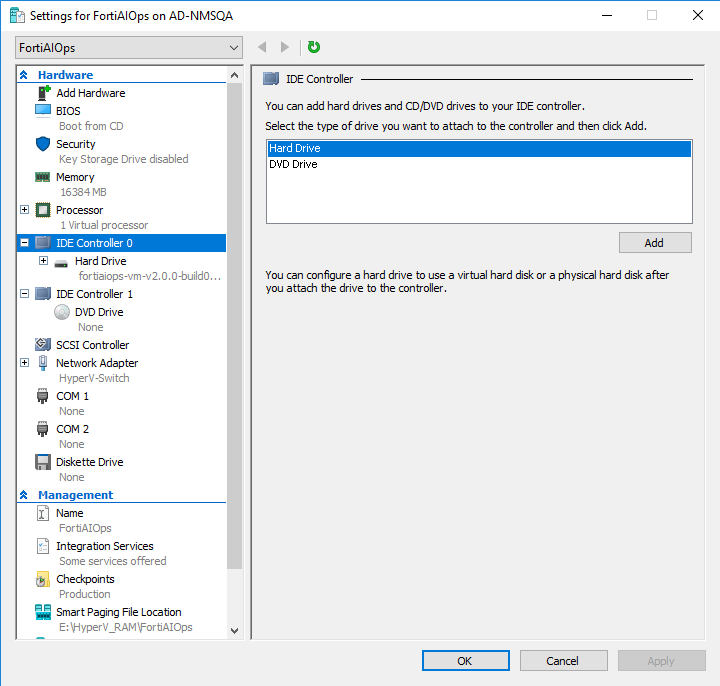
  11. Select IDE Controller 0 under Hardware in the left pane. Select Hard Drive and click Add.
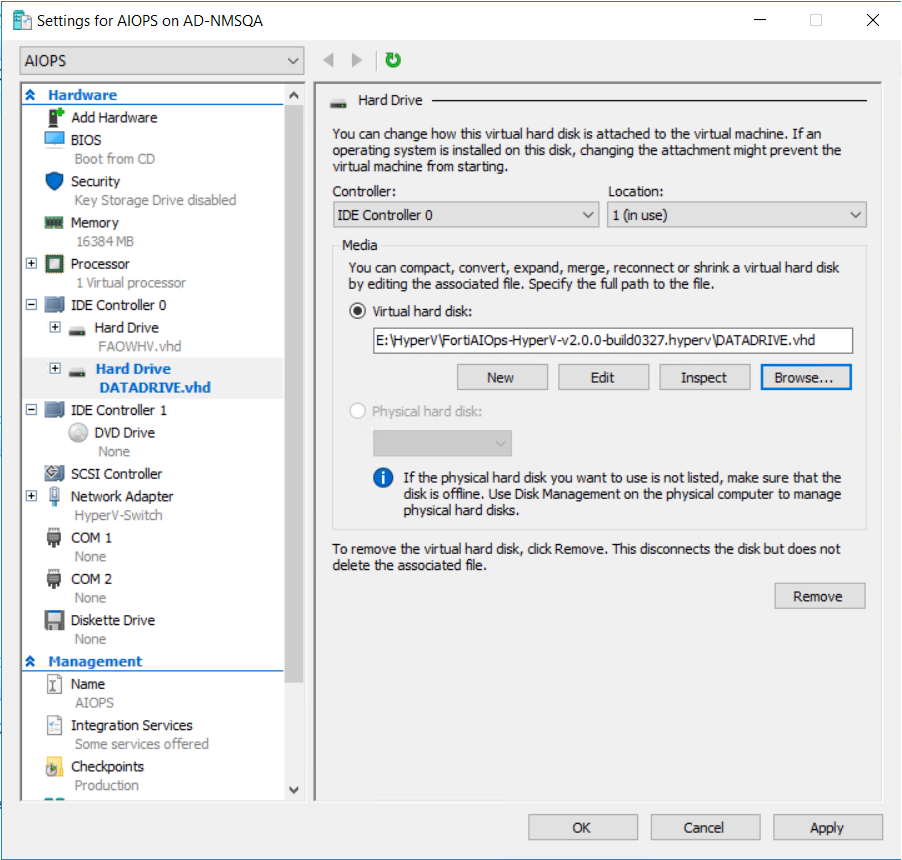
  12. Select the newly created hard drive. Select Virtual hard disk option. Browse and select the DATADRIVE.vhd image. Click Ok.
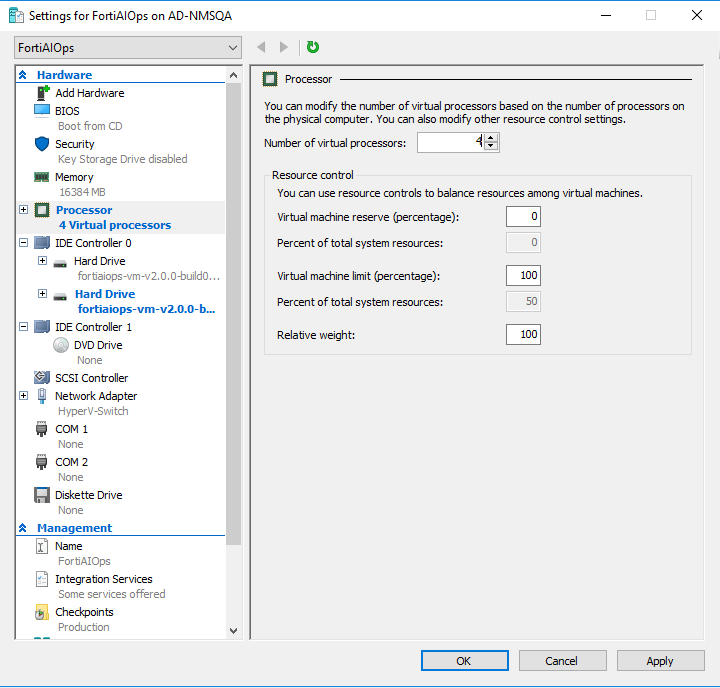
  13. Select Processor under Hardware in the left pane. Enter the number of virtual processors based on your FortiAIOps configuration. Click Apply. Click Ok.
  14. Right click on the virtual machine and click Start. Once the virtual machine is up and running, launch the console.
  15. Perform post-installation tasks.

Installing FortiAIOps on Hyper-V

Installing FortiAIOps on Hyper-V

Perform the following steps to deploy FortiAIOps.

  1. Download the installation file from Fortinet Support portal and unzip the file FAO_VM64_HV-vx.x.xdevbuildxxxx-FORTINET.out.hyperv.zip. This folder contains 2 installation files.
  2. Open the Start menu, search for Hyper-V Manager, and click on the application to launch it.
  3. Click New in the Actions pane and select Virtual Machine to start the New Virtual Machine Wizard. Click Next.
  4. Enter a name and select location for FortiAIOps. Click Next.

  5. Select Generation 1 and click Next.

  6. Specify the memory that needs to be allocated. Click Next. See Pre-installation Requirements.
  7. Select network adapter and click Next.
  8. Select Use an existing virtual hard disk. Browse and select FAOWHV.vhd image locally stored. Click Next.
  9. Review the settings and click Finish.
  10. Right click on the new virtual machine created and select Settings.
  11. Select IDE Controller 0 under Hardware in the left pane. Select Hard Drive and click Add.
  12. Select the newly created hard drive. Select Virtual hard disk option. Browse and select the DATADRIVE.vhd image. Click Ok.
  13. Select Processor under Hardware in the left pane. Enter the number of virtual processors based on your FortiAIOps configuration. Click Apply. Click Ok.
  14. Right click on the virtual machine and click Start. Once the virtual machine is up and running, launch the console.
  15. Perform post-installation tasks.