

Initial FortiAIOps Configuration
After FortiAIOps is successfully installed, login as an administrator with the default username (admin). A password is not required. For more information on the commands, see Command Line Interface (CLI) Reference.
Configuring a Password
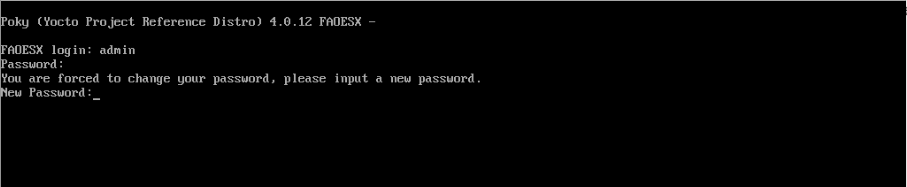
Login into the CLI with the username admin, a password is not required. However, after you login, you are prompted to change the password.
Configuring the IP Address
The DHCP IP address is assigned by default. Run the get system interface command to view the IP address. Run the config system interface command to configure a static IP address.fortiaiops # config system interface
fortiaiops (interface) # edit port1
fortiaiops (port1) # set mode static
fortiaiops (port1) # set ip 10.34.159.xxx/xx
fortiaiops (port1) # end
You are required to configure the gateway IP address when using a static IP address. Run the config router static command.
fortiaiops # config router static
fortiaiops (static) # edit 1
fortiaiops (1) # set gateway 10.34.159.xx
fortiaiops (1) # set device port1
fortiaiops (1) # end
NTP/Timezone and DNS Configurations
Fortinet recommends that you configure the NTP settings and DNS server. Run the following commands.
-
config system ntp -
config system global [set timezone] -
config system dns
You can also configure the IP address , DNS, NTP, and the timezone via the GUI. See Settings.
Viewing the Configuration
Run the show full-configuration command to view all changes.
For detailed information on these configurations, see Post-installation Tasks