
Fortinet white logo
Fortinet white logo

Administration Guide

Bot Detection

Bot Detection

Bot Detection policies employ signature analysis and behavioral tracking to identify client traffic likely generated by automated bots rather than genuine human users. Legitimate bots, such as search engine crawlers, are classified as "good bots" because they perform essential search indexing operations, which can increase the visibility of your site to legitimate users.

Conversely, "bad bots" are known to generate malicious traffic that can compromise site availability and integrity. Examples of such activities include Distributed Denial of Service (DDoS) attacks and content scraping. To mitigate these threats, it is crucial to deploy effective bot mitigation strategies, such as IP reputation analysis, rate limiting, anomaly detection algorithms, and CAPTCHA challenges, to identify and block these harmful bots in real-time.

The FortiADC Bot Detection policy allows you to monitor and protect against suspected bot traffic using classifications from the Web Application Firewall (WAF) Signature database. Bots are categorized into five types of Malicious Bots and one type of Known Good Bots. You can customize the detection settings by selecting specific bots within these categories to include or exclude from monitoring and mitigation actions.
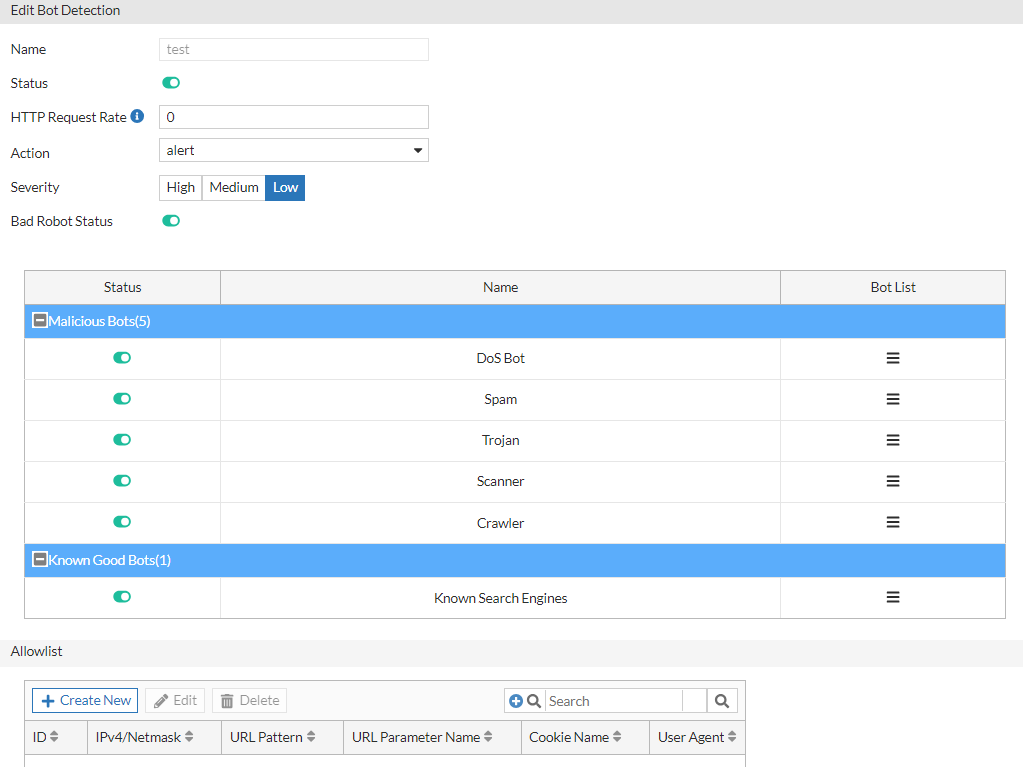
From the Bot List column, you can click the (collapsed menu icon) to enable or disable specific bots for detection.
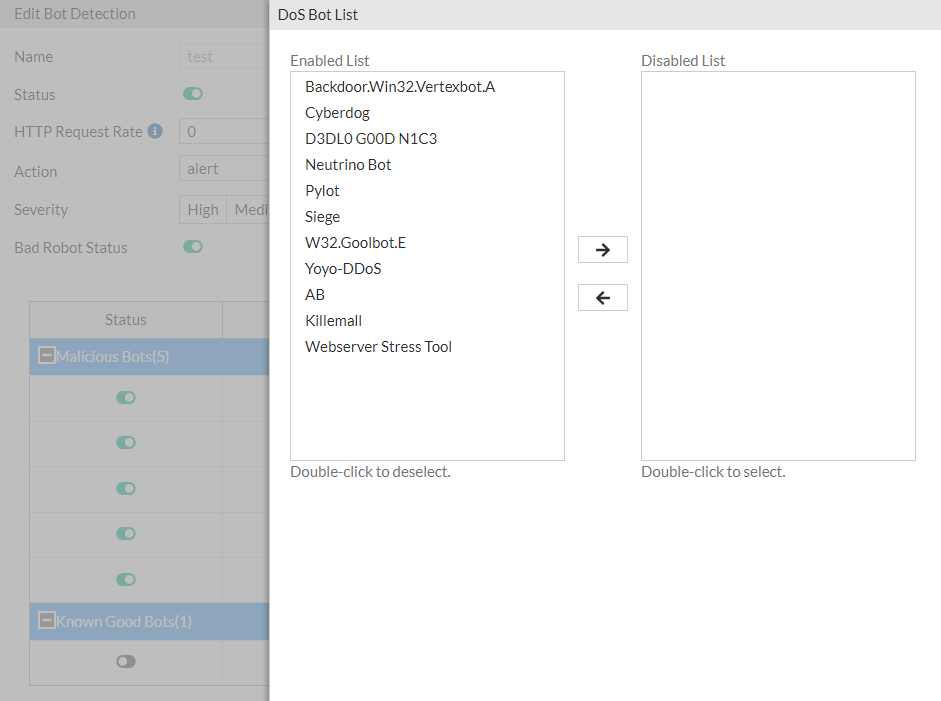
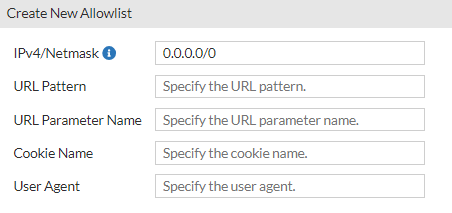
For more granular control, you can configure an allowlist to specify IP addresses that should be exempt from bot detection, even if they match bot signatures. For instance, if a user utilizes a scanning tool such as DirBuster, which generates HTTP requests that would typically be classified as Malicious Bot activity, adding the user's source IP address to the allowlist ensures that this traffic is not flagged or blocked by the bot detection system. This allows for legitimate testing and scanning activities to proceed without interference from bot mitigation measures.
After you have configured Bot Detection policies, you can select them in the WAF Profile. Once you have attached the WAF Profile with Bot Detection to a virtual server, you can monitor the real-time data analytics from FortiView.

Before you begin:
  • You must configure the connection to FortiGuard so the system can receive periodic WAF Signature Database updates, including Known Good Bot and Malicious Bot signatures and lists. See Configuring FortiGuard service settings.
  • You must have Read-Write permission for Security settings.
To configure a Bot Detection policy:
  1. Go to Web Application Firewall > Bot Detection.
  2. Click Create New to display the configuration editor.
  3. Enable the Status to view the Bot Detection configuration options.
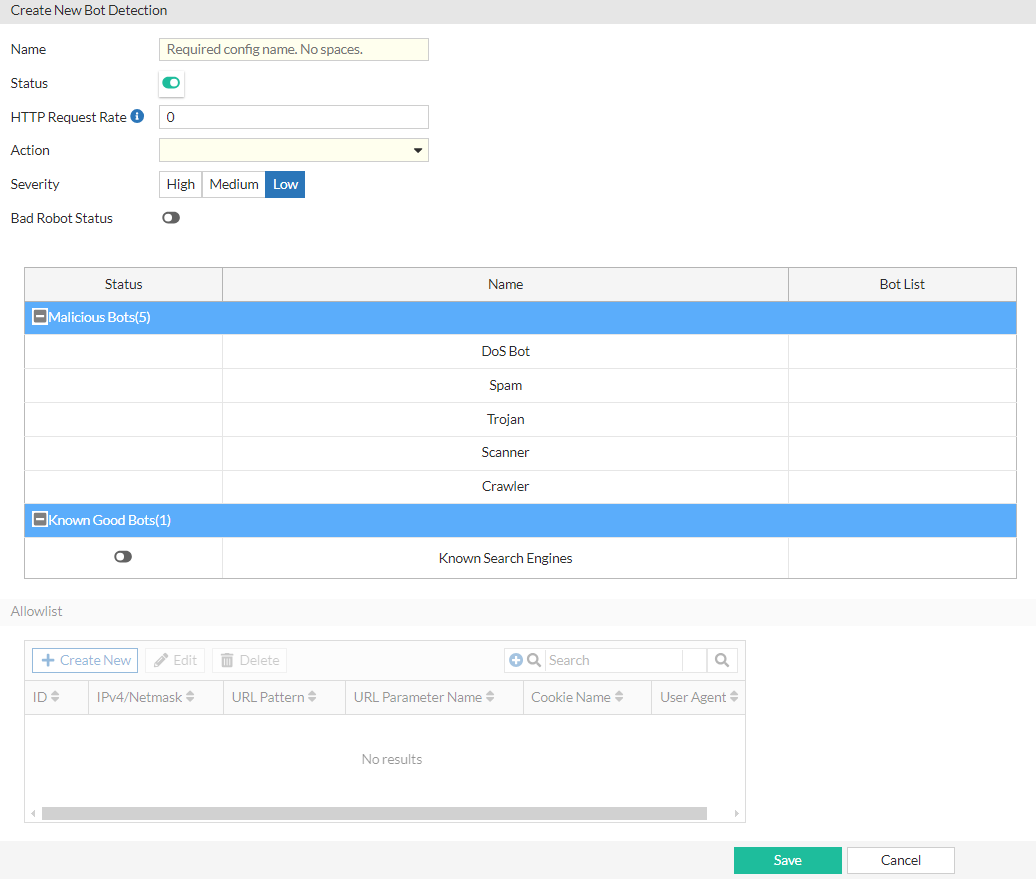
  4. Once the Status is enabled, configure the following settings:

    Setting

    Description

    Name

    Configuration name. Valid characters are A-Z, a-z, 0-9, _, and -. No spaces.

    After you initially save the configuration, you cannot edit the name.

    HTTP Request Rate

    Specify a threshold (HTTP requests/second/source) to trigger the action. Bots send HTTP request traffic at extraordinarily high rates. The source is tracked by source IP address and User-Agent.

    The default is 0 (off). The valid range is 0-100,000,000 requests per second.

    Action

    Select the action profile that you want to apply. See Configuring WAF Action objects.

    The default is alert.

    Severity
    • High—Log as high severity events.
    • Medium—Log as a medium severity events.
    • Low—Log as low severity events.

    The default is Low.

    Bad Robot Status

    Enable or disable detection for Malicious Bots.

    When enabled, a Malicious Bots blocklist is generated from WAF Signature updates from FortiGuard.

    Malicious Bots

    The Malicious Bots statuses are available if Bad Robot Status is enabled.

    You can enable or disable any of the five Malicious Bots categories:

    • DoS Bot

    • Spam

    • Trojan

    • Scanner

    • Crawler

    All Malicious Bots categories are enabled by default.

    Note: The Bot List can be configured once the initial Bot Detection policy configuration is saved.

    Known Good Bots

    Enable or disable detection for Known Good Bots.

    When enabled, a Known Good Bots allowlist is generated from WAF Signature updates from FortiGuard.

    Note: The Bot List can be configured once the initial Bot Detection policy configuration is saved.

  5. Click Save.
    Once the Bot Detection policy is saved initially, the Bot List for each enabled bot categories and the Allowlist becomes configurable.
  6. Optionally, you can configure Bot Lists to include or exclude specific bots for detection.
    1. Under the Bot List column of each bot category, click the (collapsed menu icon) to display the configuration editor.
    2. By default, all bots are enabled. You can select and move each item to be in the Enabled List or Disabled List.
      The example below shows the Bot List for the Scanner category of Malicious Bots.
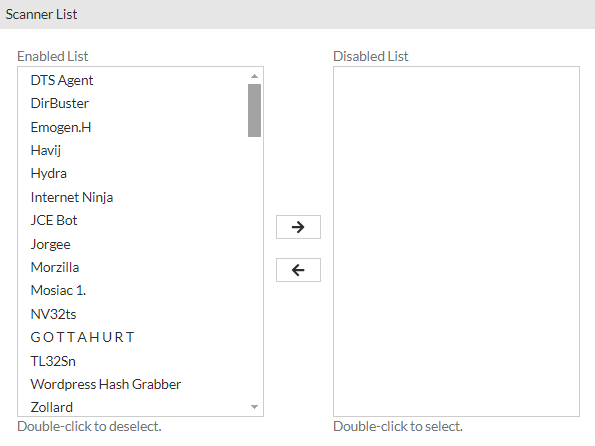
    3. Click Save to commit the changes and exit the dialog.
  7. Optionally, you can configure an allowlist to specify IP addresses that should be exempt from bot detection, even if they match bot signatures.
    1. Under the Allowlist section, click Create New to display the configuration editor.
    2. Configure the following Bot Detection Allowlist settings:

      Setting

      Description

      IPv4/Netmask Matching subnet (CIDR format: 0.0.0.0/0).
      URL PatternMatching string. Regular expressions are supported.
      URL Parameter NameMatching string. Regular expressions are supported.
      Cookie NameMatching string. Regular expressions are supported.
      User AgentMatching string. Regular expressions are supported.
    3. Click Save to commit the changes and exit the dialog.
  8. Click Save to commit all changes to the Bot Detection policy.
    Once the Bot Detection policy is saved, it will be listed on the Bot Detection page. You can now reference this Bot Detection policy in a WAF Profile.

Bot Detection

Bot Detection

Bot Detection policies employ signature analysis and behavioral tracking to identify client traffic likely generated by automated bots rather than genuine human users. Legitimate bots, such as search engine crawlers, are classified as "good bots" because they perform essential search indexing operations, which can increase the visibility of your site to legitimate users.

Conversely, "bad bots" are known to generate malicious traffic that can compromise site availability and integrity. Examples of such activities include Distributed Denial of Service (DDoS) attacks and content scraping. To mitigate these threats, it is crucial to deploy effective bot mitigation strategies, such as IP reputation analysis, rate limiting, anomaly detection algorithms, and CAPTCHA challenges, to identify and block these harmful bots in real-time.

The FortiADC Bot Detection policy allows you to monitor and protect against suspected bot traffic using classifications from the Web Application Firewall (WAF) Signature database. Bots are categorized into five types of Malicious Bots and one type of Known Good Bots. You can customize the detection settings by selecting specific bots within these categories to include or exclude from monitoring and mitigation actions.

From the Bot List column, you can click the (collapsed menu icon) to enable or disable specific bots for detection.

For more granular control, you can configure an allowlist to specify IP addresses that should be exempt from bot detection, even if they match bot signatures. For instance, if a user utilizes a scanning tool such as DirBuster, which generates HTTP requests that would typically be classified as Malicious Bot activity, adding the user's source IP address to the allowlist ensures that this traffic is not flagged or blocked by the bot detection system. This allows for legitimate testing and scanning activities to proceed without interference from bot mitigation measures.

After you have configured Bot Detection policies, you can select them in the WAF Profile. Once you have attached the WAF Profile with Bot Detection to a virtual server, you can monitor the real-time data analytics from FortiView.

Before you begin:
  • You must configure the connection to FortiGuard so the system can receive periodic WAF Signature Database updates, including Known Good Bot and Malicious Bot signatures and lists. See Configuring FortiGuard service settings.
  • You must have Read-Write permission for Security settings.
To configure a Bot Detection policy:
  1. Go to Web Application Firewall > Bot Detection.
  2. Click Create New to display the configuration editor.
  3. Enable the Status to view the Bot Detection configuration options.
  4. Once the Status is enabled, configure the following settings:

    Setting

    Description

    Name

    Configuration name. Valid characters are A-Z, a-z, 0-9, _, and -. No spaces.

    After you initially save the configuration, you cannot edit the name.

    HTTP Request Rate

    Specify a threshold (HTTP requests/second/source) to trigger the action. Bots send HTTP request traffic at extraordinarily high rates. The source is tracked by source IP address and User-Agent.

    The default is 0 (off). The valid range is 0-100,000,000 requests per second.

    Action

    Select the action profile that you want to apply. See Configuring WAF Action objects.

    The default is alert.

    Severity
    • High—Log as high severity events.
    • Medium—Log as a medium severity events.
    • Low—Log as low severity events.

    The default is Low.

    Bad Robot Status

    Enable or disable detection for Malicious Bots.

    When enabled, a Malicious Bots blocklist is generated from WAF Signature updates from FortiGuard.

    Malicious Bots

    The Malicious Bots statuses are available if Bad Robot Status is enabled.

    You can enable or disable any of the five Malicious Bots categories:

    • DoS Bot

    • Spam

    • Trojan

    • Scanner

    • Crawler

    All Malicious Bots categories are enabled by default.

    Note: The Bot List can be configured once the initial Bot Detection policy configuration is saved.

    Known Good Bots

    Enable or disable detection for Known Good Bots.

    When enabled, a Known Good Bots allowlist is generated from WAF Signature updates from FortiGuard.

    Note: The Bot List can be configured once the initial Bot Detection policy configuration is saved.

  5. Click Save.
    Once the Bot Detection policy is saved initially, the Bot List for each enabled bot categories and the Allowlist becomes configurable.
  6. Optionally, you can configure Bot Lists to include or exclude specific bots for detection.
    1. Under the Bot List column of each bot category, click the (collapsed menu icon) to display the configuration editor.
    2. By default, all bots are enabled. You can select and move each item to be in the Enabled List or Disabled List.
      The example below shows the Bot List for the Scanner category of Malicious Bots.
    3. Click Save to commit the changes and exit the dialog.
  7. Optionally, you can configure an allowlist to specify IP addresses that should be exempt from bot detection, even if they match bot signatures.
    1. Under the Allowlist section, click Create New to display the configuration editor.
    2. Configure the following Bot Detection Allowlist settings:

      Setting

      Description

      IPv4/Netmask Matching subnet (CIDR format: 0.0.0.0/0).
      URL PatternMatching string. Regular expressions are supported.
      URL Parameter NameMatching string. Regular expressions are supported.
      Cookie NameMatching string. Regular expressions are supported.
      User AgentMatching string. Regular expressions are supported.
    3. Click Save to commit the changes and exit the dialog.
  8. Click Save to commit all changes to the Bot Detection policy.
    Once the Bot Detection policy is saved, it will be listed on the Bot Detection page. You can now reference this Bot Detection policy in a WAF Profile.