

Configuring DNS zones
DNS zones are central to FortiADC’s Global Server Load Balancing (GSLB) functionality. A zone defines a domain and how FortiADC participates in resolving queries for that domain—whether by serving authoritative records, synchronizing data from an upstream DNS server, forwarding requests to another resolver, or generating records directly from GSLB configuration. By managing DNS zones on FortiADC, administrators can integrate the appliance into existing DNS infrastructures while ensuring that load balancing responses are accurate, consistent, and secure.
FortiADC supports four zone types: Primary, Secondary, Forward, and FQDN Generate. Each type corresponds to a distinct operational role in DNS resolution and synchronization, with its own configuration parameters that determine how the zone behaves. For example, Primary zones allow direct record management and transfer controls, Secondary zones focus on synchronization from an upstream server, and Forward zones delegate queries to external resolvers.
Before you begin:
-
Ensure you are familiar with DNS concepts and your network’s DNS deployment.
-
You must have authority to configure authoritative DNS records for your domain.
-
You need Read-Write permission for Global Load Balance settings.
After creating a DNS zone, it can be referenced in DNS policy configurations to determine how FortiADC resolves incoming queries.
Configuration Based on Zone Type
Each deployment requires different DNS zone behavior depending on how FortiADC is expected to participate in DNS resolution. This section explains the supported zone types, the role each one plays in DNS and GSLB, and the configuration parameters administrators use to manage them.
|
Zone Type |
Description |
Use Case |
|---|---|---|
| Primary | FortiADC holds the authoritative copy of the zone data and serves it to other DNS servers. | Use when FortiADC originates and maintains the zone records. See Configuring a Primary Zone. |
| Secondary | FortiADC synchronizes its zone data from an upstream Primary DNS server using AXFR. Records are read-only and updated automatically. | Use when FortiADC must stay consistent with an external DNS authority while providing GSLB responses. See Configuring a Secondary Zone. |
| Forward | DNS queries for the zone are forwarded to remote DNS servers. | Use to delegate queries for specific domains to other resolvers. See Configuring Forward Zones. |
| FQDN Generate | FortiADC automatically generates the zone and its resource records from the global load balancing framework. Records are read-only and cannot be modified directly. | Generated automatically by FortiADC when GSLB objects (such as virtual servers and server pools) require DNS entries. Administrators cannot create or modify records manually. See About FQDN Generate Zones. |
Configuring a Primary Zone
A Primary zone contains the authoritative copy of DNS data for a domain. FortiADC originates the resource records (RRs) in this zone and responds directly to queries and transfer requests from secondary servers.
Primary zones are best suited when FortiADC is intended to be the authoritative DNS source for GSLB services. Administrators can define DNS resource records such as A, AAAA, MX, and CNAME directly within the zone, and control how they are distributed. These records are essential for DNS resolution; without them, the zone cannot provide authoritative responses to queries delegated from the parent domain.
Configuration includes DNSSEC (Domain Name System Security Extensions) parameters, SOA (Start of Authority) fields, and transfer policies. Transfer policies have been enhanced to support TSIG (Transaction SIGnature) authentication, giving administrators stronger control over which secondary servers can receive zone data.
To configure a Primary DNS zone:
- Go to Global Load Balance > Zone Tools.
- Click the Zone tab.
- Click Create New to display the configuration editor.
- Select Primary as the zone Type. The configuration editor will display the fields applicable to Primary zones. Configure the Primary zone settings:
Setting
Description
Name Configuration name. Valid characters are
A-Z,a-z,0-9,_, and-. No spaces. You reference the name in the global DNS policy configuration.Note:
- FortiADC supports third-party domain names.
- After you initially save the configuration, you cannot edit the name.
Domain Name
The domain name must end with a period. For example:
example.com.DNS policy
Select one or more DNS policies you want the zone to use.
DNSSEC Enable/disable DNSSEC.
The Domain Name System Security Extensions (DNSSEC) is a feature of the Domain Name System (DNS) that authenticates responses to domain name lookups.
Only when a DNS policy has been set, and DNSSEC is enabled, will the Back Up DSSET Key, Regenerate DNSSEC Key, and Restore DNSSEC Key appear.
Back Up DSSET Key includes the following types of keys:
KSK. Type characters for a string key. To regenerate the KSK, disable and re-enable DNSSEC.
ZSK. Type characters for a string key. To regenerate the ZSK, disable and re-enable DNSSEC.
DSSET. It is generated by the system if DNSSEC is enabled for the zone.
Restore DNSSEC Key should be a tar type file.
DNSSEC Algorithm The DNSSEC Algorithm option is available if DNSSEC is enabled.
Select the cryptographic algorithm to use for authenticating DNSSEC.
RSA-SHA1
NSEC3-RSA-SHA1
RSA-SHA256
RSA-SHA512
ECDSAP256-SHA256
ECDSAP384-SHA384
DNSSEC Key Size The DNSSEC Key Size option is available if DNSSEC is enabled.
Select the key size (number of bits) for the encryption algorithm.
1024 bits
2048 bits
4096 bits
Note:
Prior to FortiADC 7.4.0, the DNSSEC key size only supported 512 bits, so configurations carried over from previous versions can continue using the 512-bit key. However, we recommend updating to the new 1024/2048/4096 bit keys as the 512-bit key is less secure and is no longer supported in the latest BIND 9 version.DSSET List The DSSET List option is available if DNSSEC is enabled.
Select a DSSET configuration object. See Configuring the DSSET list.
TTL
The $TTL directive at the top of the zone file (before the SOA) gives a default TTL for every RR without a specific TTL set.
The default is 86,400. The valid range is 0 to 2,147,483,647.
Serial
SOA (Start of Authority) serial number for the zone. Incremented when records are updated.
Default 10004. Range 1-4294967295.
Refresh
Interval (in seconds) at which secondary servers query the SOA record to check for updates.
Default: 3600 Range: 1- 2147483647
Negative TTL
The SOA negative caching TTL. Defines how long other servers cache NXDOMAIN (no-such-domain) responses.
Default: 3600 Range: 0-2147483647
Responsible Mail
Username of the person responsible for this zone, such as
hostprimary.example.com..Note: Format is
mailbox-name.domain.com.(remember the trailing dot). The format uses a dot, not the @ sign used in email addresses because @ has other uses in the zone file. Email, however, is sent to hostprimary@example.com.Primary Server Name
Sets the server name in the SOA record.
If the name does not end with a trailing dot, the DNS system will automatically append the root domain, potentially resulting in an incorrect entry. For example,
admin.is valid, butadminwill be treated asadmin.<root domain>.Primary Server Address (IPv4)
IPv4 address of the Primary DNS server.
Primary Server Address (IPv6)
IPv6 address of the Primary DNS server.
Forward Host
Enable Forward Host to allow DNS queries to be forwarded to remote servers at the zone level. This is disabled by default.
This only requires the forwarded DNS query to match the zone and no other information is required to match such as the hostname.
It is recommended to verify the DNS forwarding success by sending the DNS response and checking the packet data. For details, see Verify DNS forwarding to remote server.
Forward
The Forward option is available if Forward Host is enabled.
- First—The DNS server queries the forwarder before doing its own DNS lookup. This is the default option.
- Only—Only query the forwarder. Do not perform a DNS lookup.
Note: The internal server caches the results it learns from the forwarders, which optimizes subsequent lookups.
Forwarders
The Forwarders option is available if Forward Host is enabled.
Select a remote server configuration object.
Notify Status
Enable or disable DNS NOTIFY messages. When enabled, FortiADC sends NOTIFY messages to secondaries to signal zone changes.
Also Notify IP List
List of secondary server IP addresses to which NOTIFY messages are sent when Notify Status is enabled.
Allow Transfer
Enable or disable zone transfers to secondaries. Enabled by default.
Allow Transfer IP
List of secondary server IP addresses permitted to initiate zone transfers. Available only when Allow Transfer is enabled.
Allow Transfer TSIG Key
One or more imported TSIG (Transaction SIGnature) keys used to authenticate zone transfer requests. If not specified, transfers are validated only by source IP.
- Click Save to create the zone configuration. Once saved, the Zone Records section becomes available.
- Define zone records for the Primary zone.
Under the Zone Records section, click Create New to add resource records (such as A, AAAA, MX, CNAME, or NS) to the zone. Configure the settings based on the record type and save each configuration.A/AAAA Record:
Setting
Description
Host Name Hostname part of the FQDN, such as www. Use
@to denote the zone root. The value substituted for @ is the preceding $ORIGIN directive.TTL Time-to-live in seconds for this record. Determines how long resolvers cache the response.
Default: -1, Range: -1-2147483647. -1 means it will use the zone level TTL.
Source Type Select IPv4 or IPv6. The format of the Address field must match the selected type. Address Specify the IP address of the virtual server. Enter the value in the IP format based on the selected Source Type. Method Load-balancing method applied when multiple addresses are defined. FortiADC supports Weighted Round Robin. CNAME Record:
Setting
Description
Alias Name An alias name to another true or canonical domain name (the target). For instance, www.example.comis an alias for example.com.Target Name The canonical hostname to which the alias resolves. For instance, example.com.TTL Time-to-live in seconds for this record. Determines how long resolvers cache the response.
Default: -1, Range: -1-2147483647. -1 means it will use the zone level TTL.
NS Record:
Setting
Description
Domain Name The domain for which the nameserver provides authoritative answers, such as example.com. FortiADC supports third-party domain names.Host Name The hostname of the nameserver, such as ns.subdomainorns.TTL Time-to-live in seconds for this record. Determines how long resolvers cache the response.
Default: -1, Range: -1-2147483647. -1 means it will use the zone level TTL.
Type Select IPv4 or IPv6. The format of the Address field must match the selected type. Address Specify the IP address of the nameserver. Enter the value in the IP format based on the selected Type. MX Record:
Setting
Description
Domain Name The domain associated with this mail exchange record, such as example.com.Host Name The hostname of the mail exchange server, such as mail.TTL Time-to-live in seconds for this record. Determines how long resolvers cache the response.
Default: -1, Range: -1-2147483647. -1 means it will use the zone level TTL.
Priority Preference value among multiple MX records. Lower values indicate higher priority. Type Select IPv4 or IPv6. The format of the Address field must match the selected type. Address
Specify the IP address of the mail exchange server. Enter the value in the IP format based on the selected Type. TXT Record:
Setting
Description
Name Hostname this TXT record applies to. Text Text string to associate with the hostname, inputted as comma-separated list of name=value pairs. Commonly used for SPF, DKIM, or other verification data.
An example SPF record has the following form:
v=spf1 +mx a:colo.example.com/28 -allNote: In the Web UI, enter the string without quotes; in the CLI, enclose the string in quotes.
TTL Time-to-live in seconds for this record. Determines how long resolvers cache the response.
Default: -1, Range: -1-2147483647. -1 means it will use the zone level TTL.
SRV Record:
Setting
Description
Host Name The hostname part of the FQDN, such as www.TTL Time-to-live in seconds for this record. Determines how long resolvers cache the response.
Default: -1, Range: -1-2147483647. -1 means it will use the zone level TTL.
Priority Priority of the target host. Lower values indicate higher preference.
Default: 0 Range: 0-65535
Weight Relative weight among records with the same priority. Higher values increase likelihood of selection.
Default: 1 Range: 0-65535
Port TCP or UDP port on which the service runs. Default: 53.
Target Name The canonical hostname of the machine providing the service.
PTR Record:
Setting
Description
PTR Address Reverse mapping address, such as 10.168.192.in-addr.arpa.or1.FQDN Fully qualified domain name to which the PTR record resolves, such as www.example.com.TTL Time-to-live in seconds for this record. Determines how long resolvers cache the response.
Default: -1, Range: -1-2147483647. -1 means it will use the zone level TTL.
CAA Record:
Setting
Description
Hostname Hostname this CAA record applies to. Value The value associated with the CAA property tag. For example, this may specify the CA that is authorized to issue certificates. Flag Integer flag (0–255). Default is 0. Tag Defines the property being set:
issue — Authorizes the specified CA (in the Value field) to issue certificates for this hostname.
issuewild — Authorizes the specified CA to issue wildcard certificates, such as
*.example.com.iodef — Provides a contact URI where certificate issuers can report policy violations or issues.
TTL Time-to-live in seconds for this record. Determines how long resolvers cache the response.
Default: -1, Range: -1-2147483647. -1 means it will use the zone level TTL.
- Save the zone configuration again to commit the zone record updates.
Example: Primary zone as authoritative source
An enterprise delegates the domain example.com directly to FortiADC. Administrators define A records for web servers and MX records for mail servers inside the Primary zone. Zone transfers are allowed only to designated branch office secondaries, with a TSIG key enforcing authentication. This ensures that FortiADC remains the authoritative source of data while securely distributing zone information to trusted secondaries.
Configuring a Secondary Zone
A Secondary zone makes FortiADC a synchronized replica of an upstream Primary DNS server. Instead of maintaining its own authoritative records, FortiADC pulls zone content from the Primary using AXFR (Authoritative Zone Transfer).
Secondary zones are essential when FortiADC must deliver GSLB responses based on accurate and up-to-date DNS data without being the sole authority for the domain. Synchronization can be triggered periodically (via SOA refresh) or immediately (via NOTIFY messages).
Records in a Secondary zone are strictly read-only. The option Auto Sync Zone Records controls whether synchronized data is automatically applied to the configuration. Only record types supported by FortiADC are stored; unsupported types are ignored during transfers. Clearing Auto Sync Zone Records removes all records from the zone.
This setup enables FortiADC to integrate smoothly into existing DNS hierarchies, participating as a Secondary while still enforcing secure synchronization with TSIG authentication.
To configure a Secondary DNS zone:
- Go to Global Load Balance > Zone Tools.
- Click the Zone tab.
- Click Create New to display the configuration editor.
- Select Secondary as the zone Type. The configuration editor will display the fields applicable to Secondary zones. Configure the Secondary zone settings:
Setting
Description
Name Configuration name. Valid characters are
A-Z,a-z,0-9,_, and-. No spaces. You reference the name in the global DNS policy configuration.Note:
- FortiADC supports third-party domain names.
- After you initially save the configuration, you cannot edit the name.
Domain Name
The domain name must end with a period. For example:
example.com.DNS policy
Select one or more DNS policies you want the zone to use.
Primary Server
The IPv4 address of the upstream Primary DNS server from which this zone will synchronize data.
TSIG Key
An imported TSIG (Transaction SIGnature) key used to authenticate AXFR transfers and NOTIFY messages from the Primary server. If not specified, synchronization relies only on the source IP address.
Forward Host
Enable Forward Host to allow DNS queries to be forwarded to remote servers at the zone level. This is disabled by default.
This only requires the forwarded DNS query to match the zone and no other information is required to match such as the hostname.
It is recommended to verify the DNS forwarding success by sending the DNS response and checking the packet data. For details, see Verify DNS forwarding to remote server.
Forward
The Forward option is available if Forward Host is enabled.
- First—The DNS server queries the forwarder before doing its own DNS lookup. This is the default option.
- Only—Only query the forwarder. Do not perform a DNS lookup.
Note: The internal server caches the results it learns from the forwarders, which optimizes subsequent lookups.
Forwarders
The Forwarders option is available if Forward Host is enabled.
Select a remote server configuration object.
Notify Status
Enable or disable acceptance of DNS NOTIFY messages from the Primary server. When enabled, NOTIFY messages can trigger immediate synchronization.
Also Notify IP List
List of IP addresses that send NOTIFY messages to this Secondary. Applies only if Notify Status is enabled.
Allow Transfer
Enable or disable zone transfers to secondaries. Enabled by default.
Allow Transfer IP
List of secondary server IP addresses permitted to initiate zone transfers. Available only when Allow Transfer is enabled.
Allow Transfer TSIG Key
One or more imported TSIG (Transaction SIGnature) keys used to authenticate zone transfer requests. If not specified, transfers are validated only by source IP.
Auto Sync Zone Records
Controls whether zone records received from the Primary are automatically applied to the FortiADC configuration.
Enable — Synchronized records are stored in the configuration and updated automatically with each transfer.
Disable — Existing records are cleared, and new records from the Primary are not applied.
- Click Save to create the zone configuration. Once saved, the Zone Records section becomes available.
- Define zone records for the Secondary zone.
Under the Zone Records section, click Create New to add resource records (such as A, AAAA, MX, CNAME, or NS) to the zone. Configure the settings based on the record type and save each configuration.A/AAAA Record:
Setting
Description
Host Name Hostname part of the FQDN, such as www. Use
@to denote the zone root. The value substituted for @ is the preceding $ORIGIN directive.TTL Time-to-live in seconds for this record. Determines how long resolvers cache the response.
Default: -1, Range: -1-2147483647. -1 means it will use the zone level TTL.
Source Type Select IPv4 or IPv6. The format of the Address field must match the selected type. Address Specify the IP address of the virtual server. Enter the value in the IP format based on the selected Source Type. Method Load-balancing method applied when multiple addresses are defined. FortiADC supports Weighted Round Robin. CNAME Record:
Setting
Description
Alias Name An alias name to another true or canonical domain name (the target). For instance, www.example.comis an alias for example.com.Target Name The canonical hostname to which the alias resolves. For instance, example.com.TTL Time-to-live in seconds for this record. Determines how long resolvers cache the response.
Default: -1, Range: -1-2147483647. -1 means it will use the zone level TTL.
NS Record:
Setting
Description
Domain Name The domain for which the nameserver provides authoritative answers, such as example.com. FortiADC supports third-party domain names.Host Name The hostname of the nameserver, such as ns.subdomainorns.TTL Time-to-live in seconds for this record. Determines how long resolvers cache the response.
Default: -1, Range: -1-2147483647. -1 means it will use the zone level TTL.
Type Select IPv4 or IPv6. The format of the Address field must match the selected type. Address Specify the IP address of the nameserver. Enter the value in the IP format based on the selected Type. MX Record:
Setting
Description
Domain Name The domain associated with this mail exchange record, such as example.com.Host Name The hostname of the mail exchange server, such as mail.TTL Time-to-live in seconds for this record. Determines how long resolvers cache the response.
Default: -1, Range: -1-2147483647. -1 means it will use the zone level TTL.
Priority Preference value among multiple MX records. Lower values indicate higher priority. Type Select IPv4 or IPv6. The format of the Address field must match the selected type. Address
Specify the IP address of the mail exchange server. Enter the value in the IP format based on the selected Type. TXT Record:
Setting
Description
Name Hostname this TXT record applies to. Text Text string to associate with the hostname, inputted as comma-separated list of name=value pairs. Commonly used for SPF, DKIM, or other verification data.
An example SPF record has the following form:
v=spf1 +mx a:colo.example.com/28 -allNote: In the Web UI, enter the string without quotes; in the CLI, enclose the string in quotes.
TTL Time-to-live in seconds for this record. Determines how long resolvers cache the response.
Default: -1, Range: -1-2147483647. -1 means it will use the zone level TTL.
SRV Record:
Setting
Description
Host Name The hostname part of the FQDN, such as www.TTL Time-to-live in seconds for this record. Determines how long resolvers cache the response.
Default: -1, Range: -1-2147483647. -1 means it will use the zone level TTL.
Priority Priority of the target host. Lower values indicate higher preference.
Default: 0 Range: 0-65535
Weight Relative weight among records with the same priority. Higher values increase likelihood of selection.
Default: 1 Range: 0-65535
Port TCP or UDP port on which the service runs. Default: 53.
Target Name The canonical hostname of the machine providing the service.
PTR Record:
Setting
Description
PTR Address Reverse mapping address, such as 10.168.192.in-addr.arpa.or1.FQDN Fully qualified domain name to which the PTR record resolves, such as www.example.com.TTL Time-to-live in seconds for this record. Determines how long resolvers cache the response.
Default: -1, Range: -1-2147483647. -1 means it will use the zone level TTL.
CAA Record:
Setting
Description
Hostname Hostname this CAA record applies to. Value The value associated with the CAA property tag. For example, this may specify the CA that is authorized to issue certificates. Flag Integer flag (0–255). Default is 0. Tag Defines the property being set:
issue — Authorizes the specified CA (in the Value field) to issue certificates for this hostname.
issuewild — Authorizes the specified CA to issue wildcard certificates, such as
*.example.com.iodef — Provides a contact URI where certificate issuers can report policy violations or issues.
TTL Time-to-live in seconds for this record. Determines how long resolvers cache the response.
Default: -1, Range: -1-2147483647. -1 means it will use the zone level TTL.
- Save the zone configuration again to commit the zone record updates.
Example: Secondary zone synchronized from an upstream Primary
A multinational organization uses BIND servers in a central data center as the authoritative primaries. At regional sites, FortiADC is configured as a Secondary for example.com. It receives updates through AXFR, triggered by NOTIFY messages from the Primary. GSLB queries at the regional FortiADC appliances always reflect the latest authoritative data, while synchronization is secured using a TSIG key.
Configuring Forward Zones
A Forward zone delegates queries for a specific domain to other DNS servers. Instead of resolving queries itself, FortiADC forwards them to one or more designated resolvers.
This type is useful when FortiADC should redirect traffic for particular domains to trusted external servers while continuing to handle other zones locally. Forwarding can be configured to query the forwarder first or exclusively, depending on the deployment requirement.
See Verify DNS forwarding to remote server for guidance on confirming that queries are forwarded correctly.
To configure a DNS Forward zone:
- Go to Global Load Balance > Zone Tools.
- Click the Zone tab.
- Click Create New to display the configuration editor.
- Select Forward as the zone Type. The configuration editor will display the fields applicable to Forward zones. Configure the Forward zone settings:
Setting
Description
Name
Configuration name. Valid characters are
A-Z,a-z,0-9,_, and-. No spaces. You reference the name in the global DNS policy configuration.Note:
- FortiADC supports third-party domain names.
- After you initially save the configuration, you cannot edit the name.
Domain Name The domain name must end with a period. For example:
example.com.DNS Policy Select one or more DNS policies you want the zone to use.
Forward Defines how queries for the specified domain are forwarded.
- First—The DNS server queries the forwarder before doing its own DNS lookup. This is the default option.
- Only—Only query the forwarder. Do not perform a DNS lookup.
Note: The internal server caches the results it learns from the forwarders, which optimizes subsequent lookups.
Forwarders Select a remote server configuration object.
- Save the configuration.
Verify DNS forwarding to remote server
To verify if the DNS queries are being successfully forwarded to the remote server at the zone level, you can send a test query and check its packet data. Using tools such as "nslookup" or "dig", you can send a DNS query, and then collect and view its packet data using PCAP tools such as "wireshark".
The example below, we will analyze the packet data to verify whether the DNS query was sent to the forwarder.
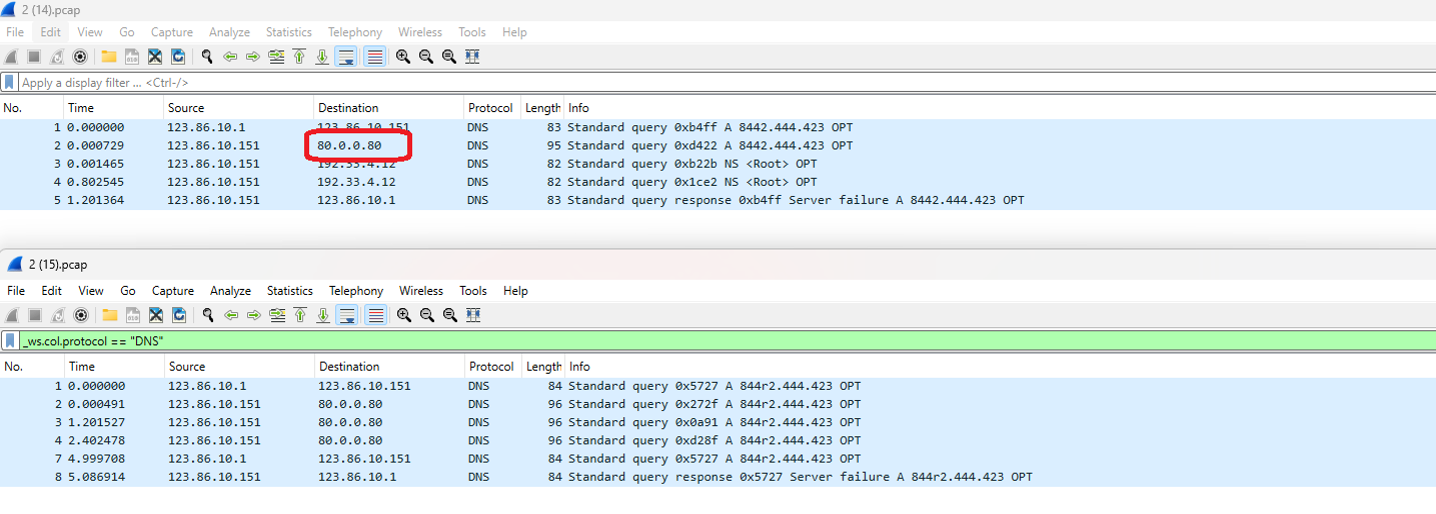 From this packet data, you can extract the following information:
-
Client 123.86.10.1 sent the DNS query (8442.444.423 A record) to 123.86.10.151.
-
Request for GLB zone domain matches record; no match for hostname.
-
The DNS query was sent to the forwarder (80.0.0.80).
In this example, it can be confirmed that the DNS query was successfully sent to the forwarder after the DNS server confirms the GLB zone domain match without requiring the hostname to match as well.
Example: Forwarding external domains
A company uses FortiADC for GSLB across internal domains but forwards all queries for office365.com to external resolvers. The Forward zone ensures these queries bypass local resolution logic and are answered by the upstream DNS servers, keeping external services reachable without mixing them into internal DNS management.
About FQDN Generate Zones
An FQDN Generate zone is read-only. Instead of being defined manually, it is automatically generated by FortiADC from objects in the global load balancing framework. The system creates the zone and its resource records based on configured virtual servers and server pools, ensuring that DNS responses always reflect the current GSLB topology.
No direct record management is possible for this zone type. Administrators cannot add, edit, or delete records in the GUI or CLI; all changes must be made in the associated GSLB configuration. When virtual servers or pools are modified—for example, when a new server is added or an existing one is disabled—the generated zone data is refreshed automatically.
This makes FQDN Generate zones particularly useful in dynamic environments where DNS data must remain synchronized with frequently changing GSLB resources. FortiADC ensures that the generated records are always up to date, eliminating the risk of DNS inconsistencies caused by manual updates.