Fortinet white logo
Fortinet white logo

Administration Guide

Configuring system time

Configuring system time

The system time must be accurate for many features to work, including scheduling, logging, and SSL/TLS-related features.

We recommend that you use Network Time Protocol (NTP) to maintain the system time. As an alternative when NTP is not available or is impractical, you can set the system time manually.

Before you begin:
  • You must have Read-Write permission for System settings.
To configure the system time:
  1. Go to System > Settings.
  2. Click the System Time tab.
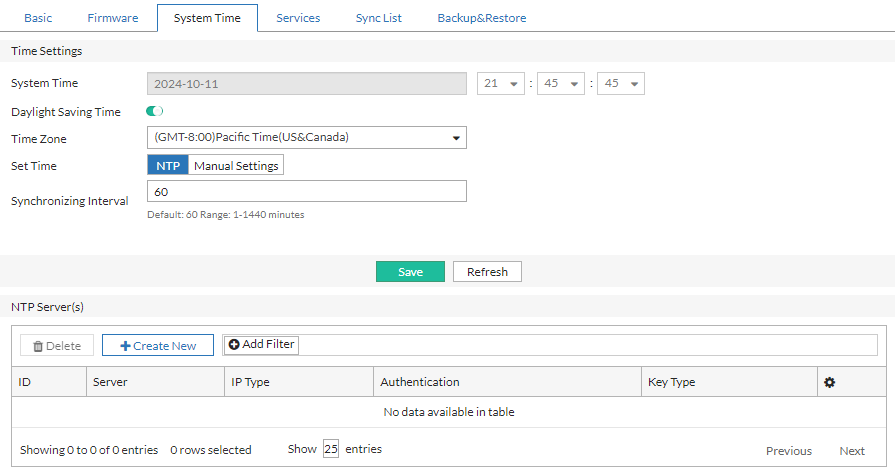
  3. Configure the Time Settings:

    SettingGuidelines
    System TimeDisplays the system time. You can use NTP to set the system time, or use the controls to set the system time manually. Specify time in HH:MM:SS format.
    Daylight Saving TimeEnable if you want the system to adjust its own clock when its time zone changes between daylight saving time (DST) and standard time.
    Time ZoneSelect the time zone where the appliance is located.
    Set Time

    Select either of the following options:

    • NTP — Set the system time based on the Network Time Protocol.

    • Manual Settings — Set the system time manually.

    The default option is NTP.

    Synchronizing Interval

    The Synchronizing Interval option is available if Set Time is NTP.

    Specify how often the system synchronizes its time with the NTP server. The default is 60 minutes. The valid range is 1-1440.

  4. Click Save.
    If the system time is based on NTP, the NTP Server(s) section becomes configurable once the Time Settings configuration is successfully saved.
  5. Under the NTP Server(s) section, click Create New to display the configuration editor.
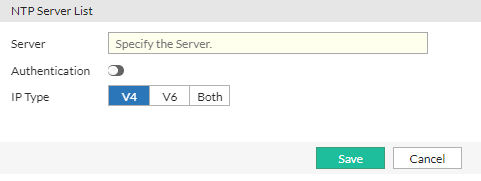
  6. Configure the NTP Server List settings:
    SettingGuidelines
    ServerSpecify a space-separated list of IP addresses or FQDNs for an NTP server or pool, such as pool.ntp.org.

    To find an NTP server, go to http://www.ntp.org.
    AuthenticationEnable to apply authentication keys to secure the NTP server. This is disabled by default.
    IP Type

    Select the IP type from the following:

    • V4

    • V6

    • Both

    The default option is V4.

    Key Type

    The Key Type option is available if Authentication is enabled.

    Select the key type from the following:

    • SHA1

    • SHA256

    • AES128

    • AES256

    The default option is SHA1.

    Key

    The Key option is available if Authentication is enabled.

    Specify the Key in hexadecimal format. The maximum length is 127 digits or characters.

    Key ID

    The Key ID option is available if Authentication is enabled.

    Specify the Key ID. The valid range is 0-65536

  7. Click Save.

Configuring system time

Configuring system time

The system time must be accurate for many features to work, including scheduling, logging, and SSL/TLS-related features.

We recommend that you use Network Time Protocol (NTP) to maintain the system time. As an alternative when NTP is not available or is impractical, you can set the system time manually.

Before you begin:
  • You must have Read-Write permission for System settings.
To configure the system time:
  1. Go to System > Settings.
  2. Click the System Time tab.
  3. Configure the Time Settings:

    SettingGuidelines
    System TimeDisplays the system time. You can use NTP to set the system time, or use the controls to set the system time manually. Specify time in HH:MM:SS format.
    Daylight Saving TimeEnable if you want the system to adjust its own clock when its time zone changes between daylight saving time (DST) and standard time.
    Time ZoneSelect the time zone where the appliance is located.
    Set Time

    Select either of the following options:

    • NTP — Set the system time based on the Network Time Protocol.

    • Manual Settings — Set the system time manually.

    The default option is NTP.

    Synchronizing Interval

    The Synchronizing Interval option is available if Set Time is NTP.

    Specify how often the system synchronizes its time with the NTP server. The default is 60 minutes. The valid range is 1-1440.

  4. Click Save.
    If the system time is based on NTP, the NTP Server(s) section becomes configurable once the Time Settings configuration is successfully saved.
  5. Under the NTP Server(s) section, click Create New to display the configuration editor.
  6. Configure the NTP Server List settings:

    SettingGuidelines
    ServerSpecify a space-separated list of IP addresses or FQDNs for an NTP server or pool, such as pool.ntp.org.

    To find an NTP server, go to http://www.ntp.org.
    AuthenticationEnable to apply authentication keys to secure the NTP server. This is disabled by default.
    IP Type

    Select the IP type from the following:

    • V4

    • V6

    • Both

    The default option is V4.

    Key Type

    The Key Type option is available if Authentication is enabled.

    Select the key type from the following:

    • SHA1

    • SHA256

    • AES128

    • AES256

    The default option is SHA1.

    Key

    The Key option is available if Authentication is enabled.

    Specify the Key in hexadecimal format. The maximum length is 127 digits or characters.

    Key ID

    The Key ID option is available if Authentication is enabled.

    Specify the Key ID. The valid range is 0-65536

  7. Click Save.