
Fortinet white logo
Fortinet white logo

Reports

Reports

The Reports pages contain summary and detail reports for FortiFlex assets. You can run a report for a specified time period, and then export it as a CSV, XLXS, or XML file.

Available reports include the following:

Point Usage Summary

The Point Usage Summary provides details on point usage per product and provides access to the Point Usage Detail report.

To run the Point Usage Summary:
  1. Go to Reports > Point Usage Summary.

  2. Select the Period and Account. The Consumed Points Breakdown is displayed.
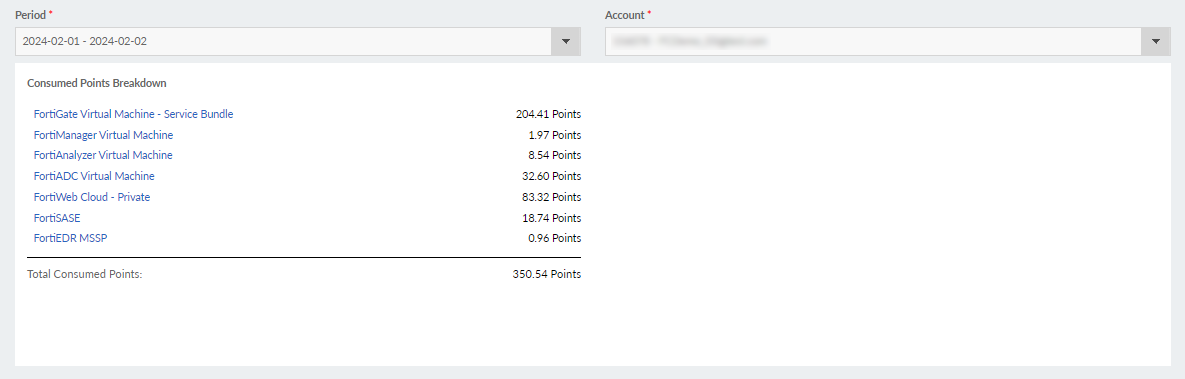
  3. Select the product type. The breakdown of point usage for that product time in displayed.

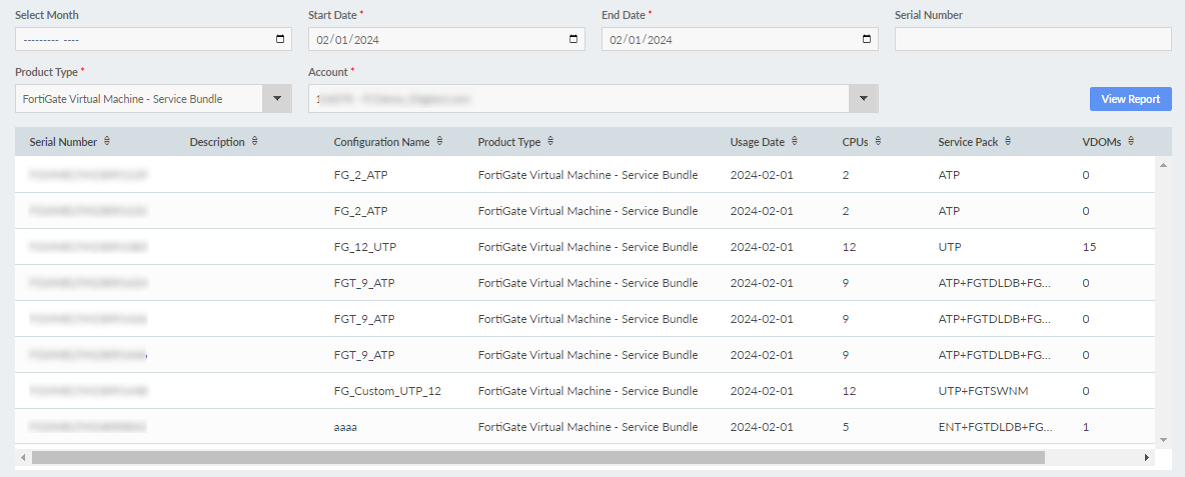
  4. Select a date. The Point Usage Detail for that date is displayed.
Point Usage Detail

The Point Usage Detail report provides information on point usage per asset.

To run the Point Usage Detail report:
  1. Go to Reports > Point Usage Detail.

  2. Select the desired filters.

    The Start Date cannot be more than 90 days ago.

    If FortiFlex is used in an Organization, the OU/Account dropdown menu will show options based on the user's permission scope. When in the root account, all accessible accounts will be displayed. When in a member account, only the current account will be displayed.

  3. Click View Report. The report results are displayed.
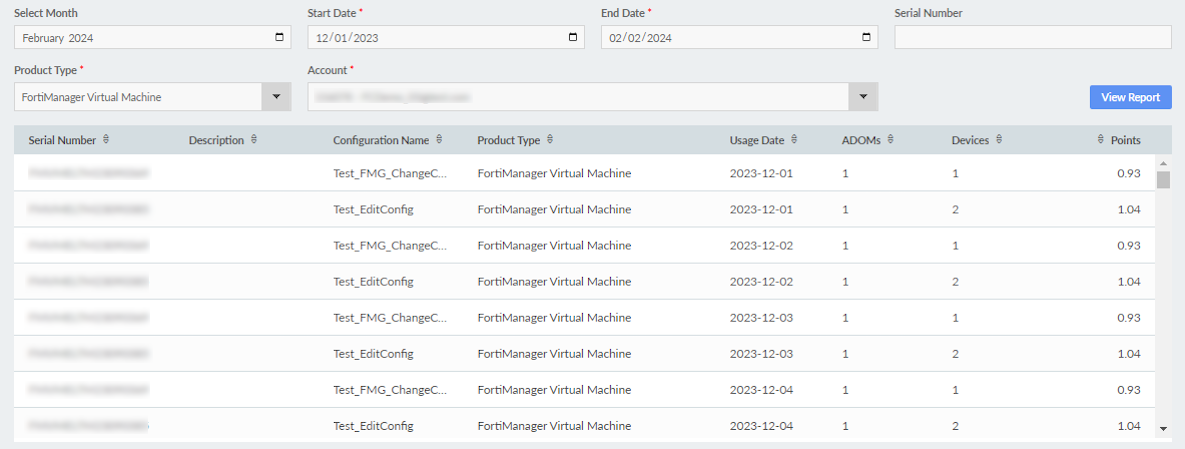
  4. (Optional) Right-click the report and click Export to download the report as a CSV or XLSX file.

Point Pack Summary

The Point Pack Summary provides information on registered point licenses.

To view the Point Pack Summary:
  1. Go Reports > Point Pack Summary.

    The FortiFlex point licenses that were registered are displayed. If there are no point packs registered, the report will be empty.

  2. (Optional) Right-click the report, and click Export to download the report as a CSV or XLSX file.

Scheduler Summary

The Scheduler Summary provides information on scheduled hardware entitlements and their status. See Scheduled creation mode.

To run the Scheduler Summary:
  1. Go to Reports > Scheduler Summary.

  2. Select the desired filters and enter the relevant Serial Number, if applicable.

  3. Click View Report.

    Applicable scheduled entitlements are displayed. If there are no entitlements that match the criteria, the summary will be empty.

Reports

Reports

The Reports pages contain summary and detail reports for FortiFlex assets. You can run a report for a specified time period, and then export it as a CSV, XLXS, or XML file.

Available reports include the following:

Point Usage Summary

The Point Usage Summary provides details on point usage per product and provides access to the Point Usage Detail report.

To run the Point Usage Summary:
  1. Go to Reports > Point Usage Summary.

  2. Select the Period and Account. The Consumed Points Breakdown is displayed.

  3. Select the product type. The breakdown of point usage for that product time in displayed.

  4. Select a date. The Point Usage Detail for that date is displayed.

Point Usage Detail

The Point Usage Detail report provides information on point usage per asset.

To run the Point Usage Detail report:
  1. Go to Reports > Point Usage Detail.

  2. Select the desired filters.

    The Start Date cannot be more than 90 days ago.

    If FortiFlex is used in an Organization, the OU/Account dropdown menu will show options based on the user's permission scope. When in the root account, all accessible accounts will be displayed. When in a member account, only the current account will be displayed.

  3. Click View Report. The report results are displayed.

  4. (Optional) Right-click the report and click Export to download the report as a CSV or XLSX file.

Point Pack Summary

The Point Pack Summary provides information on registered point licenses.

To view the Point Pack Summary:
  1. Go Reports > Point Pack Summary.

    The FortiFlex point licenses that were registered are displayed. If there are no point packs registered, the report will be empty.

  2. (Optional) Right-click the report, and click Export to download the report as a CSV or XLSX file.

Scheduler Summary

The Scheduler Summary provides information on scheduled hardware entitlements and their status. See Scheduled creation mode.

To run the Scheduler Summary:
  1. Go to Reports > Scheduler Summary.

  2. Select the desired filters and enter the relevant Serial Number, if applicable.

  3. Click View Report.

    Applicable scheduled entitlements are displayed. If there are no entitlements that match the criteria, the summary will be empty.
