Managing entitlements
You can stop and regenerate a license token if it is stolen or compromised. After the token is regenerated, it must be re-injected into your VM to revoke the old token. You can also export a list of tokens to parse them in scripts.
Modifying FortiGate-VM configurations
We recommend rebooting the FortiGate-VM after you change the configuration. To verify the configuration is in effect, run the following CLI command:
get system status
- A reboot is required if you are lowering the vCPU size.
- A reboot is recommended when adding more vCPU.
If you do not want to reboot the VM, run the following CLI command:
exec cpu add XWhere
Xis the number of vCPU to be hot-added on top of the existing number.
Starting in FortiOS 7.2.4, vCPU changes in the FortiFlex licenses are automatically handled by the FortiGate-VM instances. Running exec cpu add X is no longer required if you are running FortiOS v7.2.4.
Stopping entitlements
ACTIVE entitlements can be stopped from the My Assets page.
To stop an entitlement:
- Go to Flex Entitlements > My Assets, and click the serial number you want to stop.
- Click Stop.
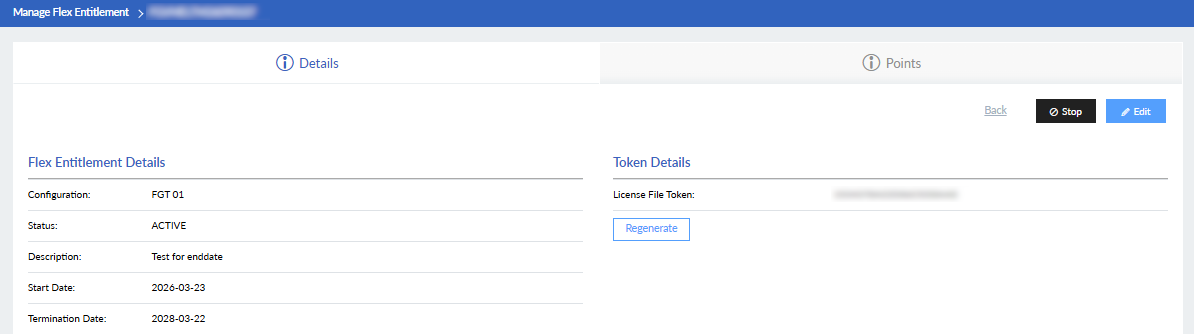
- Click Confirm. The status changes to STOPPED. Point consumption will stop from the next day even while your managed asset may be still running.
To stop multiple entitlements:
-
Go to Flex Entitlements > My Assets.
-
Select the entitlements you want to stop. The Stop button is displayed.
You can only perform bulk entitlement actions for serial numbers that are the same product type. Use the column filters to filter for a specific product Serial Number or Product Type.

- Click Stop. A confirmation message is displayed.
-
Click Confirm.
Reactivating entitlements
A STOPPED entitlement can be reactivated from the My Assets page.
To reactivate an entitlement:
- Go to Flex Entitlements > My Assets and click a serial number with a status of STOPPED.
- Click Reactivate. The details page opens.
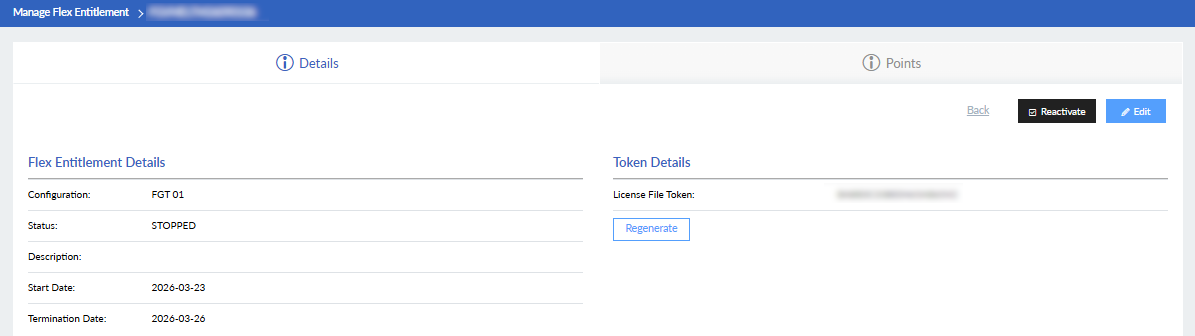
- (Optional) Modify the entitlement details.

- Click Submit. The serial number Status changes to Active. Point consumption will restart from the day you make this change even though you may still have not rerun your managed asset.
To reactivate multiple entitlements:
-
Go to Flex Entitlements > My Assets.
-
Select the entitlements you want to reactivate. The Reactivate button is displayed.
You can only perform bulk entitlement actions for serial numbers that are the same product type. Use the column filters to filter for a specific product Serial Number or Product Type.
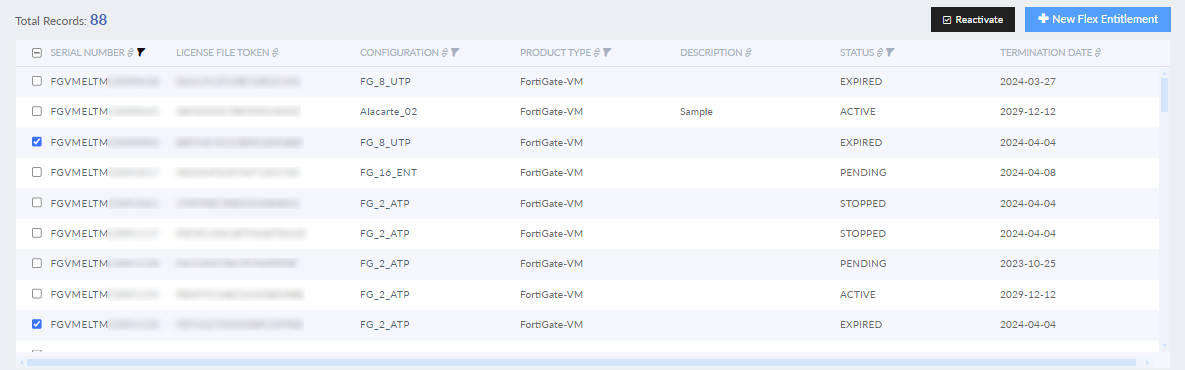
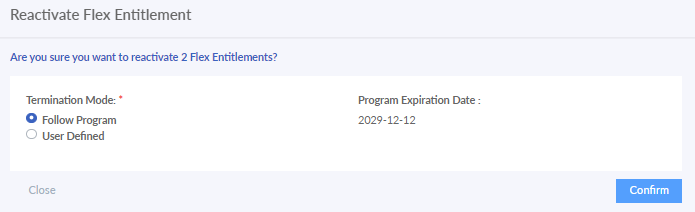
- Click Reactivate. A confirmation message is displayed.
-
Select the Termination Mode.
If you select User Defined, select the Program the Expiration Date.
-
Click Confirm.
Removing hardware serial numbers
Hardware entitlements that are STOPPED or EXPIRED can be removed so that they are no longer managed by FortiFlex. Up to 100 serial numbers can be removed at one time.
To remove a serial number:
-
Go to Flex Entitlements > My Assets.
-
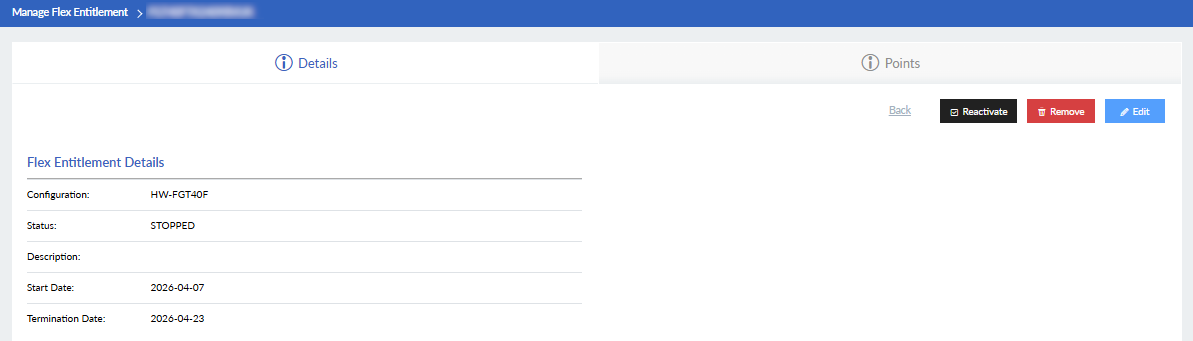
Select a hardware entitlement that is STOPPED or EXPIRED.
-
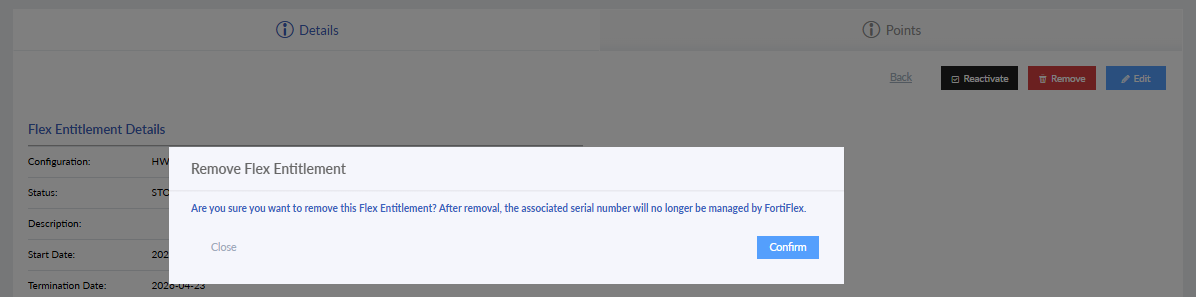
Click Remove. A warning dialog is displayed.
-
Click Confirm.
Exporting entitlement details
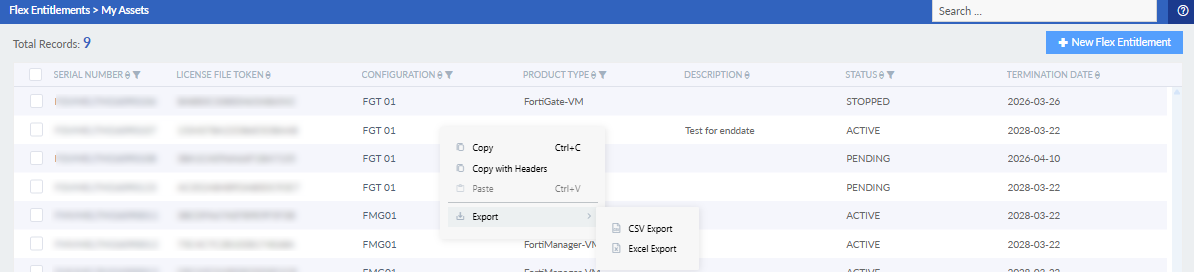
Entitlement serials numbers and tokens can be exported from the My Assets page.
To export a list of serial numbers and tokens:
- Go to Flex Entitlements > My Assets.
- Right-click the table, and click Export.
- Select the desired file type. The file is saved to your computer.