

Adding FortiSASE
FortiSASE can be added to FortiManager for central management. Only one FortiSASE can be onboarded per FortiManager.
When FortiManager is used for central management of FortiManager, a FortiSASE Connector is created to enable communication between FortiManager and FortiSASE. Administrators can use the connector to configure which FortiManager objects are synchronized to the FortiSASE. Currently, central management supports only one-way synchronization of configurations from FortiManager to FortiSASE. Therefore, administrators should avoid deleting objects from FortiManager to prevent any conflicts.

|
Only select FortiSASE configuration settings are supported for central management using FortiManager. For full configuration steps, supported objects, and information about what FortiManager versions are supported for central management of FortiSASE, see the FortiSASE documentation on the Fortinet Documentation Library. |

|
FortiSASE can only be added to FortiGate and Fabric ADOMs. Other ADOMs where the connector appears including FortiProxy, FortiFirewallCarrier, FortiFirewall, FortiCarrier, and the Global Database ADOMs are not supported. Additionally, FortiSASE cannot be added to ADOMs operating in Backup mode. Attempting to do so will present the user with the error message "An unexpected error has occurred". |
Prerequisites
In order to add FortiSASE to FortiManager, the following prerequisite steps must be completed:
-
The FortiCloud account must include a valid FortiSASE entitlement.
-
The FortiManager must be included in the same FortiCloud account as the FortiSASE entitlement.
To add FortiSASE to FortiManager:
-
When FortiSASE is on the same FortiCloud account as FortiManager, you will receive a notification in the FortiManager toolbar that the FortiSASE management license is detected. Click on the notification to begin.

-
Select the ADOM where the FortiSASE device will be added.

FortiSASE cannot be added to version 7.0 ADOMs or the Global Database ADOM.
Once added, FortiSASE devices cannot be moved to other ADOMs.
-
In the Edit FortiSASE Connector dialog, enable the connector.
You can specify Advanced settings or leave them as None according to your needs.
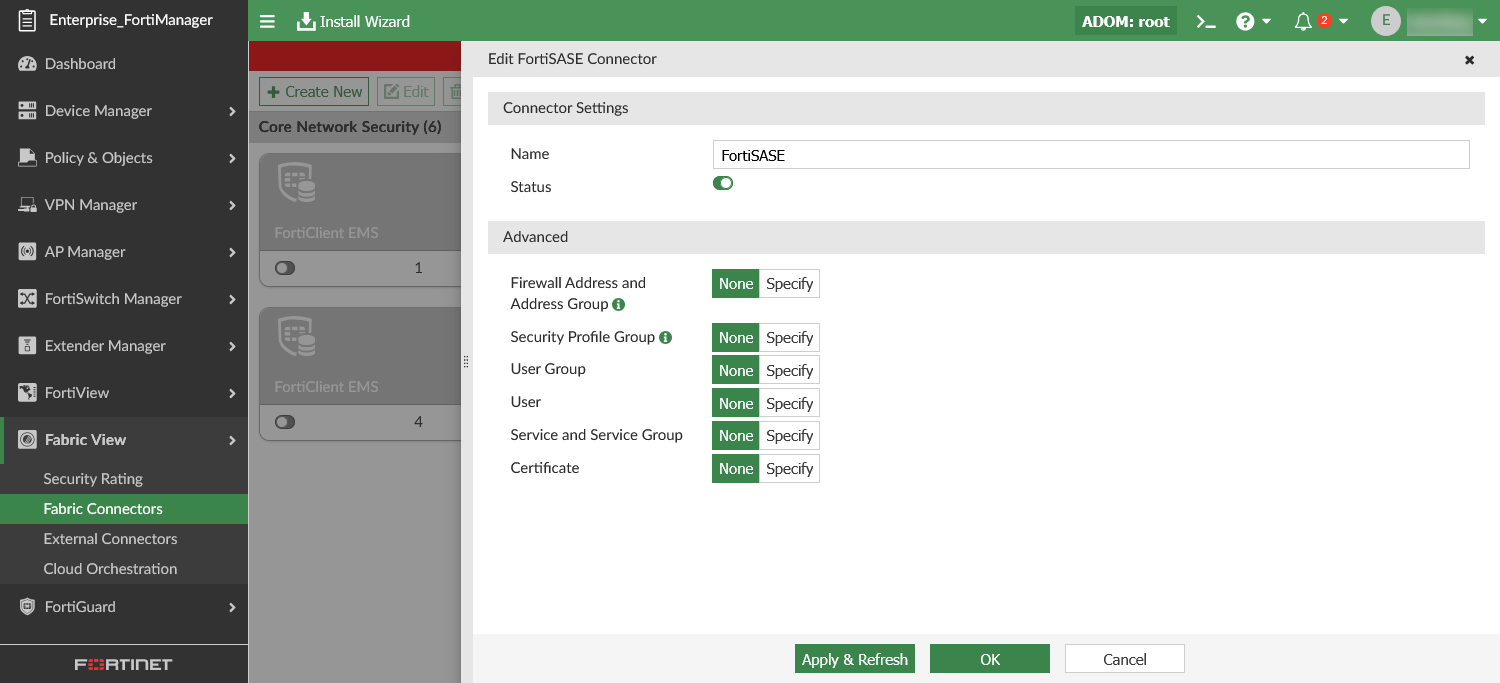
Connector Settings Configure the FortiSASE connector settings. Name
Enter a name for the connector. Status
Toggle the status of the connector ON. Advanced You can define the supported FortiManager objects to be synchronized to FortiSASE.
For each object type, you can click Specify and Click to select to see a list of existing FortiManager objects. Click +v or + to create new objects from the dialog.
Firewall Address and Address Group
Select or create Firewall Address and Firewall Address Groups. Security Profile Group
Select or create Security Profile Group and Security Profiles (selected types are supported only)
User Group
Select or create User Groups.
User
Select or create Users.
Service and Service Group
Select or create Service and Service Groups.
Certificate
Select or import Certificates.
-
Click OK to save the connector. You will see the Connect to FortiSASE dialog and Add FortiSASE service step marked as Completed when the onboarding is successful.
-
Go to Fabric View > Fabric Connector and you can see that the FortiSASE Connector is enabled. When hovering your mouse over the connector, you can observe the status of the connector and the list of synchronized objects.
-
In the FortiManager Device Manager, you can see the Managed FortiSASE device has been added after the FortiSASE Connector has been enabled.
-
Use the Install Wizard to Install Device Settings (only) to push the object configurations to FortiSASE. See Install device settings only.
To edit the FortiSASE connector:
-
Go to Fabric View > Fabric Connectors.
-
Double-click the FortiSASE Connector tile, or right-click and choose Edit.
-
In the Edit FortiSASE Connector dialog, configure the settings as required.
-
Click OK.
-
Use the Install Wizard to Install Device Settings (only) to push any object configuration changes to FortiSASE. See Install device settings only.
Installing policy packages to FortiSASE
Once the FortiSASE connector is enabled, you can view the Policy Package Status column for the FortiSASE controller in Device Manager.
FortiManager automatically retrieves built-in FortiSASE interfaces/zones through the connector. These interfaces/zones and their mappings can be viewed in Policy & Objects > Normalized Interface:
-
SASE_ingress_zone
-
SASE_public_zone
-
SASE_secure_private_access_zone
The FortiSASE connector does not require any special configuration to install policy packages to FortiSASE. The objects used in policies are implicitly synced to FortiSASE during the policy package installation.
Firewall policies and proxy policies can be installed from FortiManager to FortiSASE. They are partially supported. See the tables below for requirements when installing to FortiSASE.
|
Firewall Policy requirements |
|
|---|---|
|
Action |
Must be set to ACCEPT or DENY only. |
|
Type |
Must be set to Standard. |
|
Incoming/Outgoing Interfaces |
Limited to the following normalized interfaces/zones:
|
|
Supported traffic directions |
|
|
Inspection Mode |
Must be set to Proxy-based. |
|
Security Profile |
Status must be enabled, and Profile Type set to Use Security Profile Group. |
For more information about creating firewall policies, see Create a new firewall policy.
|
Proxy Policy requirements |
|
|---|---|
|
Explicit Proxy Type |
Must be set to Explicit Web. |
|
Outgoing Interface |
Must be either SASE_public_zone or SASE_secure_private_access_zone. |
|
Action |
Must be set to ACCEPT or DENY only. |
|
Service |
Must be explicitly defined. |
For more information about creating proxy policies, see Create a new proxy policy.
|
|
The Proxy configuration and Secure Private Access Network configuration must both be enabled in order to install policies using the SASE_secure_private_access_zone in FortiSASE. |