

Explorer
The Explorer pane allows you to efficiently monitor events using a timeline and quick filters.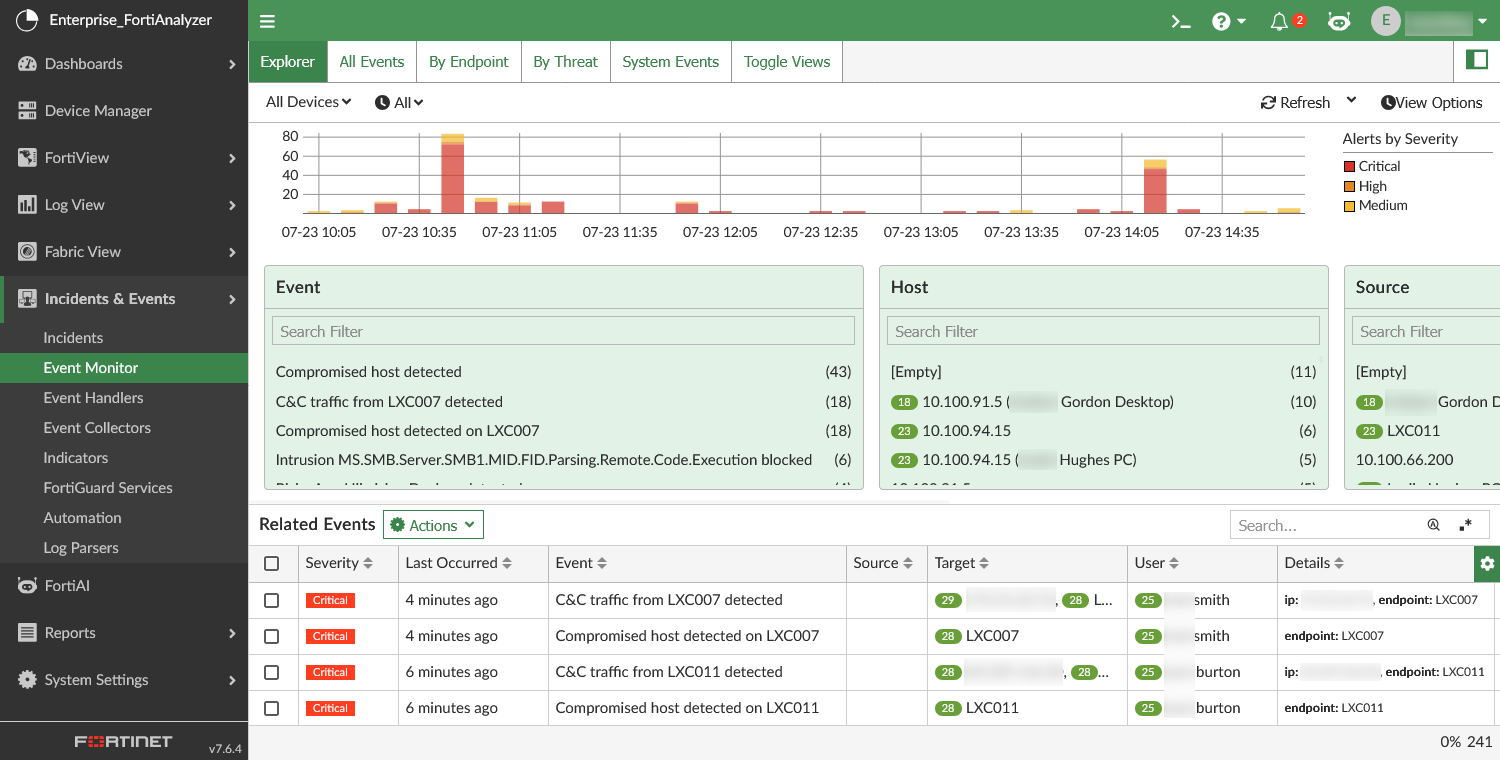
You can perform the following actions from the toolbar:
|
Devices |
Select devices from the dropdown to filter the pane. |
|
Time Period |
Select a time period to filter the pane. Select Custom to specify a time period not in the dropdown list. |
|
Refresh |
Click to manually refresh the pane. From the dropdown, you can select an automatic refresh interval. |
|
View Options |
Toggle visibility for the timeline and quick filters. The timeline and all quick filters are enabled by default. |
The Explorer pane includes the following sections:
|
Timeline |
Displays the number of alerts by severity in a stacked bar chart on a timeline. A legend for the severity displays next to the timeline. You can click a severity level in the legend or on the bar chart to filter the pane by that severity level. Click the severity level again to remove the filter. |
||||||||||
|
Quick Filters |
Displays the available values to filter the pane by according to the following fields:
The available values are impacted by the device, time period, and quick filters that are already set in the pane. Click a value in the quick filter widgets to filter the pane by that value. Click multiple values to apply the filters with an AND relationship. You can use the Search filter bar in the quick filter widgets to find specific values. To remove the filters, click Clear Filters in the quick filter widget. |
||||||||||
|
Displays the events in a table view. Use the search bar to find specific events in the table. You can perform the following actions on the events:
|

|
When applicable, the risk score will appear next to the endpoint or user in the quick filters and related events table. |
The following columns are available for the Related Events table view:
|
Column |
Description |
|---|---|
|
Severity |
The event severity level. |
|
Last Occured |
How long ago the most recent log occured related to the event. |
|
Event |
The event subject line. |
|
Endpoint |
The affected endpoint. |
|
Source |
The source of the event activity. This is the actor or system that initiated the action; it could be a user, IP, device, or process. See additional explanation below the table. |
|
Target |
The affected target. This could be a device, user, service, or file. See additional explanation below the table. |
|
User |
The affected user. |
|
Event Type |
The event type, such as Traffic. |
|
Event Status |
The event status, such as Unhandled or Mitigated. |
|
Details |
A breakdown of target IPs and endpoints. |
|
Device Name |
The device that sent logs to trigger the event. |
|
Rule |
The rule that triggered the event. |
|
Event Handler |
The event handler containing the rule that triggered the event. |
The Source and Target fields can support incident triage and prioritization. They can help determine if a threat is external or internal, and they make it easier to understand the attack impact and intent.
Examples:
-
If a hacker tries to break into a server:
Source = hacker’s IP or device
Target = the server
-
If a user logs into a system:
Source = the user
Target = the system being accessed
FortiAnalyzer assigns the Source and Target based on the group-by fields in the triggered event handler.
-
Source: source IP, source user, process name
-
Target: destination IP, target host, affected user or object
For more information about event handler configuration, see Creating a custom event handler.
Event details pane
You can double-click a record in the Related Events table to open an event details pane. This pane is named after the event, and it displays with the following tabs:
|
Tab |
Description |
||
|---|---|---|---|
|
Event Details |
Displays the event details in a formatted view. You can toggle to view the raw JSON. You can use the search bar to find specific information within the event details.
|
||
|
Triggering Logs |
Displays a sample of logs that triggered the event. You can view the log details in this tab. |
||
|
Rule Summary |
Displays information about the event handler rule that triggered the event. This includes the rule name, description, log type, severity, pattern, threshold, and group by information. |
||
|
Comment |
Add or edit a comment for the event. |
||
|
Context |
Displays a timeline for related events. From the Entity dropdown, select the entity/entities to include in the timeline. Click events in the timeline to open the event details pane. |

The Actions dropdown in this pane includes the same actions as available from the Related Events table. See Related Events above.
To support investigation, you can also access the event details pane from endpoints and users in the Asset Identity List. For more information, see Asset List and Identity List.