
 DOCUMENT LIBRARY
1.0.0
DOCUMENT LIBRARY
1.0.0
DOCUMENT LIBRARY
1.0.0
DOCUMENT LIBRARY
1.0.0

Use this guide to add Google Workspace as a secured SaaS application in FortiCASB-SSPM SaaS Security platform.
This integration guides includes the following parts:
Sign into your Google Admin console at https://admin.google.com/
Sign in using an account with Super Administrator privileges
From the Admin console home page, go to menu and then security and then API controls
Under domain wide delegation, click manage domain wide delegation
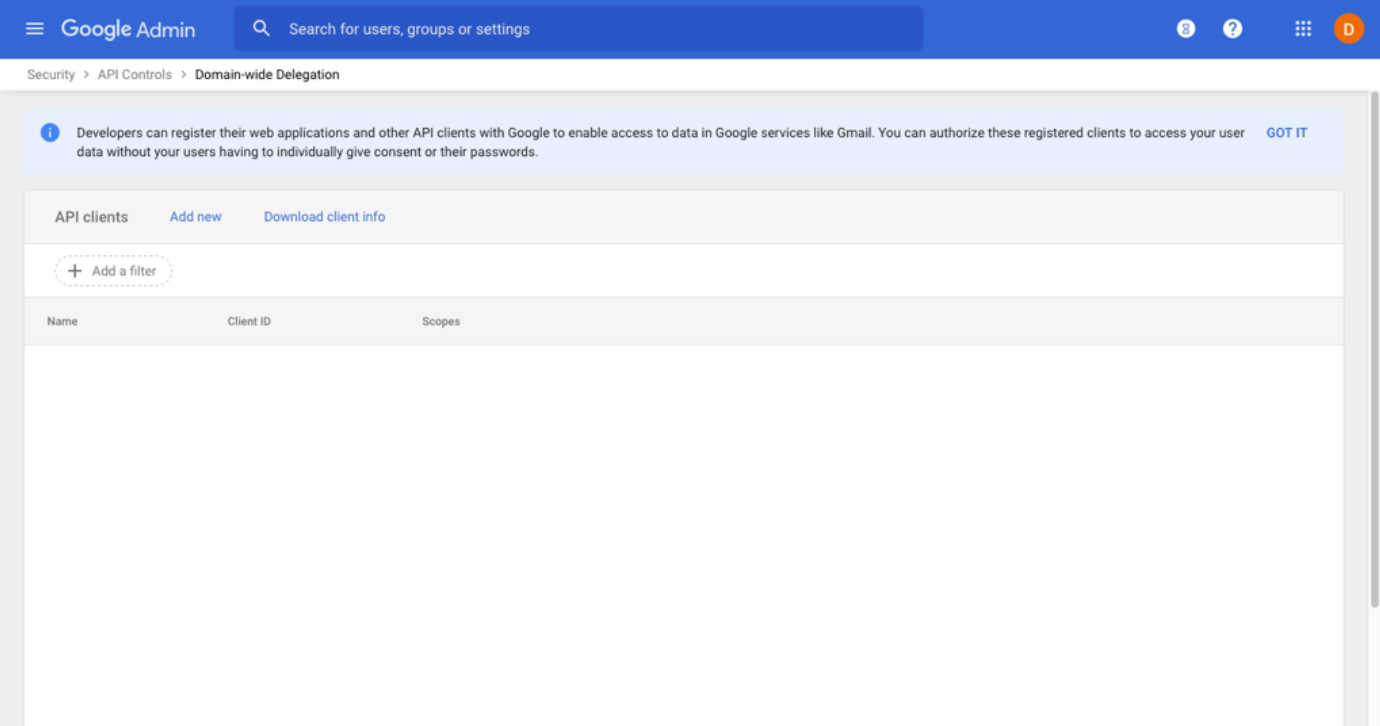
On the manage domain wide delegation page, click add new
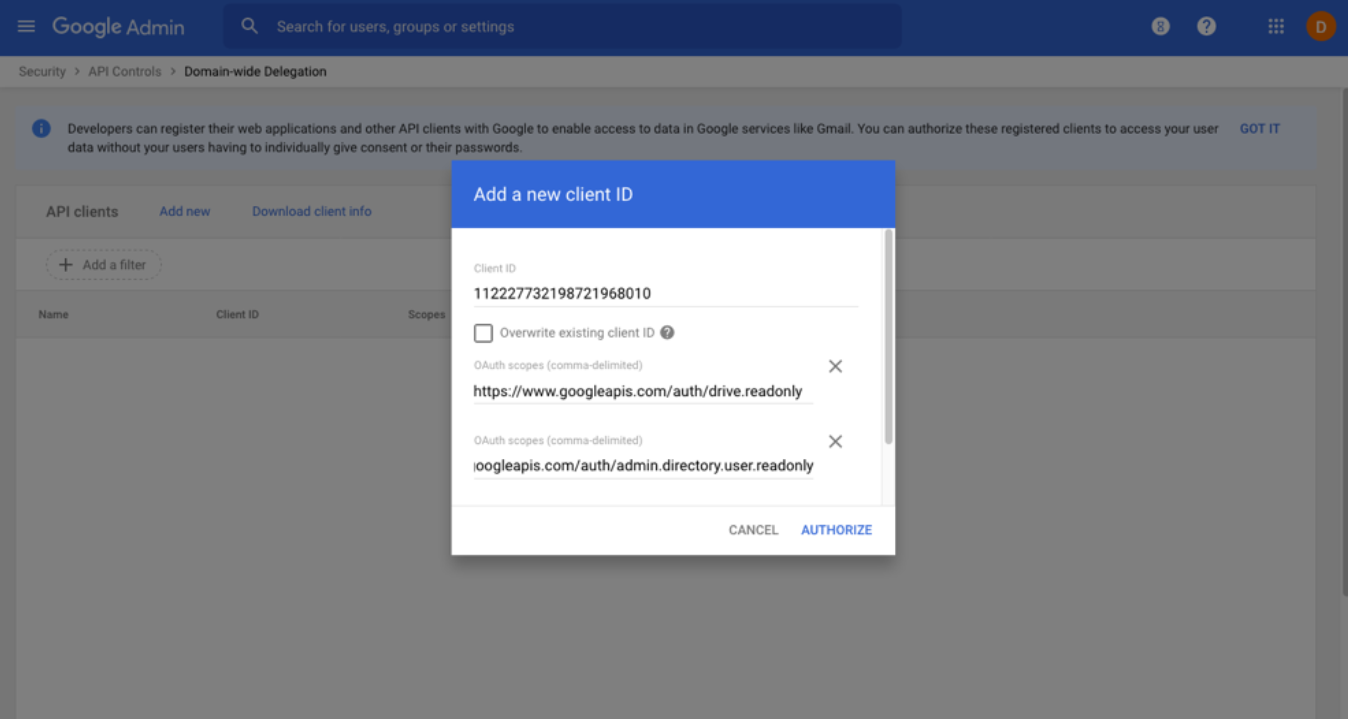
Enter the client ID: 112227732198721968010. In OAuth Scopes, add each scope that the application will have access:
https://www.googleapis.com/auth/admin.directory.user.readonly
https://www.googleapis.com/auth/admin.directory.group.readonly
https://www.googleapis.com/auth/admin.directory.orgunit.readonly
https://www.googleapis.com/auth/admin.directory.user.security
https://www.googleapis.com/auth/admin.directory.rolemanagement.readonly
https://www.googleapis.com/auth/admin.reports.audit.readonly
https://www.googleapis.com/auth/apps.groups.settings
https://www.googleapis.com/auth/cloud-platform
Click "Authorize"
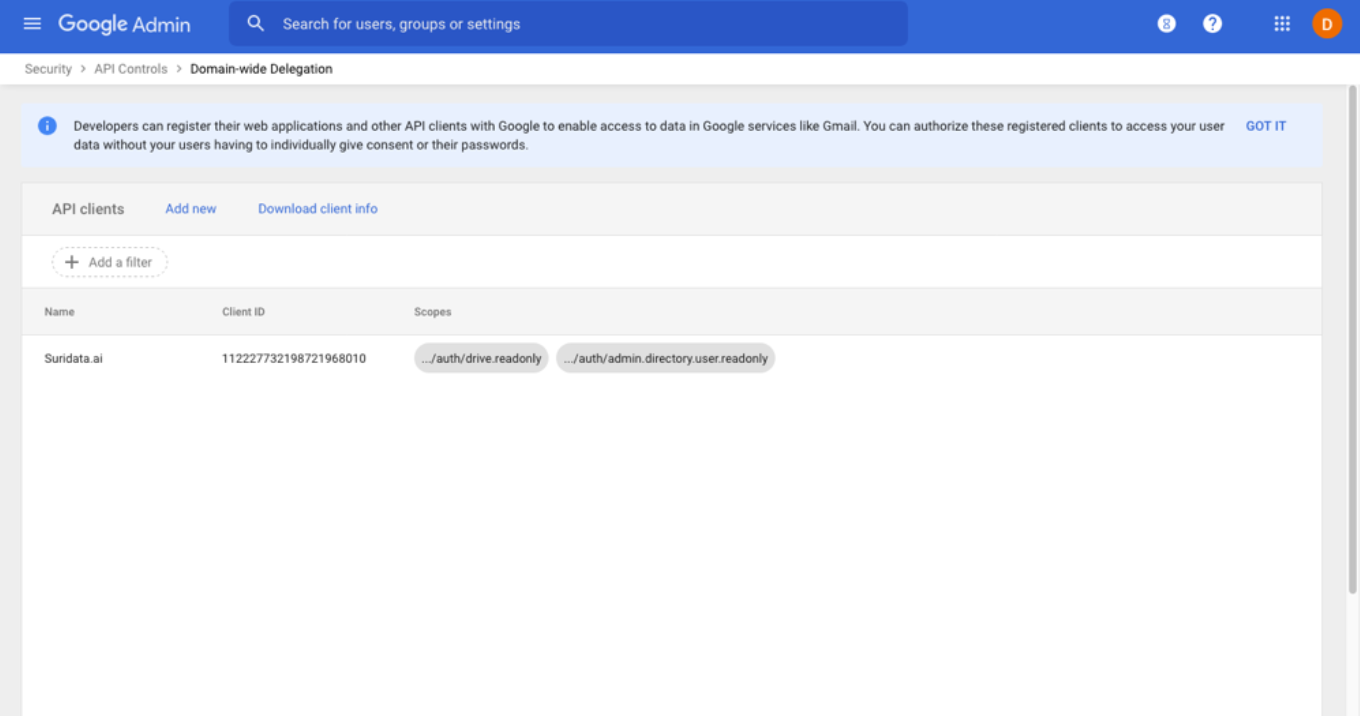
The FortiCASB-SSPM app should appear in the admin console
Create a new user and grant a Super Admin role
Enroll to 2-Step Verification:
First enroll with a phone number
Once verified add second method using Authenticator app
Press "set up authenticator"
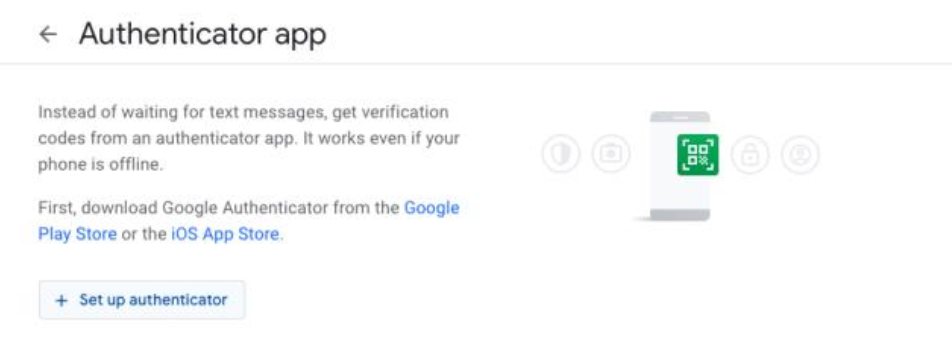
Click on "Can't scan it?"
Copy the code (this is the OTP Secret) in section 2 and click next
Continue to Add Google Workspace (on the following parts)
Login to console.cloud.google.com
Select required project or projects
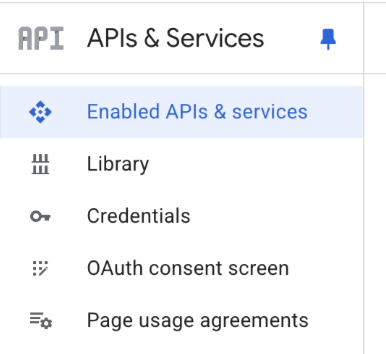
Navigae on the menu to APIs & Services
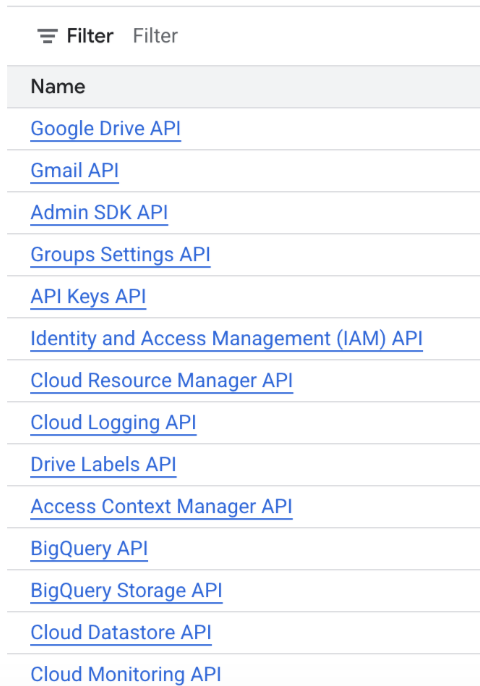
Enable API Keys API and Identity and Access Management (IAM) API
In the project selection, change to organization level
In menu navigate to IAM & Admin, then IAM
Click Grant Access
As principal enter the email of the service-account
In assigned roles select API Keys Viewer
Navigate to the App Store → Click on Google Workspace
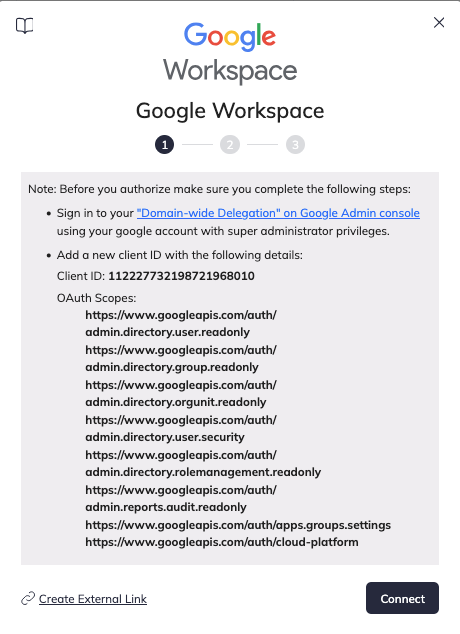
Click "Connect"
Sign in using a google account with super administrator privileges
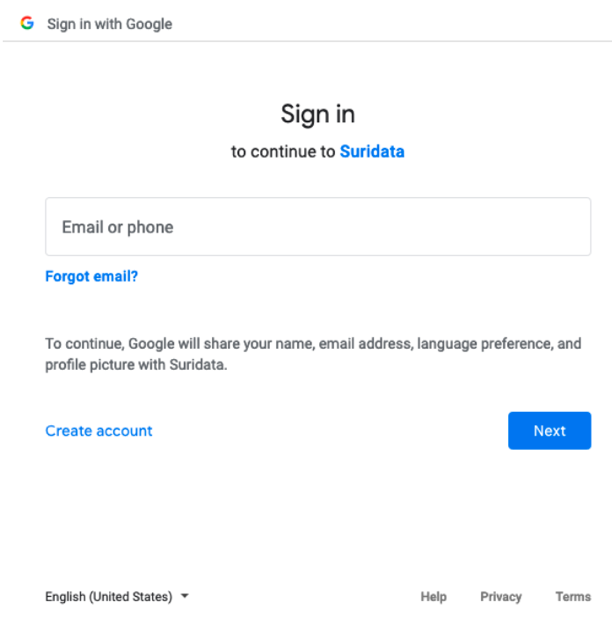
The Google authentication window will disappear once login is complete, and a username and password screen will appear
Enter the service account Username, Password and OTP Secret from previous section and press SHOW PASSCODE

Copy the Time-based one-time password
Paste the authentication code into the browser in the Authentication Code input field and click Submit.
If you are prompted with a Google Login Challenge due to suspicious activity, and SSO is enabled, enter the Google Login Challenge OTP in the next step to bypass MFA

Remove the 2-Step verification phone method
Return to the connection page and complete the process by clicking "Connect".
That's it! You're all set.
Your SaaS security is our priority!
The FortiCASB-SSPM team

Use this guide to add Google Workspace as a secured SaaS application in FortiCASB-SSPM SaaS Security platform.
This integration guides includes the following parts:
Sign into your Google Admin console at https://admin.google.com/
Sign in using an account with Super Administrator privileges
From the Admin console home page, go to menu and then security and then API controls
Under domain wide delegation, click manage domain wide delegation
On the manage domain wide delegation page, click add new
Enter the client ID: 112227732198721968010. In OAuth Scopes, add each scope that the application will have access:
https://www.googleapis.com/auth/admin.directory.user.readonly
https://www.googleapis.com/auth/admin.directory.group.readonly
https://www.googleapis.com/auth/admin.directory.orgunit.readonly
https://www.googleapis.com/auth/admin.directory.user.security
https://www.googleapis.com/auth/admin.directory.rolemanagement.readonly
https://www.googleapis.com/auth/admin.reports.audit.readonly
https://www.googleapis.com/auth/apps.groups.settings
https://www.googleapis.com/auth/cloud-platform
Click "Authorize"
The FortiCASB-SSPM app should appear in the admin console
Create a new user and grant a Super Admin role
Enroll to 2-Step Verification:
First enroll with a phone number
Once verified add second method using Authenticator app
Press "set up authenticator"
Click on "Can't scan it?"
Copy the code (this is the OTP Secret) in section 2 and click next
Continue to Add Google Workspace (on the following parts)
Login to console.cloud.google.com
Select required project or projects
Navigae on the menu to APIs & Services
Enable API Keys API and Identity and Access Management (IAM) API
In the project selection, change to organization level
In menu navigate to IAM & Admin, then IAM
Click Grant Access
As principal enter the email of the service-account
In assigned roles select API Keys Viewer
Navigate to the App Store → Click on Google Workspace
Click "Connect"
Sign in using a google account with super administrator privileges
The Google authentication window will disappear once login is complete, and a username and password screen will appear
Enter the service account Username, Password and OTP Secret from previous section and press SHOW PASSCODE
Copy the Time-based one-time password
Paste the authentication code into the browser in the Authentication Code input field and click Submit.
If you are prompted with a Google Login Challenge due to suspicious activity, and SSO is enabled, enter the Google Login Challenge OTP in the next step to bypass MFA
Remove the 2-Step verification phone method
Return to the connection page and complete the process by clicking "Connect".
That's it! You're all set.
Your SaaS security is our priority!
The FortiCASB-SSPM team