
 DOCUMENT LIBRARY
1.0.0
DOCUMENT LIBRARY
1.0.0
DOCUMENT LIBRARY
1.0.0
DOCUMENT LIBRARY
1.0.0

Use this guide to add Sentry as a secure application in FortiCASB-SSPM's SaaS Security platform.
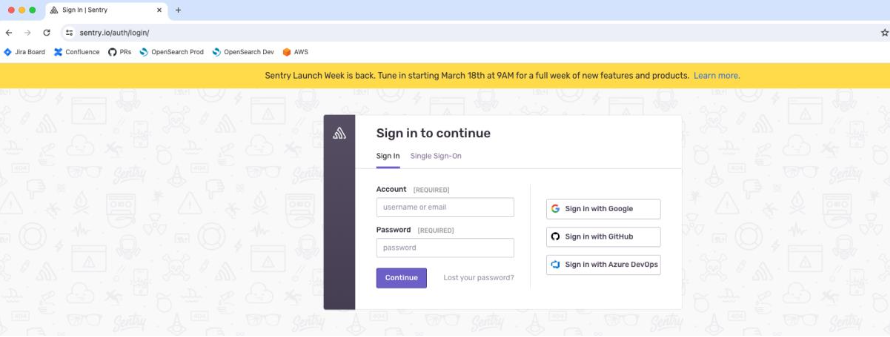
Login to your Sentry account.
Navigate to User Auth Tokens Settings:
On the upper left corner, click on your organization icon and then under your user section click on "User auth tokens".
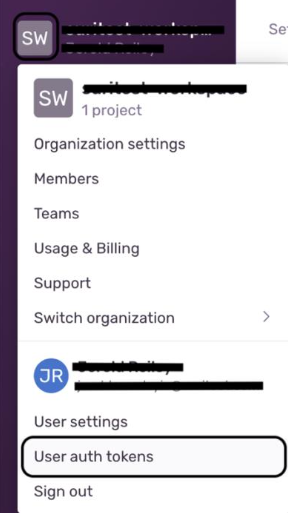
In the User Auth Tokens click on "Create New Token".

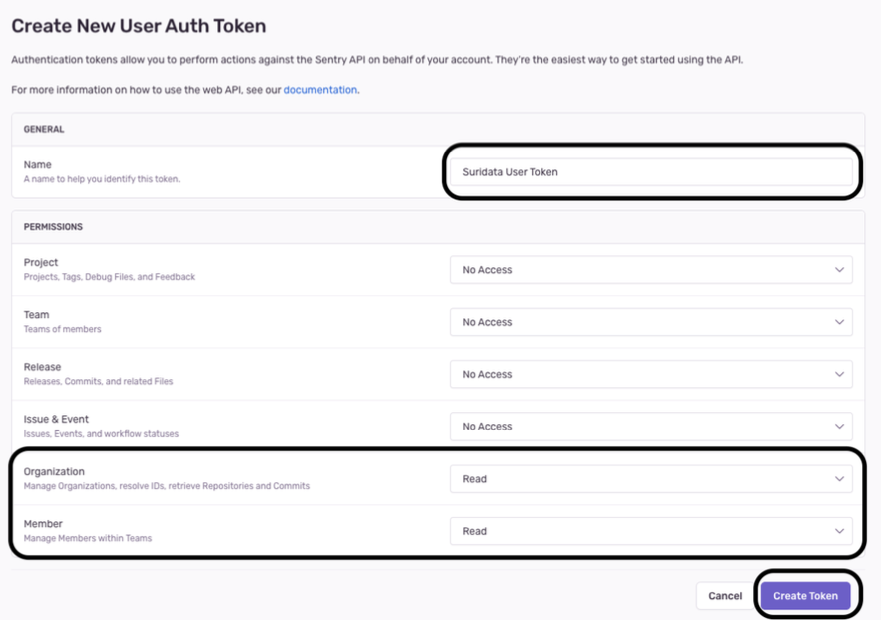
Give the new token a name and add the relevant scopes (member:read, org:read) and then click "Create Token":
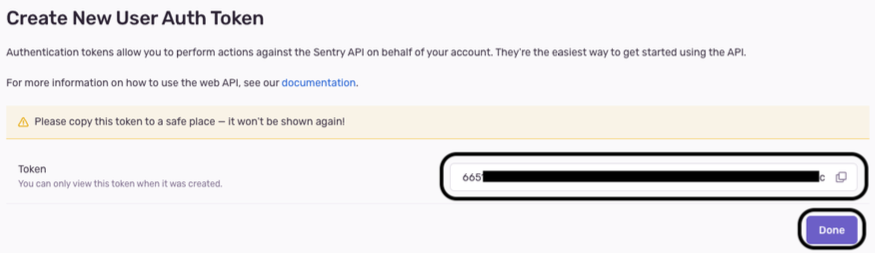
Copy the Token's value and save it somewhere safe.
Login to FortiCASB-SSPM > Navigate to the App Store > Click on Sentry
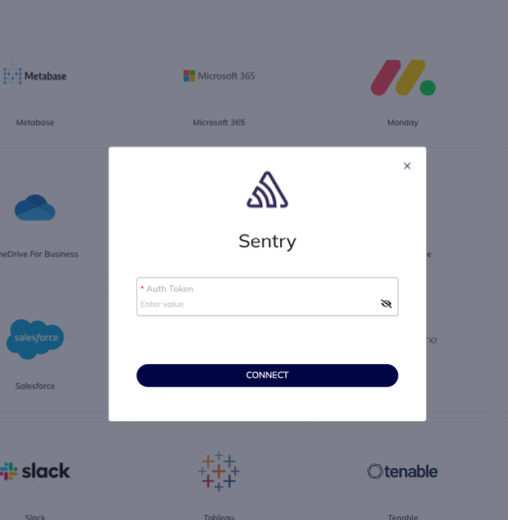
Enter the following parameters:
Auth Token:
Press "Connect"
That's it! You're all set.
Your SaaS security is our priority!
The FortiCASB-SSPM Team

Use this guide to add Sentry as a secure application in FortiCASB-SSPM's SaaS Security platform.
Login to your Sentry account.
Navigate to User Auth Tokens Settings:
On the upper left corner, click on your organization icon and then under your user section click on "User auth tokens".
In the User Auth Tokens click on "Create New Token".
Give the new token a name and add the relevant scopes (member:read, org:read) and then click "Create Token":
Copy the Token's value and save it somewhere safe.
Login to FortiCASB-SSPM > Navigate to the App Store > Click on Sentry
Enter the following parameters:
Auth Token:
Press "Connect"
That's it! You're all set.
Your SaaS security is our priority!
The FortiCASB-SSPM Team