
 DOCUMENT LIBRARY
1.0.0
DOCUMENT LIBRARY
1.0.0
DOCUMENT LIBRARY
1.0.0
DOCUMENT LIBRARY
1.0.0

Use this guide to add Salesforce as a secure application on the Fortinet SaaS Security platform. During the onboarding, the platform leverages OAuth method to connect with Salesforce, delivering actionable remediation steps tailored to effectively mitigate risks and support your organization's security goals.
Permissions Needed: OAuth authorization by Salesforce Admin account
| Requirement | Description |
|---|---|
| Salesforce administrator Must have: - View Setup and Configuration - API enabled - Modify All Data OR Modify MetaData (for full misconfigurations risk scan)* - Customize Application |
The admin account is required to authorize the OAuth process. |
| "Customize Application" | It provides the necessary access for the application to interact with. |
* For comprehensive misconfigurations risks scan of all security configurations, grant either Modify All Data OR Modify Metadata permissions. Alternatively, you can grant View All Data permission, which will only scan a subset of misconfigurations risks.
Log in to the relevant admin account in Salesforce
In the top right corner, click on "Setup"
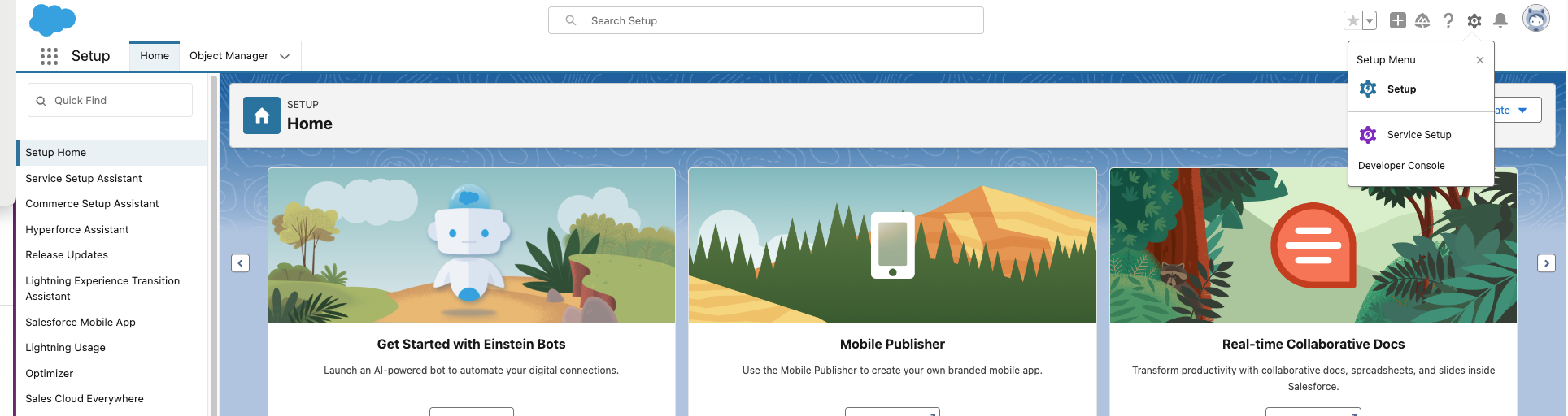
In the left-hand menu, click on "Users" to expand the options, then select "Users" at the bottom of the list
Click "Edit" next to the relevant admin account
On the right, click on the Profile to edit the permissions
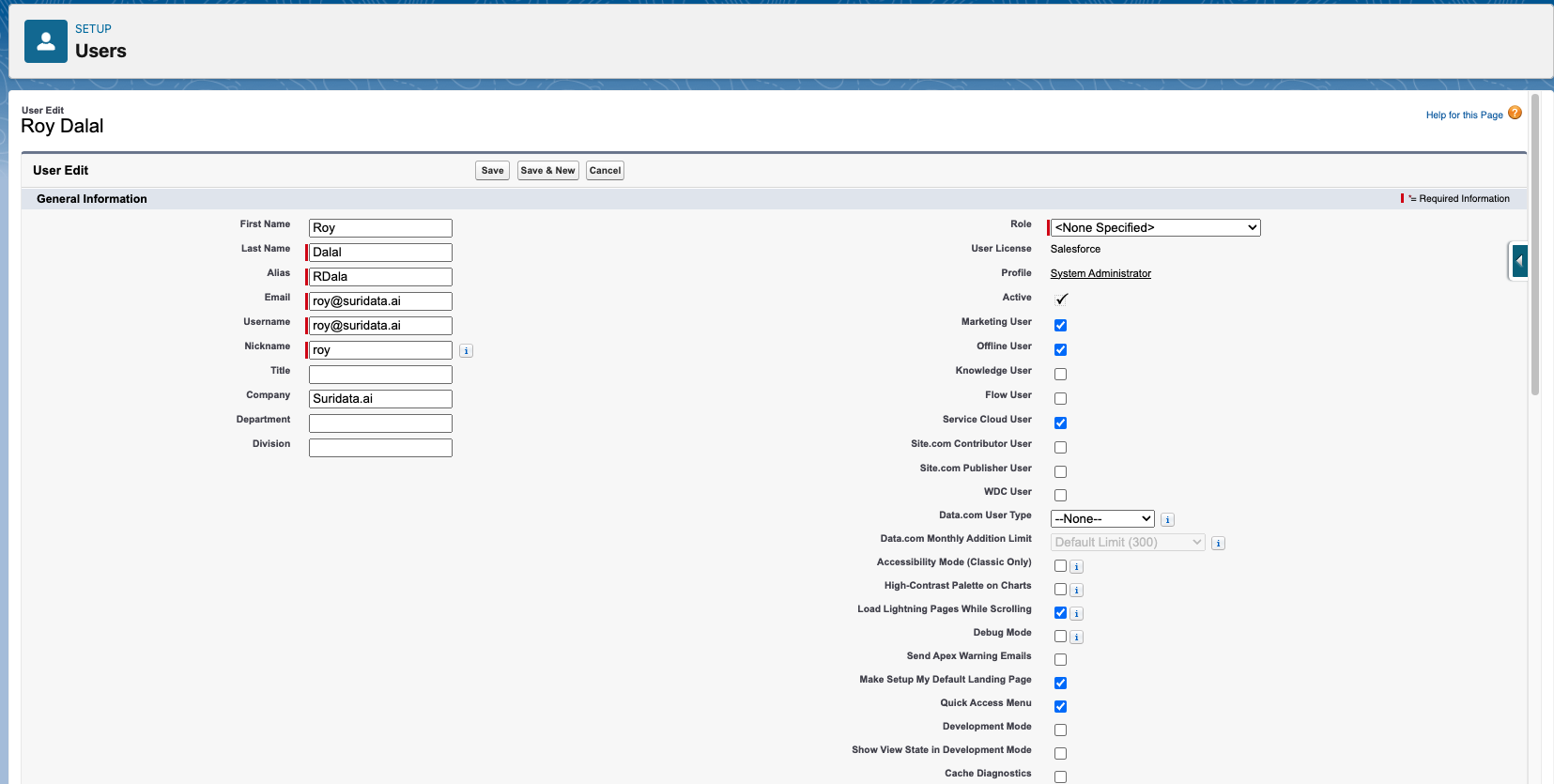
Use the find setting search bar to search for "Modify Metadata Through Metadata API Functions" permission, make sure its selected, if not please select it.
Repeat and select the "Customize Application" permission as well
Log in to your Forticasb-sspm account and navigate to the Apps Store
Search "Salesforce"
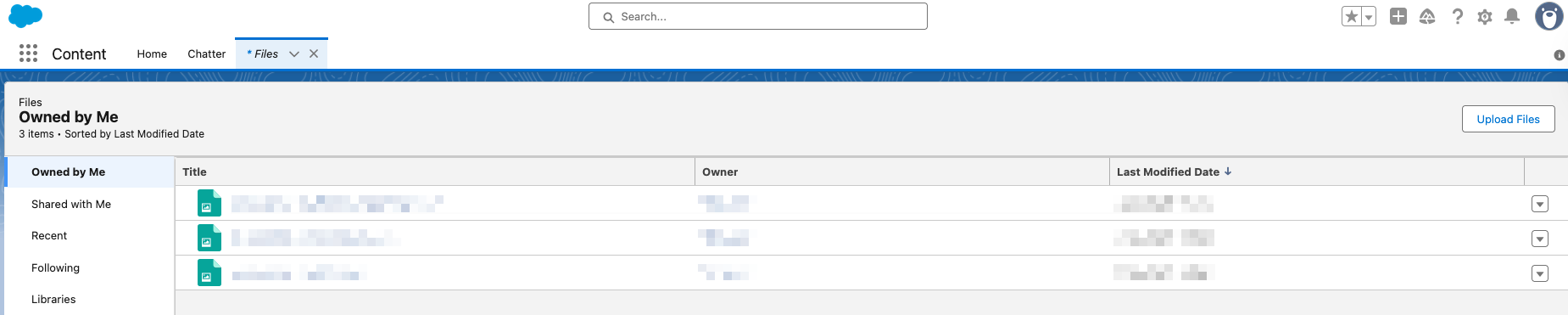
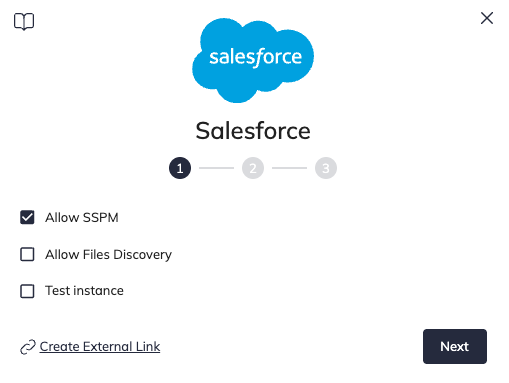
For misconfigurations, users, 3rd party apps and tokens collection, keep the "Allow SSPM" checkbox marked. For files collection, mark the "Allow Files Discovery"áand click "Next". This will be enabled if you have a "Files" section in Salesforce. For example:
For connecting a test or sandbox instance, check the "Test instance" checkbox.
Click Connect
Log in using the appropriate Admin credentials and click "Authorize"
If your organization uses a custom domain, please select it before logging in.
That's it! You're all set.
Your SaaS security is our priority!
The Fortinet Team

Use this guide to add Salesforce as a secure application on the Fortinet SaaS Security platform. During the onboarding, the platform leverages OAuth method to connect with Salesforce, delivering actionable remediation steps tailored to effectively mitigate risks and support your organization's security goals.
Permissions Needed: OAuth authorization by Salesforce Admin account
| Requirement | Description |
|---|---|
| Salesforce administrator Must have: - View Setup and Configuration - API enabled - Modify All Data OR Modify MetaData (for full misconfigurations risk scan)* - Customize Application |
The admin account is required to authorize the OAuth process. |
| "Customize Application" | It provides the necessary access for the application to interact with. |
* For comprehensive misconfigurations risks scan of all security configurations, grant either Modify All Data OR Modify Metadata permissions. Alternatively, you can grant View All Data permission, which will only scan a subset of misconfigurations risks.
Log in to the relevant admin account in Salesforce
In the top right corner, click on "Setup"
In the left-hand menu, click on "Users" to expand the options, then select "Users" at the bottom of the list
Click "Edit" next to the relevant admin account
On the right, click on the Profile to edit the permissions
Use the find setting search bar to search for "Modify Metadata Through Metadata API Functions" permission, make sure its selected, if not please select it.
Repeat and select the "Customize Application" permission as well
Log in to your Forticasb-sspm account and navigate to the Apps Store
Search "Salesforce"
For misconfigurations, users, 3rd party apps and tokens collection, keep the "Allow SSPM" checkbox marked. For files collection, mark the "Allow Files Discovery"áand click "Next". This will be enabled if you have a "Files" section in Salesforce. For example:
For connecting a test or sandbox instance, check the "Test instance" checkbox.
Click Connect
Log in using the appropriate Admin credentials and click "Authorize"
If your organization uses a custom domain, please select it before logging in.
That's it! You're all set.
Your SaaS security is our priority!
The Fortinet Team