
 DOCUMENT LIBRARY
1.0.0
DOCUMENT LIBRARY
1.0.0
DOCUMENT LIBRARY
1.0.0
DOCUMENT LIBRARY
1.0.0

Use this guide to add Ping Identity as a secure application in FortiCASB-SSPM's SaaS Security platform.
Server Region
When you login to the Ping Identity console, look at the URL.
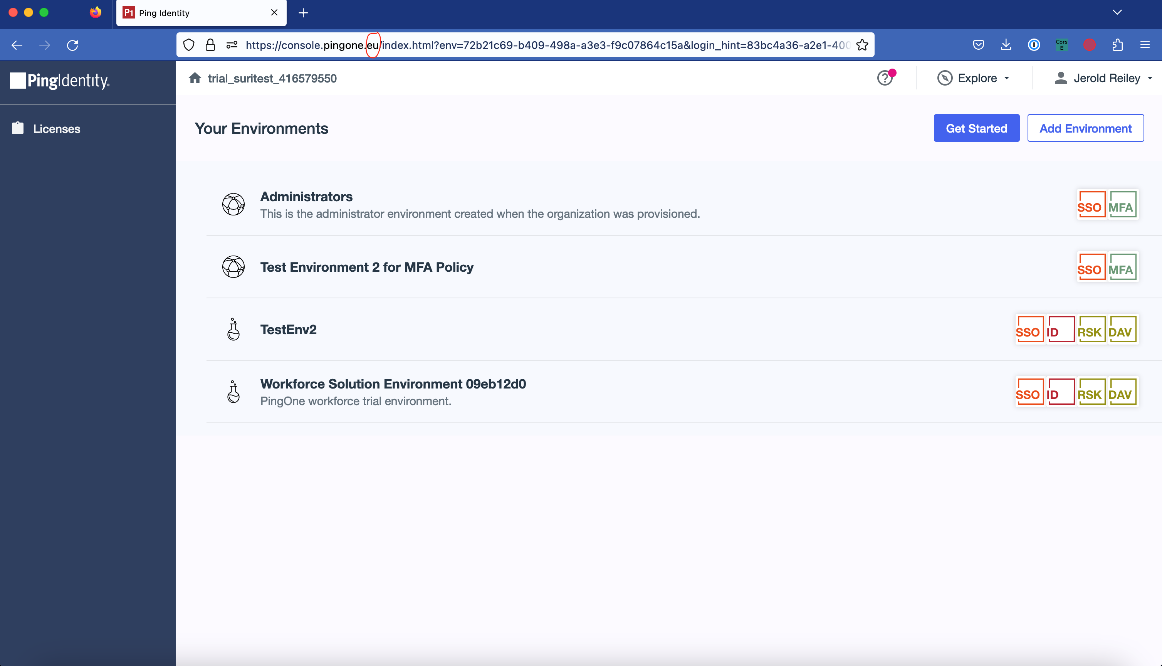
In the URL string, the region is specified after "pingone", as follows:
Find the environment with the highest permission access:
Typically, the environment with the highest permissions is the Administrator Environment (as it has access to all the environments).
Client ID and Client Secret:
In the admin environment, go to Connections > Applications.
Click on the blue "+" icon.
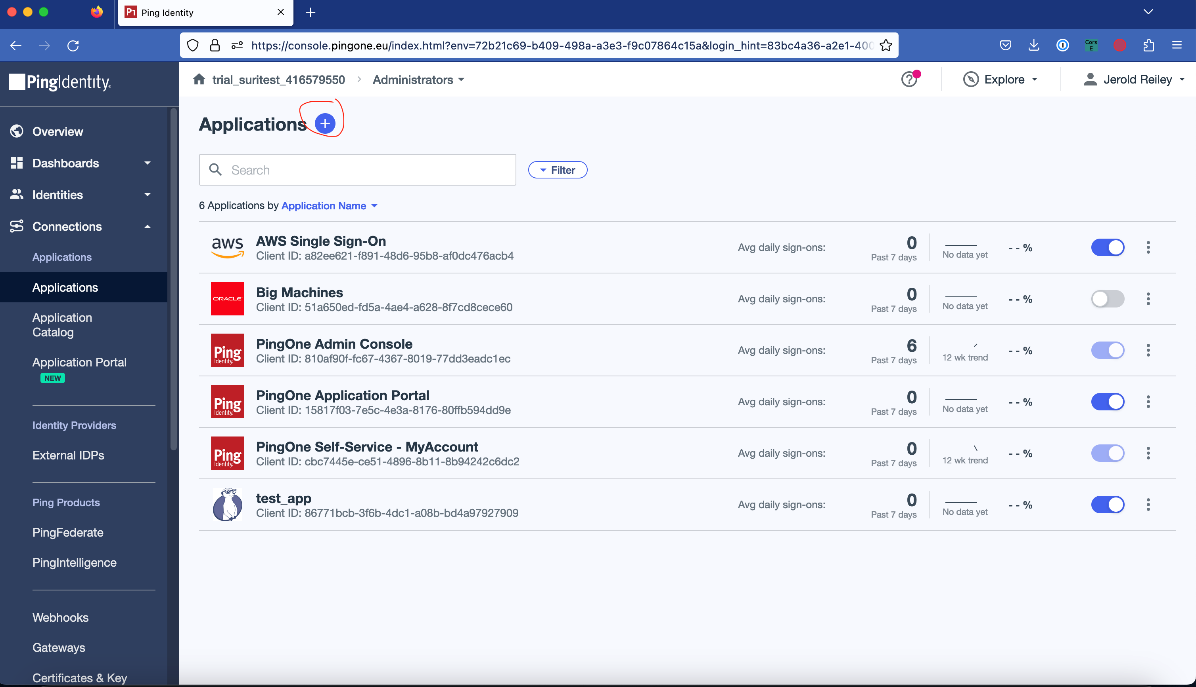
Then you get the following form:
Application Name: FortiCASB-SSPM_app
Description: {to your choice}
Application Type: Worker
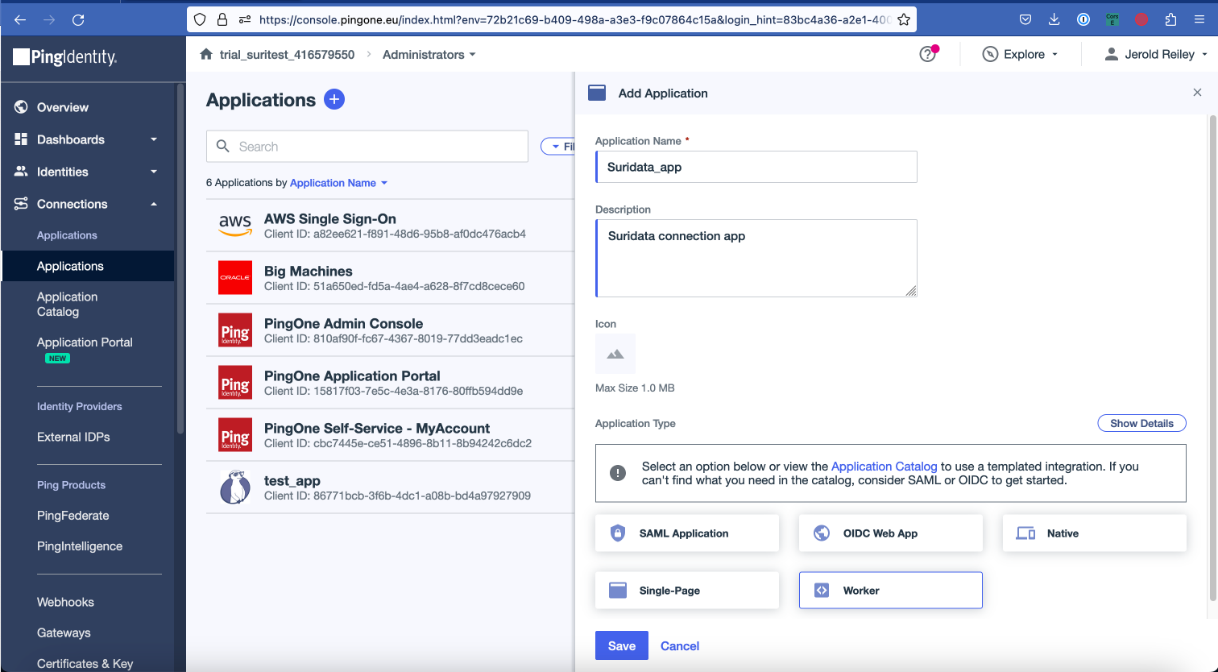
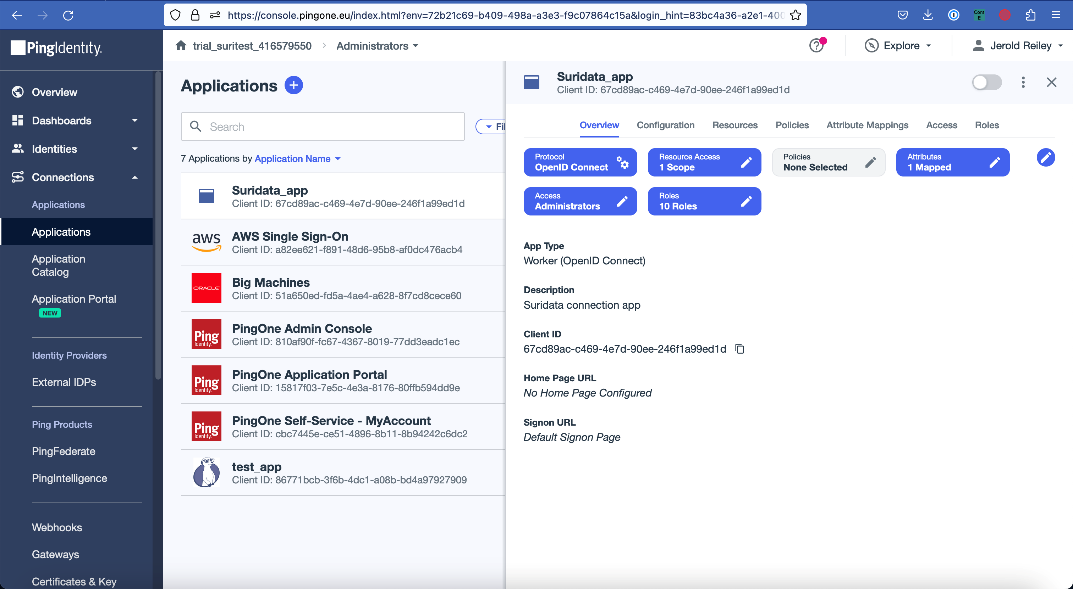
Click "Save".
After saving, you get the following form:
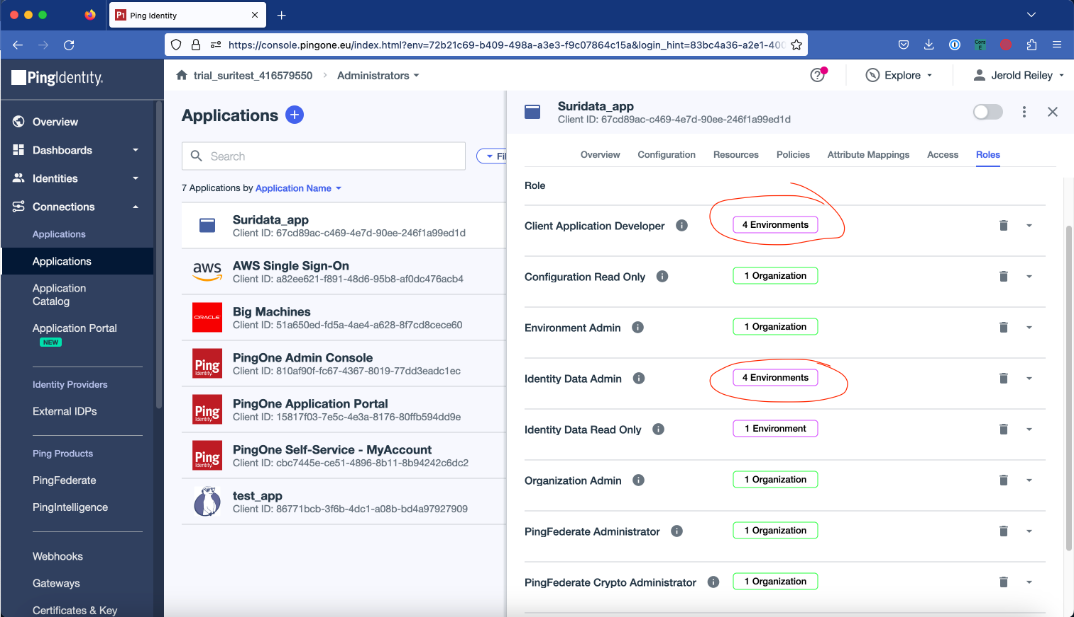
Click on "Roles" and make sure the application has access to all of the environments:
In the top right corner, you will find a toggle button to enable the app > click on the button.
Go to Configuration > General and copy the following fields:
Client ID
Client secret
Environment ID
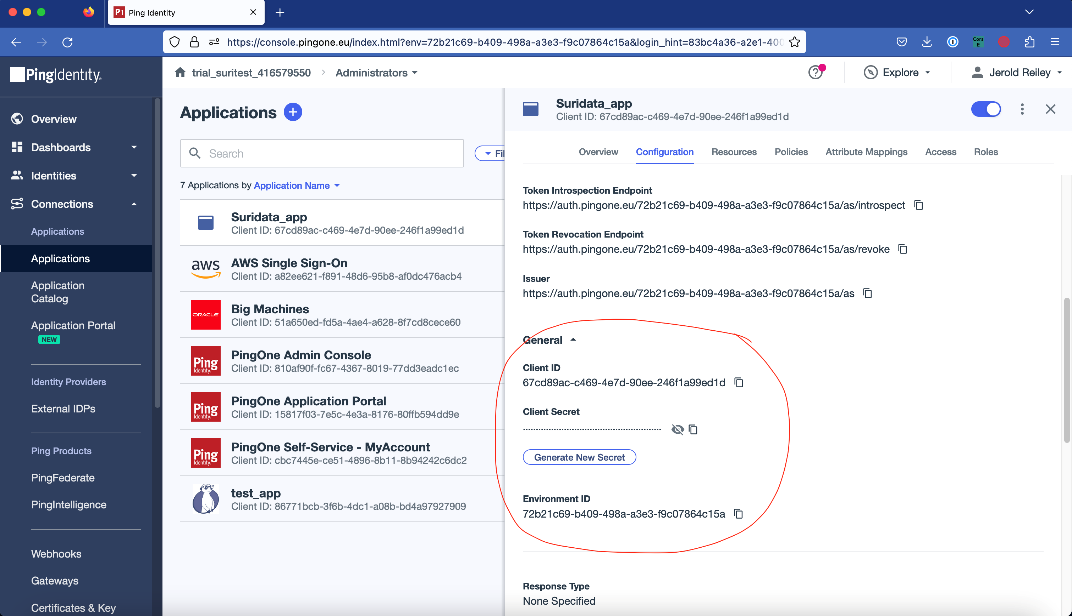
Store the fields in a safe place.
Login to FortiCASB-SSPM > Navigate to the App Store > Click on Ping Identity
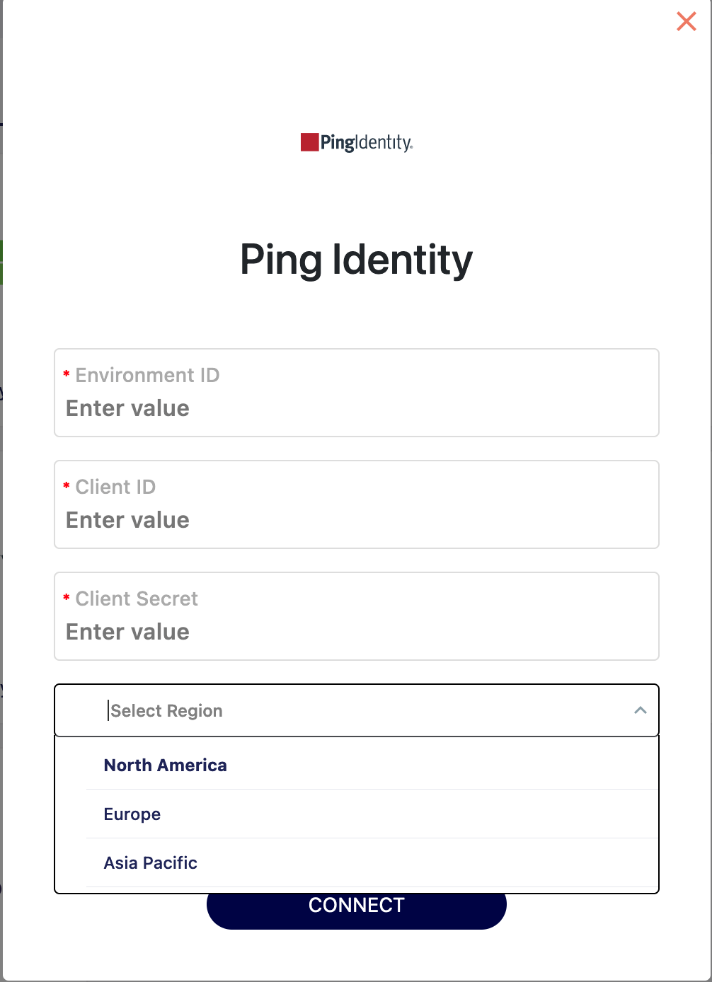
Fill out the following information with the data from Part A.
That's it! You're all set.
Your SaaS security is our priority!
The FortiCASB-SSPM team

Use this guide to add Ping Identity as a secure application in FortiCASB-SSPM's SaaS Security platform.
Server Region
When you login to the Ping Identity console, look at the URL.
In the URL string, the region is specified after "pingone", as follows:
Find the environment with the highest permission access:
Typically, the environment with the highest permissions is the Administrator Environment (as it has access to all the environments).
Client ID and Client Secret:
In the admin environment, go to Connections > Applications.
Click on the blue "+" icon.
Then you get the following form:
Application Name: FortiCASB-SSPM_app
Description: {to your choice}
Application Type: Worker
Click "Save".
After saving, you get the following form:
Click on "Roles" and make sure the application has access to all of the environments:
In the top right corner, you will find a toggle button to enable the app > click on the button.
Go to Configuration > General and copy the following fields:
Client ID
Client secret
Environment ID
Store the fields in a safe place.
Login to FortiCASB-SSPM > Navigate to the App Store > Click on Ping Identity
Fill out the following information with the data from Part A.
That's it! You're all set.
Your SaaS security is our priority!
The FortiCASB-SSPM team