
 DOCUMENT LIBRARY
1.0.0
DOCUMENT LIBRARY
1.0.0
DOCUMENT LIBRARY
1.0.0
DOCUMENT LIBRARY
1.0.0

Use this guide to add Duo Security as a secured SaaS application in FortiCASB-SSPM SaaS Security platform.
Log-in to Due Security admin console with your Owner account (Owner is only used for initial setup).
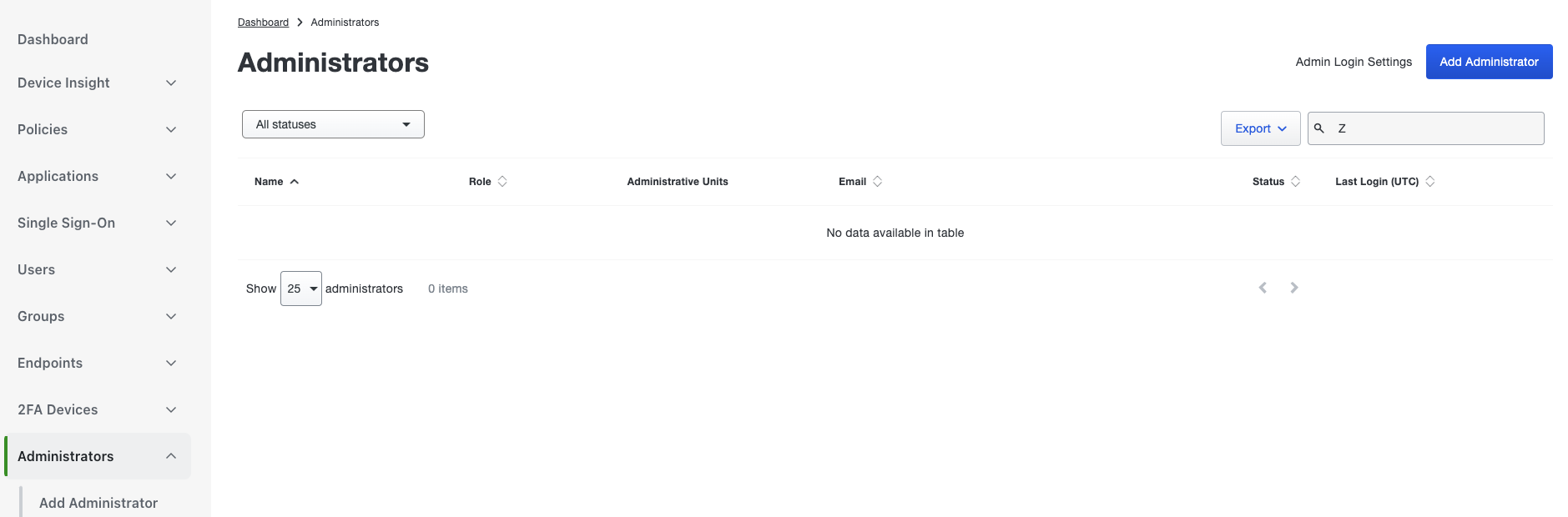
Create a dedicated Administrator user account for the integration: Navigate to Administrators, then click on Add Administrator
Next, need to create an "Admin API"
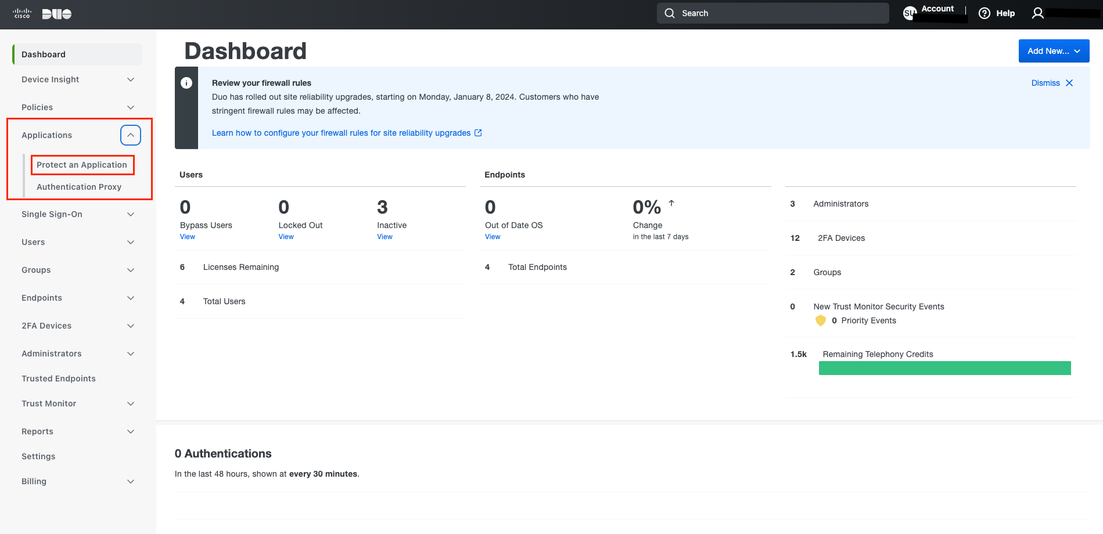
Go to "Applications" in the menu - Click on "Protect an Application"
If "Admin API" exists and you want to reuse it then select it OR you can create a new dedicated Admin API with a new name
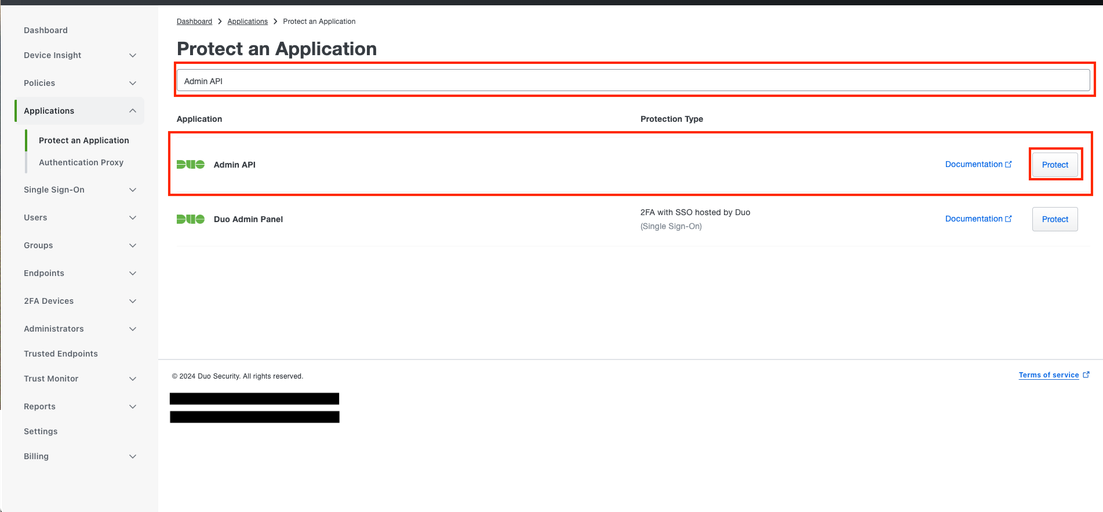
Search for "Admin API" and click on "Protect"
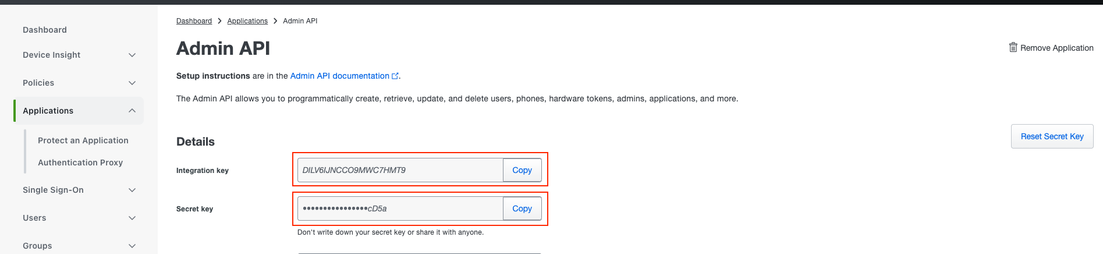
Copy the Integration Key and Secret Key, they will be required for theintegration
Under the "Settings" section, ensure the following permissions are selected:
Grant Administrator
Grant read information
Grant read resource
Grant Setting
Grant write resource - Required for the initial Hardware Token creation, will be removed after initial setup
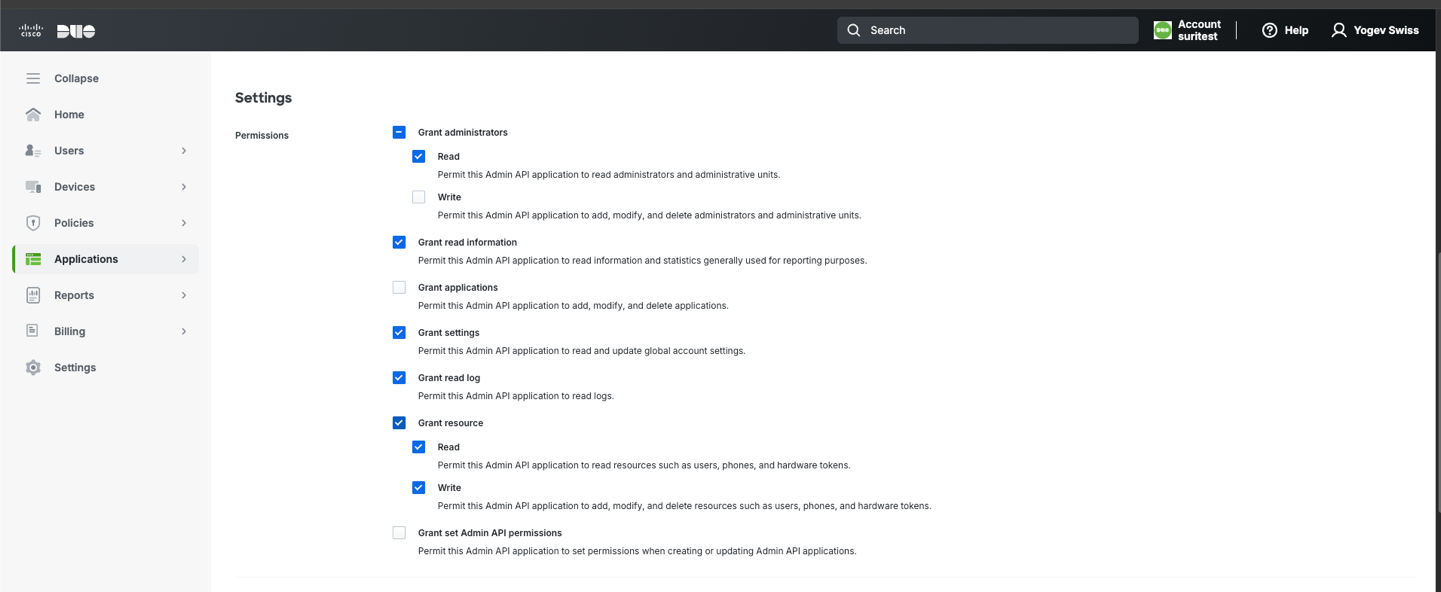
Save Changes
Note
Please note, do not log out of your Duo Owner Account just yet, you will need to return here to complete 2 final steps AFTER completing the configuration of the Duo Security application integration in FortiCASB-SSPM (Part C in the guide).
Navigate to the App Store > Click on Duo Security
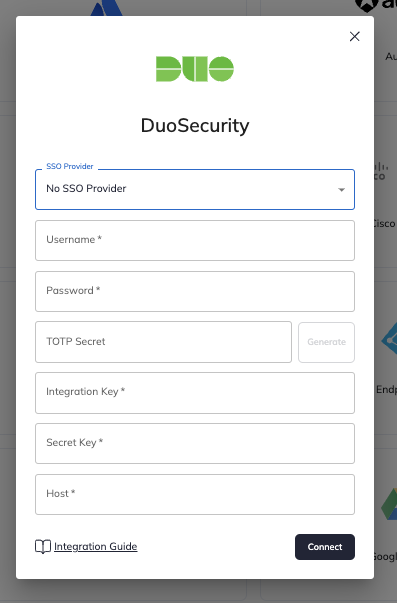
Provide all the following information:
Click "Connect"
Remove the "Write" permission from the Admin API : Admin API > Grant Resource > Uncheck "Write". All other permissions remain.
Connect the "Hardware Token" to the Admin service account:
Go to "Administrators" in the menu.
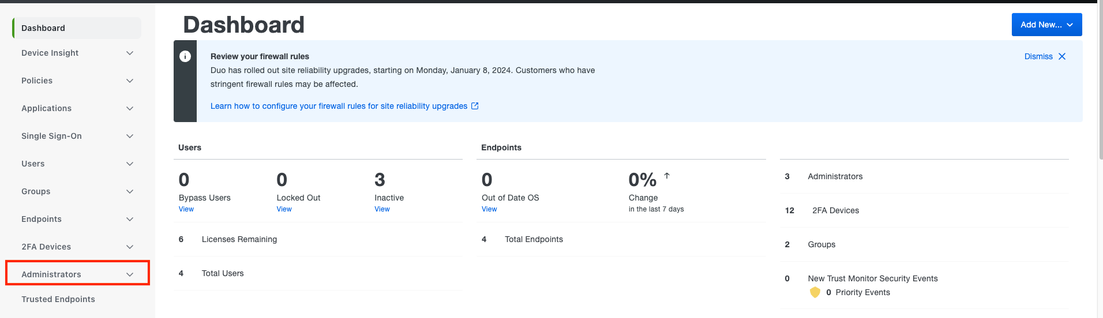
Search for the dedicated Admin service account and select it.
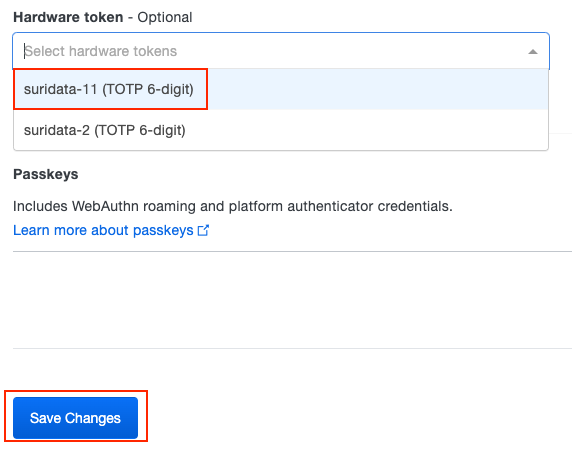
Once in the admin settings page, scroll down to "Secondary authentication" section and search for the "Hardware Token" dropdown
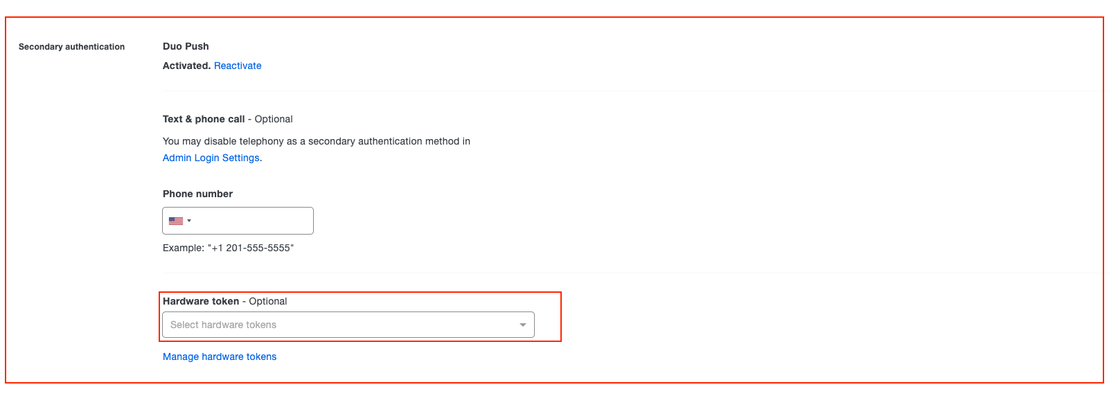
Select the latest "FortiCASB-SSPM" token and click "Save Changes"
Return to FortiCASB-SSPM to start the newly created DuoSecurity instance (via the 3-dot menu) to initiate the scanning.
That's it! You're all set.
Your SaaS security is our priority!
The Fortinet Team

Use this guide to add Duo Security as a secured SaaS application in FortiCASB-SSPM SaaS Security platform.
Log-in to Due Security admin console with your Owner account (Owner is only used for initial setup).
Create a dedicated Administrator user account for the integration: Navigate to Administrators, then click on Add Administrator
Next, need to create an "Admin API"
Go to "Applications" in the menu - Click on "Protect an Application"
If "Admin API" exists and you want to reuse it then select it OR you can create a new dedicated Admin API with a new name
Search for "Admin API" and click on "Protect"
Copy the Integration Key and Secret Key, they will be required for theintegration
Under the "Settings" section, ensure the following permissions are selected:
Grant Administrator
Grant read information
Grant read resource
Grant Setting
Grant write resource - Required for the initial Hardware Token creation, will be removed after initial setup
Save Changes
Note
Please note, do not log out of your Duo Owner Account just yet, you will need to return here to complete 2 final steps AFTER completing the configuration of the Duo Security application integration in FortiCASB-SSPM (Part C in the guide).
Navigate to the App Store > Click on Duo Security
Provide all the following information:
Click "Connect"
Remove the "Write" permission from the Admin API : Admin API > Grant Resource > Uncheck "Write". All other permissions remain.
Connect the "Hardware Token" to the Admin service account:
Go to "Administrators" in the menu.
Search for the dedicated Admin service account and select it.
Once in the admin settings page, scroll down to "Secondary authentication" section and search for the "Hardware Token" dropdown
Select the latest "FortiCASB-SSPM" token and click "Save Changes"
Return to FortiCASB-SSPM to start the newly created DuoSecurity instance (via the 3-dot menu) to initiate the scanning.
That's it! You're all set.
Your SaaS security is our priority!
The Fortinet Team