
 DOCUMENT LIBRARY
1.0.0
DOCUMENT LIBRARY
1.0.0
DOCUMENT LIBRARY
1.0.0
DOCUMENT LIBRARY
1.0.0

Use this guide to add Bamboo HR as a secured SaaS application in FortiCASB-SSPM SaaS Security platform.
To Begin:
Allocate an email address for a FortiCASB-SSPM Service account
Generate a secure password
Retrieve your BambooHR domain:
Login to FortiCASB-SSPM > Navigate to the App Store > Click on BambooHR
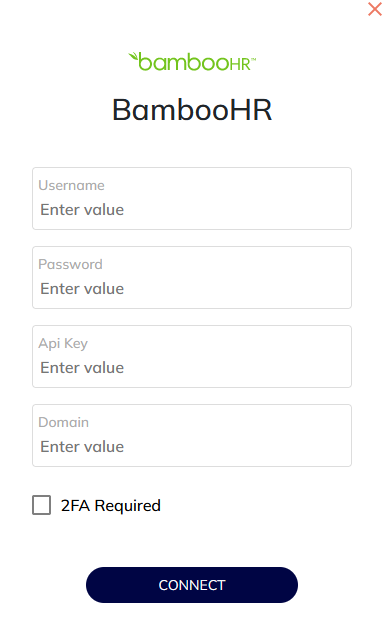
Enter the details you previously saved:
Log into your BambooHR environment using the existing Admin user
Select "People" on the page top menu
Create a Service account by creating a New Employee:
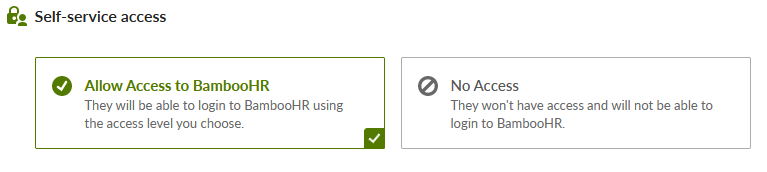
Configure the "Self-service access" as allowed:
Create the user.
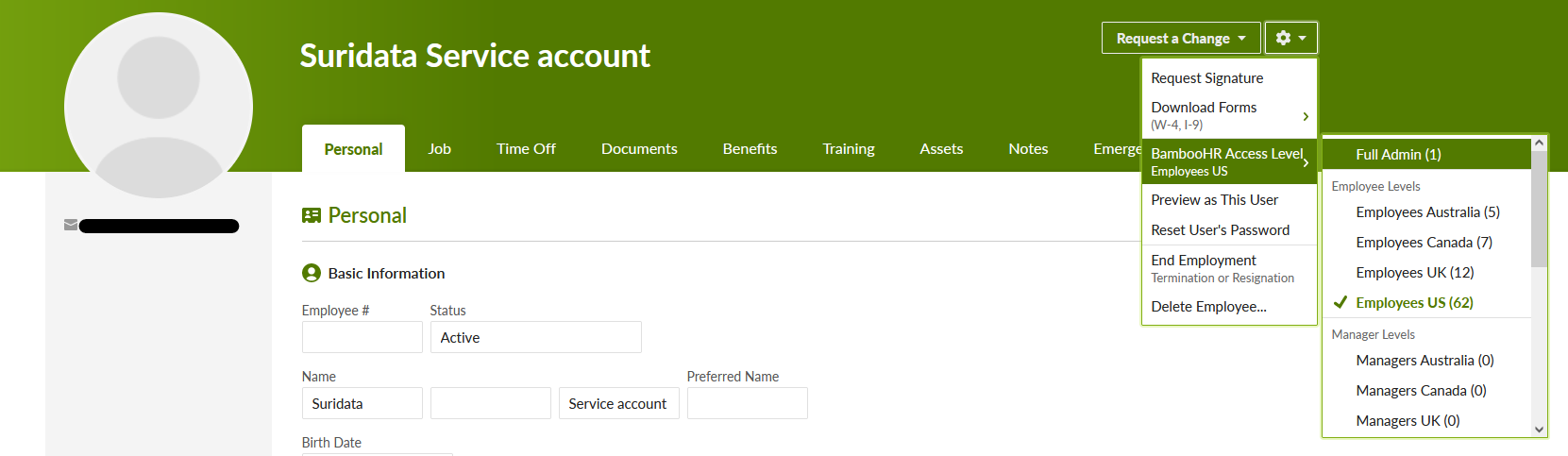
After creation you can view the user's profile. Select the user settings using the Settings wheel, and through the BambooHR Access Level set the user as "Full Admin"
Use the Settings menu again to Reset the user's password
Log out of BambooHR
Check the service account user email
Find the 'BambooHR Reset Password' email and click "Reset password"
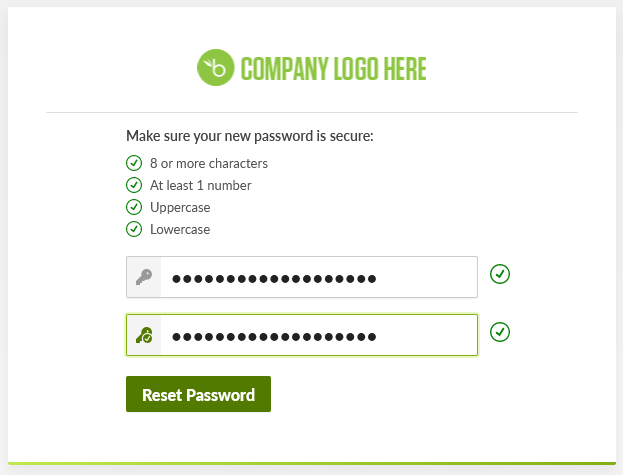
Type in a secure password you prepared in step 1
If your organization's settings require 2-Step authentication you will be requested to set it up for the service account user. Otherwise the activation process is over. Continue to Step 4 to complete the 2-Step authentication in either case.
If your organization is already configured to require 2-Step authentication skip to sub-step 6. Otherwise, continue to activate the 2-Step authentication setting.
Click on the settings wheel in the top right corner of the website.
Select 'Account' in the left side bar, and click on "2-Step Login" on the sub-menu
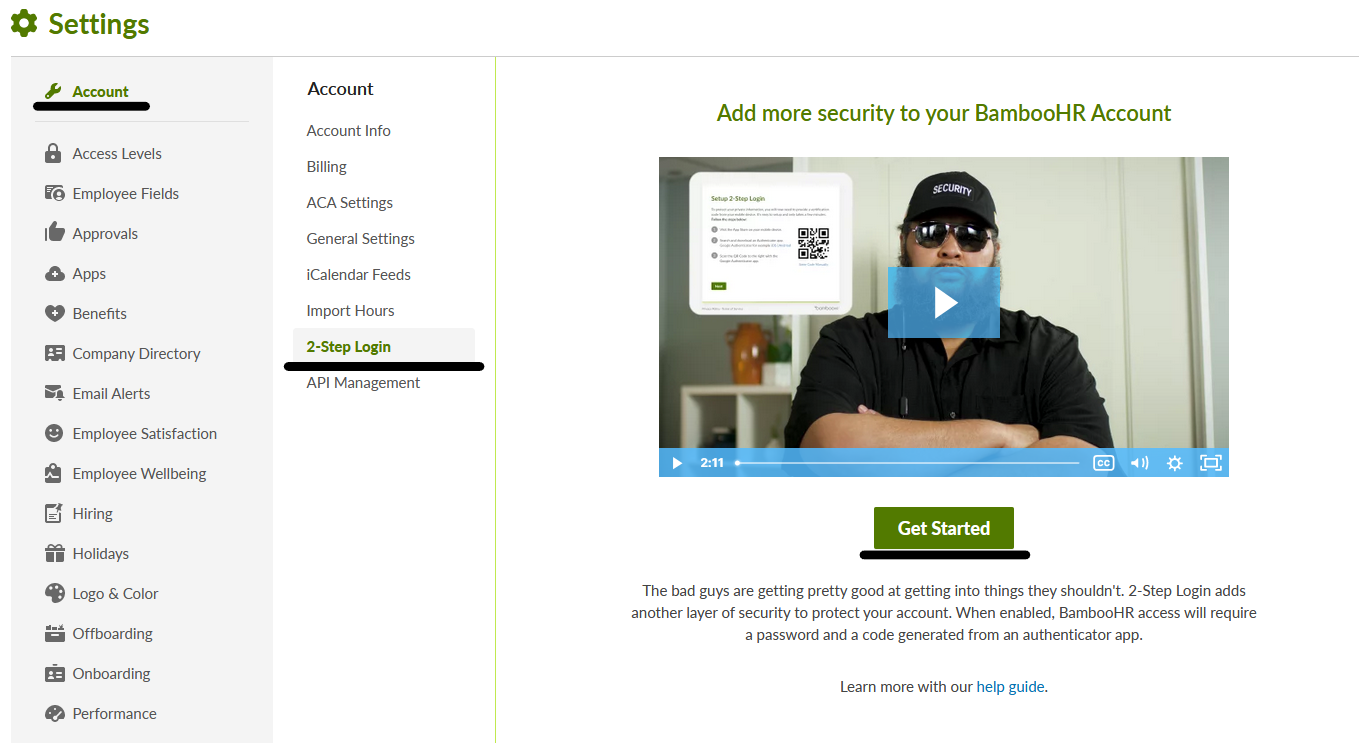
Click on 'Get Started', choose a date within the next 30 days on which the MFA will be enforced for all users in the account.
Click 'Enable' to confirm, then refresh the page.
On the Setup 2-Step Login screen:
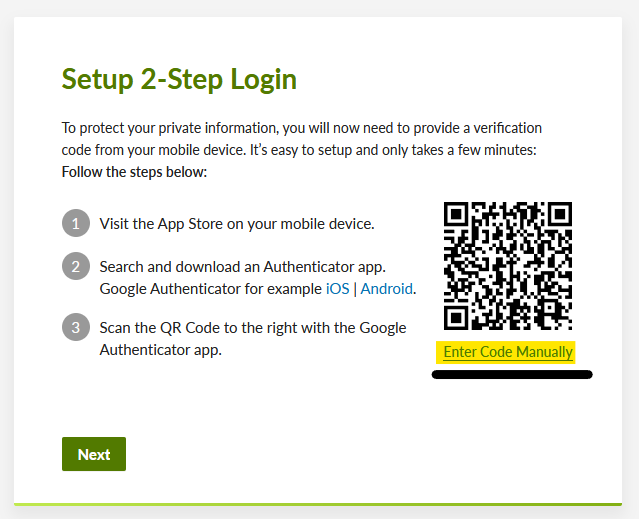
Click on "Enter Code Manually".
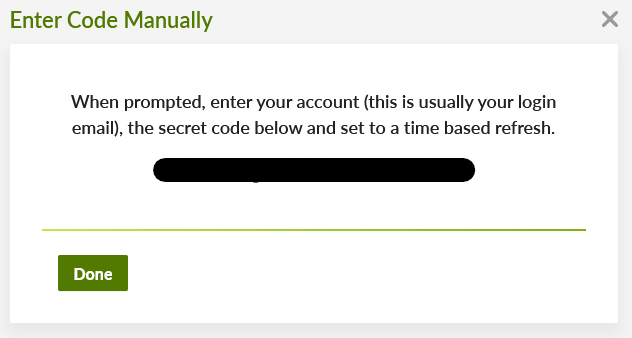
Copy the Secret and save it in your notes. Please note that this would be the only time you can see this code, so save it in a secure place
Click 'Done'
Click 'Next'
Go back to FortiCASB-SSPM
In the open screen select '2FA Required'
Enter the code in the 'OTP Secret' box
Click 'Show Passcode'
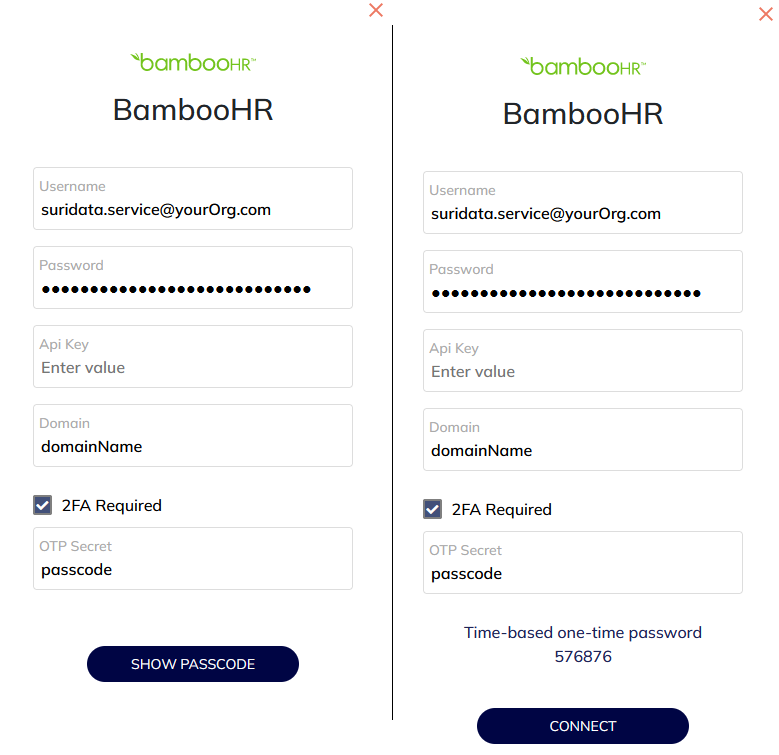
Copy the One-Time generated password
Go back to BambooHR, paste the OTP password and confirm
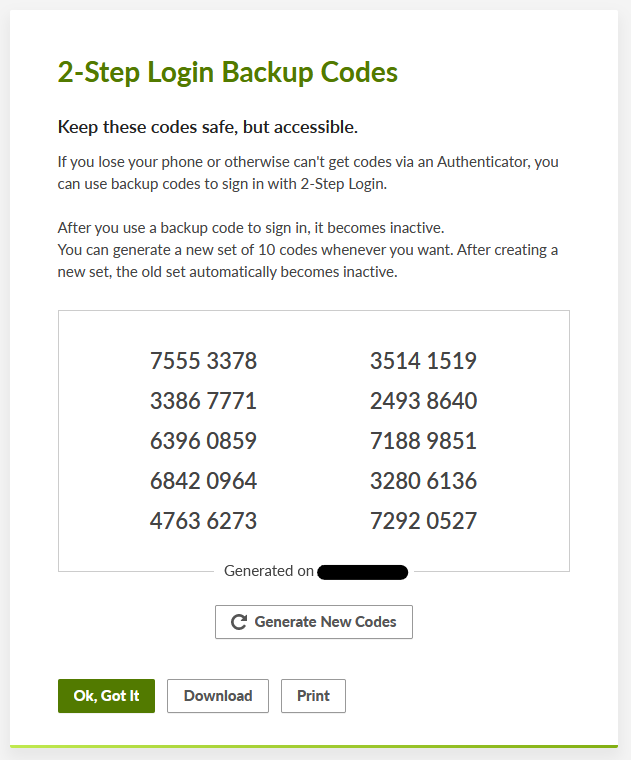
Download the Backup codes and save them in a secure place
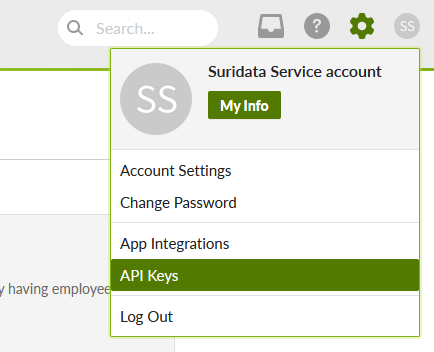
To generate an API Key, click on the user picture, in the top right corner of the page, and select "API Keys"
In the API keys page, Click 'Add New Key'
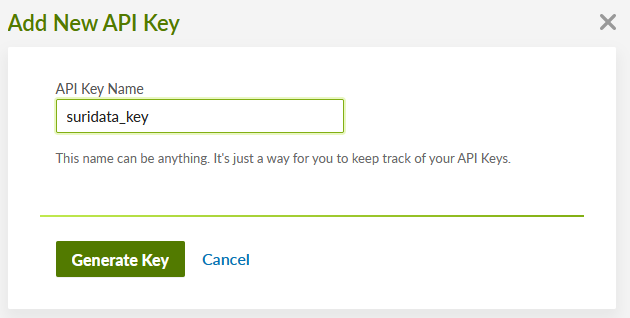
Provide the name "FortiCASB-SSPM_key" in the dialog box and click 'Generate Key'!
Copy the generated key and save it in a secure place.
Click Done
Return to FortiCASB-SSPM and paste the newly generated API key into the API Key box
Click 'Connect'
That's it! You're all set.
Your SaaS security is our priority!
The FortiCASB-SSPM team

Use this guide to add Bamboo HR as a secured SaaS application in FortiCASB-SSPM SaaS Security platform.
To Begin:
Allocate an email address for a FortiCASB-SSPM Service account
Generate a secure password
Retrieve your BambooHR domain:
Login to FortiCASB-SSPM > Navigate to the App Store > Click on BambooHR
Enter the details you previously saved:
Log into your BambooHR environment using the existing Admin user
Select "People" on the page top menu
Create a Service account by creating a New Employee:
Configure the "Self-service access" as allowed:
Create the user.
After creation you can view the user's profile. Select the user settings using the Settings wheel, and through the BambooHR Access Level set the user as "Full Admin"
Use the Settings menu again to Reset the user's password
Log out of BambooHR
Check the service account user email
Find the 'BambooHR Reset Password' email and click "Reset password"
Type in a secure password you prepared in step 1
If your organization's settings require 2-Step authentication you will be requested to set it up for the service account user. Otherwise the activation process is over. Continue to Step 4 to complete the 2-Step authentication in either case.
If your organization is already configured to require 2-Step authentication skip to sub-step 6. Otherwise, continue to activate the 2-Step authentication setting.
Click on the settings wheel in the top right corner of the website.
Select 'Account' in the left side bar, and click on "2-Step Login" on the sub-menu
Click on 'Get Started', choose a date within the next 30 days on which the MFA will be enforced for all users in the account.
Click 'Enable' to confirm, then refresh the page.
On the Setup 2-Step Login screen:
Click on "Enter Code Manually".
Copy the Secret and save it in your notes. Please note that this would be the only time you can see this code, so save it in a secure place
Click 'Done'
Click 'Next'
Go back to FortiCASB-SSPM
In the open screen select '2FA Required'
Enter the code in the 'OTP Secret' box
Click 'Show Passcode'
Copy the One-Time generated password
Go back to BambooHR, paste the OTP password and confirm
Download the Backup codes and save them in a secure place
To generate an API Key, click on the user picture, in the top right corner of the page, and select "API Keys"
In the API keys page, Click 'Add New Key'
Provide the name "FortiCASB-SSPM_key" in the dialog box and click 'Generate Key'!
Copy the generated key and save it in a secure place.
Click Done
Return to FortiCASB-SSPM and paste the newly generated API key into the API Key box
Click 'Connect'
That's it! You're all set.
Your SaaS security is our priority!
The FortiCASB-SSPM team