Fortinet white logo
Fortinet white logo

Getting started

Getting started

The FortiVoice Admin app allows you to monitor your FortiVoice system status and easily manage phones and user extensions from your mobile phone.

The app complements the admin portal by supporting you with some administrative tasks while you are away from your desk.

For more information about the admin portal, see the FortiVoice Phone System Administration Guide.

Action

How to

Installing the app

Go to the Google Play Store and search for FortiVoiceAdmin.

The app has been tested on Android 9.0 and later.

Logging in for the first time

To log in

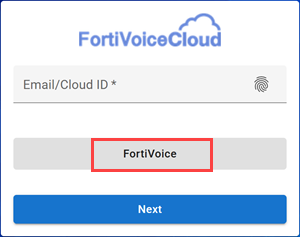
  1. Tap the FortiVoice Admin app icon on your phone.

    The login page opens.

  2. Tap FortiVoice.

  3. Enter the server URL. Leave out https://.

    The URL format is <IP_address>.

    If FortiVoice is using a non-default HTTPS port, then add :<port_number> after the IP address, for example:

    <IP_address>:<port_number>

  4. Enter the username and password. Those are the same credentials that you are using to log in to the FortiVoice admin portal.
  5. The web app opens to the Dashboard where you can review your system information, system resources, and license information.

  • Your credentials are saved on your mobile phone.

  • You can store up to three different sets of login credentials.

No.

Action

How to

1

Using biometric authentication

Note

On your mobile phone, ensure that you have completed the biometric setup to register your fingerprint.

To login using the fingerprint recognition

After logging in for the first time in the Admin app, you can store login credentials. For subsequent logins, you can use the fingerprint recognition to easily access your saved credentials and quickly login.

  1. On the login page, tap the fingerprint icon .

    The Authentication required page opens.

  2. Place your finger on the fingerprint sensor.

    If your mobile phone recognizes your fingerprint, the Admin app displays your saved login(s).

  3. Tap the saved login you want to use.

To disable fingerprint authentication

  1. Tap your account or placeholder picture.

  2. Tap Settings.

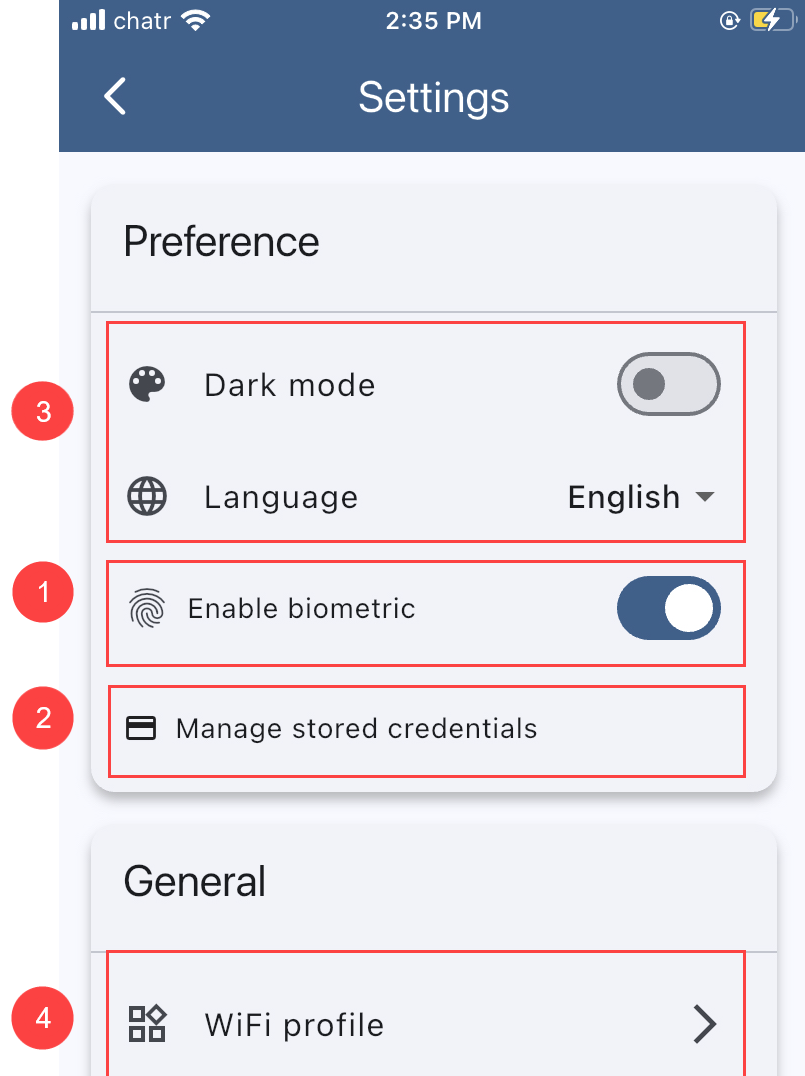
  3. Tap Enable biometric.

2

Managing stored login credentials

To remove login credentials saved on the phone

  1. In Settings, tap Manage stored credentials.

  2. Tap the 'x' beside the credentials you want to remove from your phone.

3

Managing your preferences

In Settings > Preference, you can adjust your screen display and select the language.

4

Managing WiFi profiles

In Settings > General, you can manage WiFi profiles for FortiFone FON-W80B phones.

5

Logging out securely

To log out of the app

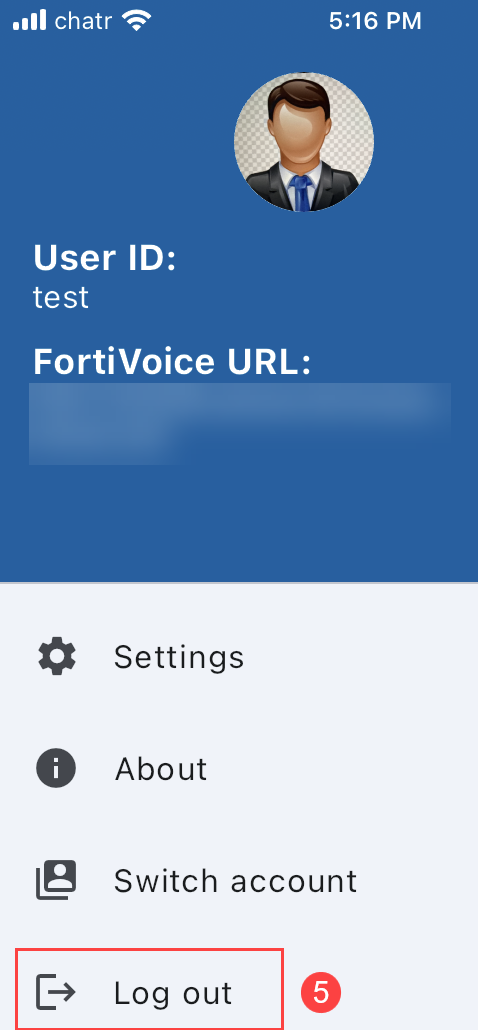
  1. Tap your account or placeholder picture.

  2. Tap Log out.

Getting started

Getting started

The FortiVoice Admin app allows you to monitor your FortiVoice system status and easily manage phones and user extensions from your mobile phone.

The app complements the admin portal by supporting you with some administrative tasks while you are away from your desk.

For more information about the admin portal, see the FortiVoice Phone System Administration Guide.

Action

How to

Installing the app

Go to the Google Play Store and search for FortiVoiceAdmin.

The app has been tested on Android 9.0 and later.

Logging in for the first time

To log in

  1. Tap the FortiVoice Admin app icon on your phone.

    The login page opens.

  2. Tap FortiVoice.

  3. Enter the server URL. Leave out https://.

    The URL format is <IP_address>.

    If FortiVoice is using a non-default HTTPS port, then add :<port_number> after the IP address, for example:

    <IP_address>:<port_number>

  4. Enter the username and password. Those are the same credentials that you are using to log in to the FortiVoice admin portal.
  5. The web app opens to the Dashboard where you can review your system information, system resources, and license information.

  • Your credentials are saved on your mobile phone.

  • You can store up to three different sets of login credentials.

No.

Action

How to

1

Using biometric authentication

Note

On your mobile phone, ensure that you have completed the biometric setup to register your fingerprint.

To login using the fingerprint recognition

After logging in for the first time in the Admin app, you can store login credentials. For subsequent logins, you can use the fingerprint recognition to easily access your saved credentials and quickly login.

  1. On the login page, tap the fingerprint icon .

    The Authentication required page opens.

  2. Place your finger on the fingerprint sensor.

    If your mobile phone recognizes your fingerprint, the Admin app displays your saved login(s).

  3. Tap the saved login you want to use.

To disable fingerprint authentication

  1. Tap your account or placeholder picture.

  2. Tap Settings.

  3. Tap Enable biometric.

2

Managing stored login credentials

To remove login credentials saved on the phone

  1. In Settings, tap Manage stored credentials.

  2. Tap the 'x' beside the credentials you want to remove from your phone.

3

Managing your preferences

In Settings > Preference, you can adjust your screen display and select the language.

4

Managing WiFi profiles

In Settings > General, you can manage WiFi profiles for FortiFone FON-W80B phones.

5

Logging out securely

To log out of the app

  1. Tap your account or placeholder picture.

  2. Tap Log out.