

External Authentication Settings
This section specifies how to configure external authentication for FortiSIEM users. External authentication enables FortiSIEM to offload user authentication to external systems, such as Microsoft Active Directory via (LDAP/LDAPS/LDAPTLS), Azure AD, OKTA, Duo Security and any SAML Provider.
The general configuration steps are described here:
- Configure FortiSIEM Users for non-SAML External Authentication
- Configure FortiSIEM Users for SAML External Authentication
A few concrete examples are provided:
- Example 1: Configure FortiSIEM Users for SAML Authentication with Azure AD
- Example 2: Configuring FortiSIEM Users for RADIUS/LDAP Authentication with FortiAuthenticator (FAC)
- Example 3: Configuring FortiSIEM Users for SAML Authentication with FortiAuthenticator (FAC)
- Example 4: Configuring FortiSIEM Users for SAML Authentication with OKTA
- Example 5: Configuring FortiSIEM Users for 2 Factor Authentication with Duo Security
Some Troubleshooting steps for SAML Configuration are provided here.
Configure FortiSIEM Users for non-SAML External Authentication
Step 1: Create External Authentication Profile
Case 1: LDAP/LDAPS/LDAPTLS Profile
Add LDAP, LDAPS, and LDAPTLS authentication profile as follows:
- Go to ADMIN > Settings > General > External Authentication.
- Click New.
- Enter Name.
- Select Organization.
- Set Protocol as LDAP or LDAPS or LDAPTLS.
- Set IP/Host of LDAP server.
- Change the port if it is different than default port.
- Check Check Certificate if needed.
This option enables proper X.509 Certificate verification for LDAPS and LDAPTLS. If checked, then App Server will check if the CN or the subject-alt-name in the Certificate matches the LDAP Server IP address or host name entered in the External Authentication Profile dialog. This means that self-signed certificates will fail and a proper certificate needs to be installed on the LDAP Server. - Check Set Base DN if needed by filling in the DN Pattern field.
Setting the DN pattern manually is not necessary if the user is discovered via LDAP. However, this feature allows you to manually override the discovered pattern, or enter it for a user that is being manually created. Enter%sto represent the user's name (CN/uid), for example:CN=%s,CN=Users,DC=accelops,DC=com - Click Save.
Case 2: Okta Profile
Add Okta authentication profile as follows:
- Go to ADMIN > Settings > General > External Authentication.
- Click New.
- Enter Name.
- Select Organization
- Set Protocol as "Okta".
- Copy and paste the certificate you downloaded during Okta Authentication.
- Click Save.
Case 3: Duo Profile for 2 Factor Authentication
Add a duo (2-factor) external authentication profile as follows:
- Go to ADMIN > Settings > General > External Authentication.
- Click New.
- Enter Name.
- Select Organization
- Set Protocol as "Duo".
- In the IP/Host field, enter the IP address/host name from the API hostname.
- In the Integration Key field, enter/paste the Integration Key.
- In the Secret Key field, enter/paste the Secret Key.
- In the Application Key field, enter/paste the Application Key.
- Click Save.
Step 2: Associate User to External Authentication Profile
Case 1: LDAP/LDAPS/LDAPTLS, Okta
To configure a user for all protocols excluding Duo, take the following steps:
- Log on to FortiSIEM as Admin.
- Go to CMDB > Users.
- Click New to create a new user.
Note: You may need to navigate to CMDB > Users > Ungrouped. - Click System Admin.
- From the Mode drop-down list, select External.
- From the Authentication Profiles drop-down list, select your user profile.
- Set the user's Role.
- When done, click Save.
Case 2: Duo for 2 Factor Authentication
To configure a user for Duo protocol, take the following steps:
- Log on to FortiSIEM as Admin.
- Go to CMDB > Users.
- Click New to create a new user.
Note: You may need to navigate to CMDB > Users > Ungrouped. - Click System Admin.
- In the Password and Confirm Password fields, enter the user's password.
- Select the Second Factor checkbox, and select your Duo (2 Factor authentication) profile.
- Select a Default Role from the drop-down list.
- When done, click Save.
Configure FortiSIEM Users for SAML Authentication
- Step 0: Overview
- Step 1 - Preparation
- Step 2 - Create External Authentication Profile in FortiSIEM
- Step 3 - Create SAML Role Mappings in FortiSIEM
- Step 4 - Create the User in CMDB
Step 0: Overview
In SAML authentication, there are 3 entities:
- Identity Provider (IDP) - this is where user authentication happens. There are many examples, OKTA, Entrust, etc...
- IDP Portal - this is where you define users and credentials for your IDP and Service Providers.
- Service Provider (SP) - this is where the user logs on after authentication succeeds, e.g. FortiSIEM in this case.
After configuration, the flow is as follows:
- The user authenticates on to the IDP Portal.
- The user clicks a FortiSIEM icon on the IDP Portal.
- IDP sends a SAML response to FortiSIEM containing the User, Org, and Role. User and Org are required, while Role is optional.
- FortiSIEM trusts the IDP and logs in the User with the right Org and Role (if applicable).
Note: You cannot use FortiSIEM default login page with SAML.
To ensure SAML works correctly, the following must be done.
- Define URLs and credentials in IDP Portal and FortiSIEM so that they can securely communicate with each other.
- Map the User, Org, and Role in the IDP Portal to the User, Org, and Role in FortiSIEM. The User must be an exact match, including case-sensitivity. For Org and Role, you can define mappings in FortiSIEM for IDP Org to FortiSIEM Org and IDP Role to FortiSIEM Role.
The following is a detailed example showing the steps required for configuration. This example assumes a FortiSIEM user has already been created in an IDP Portal.
Step 1 - Preparation
-
Configure your IDP for the specific User, Organization, and Role. Collect IDP Portal endpoint and certificate.
-
Study the SAML Response from your IDP and determine where to find the User, Org, and Role. Typically, the User is in the NameIdentifier element of the Subject statement. Org is in the Audience element of AudienceRestriction.
This step is different for every IDP vendor. See the representative example below for Okta.com. In OKTA.com, there is no Role information.
Step 2 - Create External Authentication Profile in FortiSIEM
- Log on to FortiSIEM as Admin.
- Go to ADMIN > Settings > General > External Authentication.
- Click New to create an External Authentication profile.
- (Service Provider Case) Set Organization to System if any User from any Org can use this profile. Otherwise, set it to the specific Org.
- In the Protocol drop-down list, select SAML.
- Fill in the Issuer and Certificate (credentials) fields using the information collected in Step 1 - Preparation.
- Set User to the specific field in the SAML Response containing the User information. (note - match is exact and case-sensitive). This information was gathered in Step 1B. If the User is not in the NameIdentifier element of the Subject Statement, then select Custom Attribute and enter the field containing the User information.
- Set Org to the specific field in the SAML Response containing the Org information. This information was gathered in Step 1 - Preparation. If Org is not in the Audience element of AudienceRestriction, then select Custom Attribute and enter the field containing the Org information. Matching is determined by the Role mapping rules in Step 3.
- If Role is present in the SAML Response from the IDP, then select Custom Attribute and enter the field containing the Role information. Otherwise, select None. In the later case, you must create the User in CMDB for the specific Org, and assign the right Role. Step 3 is not needed.
Step 3 - Create SAML Role Mappings in FortiSIEM
This step is only needed if Role is present in the SAML Response as in Step 2 - 3f. For example, OKTA does not have Role, so this step is not needed.
- Log on to FortiSIEM as Admin.
- Go to ADMIN > Settings > Role > SAML Role.
- Click New.
- In the Add SAML Role, enter the following information.
- From the SAML Auth profile, select the user.
- In the SAML Role field, enter the SAML Role.
- In the SAML Organization field, enter the SAML Organization.
- From the Mapped Role drop-down list, select an existing role.
- From the Mapped Organization drop-down list, select an organization.
- (Optional) In the Comments field, enter any information you may wish to reference at a future date.
- Click Save.
Step 4 - Create the User in CMDB
This step is only needed if Role is not present in the SAML Response, as in Step 2 - 3f. For example, OKTA does not have Role, so this step is needed.
- Log on to FortiSIEM as Admin.
- Go to CMDB > Users.
- If the SAML user is not present, then click New to create a new user.
Note: You may need to navigate to CMDB > Users > Ungrouped. - In the User Name field, enter the name exactly as that used in Step 2 -3f. The name must match exactly, including case-sensitivity.
- Click System Admin and set the Role.
- When done, click Save.
This procedure is described in more details in Adding Users.
Example 1: Configure FortiSIEM Users for SAML Authentication with Azure AD
Step 1: Setup Azure
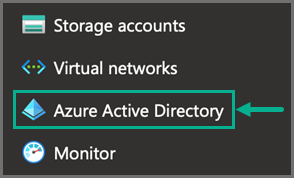
- In Azure, navigate to Azure Active Directory.
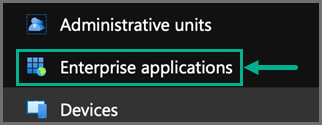
- Navigate to Enterprise applications.
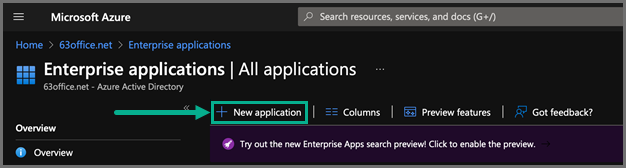
- Select New application.
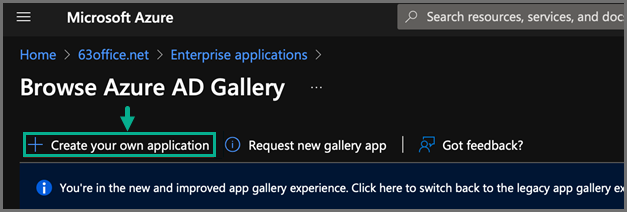
- Select Create your own application.
- For "What's the name of your app?", enter a name, such as FortiSIEM.
- For "What are you looking to do with your application?", select Integrate any other application you don't find in the gallery (Non-gallery).
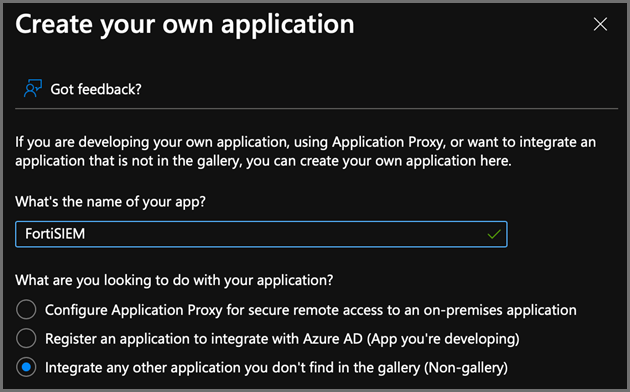
After the application has been created, take the following steps:
- From the Azure Active Directory, select your new application.
- Display the Properties.
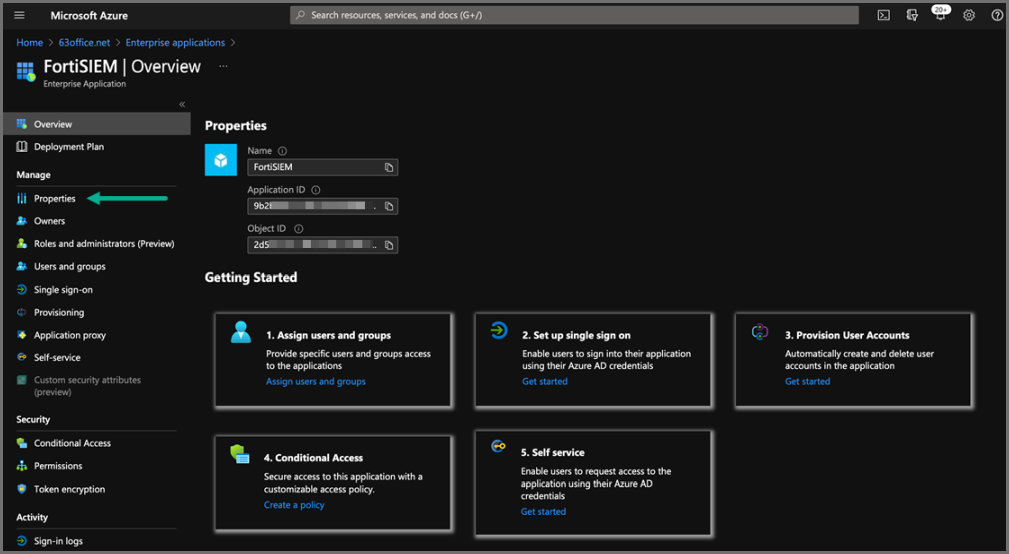
- Under Getting Started, under options 1. Assign users and groups, select the Assign users and groups link and ensure you have some users and groups defined who will be able to access the new application.
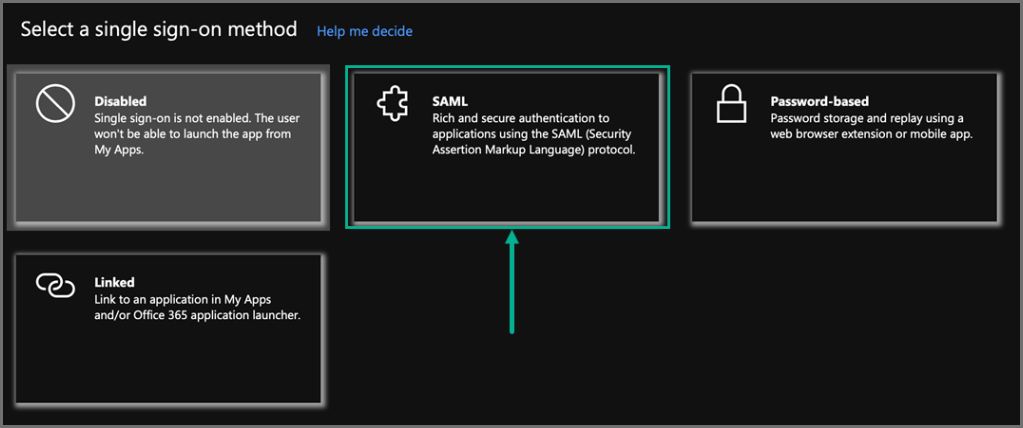
- Under option 2. Set up single sign on, click the Get started link, and select SAML.
- Under the Set up Single Sign-On with SAML options, click Edit for Step One: Basic SAML Configuration.
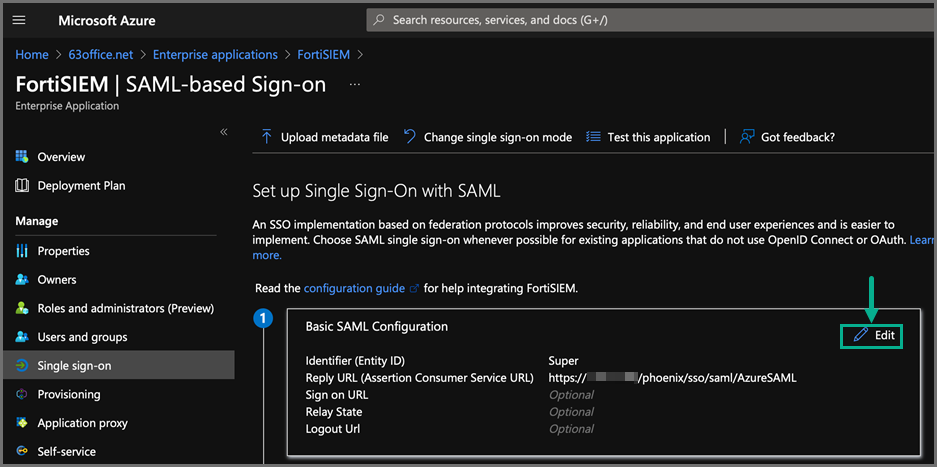
- For Identifier (Entity ID) and Reply URL, enter the following information whether you plan to use Option 1 or Option 2.
Note: The difference between the two options suggested is that for the Option 2 FortiSIEM interface, you need to specify which SAML schema attribute will determine the Organization at login.
In the FortiSIEM Authentication Profile, the default value of “AudienceRestriction” will be used.Option 1 - Using the Default Org Mapping in FortiSIEM
Identifier (Entity ID) <FortiSIEM Org Name>
For example, enter Super for Enterprise installations or the name of your new Organization created in a Multi-Tenant installation.
Reply URL https://<fsm ip or fqdn>/phoenix/sso/saml/<external authentication profile name>Option 2 - Using a Custom Attribute to Define the Org Mapping in FortiSIEM
Identifier (Entity ID) Anything you like.
Reply URL https://<fsm ip or fqdn>/phoenix/sso/saml/<external authentication profile name> - Under Step Two: Attributes & Claims, click Edit.
Here is where the SAML response can be manipulated to add extra attributes which can be used to tell FortiSIEM the Org to use at login (If Option 2 is used above), and also a Role name to be assigned at Login, if the user does not exist already in the FortiSIEM CMDB.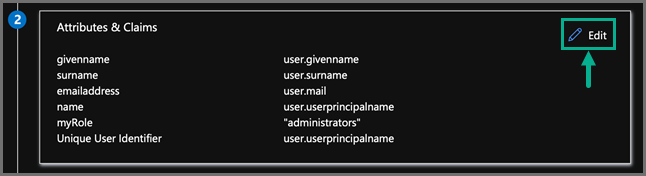
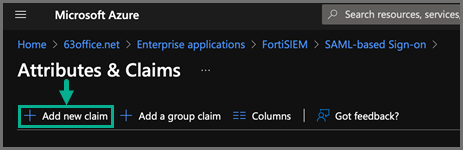
Take the following steps to add an attribute for Organization, if Option 2 is being used above.- Click Add new claim.
- In the Name field, enter the Custom Attribute to use, for example: Organization.
- For Namespace, leave the field blank.
- For Source, make sure “Attribute” is selected and then under Source attribute select the drop-down and then type a value such as the Organization name or an Identifier you will use in FortiSIEM to map to the correct Org.
Note: Alternatively, one of the predefined Azure Values can be used such asuser.companynameif those values are populated in the directory. (Just make sure the Name of the attribute does not contain any characters other than letters, underscore or dash.)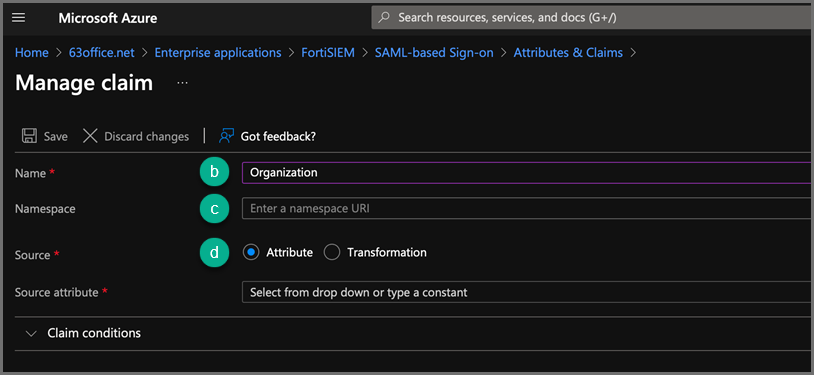
- Click Add new claim.
- Take the following steps to add an attribute for Role.
- Click Add new claim.
- In the Name field, enter the Custom Attribute to use, for example: myRole.
- For Namespace, leave the field blank.
- For Source Attribute, set it to be a value for the Role.
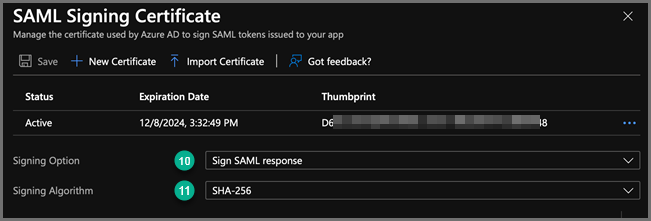
- Under Step Three: SAML Signing Certificate, click Edit.
- For the Signing Option, select Sign SAML Response.
- For the Signing Algorithm, select SHA-256.
- Click Save.
- Exit back to the configuration by clicking the X in the top right corner, and then Download the Certificate in Base64 encoded format. (This will be needed in step 3e. under Step 1: Setup FortiSIEM.)
- Under Step Four: Set up FortiSIEM, copy the Azure AD Identifier string. (This will also be needed below to be input into FortiSIEM)
Step 2: Setup FortiSIEM
In FortiSIEM, take the following steps:
- Navigate to ADMIN > Settings > General > External Authentication.
- Click New.
- In the External Authentication Profile window, take the following steps:
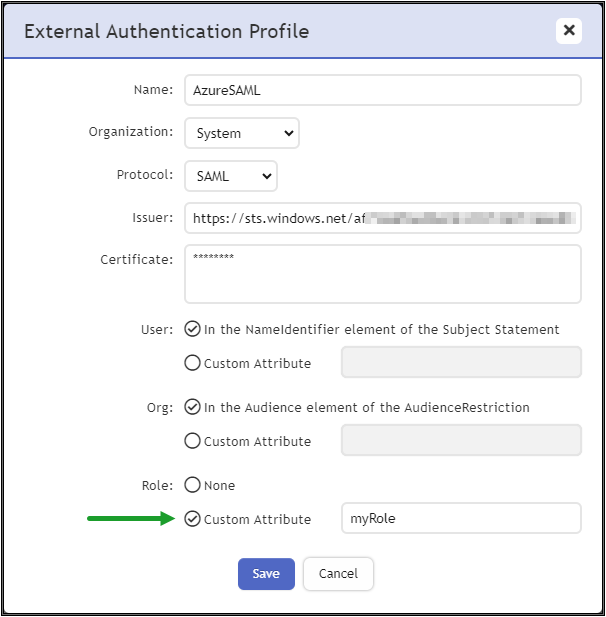
- In the Name field, enter a name, for example, AzureSAML.
- In the Organization drop-down list, select your Organization.
- In the Protocol drop-down list, select SAML.
- In the Issuer field, paste the Azure AD Identifier.
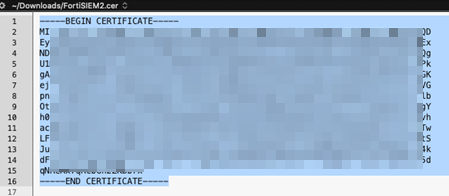
- In the Certificate field, paste the certificate information.
- In the User section, leave the default option “In the NameIdentifier element of the Subject Statement” selected.
- In the Org section, take the following steps:
- If Option 1 was used at step (6) in Azure setup, then leave the default option of “In the Audience element of the AudienceRestriction” selected.
- If Option 2 was used, then select Custom Attribute and enter the name of the Attribute created at step (7b) in the Azure set up above.
- In the Role section, select Custom Attribute and enter the name of the Attribute created at step (8d) in the Azure set up above.
- Click Save when done.
Step 3: Setup SAML Role Mapping
- Log into the FortiSIEM GUI as a user with Admin rights and navigate to ADMIN > Settings > Role > SAML Role.
- Click New.
- From the Add SAML Role window, take the following steps.
- From the SAML Auth profile drop-down list, select the External SAML Authentication Profile created above.
- For the SAML Role field, enter the value being output in the SAML response which should be the Source Attribute value entered at Azure set up step (8d).
- For the SAML Organization field, enter the value being output in the SAML response which should be the Identifier (Entity ID) at Azure set up step (6) if Option 1 was used, or the Source Attribute value entered at Azure set up step (7c) if Option 2 was used.
- For the Mapped Role drop-down list, select the FortiSIEM Role to assign based upon a matching value.
- For the Mapped Organization drop-down list, select the FortiSIEM Organization to assign based upon a matching value.
- Click Save.
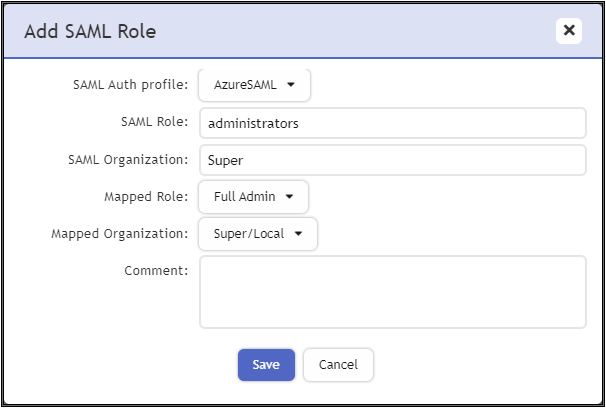
Here is an example of an Enterprise mapping. The SAML Organization for an Enterprise mapping is Super.
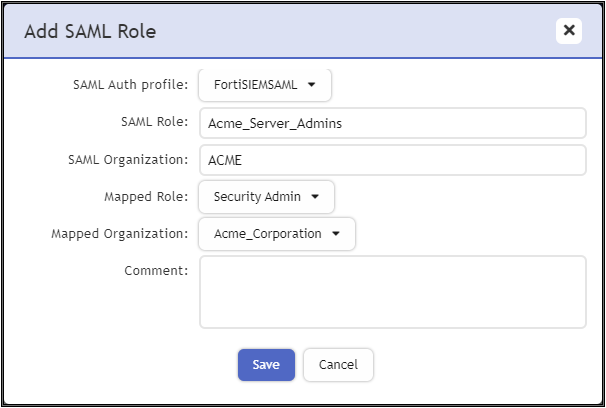
Here is an example of a Multi-Tenant mapping.
Example 2: Configuring FortiSIEM Users for RADIUS/LDAP Authentication with FortiAuthenticator (FAC)
Step 1: Configure AD Users
- Install AD Domain Services following the steps here.
- Configure the test domain users:
- Server Manager > Tools > Active Directory Users and Computers.
- Expand the Domain, right-click Users, select New > User.
Step 2: Configure FortiAuthenticator
- Perform the basic FAC setup following the steps in the FortiAuthenticator Administration Guide: Section: FortiAuthenticator-VM
image
installation
and
initial
setup here.
- Use the default credentials:
- user name:
admin - password: <blank>
- user name:
- At the CLI prompt enter the following commands:
set port1-ip 192.168.1.99/24set default-gw 192.168.1.2
- Log in to the FAC GUI (default credentials user name / password:
admin/<blank>). - Set the time zone under System > Dashboard > Status > System Information > System Time.
- Change the GUI idle timeout for ease of use during configuration, if desired: System Administration > GUI Access > Idle Timeout.
- Use the default credentials:
- Configure the DC as a remote LDAP server under Authentication > Remote Authentication Servers > LDAP.
Follow the Fortinet Single Sign-On instructions in the appropriate FortiAuthenticator Administration Guide. Note that the user must have appropriate privileges. The Domain Admin account can be used for testing in a lab environment. The ‘Remote LDAP Users’ section will be blank at this stage, users are imported later. - Configure an external Realm to reference the LDAP store:
- Select Authentication > User Management > Realms > Create New.
- Choose the LDAP source from the drop-down and click OK.
- Configure the FortiSIEM as a RADIUS Client:
- Select Authentication > RADIUS Service > Clients > Create New.
- Enter the IP address of FortiSIEM and a shared secret.
- Choose the realms as required.
- Click 'add a realm' to include multiple realms.
Note the FAC evaluation license only supports 2 realms. - Click Save.
- Import users from LDAP to FortiSIEM to allow FortiToken to be used:
- Select Authentication > User Management > Remote Users.
- Select the Import button.
- Choose and import the test users configured in AD. Note that the FAC Evaluation license is limited to 5 users.
- (Optional) Configure local users in the FAC database for local authentication under Authentication > User Management > Local Users.
- Provision the FortiToken:
- Select and edit the user in Authentication > User Management > Remote Users (or Local Users as appropriate).
- Select the Token Based Authentication check box, and assign an available FortiToken Mobile.
FAC evaluation includes 2 demo FortiTokens. - Choose Email delivery method and enter an email address in user information.
The email address doesn’t have to be valid for basic testing, the provisioning code is visible in the FAC logs. - Click OK.
- Configure the FortiToken iPhone app:
- Install the FortiToken app from the app store.
- Open the app and select the + icon in the top right corner.
- Choose enter manually from the bottom of the screen.
- Select and edit the user in Authentication > User Management > Remote Users (or Local Users as appropriate).
- Select the Token Based Authentication check box, and assign an available FortiToken Mobile. FAC eval includes 2 demo FortiTokens.
- Choose Email delivery method and enter an email address in user information. The email address doesn’t have to be valid for basic testing, the provisioning code is visible in the FAC logs.
- Click OK.
Step 3: Configure FortiSIEM
Step A: Configure an External Authentication Source
- Go to ADMIN > Settings > General > External Authentication.
- Click New.
- Enter the following settings:
- Click Save.
- Click Test to test the authentication settings.
Step B: Configure Users in FortiSIEM Database
- Go to CMDB > Users and click New.
- Enter the user name to match the user configured in FSM/AD. (Use the format: user@domain.com)
- Select the System Admin checkbox.
- Select the Mode as External.
- Select the RADIUS profile previously configured from Authentication Profiles.
- Select the Default Role from the list.
- Click Save.
Logging In
The User Name must be entered in the format user@domain.xyz. For 2-factor authentication, the password and FortiToken value must be concatenated and entered directly into the Password field.
For example:
- Username:
user123@testdomain.local - Password :
testpass123456; where123456is the current FortiToken value
Note: FortiAuthenticator logs are accessible by opening the Logging tab. Select a log entry to see more details.
Example 3: Configuring FortiSIEM Users for SAML Authentication with FortiAuthenticator (FAC)
FortiSIEM supports integrating with customer SSO (Single Sign On) authentication by supporting the SAML2.0 standard. After configuration is completed, the user login flow experience will be:
- User logs into Customer controlled SSO portal.
- FortiSIEM appears as an application in that portal.
- User selects the FortiSIEM application from the portal.
- User is authenticated and logged into the FortiSIEM admin interface
This example shows how to integrate FortiSIEM with FortiAuthenticator, with these general steps.
- Set Up FortiAuthenticator as an IdP
- Add FortiSIEM as Service Provider
- Set Up FortiSIEM
- Set Up SAML Role Mapping
- Import Users from FortiAuthenticator
Set Up FortiAuthenticator as an IdP
To set up FortiAuthenticator (FAC) as the identity provider (IdP), take the following steps.
Note: Steps taken from the 6.5.3 FortiAuthenticator Guide. See https://docs.fortinet.com/document/fortiauthenticator/6.5.3/administration-guide/864572.
- Navigate to Authentication > SAML IdP > General.
- Select Enable SAML Identity Provider portal.
- Configure the following settings:
Setting Description Device FQDN To configure this setting, you must enter a Device FQDN in the System Information widget in the Dashboard. Server address Enter the IP address or FQDN of the FortiAuthenticator device. IdP-initiated login URL The URL used to access the IdP portal in an IdP-initiated login scenario.
Service Providers (SPs) configured in FortiAuthenticator must have the option Support IdP-initiated assertion response enabled in order to be listed in the portal.
Username input format Select one of the following three username input formats:
username@realm
realm\username
realm/username
Captcha
The state of the optional IP lockout CAPTCHA settings.
Note: The option is read-only.
Select the pen icon to edit the IP lockout CAPTCHA settings in Lockouts.Use default realm when user-provided realm is different from all configured realms When enabled, FortiAuthenticator selects the default realm for authentication when the user-specified realm is different from all configured realms. Realms Realms Select Add a realm to add the default local realm to which the users will be associated.
Use Groups and Filter to add specific user groups.
Note: The maximum number of allowed realms is equal to the maximum number of realms in the legacy self-service portal plus the realms in SAML IdP. A maximum of 100 realms can be added.Legacy login sequence When enabled, the legacy sequence requests username and password on the same form. When disabled, only the username is requested on the first form. The option is disabled by default.
Note: When doing IdP proxy to multiple remote SAML IdP servers, keep this option disabled.
IAM login Enable to allow IAM login.
Note: The option is now only available when Legacy login sequence is enabled.
Trusted endpoint single sign-on When enabled, SSOMA endpoints can log in without reentering username and password.
The username login page includes a Trusted Endpoint Single Sign-On button that allows single sign-on for trusted endpoints.
The legacy login page does not offer the Trusted Endpoint Single Sign-On button.
The option is disabled by default.
Note: Trusted endpoint single sign-on and Legacy login sequence options are mutually exclusive.
Listening port Trusted endpoints TLS-connect to this TCP port to present their client certificate to the FortiAuthenticator (default = 8008).
When enabled, FortiAuthenticator enforces token-based settings configured for the SP during trusted endpoint single sign-on.
Enforce MFA When disabled, token-based verification is bypassed for trusted endpoints.
Note: The option is only available when Trusted endpoint single sign-on is enabled.
Enforce IP matching When enabled, the source IP address of the endpoint connecting to the listening port must match one of the IP addresses reported by the SSOMA to do a successful trusted endpoint authentication. For example, if the endpoint is on a private network and its connection to the FortiAuthenticator is being NAT'ed, this option should be disabled. Login session timeout
Set the user's login session timeout limit between 5 - 1440 minutes (one day). The default is 480 minutes (eight hours).
Default IdP certificate
Select a default certificate the IdP uses to sign SAML assertions from the drop down menu.
Automatically switch IdP certificate before its expiry time
Enable and select a New default IdP certificate from the drop down menu.
Switch at Enter a date (YYYY-MM-DD) and time when the new default IdP certificate applies. Alternatively: Use the calendar icon to select a date. For changing time, select the clock icon and choose a time from the list.
Note: Select Today to switch to today's date or select Now to switch to the time now.
Default signing algorithm
Select a default signing algorithm from the drop down menu.
Get nested groups for user
Enable to get nested groups for Windows AD users.
Use geolocation in FortiToken Mobile push notifications
Enable to use geolocation in FortiToken Mobile push notifications.
- Select Save to apply any changes that you have made.
Add FortiSIEM as Service Provider
Once FortiAuthenticator is set up as an IdP, you must add applications or “Service Providers” such as FortiSIEM to the FortiAuthenticator configuration.
Take the following steps:
Note: Steps taken from the 6.5.3 FortiAuthenticator Guide. See https://docs.fortinet.com/document/fortiauthenticator/6.5.3/administration-guide/19212
- Navigate to Authentication -> SAML IdP -> Service Providers.
- Click Create New.
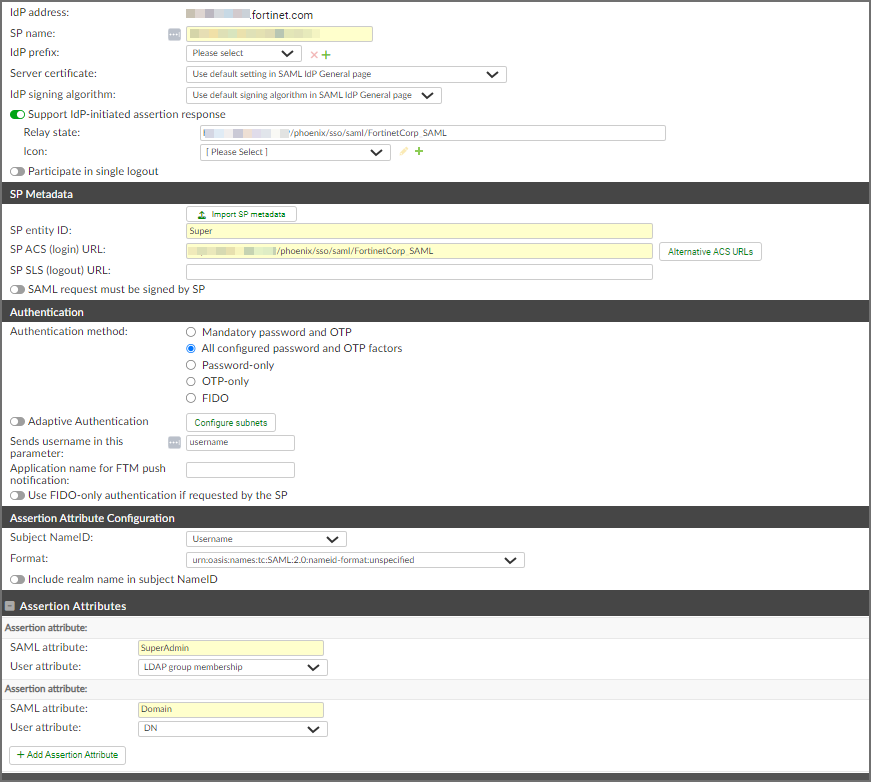
- Enter the following information:
- In the SP Name field, enter "FortiSIEM", or any name you prefer. The name entered here is displayed in the SSO portal as an application.
- Enable Support IdP-initiated Assertion response.
- In the Relay state field, enter
https://<IP or FQDN of FortiSIEM Supervisor>/phoenix/sso/saml/<profileName>
Note: The profile name, such as “FortiSIEM_SAML” will be configured in FortiSIEM later. The name here and in the FortiSIEM configuration must EXACTLY match. E.g. If the following was used for Relay statehttps://192.0.2.0/phoenix/sso/saml/Corp_SAML, in FortiSIEM, the SAML external auth profile MUST be named “Corp_SAML”.
- In the Relay state field, enter
- In the SP entity ID field, referred to as the Audience, enter <FortiSIEM organization>
Note: This MUST exactly match the FortiSIEM organization the authentication is for. For enterprise customers, this is always “Super”, but for multi-tenant SIEMs it could be “org1” etc...- In the SP ACS (Login) URL field, enter
https://<IP or FQDN of FortiSIEM Supervisor>/phoenix/sso/saml/<profileName>
Note: The profile name, such as “FortiSIEM_SAML” will be configured in FortiSIEM later. The name here and in the FortiSIEM configuration must EXACTLY match. E.g. If the following was used for Relay statehttps://192.0.2.0/phoenix/sso/saml/Corp_SAML, in FortiSIEM, the SAML external auth profile MUST be named “Corp_SAML”.
- In the SP ACS (Login) URL field, enter
- From the Authentication method selection, choose All configured password and OTP factors.
- In the Sends username in this parameter field, enter "username".
- From the Subject NameID drop-down list, select Username.
- In the Format field, enter "urn:oasis:names:tc:SAML2.0:nameid-format:unspecified".
- Click Save.
FortiAuthenticator is now configured.
- Download the FAC public certificate to a file as it is needed in the next step for configuring FortiSIEM.
Set Up FortiSIEM
To set up FortiSIEM, take the following steps:
- Navigate to Admin > Settings > General > External Authentication.
- Click New.
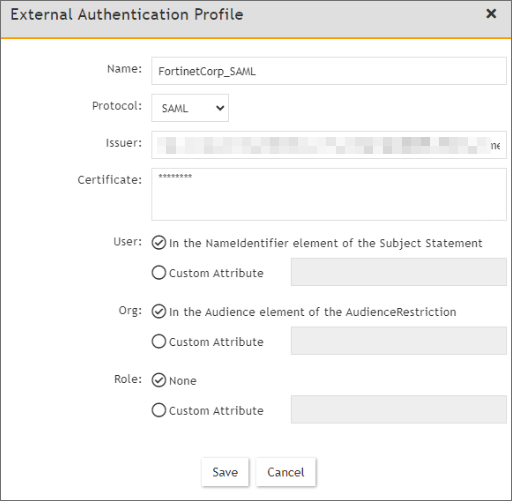
- In the Name field, enter the profile name from your FortiAuthenticator configuration.
Note: This must be an EXACT match of the profile name used in the FortiAuthenticator configuration. - From the Organization drop-down list, select the organization that this authentication applies for.
- System - For super/global scope. This is the most common option for Enterprise customers.
- Super/Local - Only for super org. It has no access to global admin.
- <specific org> - Select a specific organization.
- From the Protocol drop-down list, select SAML.
- In the Issuer field, enter/paste the IP address of the IdP entity id to FSM External Auth profile.
Example screenshot showing IdP entity id from FortiAuthenticator provided below: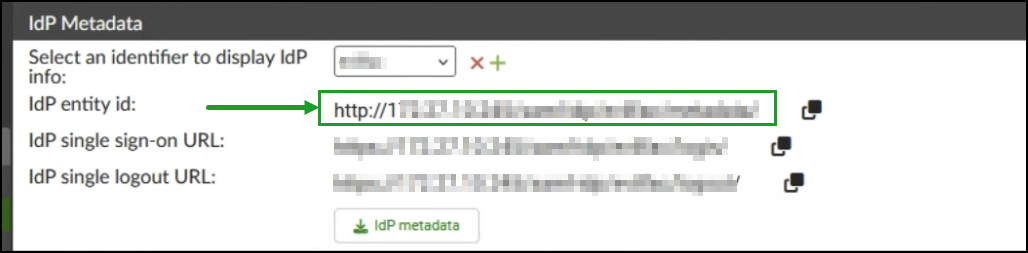
- In the Certificate field, paste the SSL public certificate from the FortiAuthenticator general settings, the specific certificate used for signing assertions to our application/SP.
- Leave the other options with their default option, and click Save.
Set Up SAML Role Mapping
- Navigate to Admin > Settings > Role > SAML Role.
- Click New.
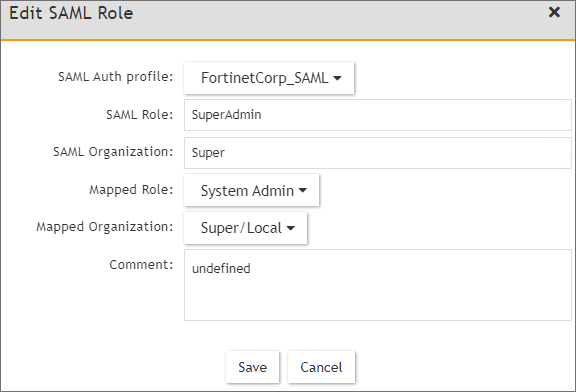
- From the SAML Role window, take the following steps:
- From the SAML Auth profile drop-down list, select your profile.
- In the SAML Role field, enter your role, such as "SuperAdmin". This is the SAML attribute representing the provided role. In this example case, “SuperAdmin” is significant only to the FortiAuthenticator configuration.
- In the SAML Organization field, enter the organization, such as "Super". This is the subject ID configured in the SAML application.
- From the Mapped Role drop-down list, select the desired FortiSIEM role, such as System Admin.
- From the Mapped Organization drop-down list, select the appropriate FortiSIEM tenant scope, such as Super/Global or Super/Local.
- Click Save.
Import Users from FortiAuthenticator
You can either import a set of users, which could be done via LDAP, or manually create users.
Note: The user name in FortiSIEM must exactly match the username as defined in the FortiAuthenticator IdP.
Take the following steps:
- Navigate to CMDB > Users > FortiSIEM Users.
- Click New.
- In the User Name field. enter "admin1".
Note: Here, we are assuming FortiAuthenticator has a username called "admin1". - Click the System Admin checkbox.
- From the New User window, take the following steps:
- From the Mode drop-down list, select External.
- From the Authentication Profiles drop-down list, select the external authentication profile created earlier.
- Define an explicit role for this user instead of relying on SAML role mapping, or select Default Role: Full Admin.
- Click Back.
- Click Save.
Note: This user cannot directly login to FortiSIEM. The user must go through the FortiAuthenticator SSO portal.
Example 4: Configuring FortiSIEM Users for SAML Authentication with OKTA
- Using an admin account, log into Okta (https://okta.com/)
- Click on the Admin button.
- Enter the Okta Verify code.
- At the Use single sign on option, click the Add App button.
- Click on Create New App.
- Select SAML 2.0 and click Create.
In General Settings, provide the following:App name - FortiSIEM
App logo (optional)
- Click Next.
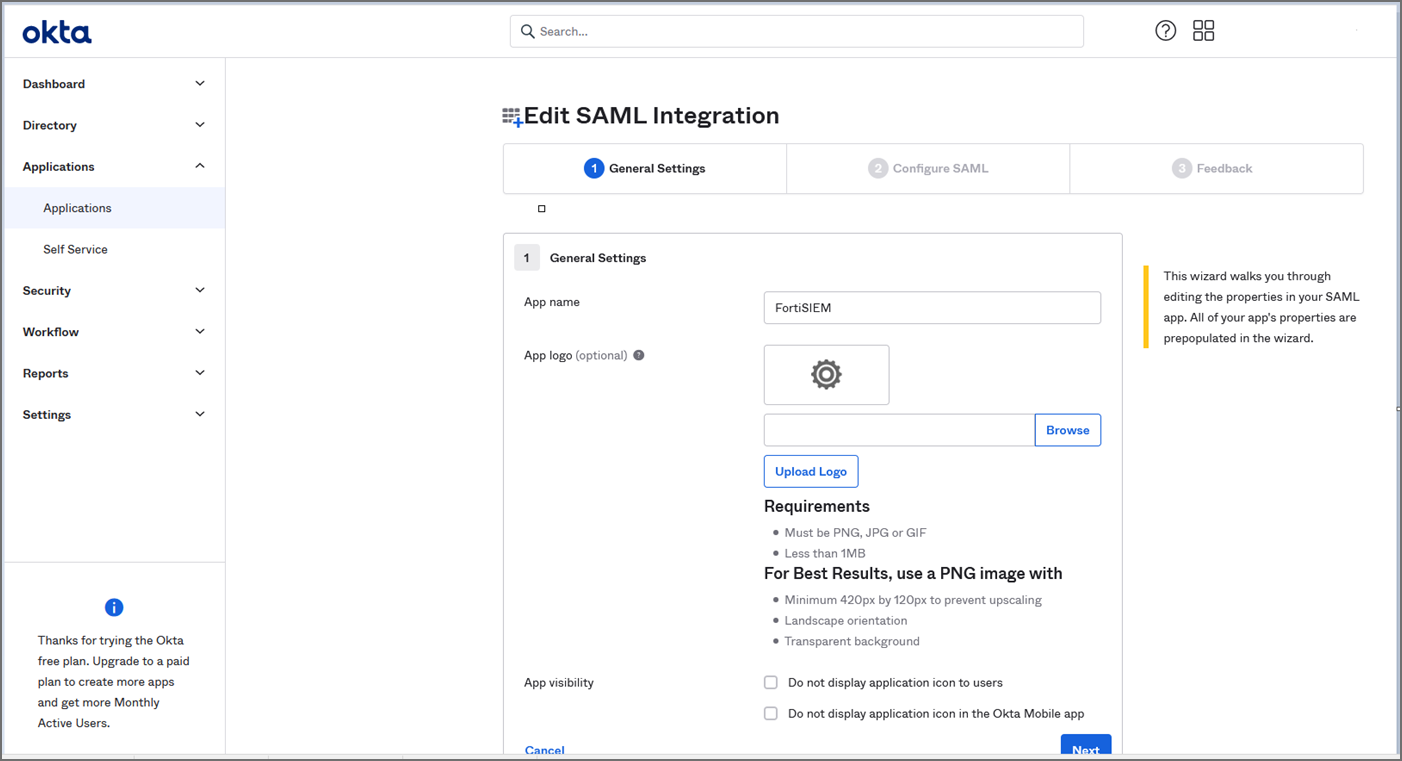
- In Configure SAML, provide the following:
In Single sign on URL, enter https://super_ip/phoenix/sso/saml/ExternalAuthenticationProfileName
super_ip represents the FortiSIEM IP address you want to log into, and ExternalAuthenticationProfileName will need to be configured in FortiSIEM by a full Admin creating an SAML External Authentication Profile via ADMIN > Settings > General > External Authentication.In the Audience URI (SP Entity ID), enter your organization name, for example "Super".
- Click Next, then Finish. The FortiSIEM app is now being created.
- On the Okta Application page, under Sign On Settings, SAML 2.0, click View Setup Instructions.
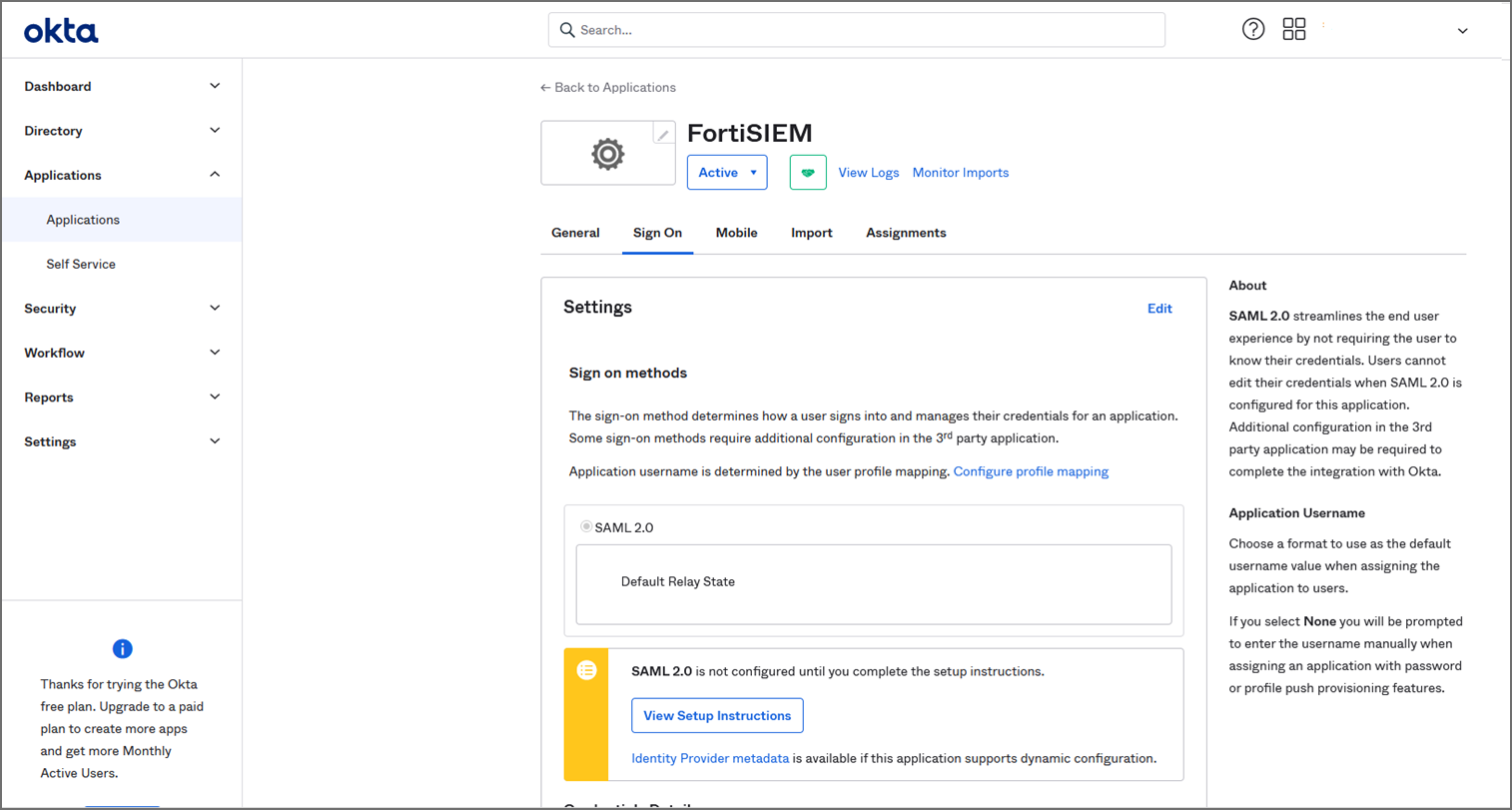
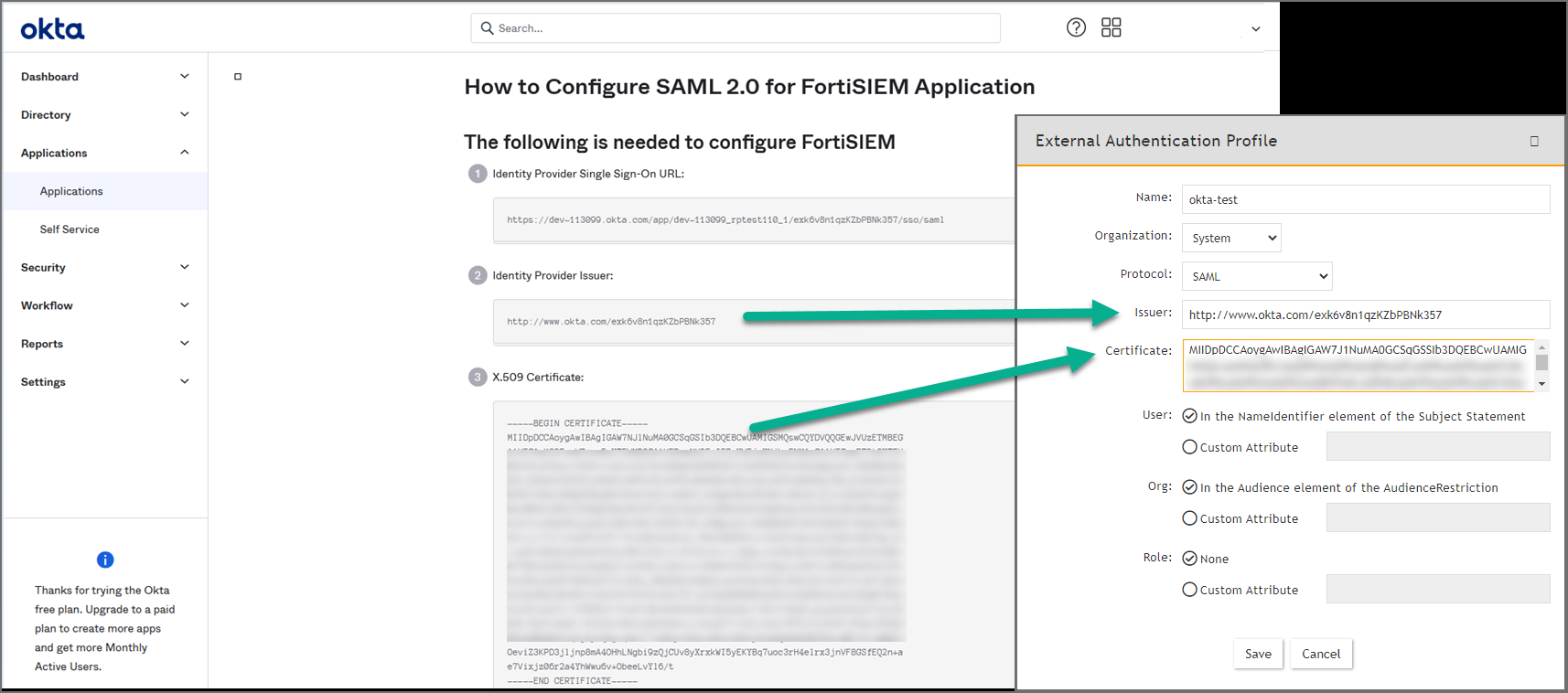
- Copy the Identify Provider Issuer and Certificate information. When you create your External Authentication Profile in FortiSIEM, the Identify Provider Issuer will go into the Issuer field, and the Certificate information will go into the Certificate field.
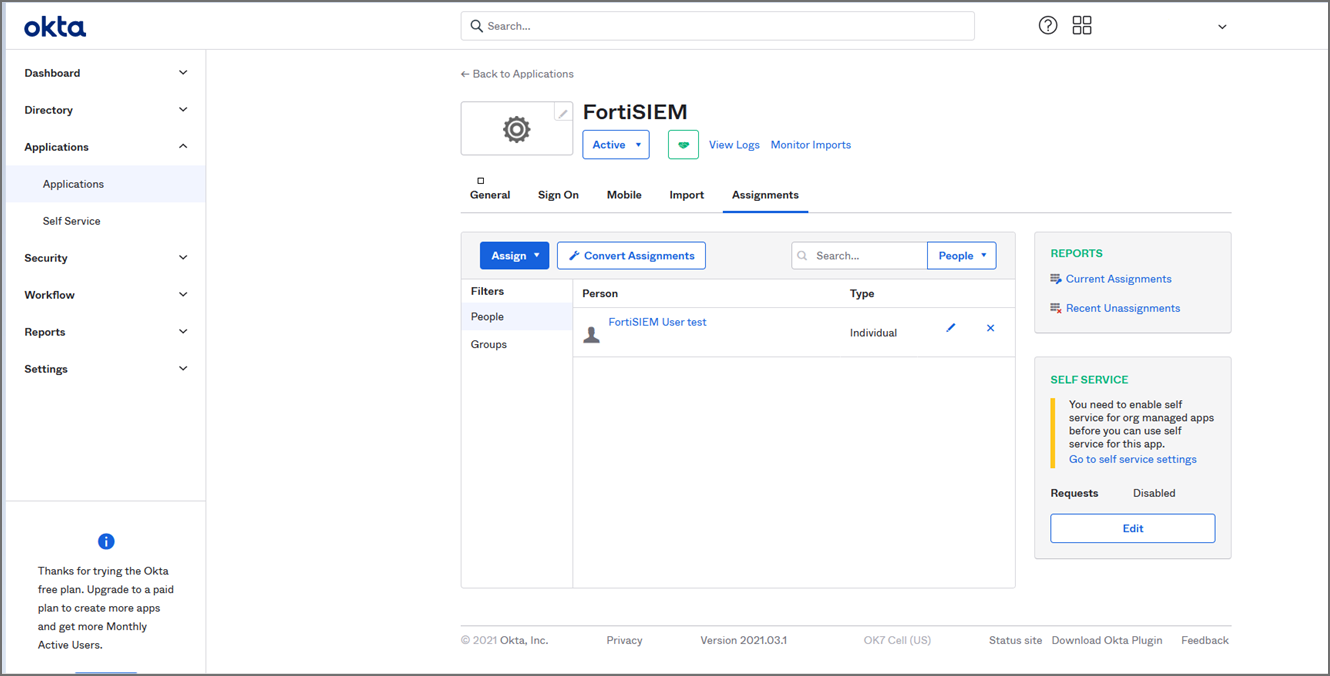
- Assign the OKTA user(s) for FortiSIEM.
- Log on to FortiSIEM as a full Admin.
- Go to ADMIN > Settings > General > External Authentication.
- Click New to create an External Authentication Profile.
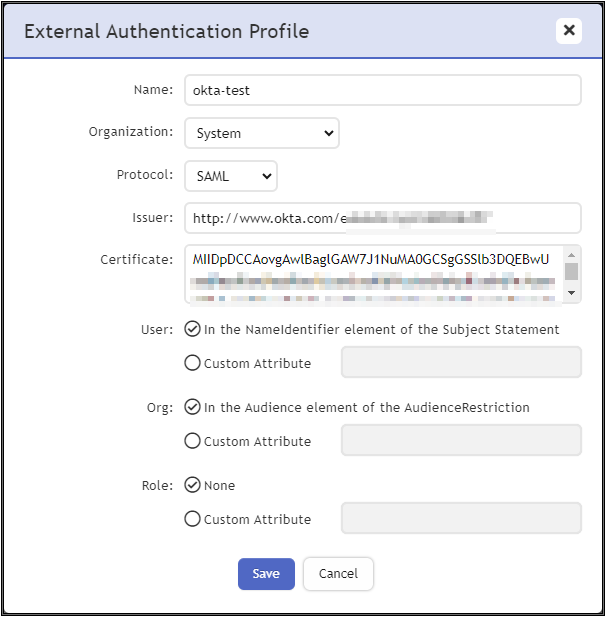
- From External Authentication Profile, take the following steps:
- In the Name field, enter your ExternalAuthenticationProfileName.
- From the Organization drop-down list, select the org.
- From the Protocol drop-down list, select SAML.
- In the Issuer field, enter the Identify Provider Issuer from Okta.
- In the Certificate field, enter/paste the certificate information from Okta.
- Configure User, and Org according to your IDP.
- Click Save.
- Go to CMDB > Users > Ungrouped.
- Click New to add the Okta user.
- In the User Name field, enter the user's Okta assigned username.
Note: You can enter the name by using an email address depending on how the user was configured in Okta. - Click the System Admin field to open the New User window.
- From the Mode drop-down list, select External.
- From the Authentication Profiles drop-down list, select your Okta authentication profile that you created under your External Authentication profile.
- From the Default Role drop-down list, select the appropriate user role and check the appropriate organization checkboxes the user is enabled for.
- Click Back.
- Click Save.
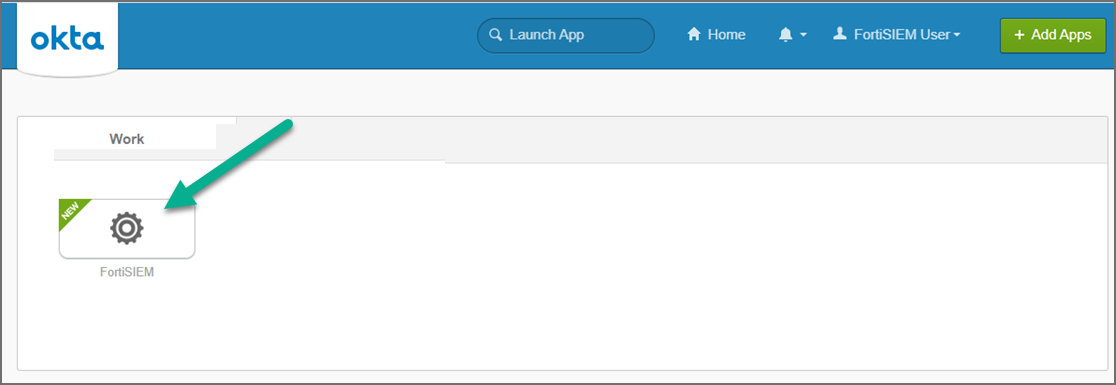
- Log on to Okta as an assigned user for FortiSIEM. The assigned Okta user is now able to log on to FortiSIEM by clicking the FortiSIEM icon/application.
Example 5: Configuring FortiSIEM Users for 2 Factor Authentication with Duo Security
- Step 0: Obtain Keys for FortiSIEM to Communicate with Duo Security
- Step 1: Create and Manage FortiSIEM users in Duo Security
- Step 2: Add 2-Factor Authentication Option for FortiSIEM Users
- Step 3: Log in to FortiSIEM Using 2-Factor Authentication
Step 0: Obtain Keys for FortiSIEM to Communicate with Duo Security
- Sign up for a Duo Security account: signup.
This will be admin account for Duo Security. - Log in to Duo Security Admin Panel and navigate to Applications.
- Click Protect an Application. Locate Web SDK in the applications.
- Get API Host Name, Integration key, Secret key from the page.
You will need it when you configure FortiSIEM. - Generate Application key as a long string.
This is a password that Duo Security will not know. You can choose any 40 character long string or generate it as follows using pythonimport os, hashlibprint hashlib.sha1(os.urandom(32)).hexdigest()
Step 1: Create and Manage FortiSIEM users in Duo Security
This determines how the 2-factor authentication response page will look like in FortiSIEM and how the user will respond to the second-factor authentication challenge:
- Log in to Duo Security as admin user.
- Choose the Logo which will be shown to users as they log on.
- Choose the super set of 2-factor Authentication Methods.
- Optional - you can create the specific users that will logon via FortiSIEM. If the users are not pre-created here, then user accounts will be created automatically when they attempt 2-factor authentication for the first time.
Step 2: Add 2-Factor Authentication Option for FortiSIEM Users
- Create a 2-factor authentication profile:
- Go to ADMIN > Settings > General > External Authentication.
- Click New.
- Enter Name.
- Select the organization from the Organization drop-down.
- Set the Protocol as 'Duo'.
- Set the IP/Host from API hostname in Step 0: step 4 above.
- Set the Integration key, Secret keyfrom Step 0: step 4 above
- Set the Application key from Step 0: step 5 above.
- Click Save.
- Add the 2-factor authentication profile to a user:
- Go to CMDB > Users > Ungrouped.
- Click New to create a new use or Edit to modify a selected user.
- Select System Admin checkbox and click the edit icon.
- In the Edit User dialog box, enter and confirm a password for a new user.
- Select the Second Factor check-box.
- Select the 2-factor authentication profile created earlier in Step 2: Add 2-Factor Authentication Option for FortiSIEM Users.
- Select a Default Role from the drop-down list.
- Click Save.
Step 3: Log in to FortiSIEM Using 2-Factor Authentication
- Log on to FortiSIEM normally (first factor) using the credential defined in FortiSIEM - local or external in LDAP.
- If the 2-factor authentication is enabled, the user will now be redirected to the 2-factor step.
The user will be able to log in to FortiSIEM.
- If the user is not created in the Duo system (by the Duo admin), a setup wizard will let you set some basic information like phone number and ask you to download the Duo app.
- If the user already exists in FortiSIEM, then follow the authentication method and click Log in.
Troubleshooting SAML Operations
- Plugin Tool
- Issues after Successful Authentication
- Common Configuration Errors
- SAML Login Error Codes
Plugin Tool
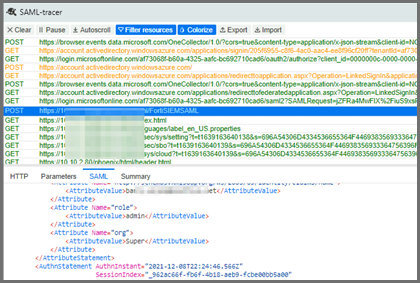
One way to troubleshoot a SAML response is to install the SAML-tracer Google Chrome plugin.
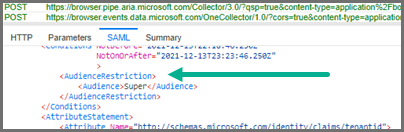
It will display the complete SAML response, with the actual attributes being returned. You can then check what the AudienceRestriction or expected Custom Attributes are and whether you have mapped them correctly.
Issues after Successful Authentication
When the logged in user is automatically added to the CMDB.
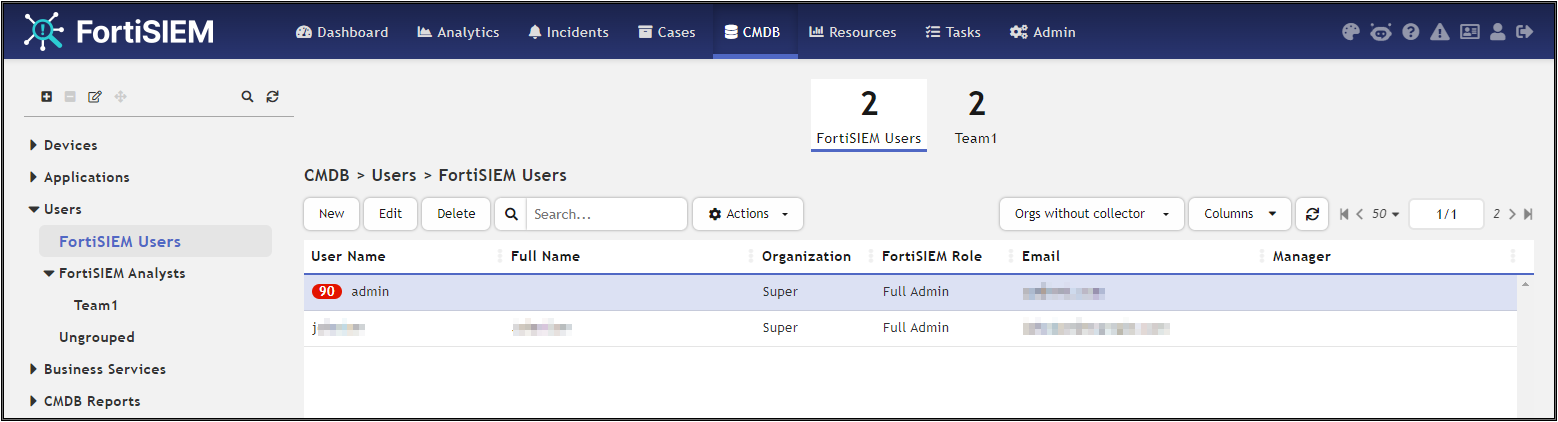
When editing a user, some fields are Read-Only, and can be identified by the inability to select those fields.
Common Configuration Errors
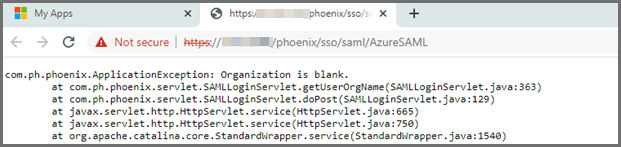
Organization is Blank
If you get a message saying "Organization is blank", check that the Org definition in the FortiSIEM External Authentication Profile is correct and mapped to the output from the SAML response.
I.e. either AudienceRestriction or your Custom Attribute definition:
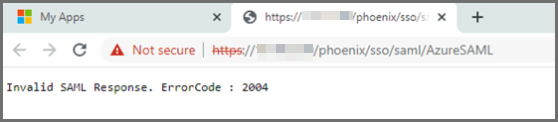
ErrorCode 2004
If you get the message "Invalid SAML Response. ErrorCode : 2004", check that the certificate definition in the FortiSIEM External Authentication Profile is correct.
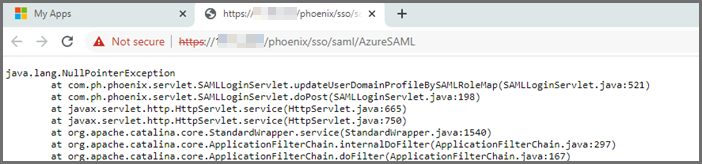
UpdateUserDomainProfileBySAMLRoleMap Issue
If you run into the following issue, check that the Role definition in the FortiSIEM External Authentication Profile is correct.
SAML Login Error Codes
Error Code 1000-2000: Invalid SAML Configuration
Error Code 2000-3000: Invalid SAML Response
Error Code 3000-4000: Invalid username or password or organization
|
Error Code |
Description |
|---|---|
| 1000 | Invalid SAML SSO path. |
| 1001 | Invalid SAML SSO path retrieved from SAML Response. |
| 1002 | Invalid SAML Config name. |
| 1003 | Invalid Issuer. |
| 1004 | More than two different Mapped Organizations, but no SAML Role Mapped Organization in \"Super/Global\". |
| 1005 | No SAML Role Map List found in DB. |
| 1006 | SAML External Profile config issue. |
| 2000 | Failed to get success status code. |
|
2001 |
Missing Assertion. |
|
2002 |
Failed to get an Issuer element from the assertion. |
|
2003 |
SAML SSO authentication failed : Invalid X.509. |
|
2004 |
SAML SSO authentication failed : Untrusted X.509. |
|
2005 |
Failed to get signature. |
|
3000 |
The organization doesn't match with the external authentication profile. |
|
3001 |
Invalid Organization. |
|
3002 |
No User found in DB. |