

Blocking HTTPS upload traffic using EDM template example
Exact data matching (EDM) identifies particular data values within an indexed data source that require safeguarding. You can define a dataset in a CSV or TXT file on a server and point FortiSASE to this external resource or upload a CSV or TXT file directly to FortiSASE.
This configuration blocks HTTPS upload traffic that matches an EDM template.
To configure blocking HTTPS upload traffic using an EDM template:
- Create a profile group:
- Go to Security > Traffic > Security profiles.
- For Profile Group, select an existing profile group to edit or create a new profile group using + in the Profile Group dropdown list.
- In the Create Profile Group slide-in, configure the following:
- In the Name field, enter DLP-EDM-Profile.
- For Initial Configuration, select Basic.
- Click OK. When prompted to select the new entry, click OK.
- Disable all enabled security features (AntiVirus, Web Filter with Inline-CASB, DNS Filter) using these steps for each security feature:
- Click the toggle button next to the security feature widget to disable the feature.
- Click OK to confirm disabling the security feature.
- In the SSL inspection section at the top of the page, ensure deep inspection is enabled:
- For SSL inspection, click Configure SSL.
- For Inspection mode, select Deep inspection and configure using Fortinet_CA_SSL as the CA certificate.
- Click OK.
-
Configure DLP:
- Create a DLP rule:
- In the Data Loss Prevention (DLP) widget, click the toggle button to enable this feature, and then click Customize.
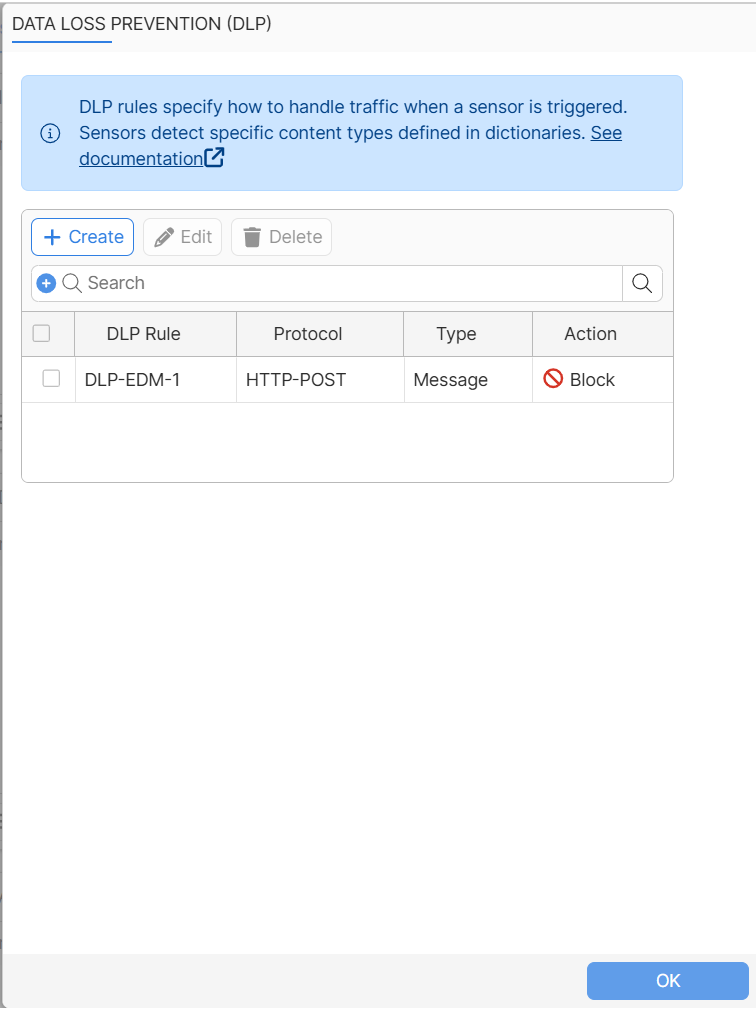
- In the Data Loss Prevention (DLP) slide-in, click Create to create a new DLP rule.
- In the New Rule slide-in, configure these settings:
Field
Description
Name
DLP-EDM-1
Data Source Type
Sensors
Sensor
DLP sensors. You must create a new DLP sensor and then select it.
Severity
Critical
Action
Block
Type
Message
Protocol
HTTP-POST
- Create a new sensor by clicking + next to Sensor. In the Select Entries slide-in, click + to the right to create a new sensor. In the New DLP Sensor slide-in, configure these settings:
Field
Description
Name
DLP-EDM-1
Entry matches needed to trigger sensor
Any
Table of entries
Create one entry.
- Create a sensor entry by clicking Create. In the New Entry slide-in, configure these settings:
Field
Description
ID
1
Sensor
Select the EDM template for this sensor entry. You must create a new EDM template and then select it.
Dictionary matches needed to consider traffic DLP risk
1
Status
Enabled
- Create an EDM template by clicking the Sensor Entry field, click +, and select Create New > +DLP EDM Template. In the New DLP EDM Template slide-in, configure these settings:
Field
Description
Name
DLP-EDM-T1
Resource settings
Resource type
File upload
Upload file
Upload the customer_data.csv file by clicking to select the file or dropping the file into area provided
Match criteria
+All of these fields
Selected:
- Column index: 1, Data type:
ssn-us
+Any of these fields
Selected
- Minimum number of fields matched: 1
- Column index: 3, Data type: edm-keyword
- Column index: 9, Data type: edm-keyword
- Column index: 1, Data type:
- Click View Entries to view the data entries imported from the CSV file.
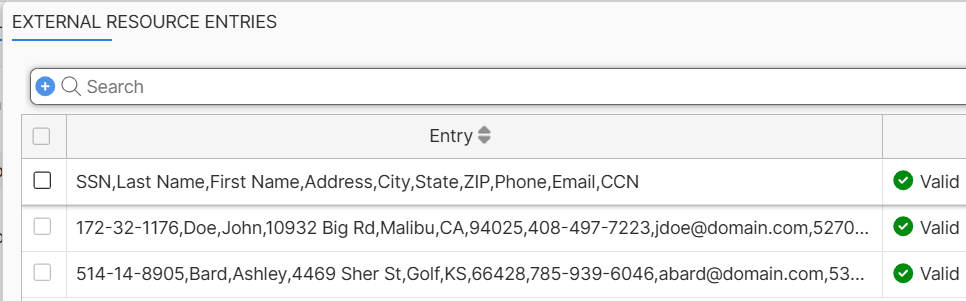
When viewing EDM entries, the GUI currently does not validate the entries and displays all entries as Valid. However, a Valid entry must have all values matching the data-type of the specific column. If one value does not match, the entry is invalid and will not be used for pattern matching.
-
Click OK several times to complete the configuration:
- Click OK to create the new DLP template.
- Click OK to create the new sensor entry.
- Click OK to create the new sensor. You will be prompted to select the newly created sensor.
- Click OK to create the new DLP rule.
- Click OK to complete DLP configuration customization.
- Create a DLP rule:
- Configure the updated profile group in a policy:
- Go to Security > Traffic > Policies.
- Create a new policy to apply the profile group to:
Field
Value
Name
DLP-EDM-Policy-1
Source Scope
All
Destination
All Internet Traffic
Service
ALL
Action
Accept
Profile Group
Specify
Select DLP-EDM-Profile
Status
Enable
Log Allowed Traffic
Enable
Select All Sessions
- Click OK.
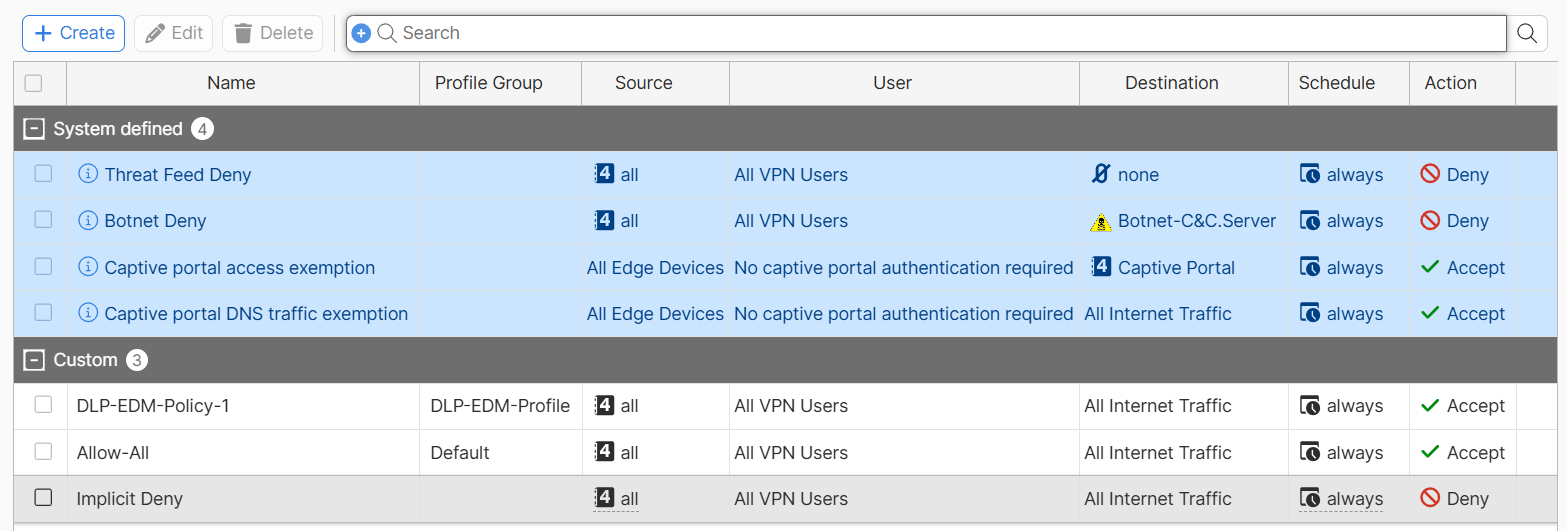
- Drag the DLP-EDM-Policy-1 policy to the top of the policy list. Ensure it is placed above Allow-All.
To verify blocking HTTPS upload traffic using an EDM template is working:
- Ensure that your endpoint with FortiClient installed is registered with the FortiSASE Endpoint Management Service and that you have established a secure connection to FortiSASE.
- On the connected endpoint, open the Chrome web browser in incognito mode.
- In Chrome, go to https://dlptest.ai.
- Under Text upload to website, enter John 172-32-1176 and click Submit Text. FortiSASE blocks the upload traffic.
- In FortiSASE, go to Operations > Logs > Security > Data Loss Prevention (DLP) and confirm that FortiSASE generated a DLP block log entry that corresponds to your agent and visiting https://dlptest.ai.
- Go to Operations > Logs > Traffic > Internet Access Traffic and confirm that FortiSASE generated a DLP block log entry that corresponds to your agent and visiting https://dlptest.ai.

Prerequisites and considerations
- When using commonly used SSL-encrypted protocols such as HTTPS, SMTPS, POP3S, IMAPS, and FTPS, you must set SSL inspection to deep inspection. See Certificate and deep inspection modes.
- In this example, an EDM template named DLP-EDM-T-1 is created. During this process, a CSV file (customer_data.csv) is uploaded to FortiSASE.
- Create the following sample CSV file saved as customer_data.csv on your computer:
SSN
Last Name
First Name
Address
City
State
ZIP
Phone
Email
CCN
172-32-1176
Doe
John
10932 Big Rd
Malibu
CA
94025
408-497-7223
jdoe@domain.com
5270-4267-6450-5516
514-14-8905
Bard
Ashley
4469 Sher St
Golf
KS
66428
785-939-6046
abard@domain.com
5370-4638-8881-302
- In this example, the EDM template specifies:
- Column index 1 in the external data threat feed file contains patterns for the
ssn-usdata type. - Column index 3 and 9 contain patterns for the
edm-keyworddata type. - The patterns from column index 1 must match for FortiSASE to take an action.
- The pattern from either column index 3 or 9 must match for FortiSASE to take an action.
- Column index 1 in the external data threat feed file contains patterns for the
- Based on the aforementioned template, the DLP profile will match any traffic containing data that corresponds to the SSN in column 1, and either the First Name in column 3 or the Email in column 9. For instance, if the HTTPS upload traffic sent from personal computer contains '172-32-1176' AND 'John', or '172-32-1176' AND 'jdoe@domain.com', the traffic will be blocked and a DLP log is generated.