

Configure workspace mode settings
Workspace mode settings can be applied to all ADOMs or on a per-ADOM basis.
After changing the workspace mode, you will be automatically logged out of the FortiManager.
To configure workspace mode settings in the GUI:
-
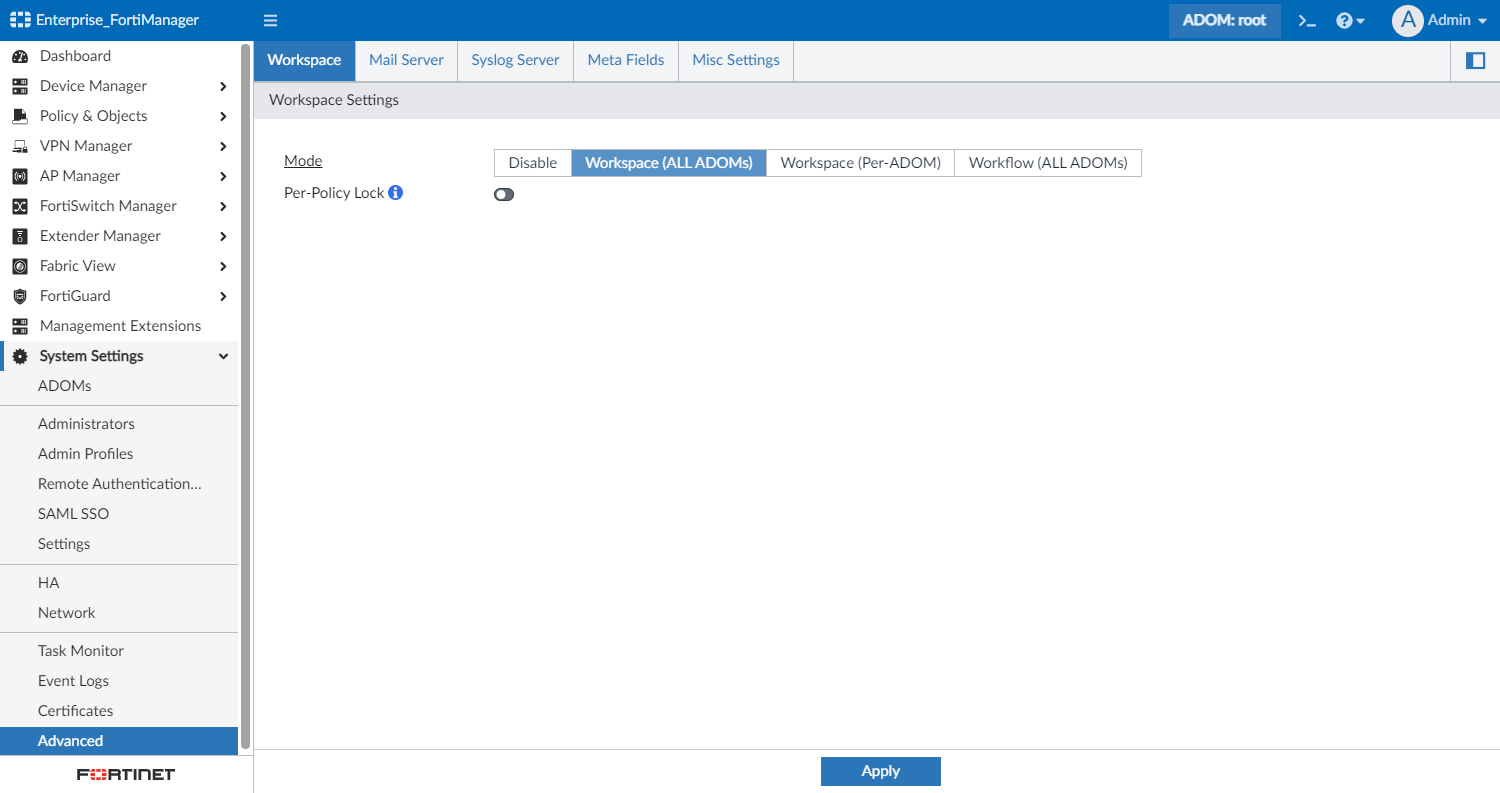
Go to System Settings > Advanced > Workspace.
-
Select a workspace Mode from one of the following options: Disable, Workspace (All ADOMs), Workspace (Per-ADOM), or Workflow (All ADOMs). For more information on the different modes, see Workspace settings.
-
Click Apply. Your session ends, and the FortiManager login screen is displayed.
-
Optionally, if Workspace (Per-ADOM) mode is selected, you can configure each ADOM's individual workspace setting. See Configuring workspace mode settings per-ADOM.
To configure workspace mode settings in the CLI:
-
In the CLI Console enter the following CLI commands:
config system global
set workspace-mode {disabled | normal | per-adom | workflow}
end
See the FortiManager CLI Reference for more information.
Configuring workspace mode settings per-ADOM
When Workspace (Per-ADOM) mode has been enabled, you can choose workspace mode settings for each ADOM while editing the ADOM's settings.
To configure workspace settings per ADOM in the GUI:
-
Go to System Settings > ADOMs.
-
Double-click an ADOM, or right-click the ADOM and select Edit. The Edit ADOM page is displayed.
-
In the Workspace Mode area, select a workspace mode for the ADOM.
This option is only displayed when Workspace Mode (Per-ADOM) is enabled.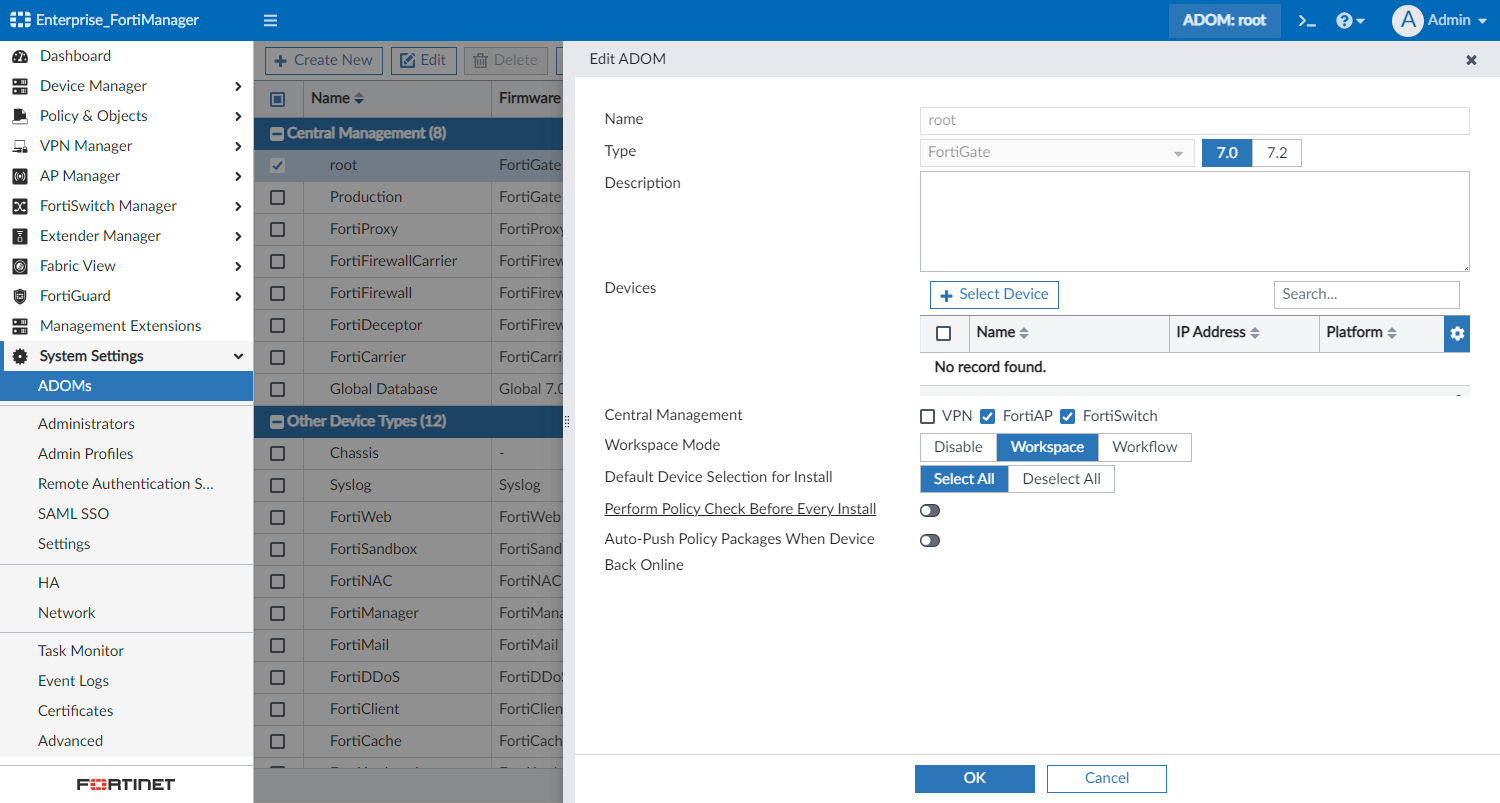
-
Click OK. Your session ends, and the FortiManager login screen is displayed.