Fortinet white logo
Fortinet white logo

Administration Guide

Windows Hello Business support for FortiGate SAML-based IPsec VPN

Windows Hello Business support for FortiGate SAML-based IPsec VPN

For FortiGate SAML-based auto-connect IPsec VPN tunnels using Microsoft Entra ID, Windows Hello for Business (key-based or certificate-based) authentication users automatically connect to the tunnel after Windows login (using MFA with PIN or biometrics, such as fingerprint or facial recognition) without the need to re-authenticate for the VPN connection using the Entra ID username and password.

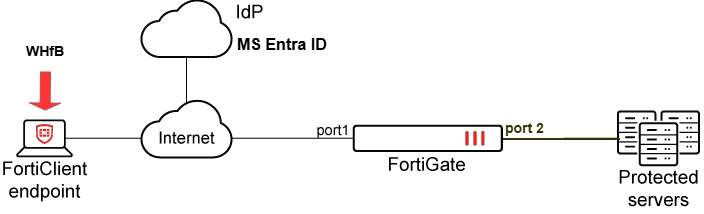
The following is an example of a FortiGate SAML-based IPsec VPN auto-connecting seamlessly using PIN or biometric Windows login via Windows Hello for Business.

Topology
A white and red chicken with a red beak

AI-generated content may be incorrect.

FortiGate configuration

To configure a FortiGate SAML-based auto-connect IPsec VPN tunnel using Microsoft Entra ID:
config system global
    set auth-ike-saml-port 1234
end
config user saml
    edit "saml_azure"
        set entity-id "https://fgtvms.fortinet-fsso.com:1234/remote/saml/metadata"
        set single-sign-on-url "https://fgtvms.fortinet-fsso.com:1234/remote/saml/login"
        set single-logout-url "https://fgtvms.fortinet-fsso.com:1234/remote/saml/logout"
        set idp-entity-id "https://sts.windows.net/f1a72219-bba3-4f6e-93b8-ce3b341b7cf4/"
        set idp-single-sign-on-url "https://login.microsoftonline.com/f1a72219-bba3-4f6e-93b8-ce3b341b7cf4/saml2"
        set idp-single-logout-url "https://login.microsoftonline.com/f1a72219-bba3-4f6e-93b8-ce3b341b7cf4/saml2"
        set idp-cert "REMOTE_Cert_1"
        set user-name "http://schemas.microsoft.com/identity/claims/displayname"
        set group-name "user.groups"
        set digest-method sha1
    next
end
config user group
    edit "VPN_Group"
        set member "saml_azure"
    next
end
config system interface
    edit "port1"
        set ike-saml-server "saml_azure"
    next
end
config firewall address
    edit "IPsec_Tunnel_Add"
        set uuid eb1ef2de-6f22-51f0-cb1c-29661de3254e
        set type iprange
        set start-ip 192.168.183.100
        set end-ip 192.168.183.200
    next
end
config vpn ipsec phase1-interface
    edit "IKEV2-SAML-AZ"
        set type dynamic
        set interface "port1"
        set ike-version 2
        set peertype any
        set net-device disable
        set mode-cfg enable
        set proposal aes128-sha256 aes256-sha256
        set dpd on-idle
        set comments "VPN: IKEV2_SAML_AZ (Created by VPN wizard)"
        set dhgrp 5 15
        set eap enable
        set eap-identity send-request
        set wizard-type dialup-forticlient
        set reauth enable
        set authusrgrp "VPN_Group"
        set client-resume enable
        set client-resume-interval 120
        set network-overlay enable
        set network-id 20
        set transport udp
        set assign-ip-from name
        set dns-mode auto
        set ipv4-name "IPsec_Tunnel_Add"
        set save-password enable
        set client-auto-negotiate enable
        set client-keep-alive enable
        set psksecret ENC zJrtRzDllMxyinqk+NaPcXu2gSVqqqQidEssBnIFrlEDjPa2tR5JRElNQ4pmJlAno1Vogwdt2S39fqyBgjbCSpp50YNFE//+g9ycAR6fukJ/93VdgYvNo48cRtK0li6gWyNn+ryF0yul88U2gMQ3+1HavwkD8Q2G73m7uj6ehKf/SRuz+j1Sddr/o8dH01TllxrJpVlmMjY3dkVA
    next
end
config vpn ipsec phase2-interface
    edit "IKEV2_SAML_AZ"
        set phase1name "IKEV2-SAML-AZ"
        set proposal aes128-sha1 aes256-sha1 aes128-sha256 aes256-sha256 aes128gcm aes256gcm chacha20poly1305
        set dhgrp 15
        set comments "VPN: IKEV2_SAML_AZ (Created by VPN wizard)"
    next
end

FortiClient EMS configuration

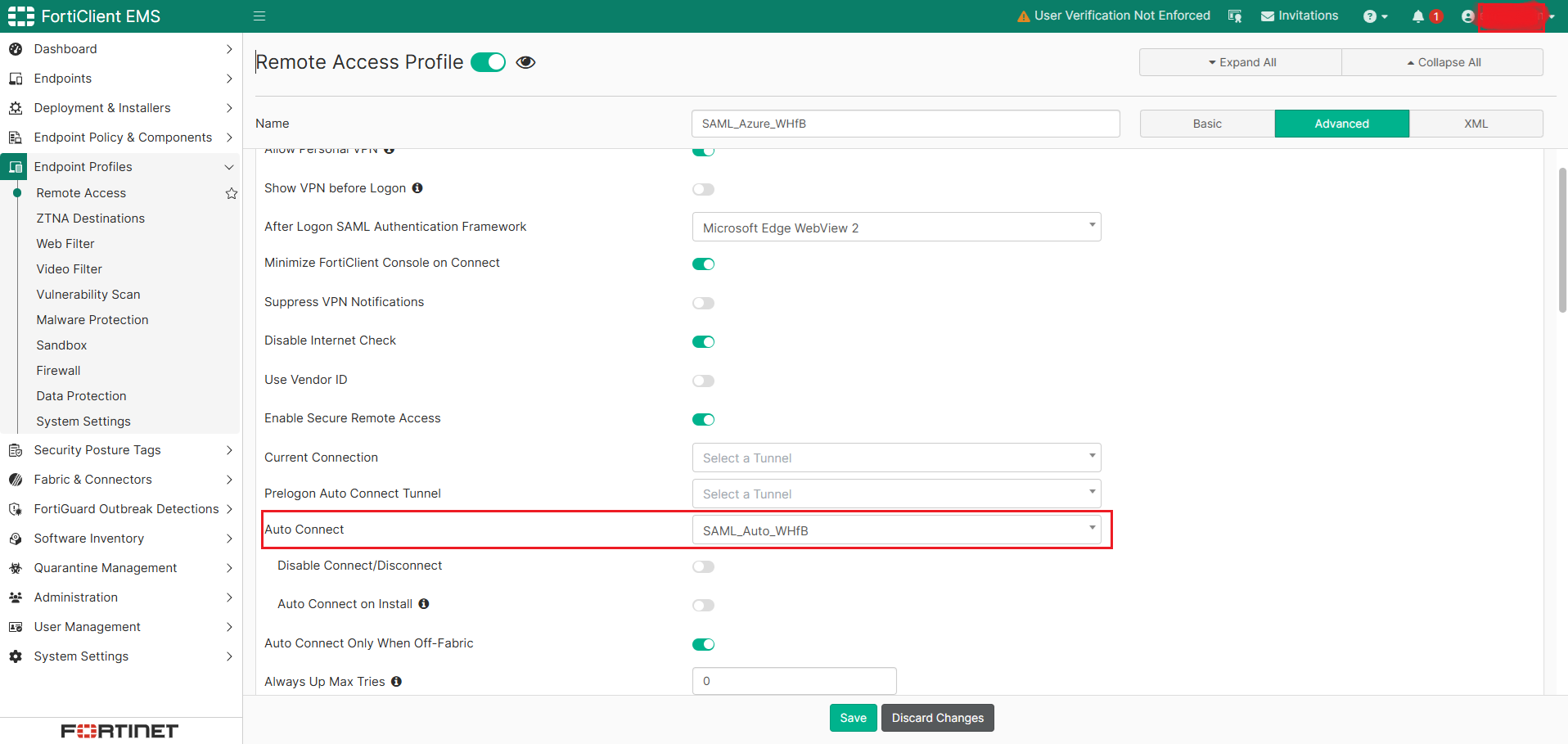
You must configure the FortiGate SAML-based IPsec VPN tunnel with Auto Connect enabled in the EMS XML or GUI:

  • XML:

    <forticlient_configuration>
        <vpn>
            <ipsecvpn>
                <connections>
                    <connection>
                        <name>SAML_Auto_WHfB</name>
                        <ike_settings>
                            <version>2</version>
                            <authentication_method>Preshared Key</authentication_method>
                            <server>fgtvms.fortinet-fsso.com</server>      
    			  <ike_saml_port>1234</ike_saml_port>
                        </ike_settings>
                        <sso_enabled>1</sso_enabled>
                    </connection>
                </connections>
            </ipsecvpn>
            <options>
                <autoconnect_tunnel>SAML_Auto_WHfB</autoconnect_tunnel>
            </options>
        </vpn>
    </forticlient_configuration>
  • GUI:

    A screenshot of a computer

AI-generated content may be incorrect.

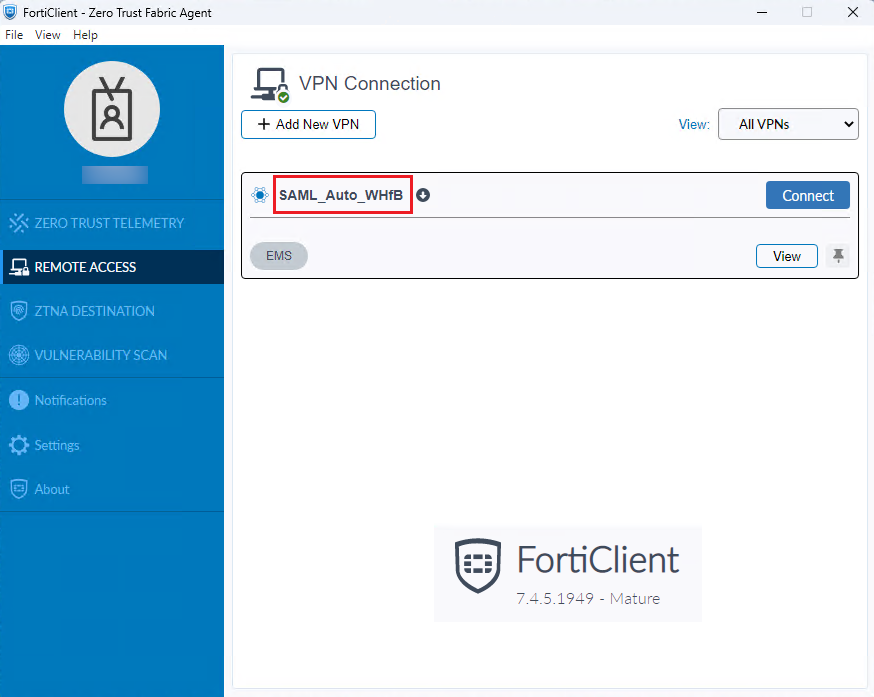
After the EMS configuration, verify that the FortiGate SAML-based IPsec VPN tunnel has been pushed to FortiClient via EMS:
A screenshot of a computer

AI-generated content may be incorrect.

Windows Hello for Business configuration

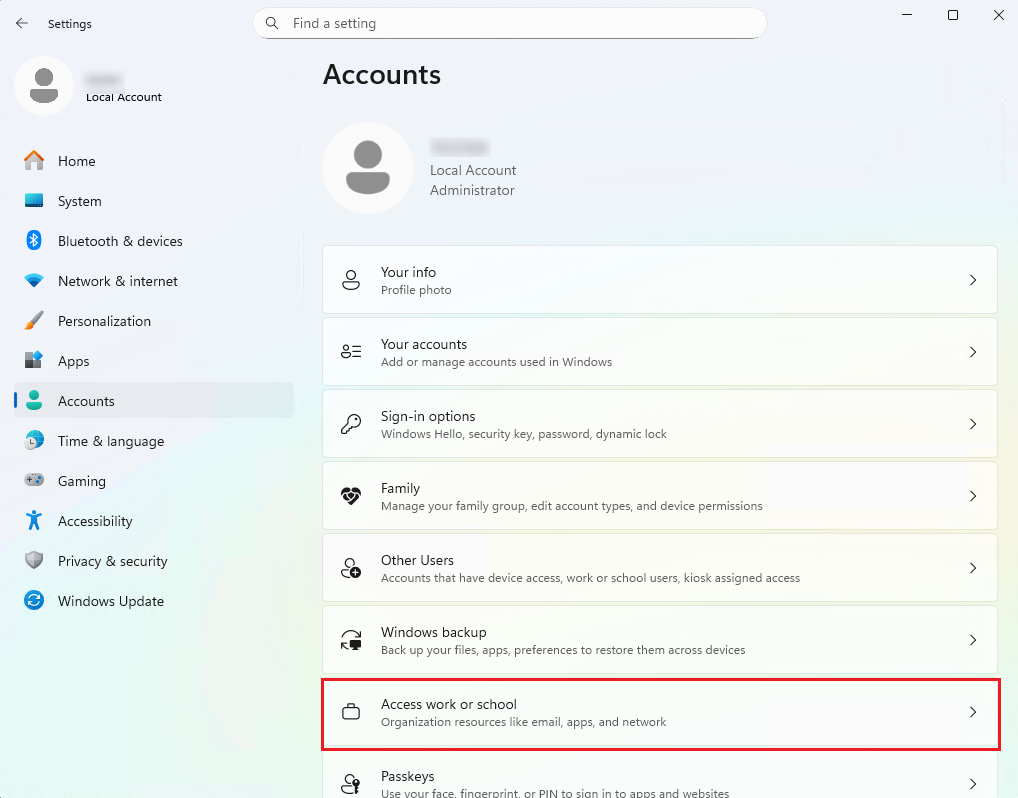
To configure Windows Hello for Business on Entra-joined devices to satisfy MFA claims for SAML SSO VPN authentication:
  1. Add the device to Entra ID by setting up Access work or school:
    A screenshot of a computer

AI-generated content may be incorrect.

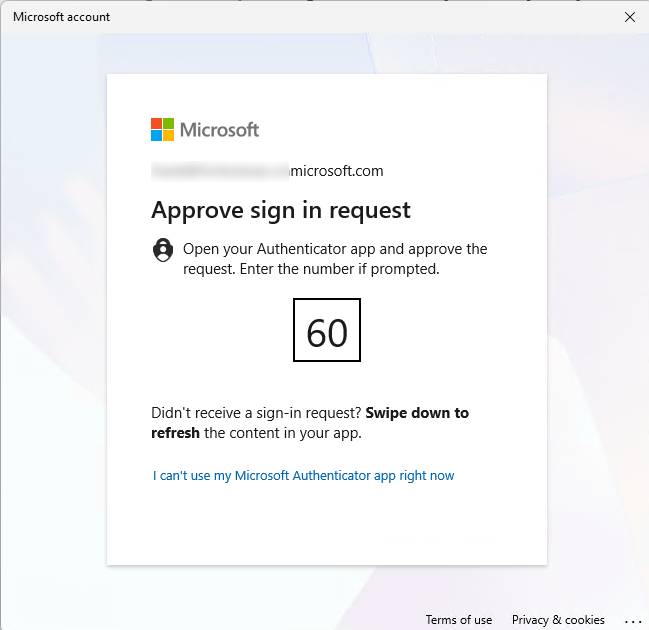
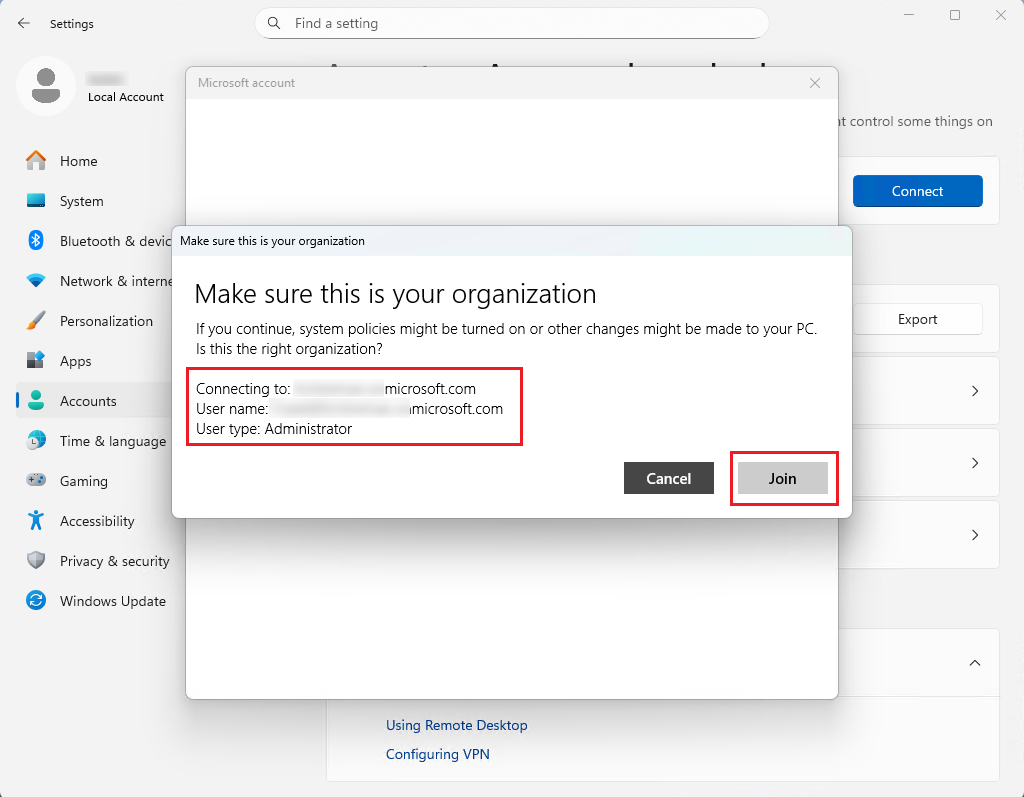
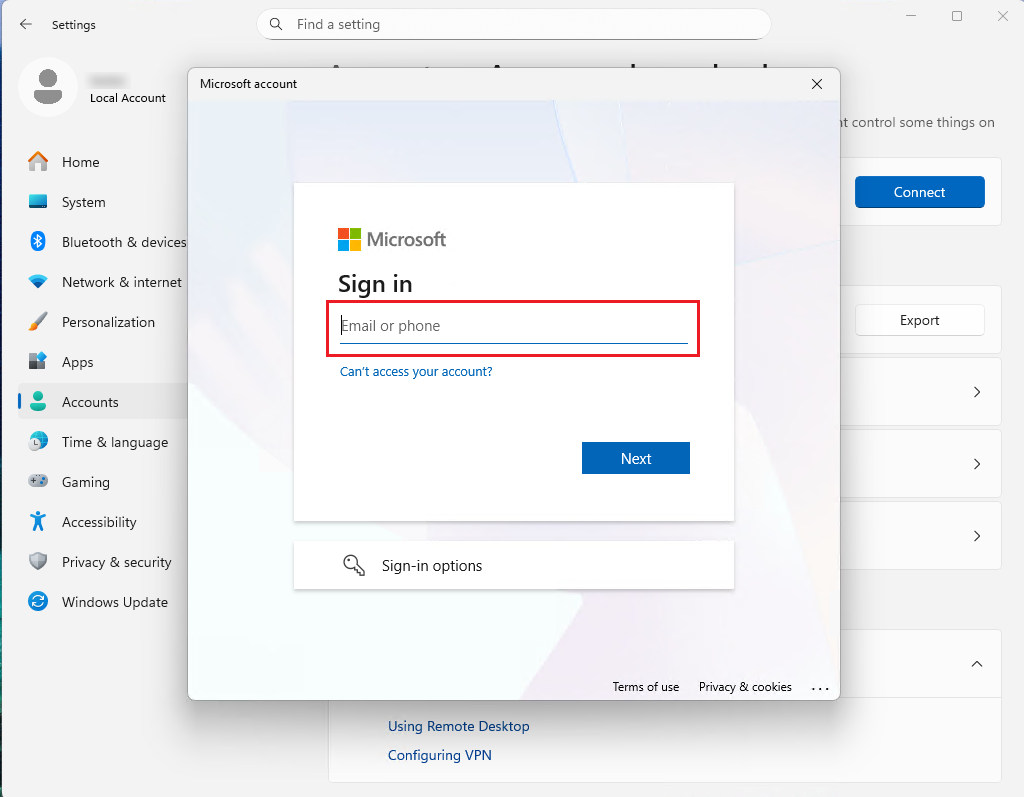
  2. Follow the instruction to enter the Entra ID credential and respond the MFA verification by approving Microsoft Authenticator app, which can be installed on the smartphone.
    A screenshot of a computer

AI-generated content may be incorrect.

    A screenshot of a computer

AI-generated content may be incorrect.

    A screenshot of a computer

AI-generated content may be incorrect.

    A screenshot of a computer

AI-generated content may be incorrect.

  3. Click Done in the window that confirms the device is connected to the Entra ID.

    A screenshot of a computer screen

AI-generated content may be incorrect.

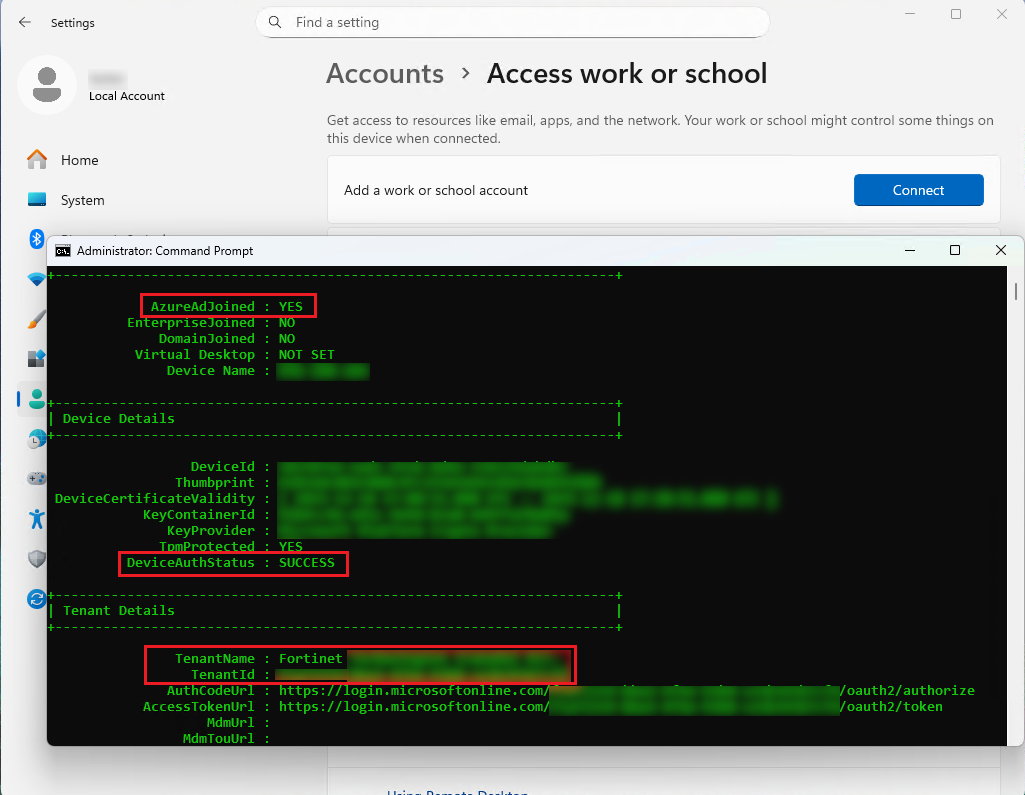
  4. Verify that the device has joined the Entra ID.

    A screenshot of a computer

AI-generated content may be incorrect.

    A screenshot of a computer

AI-generated content may be incorrect.

  5. Sign in with the Entra ID account on the machine. Windows will automatically prompt to set up WHfB. Click OK.

    A computer screen shot of a computer

AI-generated content may be incorrect.

  6. Go through the Microsoft Entra MFA setup as required to verify identity.

    A computer screen shot of a computer screen

AI-generated content may be incorrect.

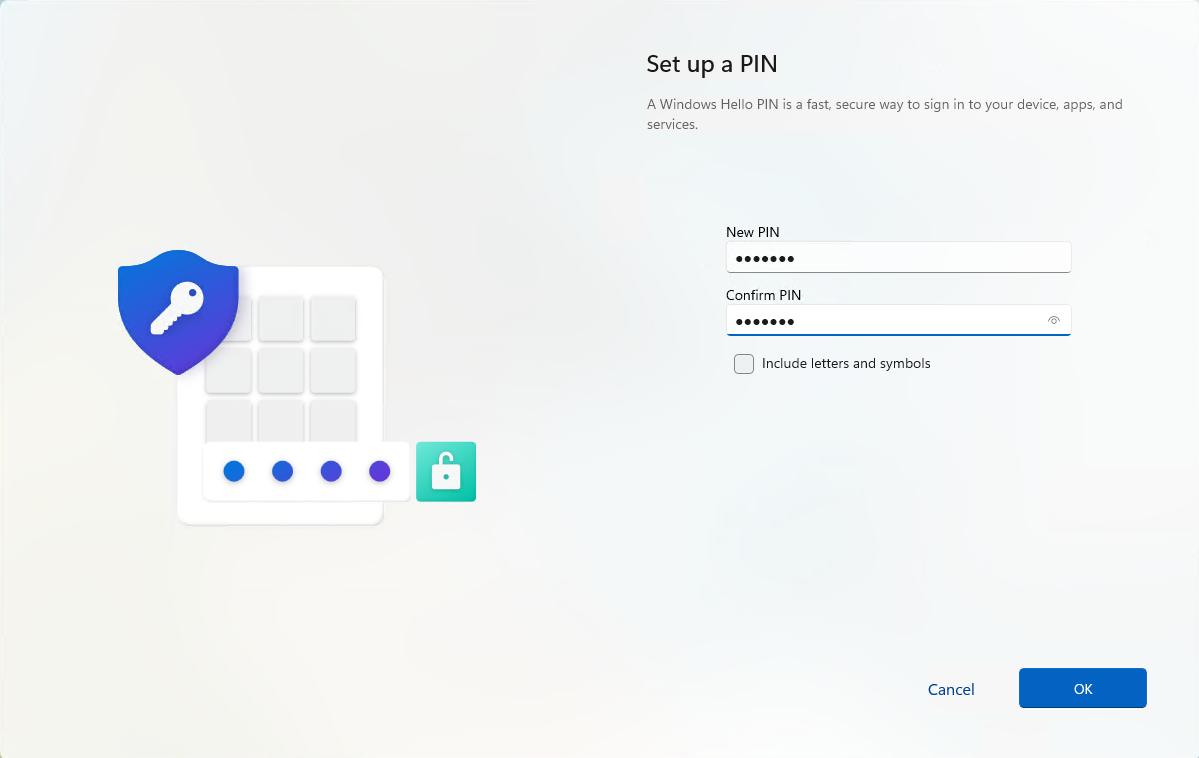
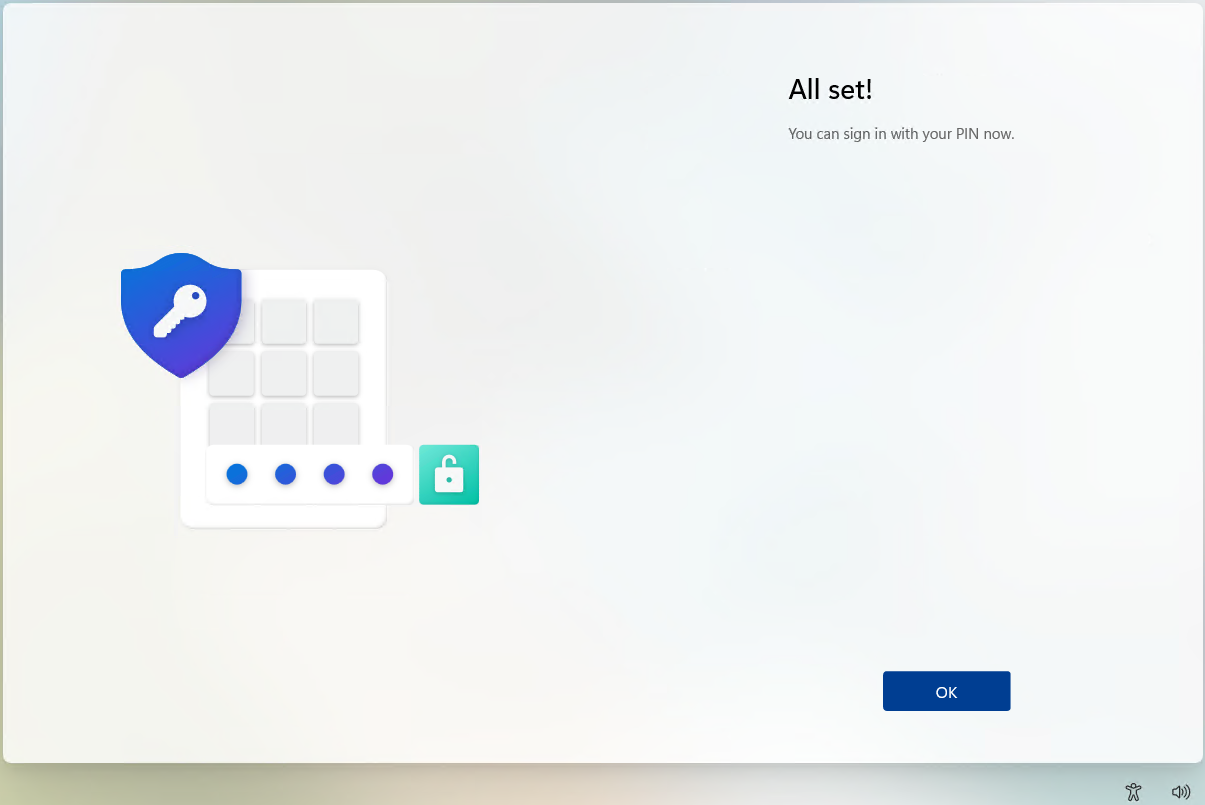
  7. Create a PIN as required.

    A screenshot of a computer

AI-generated content may be incorrect.

    A screenshot of a computer

AI-generated content may be incorrect.

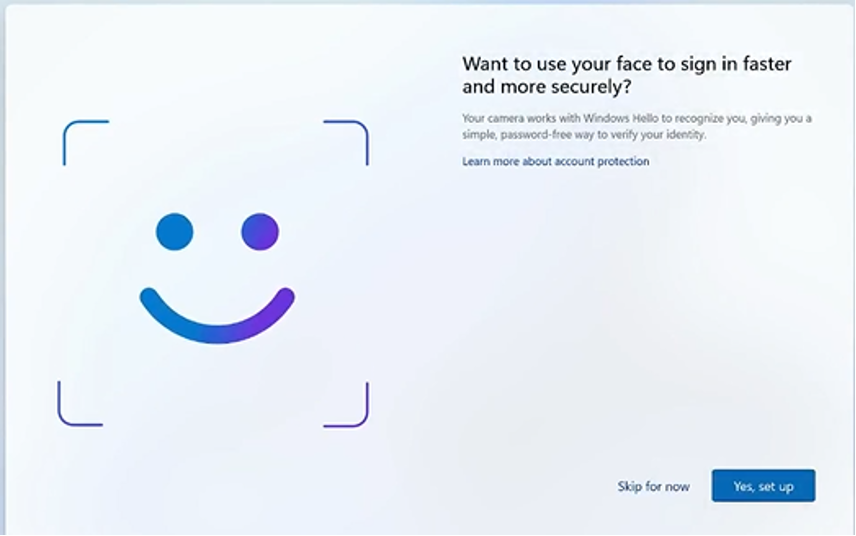
  8. Enable biometric sign-in (fingerprint and facial recognition) for Windows Hello for Business.

    A screenshot of a computer

AI-generated content may be incorrect.
    A screenshot of a computer

AI-generated content may be incorrect.

Verification

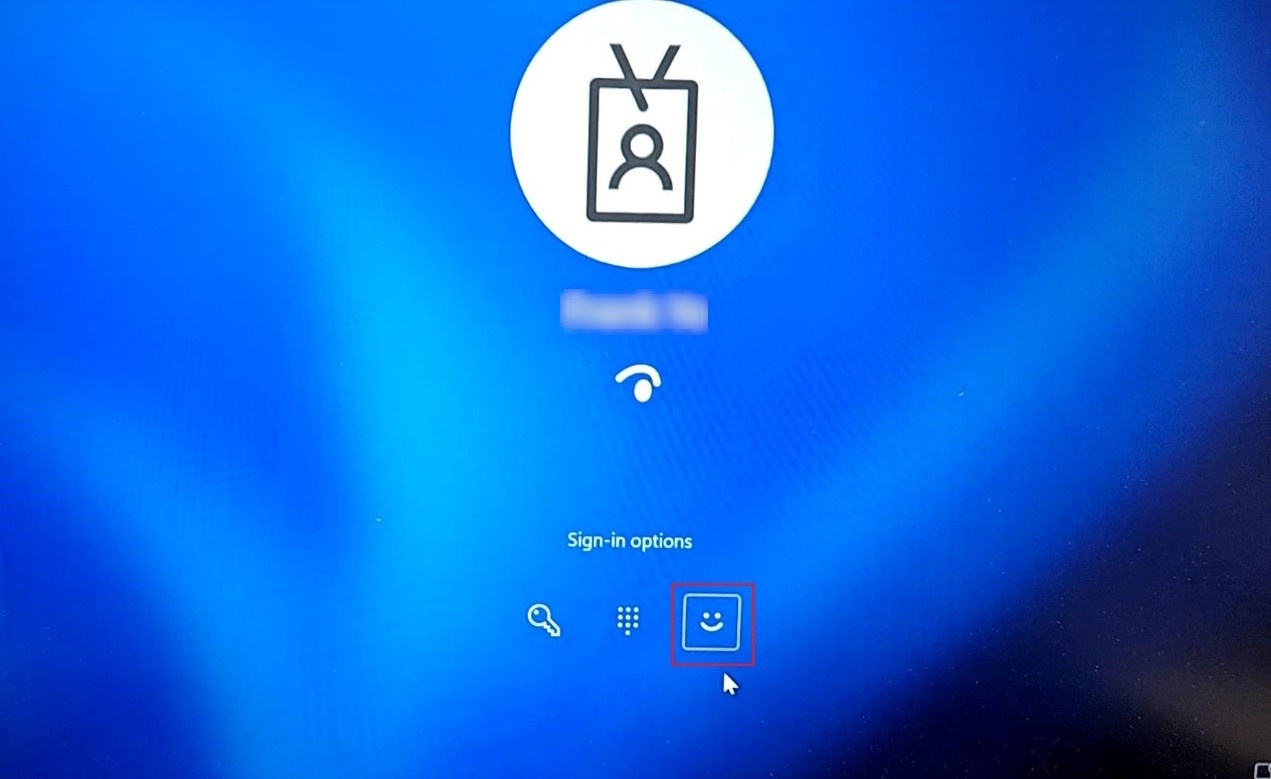
After Windows Hello for Business (WHfB) is provisioned, verify that the FortiGate SAML-based IPsec VPN auto-connects seamlessly after Windows login via Windows Hello for Business using PIN or biometrics:

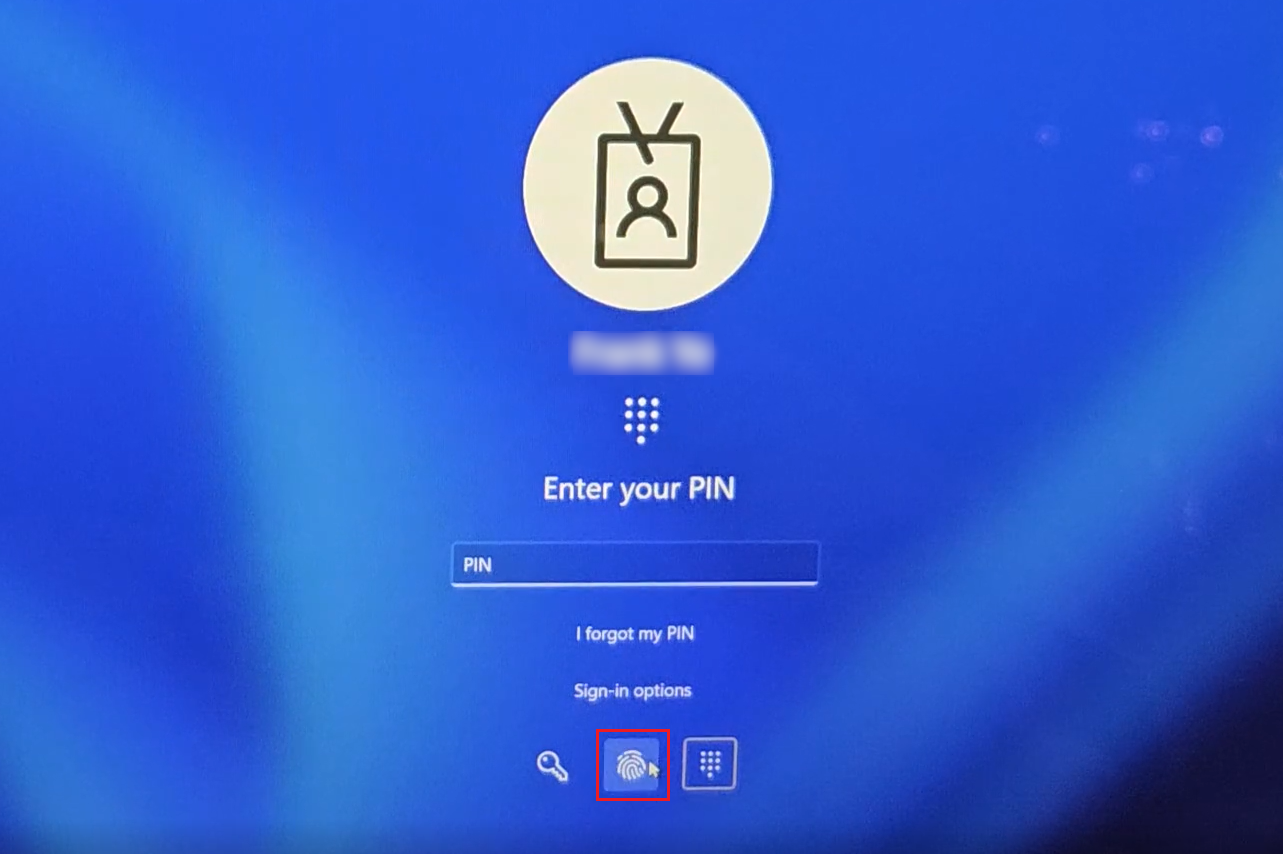
  1. Sign-in with PIN or biometrics (fingerprint or facial recognition):

    A screenshot of a login screen

AI-generated content may be incorrect.

    A screen shot of a computer

AI-generated content may be incorrect.

    A screen shot of a computer

AI-generated content may be incorrect.

  2. Verify that the FortiGate SAML-based IPsec VPN tunnel auto-connected without user intervention.
    A screenshot of a computer

AI-generated content may be incorrect.

Windows Hello Business support for FortiGate SAML-based IPsec VPN

Windows Hello Business support for FortiGate SAML-based IPsec VPN

For FortiGate SAML-based auto-connect IPsec VPN tunnels using Microsoft Entra ID, Windows Hello for Business (key-based or certificate-based) authentication users automatically connect to the tunnel after Windows login (using MFA with PIN or biometrics, such as fingerprint or facial recognition) without the need to re-authenticate for the VPN connection using the Entra ID username and password.

The following is an example of a FortiGate SAML-based IPsec VPN auto-connecting seamlessly using PIN or biometric Windows login via Windows Hello for Business.

Topology

A white and red chicken with a red beak

AI-generated content may be incorrect.

FortiGate configuration

To configure a FortiGate SAML-based auto-connect IPsec VPN tunnel using Microsoft Entra ID:
config system global
    set auth-ike-saml-port 1234
end
config user saml
    edit "saml_azure"
        set entity-id "https://fgtvms.fortinet-fsso.com:1234/remote/saml/metadata"
        set single-sign-on-url "https://fgtvms.fortinet-fsso.com:1234/remote/saml/login"
        set single-logout-url "https://fgtvms.fortinet-fsso.com:1234/remote/saml/logout"
        set idp-entity-id "https://sts.windows.net/f1a72219-bba3-4f6e-93b8-ce3b341b7cf4/"
        set idp-single-sign-on-url "https://login.microsoftonline.com/f1a72219-bba3-4f6e-93b8-ce3b341b7cf4/saml2"
        set idp-single-logout-url "https://login.microsoftonline.com/f1a72219-bba3-4f6e-93b8-ce3b341b7cf4/saml2"
        set idp-cert "REMOTE_Cert_1"
        set user-name "http://schemas.microsoft.com/identity/claims/displayname"
        set group-name "user.groups"
        set digest-method sha1
    next
end
config user group
    edit "VPN_Group"
        set member "saml_azure"
    next
end
config system interface
    edit "port1"
        set ike-saml-server "saml_azure"
    next
end
config firewall address
    edit "IPsec_Tunnel_Add"
        set uuid eb1ef2de-6f22-51f0-cb1c-29661de3254e
        set type iprange
        set start-ip 192.168.183.100
        set end-ip 192.168.183.200
    next
end
config vpn ipsec phase1-interface
    edit "IKEV2-SAML-AZ"
        set type dynamic
        set interface "port1"
        set ike-version 2
        set peertype any
        set net-device disable
        set mode-cfg enable
        set proposal aes128-sha256 aes256-sha256
        set dpd on-idle
        set comments "VPN: IKEV2_SAML_AZ (Created by VPN wizard)"
        set dhgrp 5 15
        set eap enable
        set eap-identity send-request
        set wizard-type dialup-forticlient
        set reauth enable
        set authusrgrp "VPN_Group"
        set client-resume enable
        set client-resume-interval 120
        set network-overlay enable
        set network-id 20
        set transport udp
        set assign-ip-from name
        set dns-mode auto
        set ipv4-name "IPsec_Tunnel_Add"
        set save-password enable
        set client-auto-negotiate enable
        set client-keep-alive enable
        set psksecret ENC zJrtRzDllMxyinqk+NaPcXu2gSVqqqQidEssBnIFrlEDjPa2tR5JRElNQ4pmJlAno1Vogwdt2S39fqyBgjbCSpp50YNFE//+g9ycAR6fukJ/93VdgYvNo48cRtK0li6gWyNn+ryF0yul88U2gMQ3+1HavwkD8Q2G73m7uj6ehKf/SRuz+j1Sddr/o8dH01TllxrJpVlmMjY3dkVA
    next
end
config vpn ipsec phase2-interface
    edit "IKEV2_SAML_AZ"
        set phase1name "IKEV2-SAML-AZ"
        set proposal aes128-sha1 aes256-sha1 aes128-sha256 aes256-sha256 aes128gcm aes256gcm chacha20poly1305
        set dhgrp 15
        set comments "VPN: IKEV2_SAML_AZ (Created by VPN wizard)"
    next
end

FortiClient EMS configuration

You must configure the FortiGate SAML-based IPsec VPN tunnel with Auto Connect enabled in the EMS XML or GUI:

  • XML:

    <forticlient_configuration>
        <vpn>
            <ipsecvpn>
                <connections>
                    <connection>
                        <name>SAML_Auto_WHfB</name>
                        <ike_settings>
                            <version>2</version>
                            <authentication_method>Preshared Key</authentication_method>
                            <server>fgtvms.fortinet-fsso.com</server>      
    			  <ike_saml_port>1234</ike_saml_port>
                        </ike_settings>
                        <sso_enabled>1</sso_enabled>
                    </connection>
                </connections>
            </ipsecvpn>
            <options>
                <autoconnect_tunnel>SAML_Auto_WHfB</autoconnect_tunnel>
            </options>
        </vpn>
    </forticlient_configuration>
  • GUI:

    A screenshot of a computer

AI-generated content may be incorrect.

After the EMS configuration, verify that the FortiGate SAML-based IPsec VPN tunnel has been pushed to FortiClient via EMS:

A screenshot of a computer

AI-generated content may be incorrect.

Windows Hello for Business configuration

To configure Windows Hello for Business on Entra-joined devices to satisfy MFA claims for SAML SSO VPN authentication:
  1. Add the device to Entra ID by setting up Access work or school:

    A screenshot of a computer

AI-generated content may be incorrect.

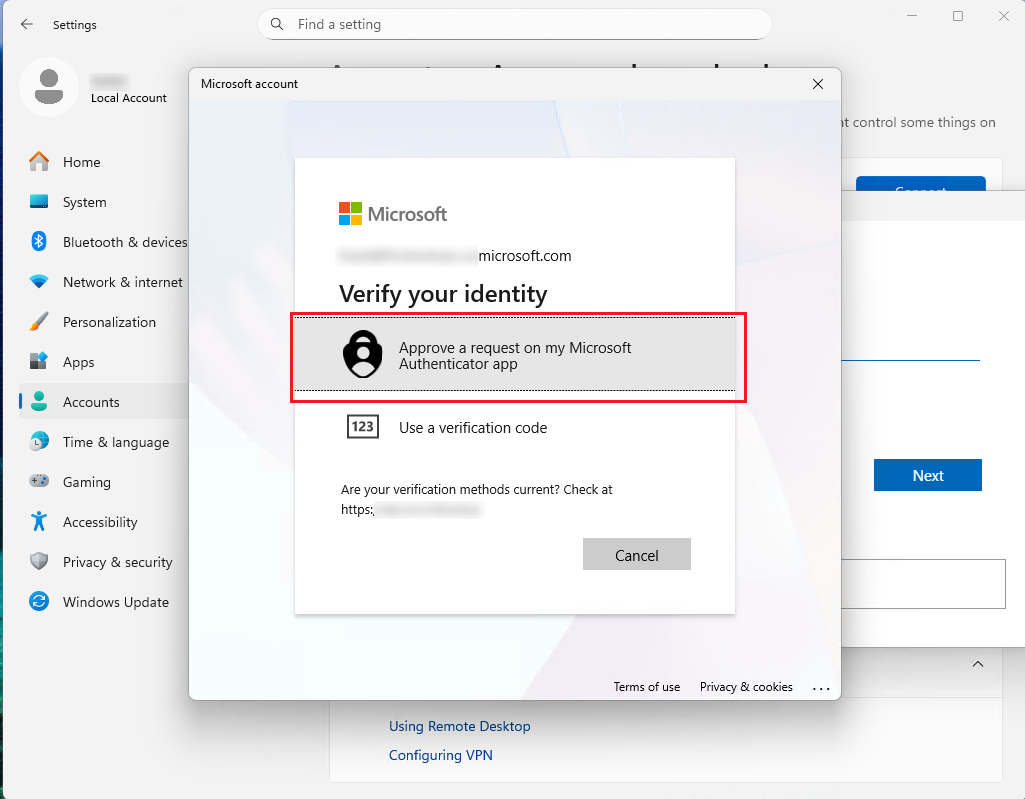
  2. Follow the instruction to enter the Entra ID credential and respond the MFA verification by approving Microsoft Authenticator app, which can be installed on the smartphone.
    A screenshot of a computer

AI-generated content may be incorrect.

    A screenshot of a computer

AI-generated content may be incorrect.

    A screenshot of a computer

AI-generated content may be incorrect.

    A screenshot of a computer

AI-generated content may be incorrect.

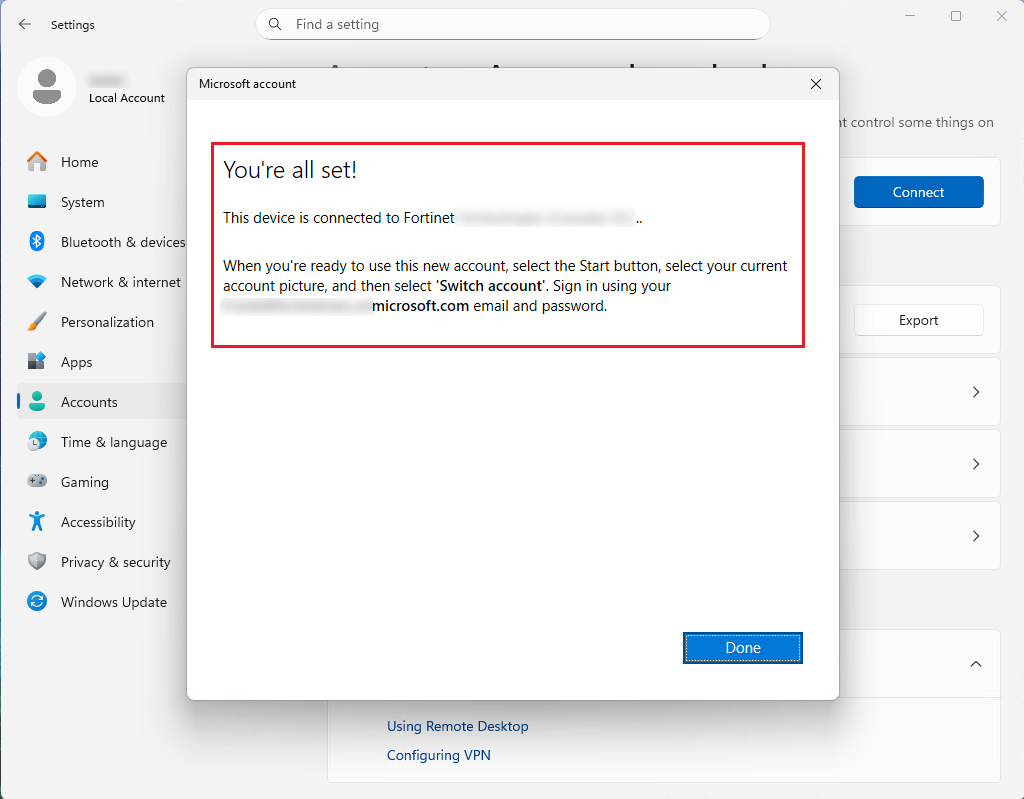
  3. Click Done in the window that confirms the device is connected to the Entra ID.
    A screenshot of a computer screen

AI-generated content may be incorrect.

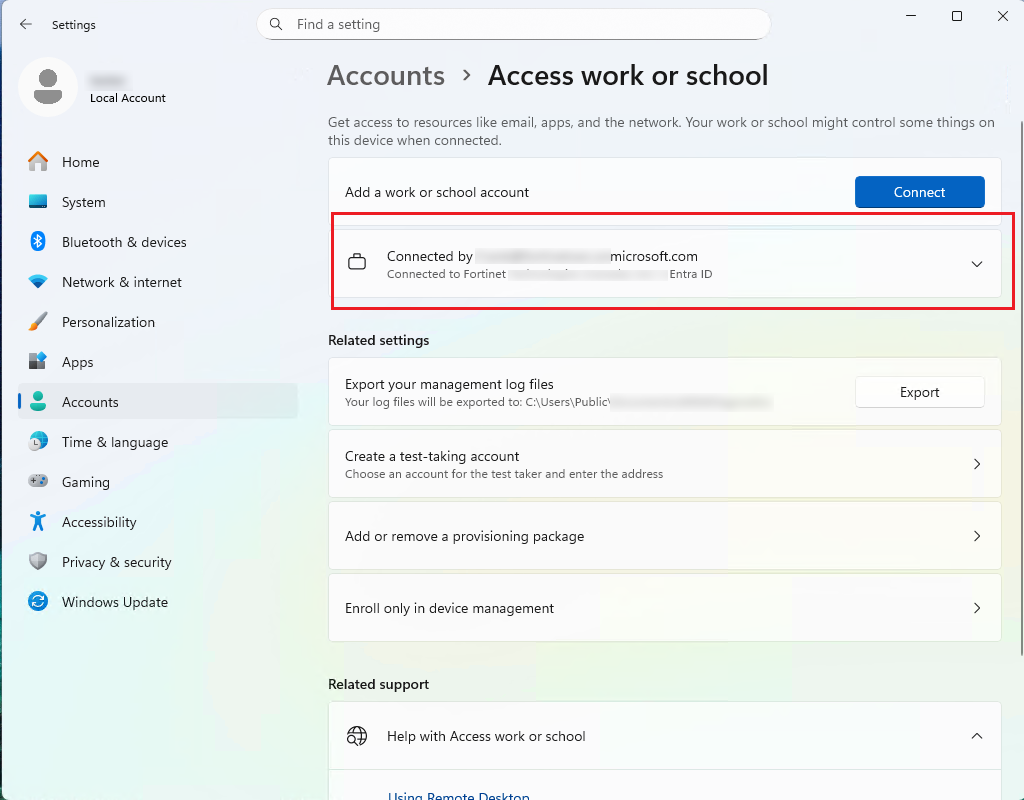
  4. Verify that the device has joined the Entra ID.
    A screenshot of a computer

AI-generated content may be incorrect.

    A screenshot of a computer

AI-generated content may be incorrect.

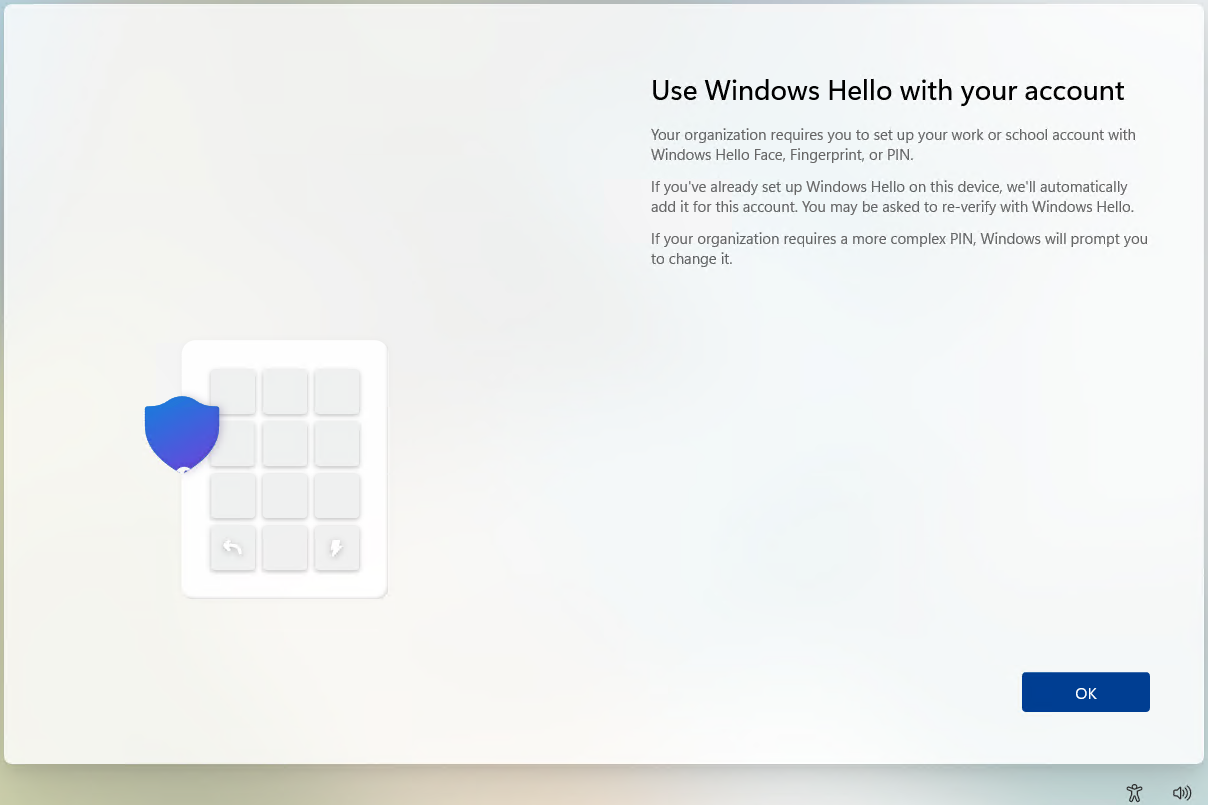
  5. Sign in with the Entra ID account on the machine. Windows will automatically prompt to set up WHfB. Click OK.
    A computer screen shot of a computer

AI-generated content may be incorrect.

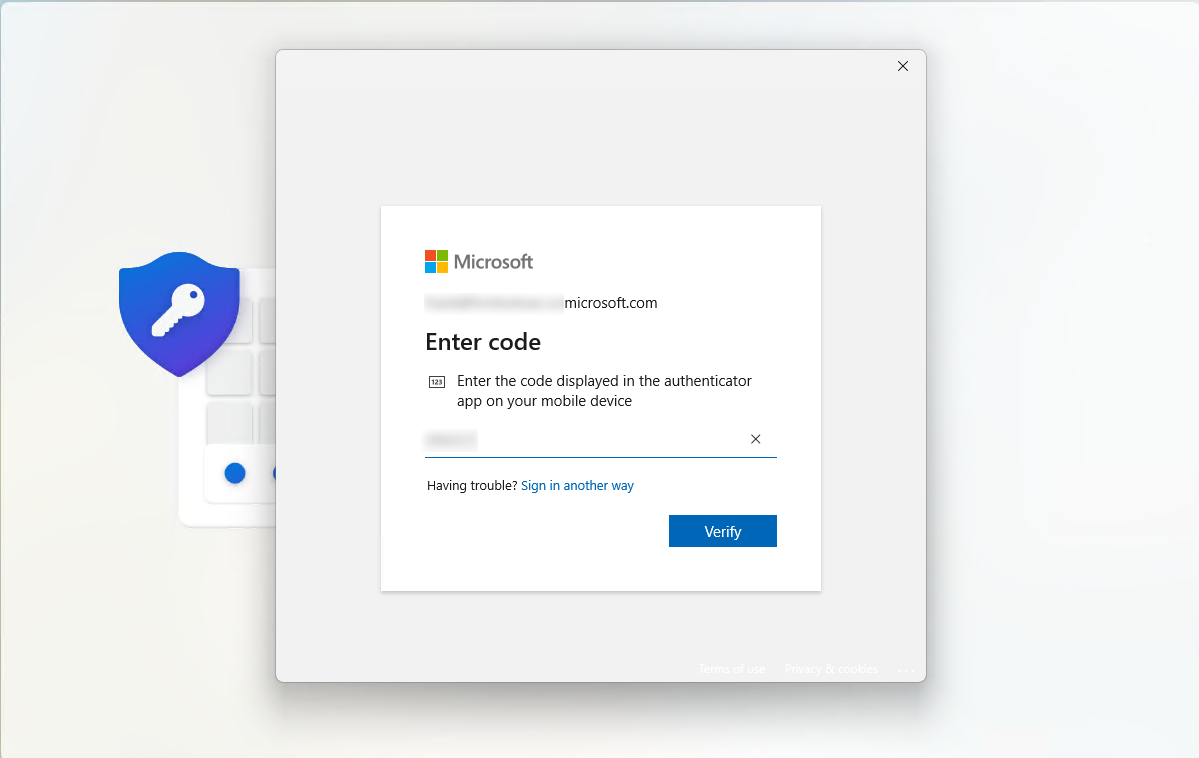
  6. Go through the Microsoft Entra MFA setup as required to verify identity.
    A computer screen shot of a computer screen

AI-generated content may be incorrect.

  7. Create a PIN as required.

    A screenshot of a computer

AI-generated content may be incorrect.

    A screenshot of a computer

AI-generated content may be incorrect.

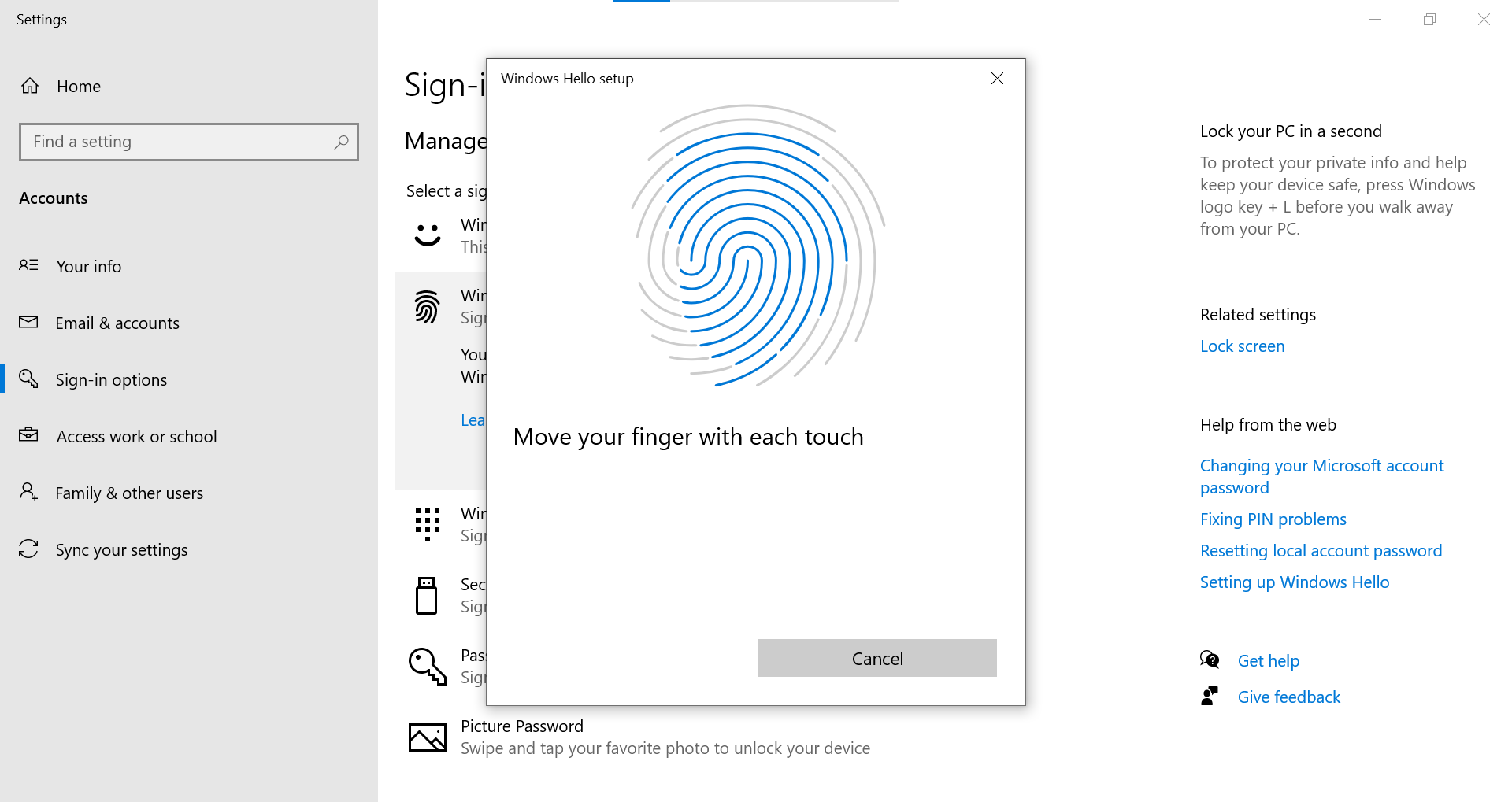
  8. Enable biometric sign-in (fingerprint and facial recognition) for Windows Hello for Business.
    A screenshot of a computer

AI-generated content may be incorrect.
    A screenshot of a computer

AI-generated content may be incorrect.

Verification

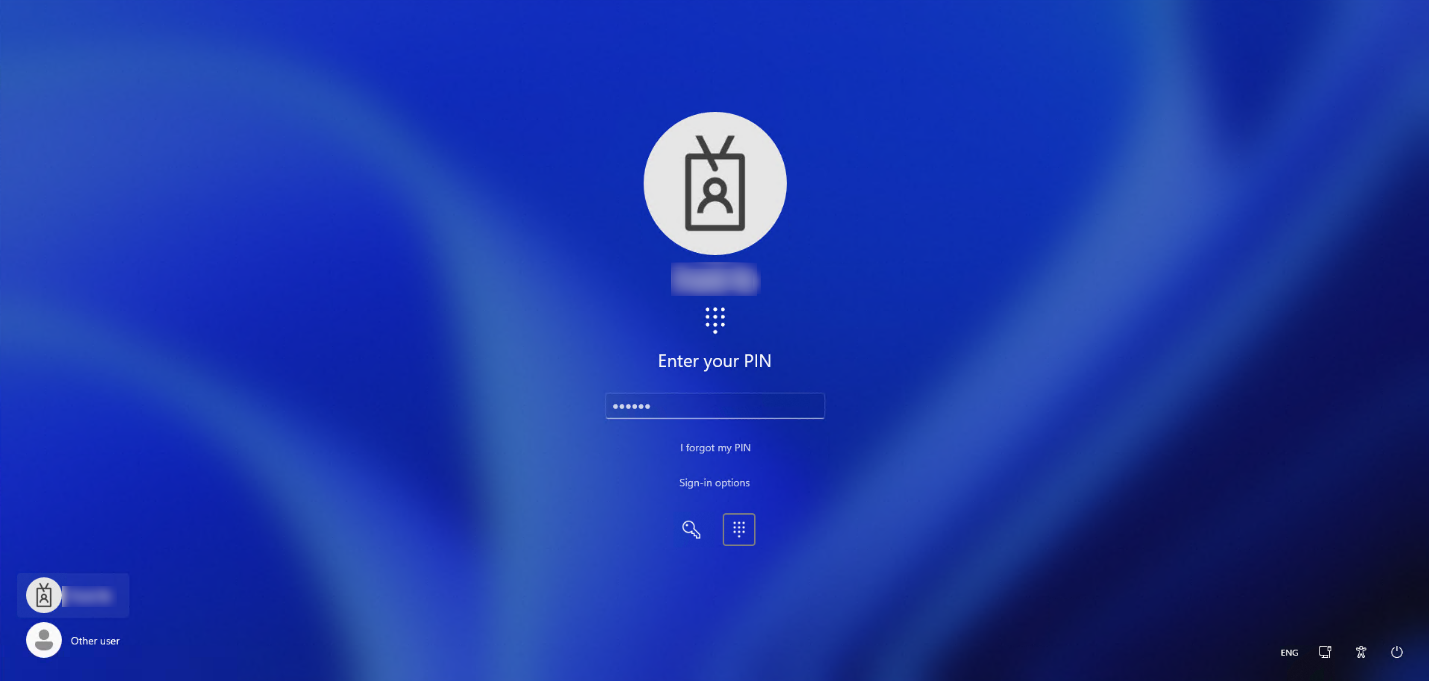
After Windows Hello for Business (WHfB) is provisioned, verify that the FortiGate SAML-based IPsec VPN auto-connects seamlessly after Windows login via Windows Hello for Business using PIN or biometrics:

  1. Sign-in with PIN or biometrics (fingerprint or facial recognition):
    A screenshot of a login screen

AI-generated content may be incorrect.

    A screen shot of a computer

AI-generated content may be incorrect.

    A screen shot of a computer

AI-generated content may be incorrect.

  2. Verify that the FortiGate SAML-based IPsec VPN tunnel auto-connected without user intervention.
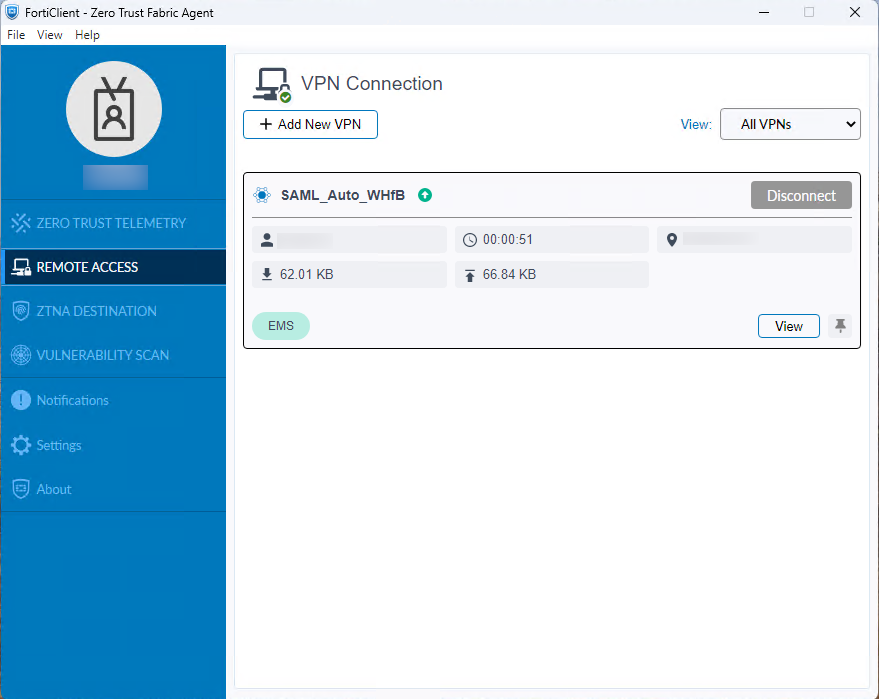
    A screenshot of a computer

AI-generated content may be incorrect.