

Retrieving memory
The Retrieve Memory function enables you to retrieve the stack-memory of a specific Collector to perform deeper analysis by analyzing the actual memory from the device. Memory is fetched by the Collector in binary (*.bin) format, compressed, encrypted and then sent to the user’s local machine. The returned file is password-protected with the password enCrypted. If the file cannot be sent, it is saved locally on the host by the Collector.
This function is accessible from the Investigation View (detailed in the procedure below) or by connecting to the device directly using the EDR Connect functionality.
To retrieve memory for a Collector from the investigation view:
- Right-click the node of the relevant activity event and select Retrieve.
Alternatively, select the node of the relevant activity event and click the Retrieve button in the Details Pane that appears on the right.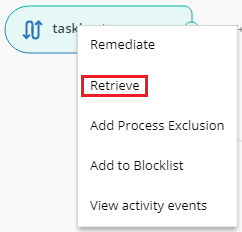
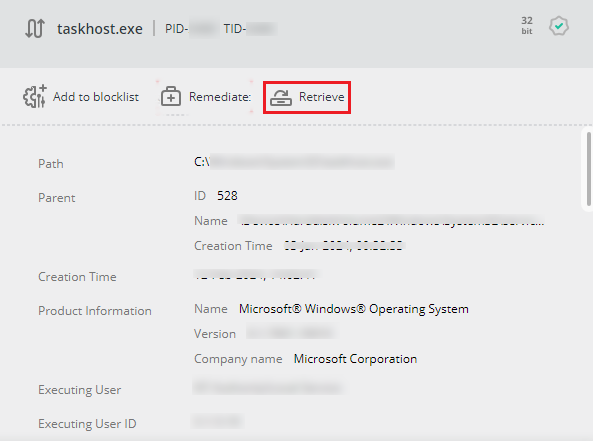

The Retrieve button is also available from the Stacks view, which is available when an edge is selected.
- The following window displays:
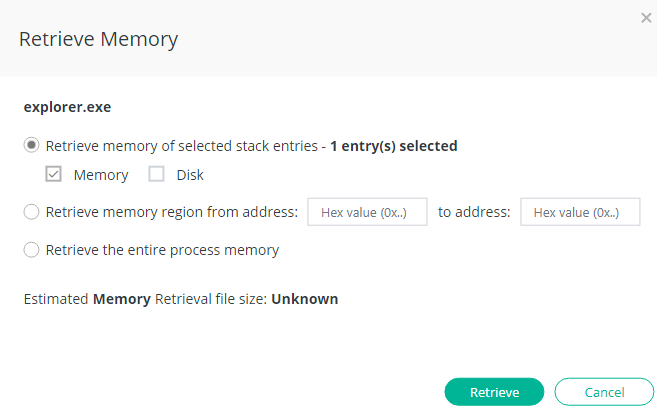
- Select one of the following options:
- Retrieve memory of selected stack entries: Select this radio button to retrieve memory for one or more specific stack entries. Then, select the stack entries you want to analyze by checking their checkboxes.
You must also specify whether to retrieve the memory from memory, disk, or both by selecting the respective checkbox. The Memory option is the default. You can select either option or both options. It is important to remember that the retrievable data may be different in the memory and on disk. In addition, the stack entry may no longer reside in memory, for example, if the system was rebooted. After you make your selection, the window indicates how many stack entries were selected.
- Retrieve memory region from address: Select this option to retrieve memory from a specific memory region. Specify the To and From addresses for the region in the adjacent fields.
- Retrieve the entire process memory: Select this option to retrieve memory for an entire process. This option retrieves all the stack entries comprising the process.
- Retrieve memory of selected stack entries: Select this radio button to retrieve memory for one or more specific stack entries. Then, select the stack entries you want to analyze by checking their checkboxes.
- Click Retrieve.