
Fortinet white logo
Fortinet white logo

LoRaWAN Profile Configuration

LoRaWAN Profile Configuration

LoRaWAN is a Low-Power, Wide-Area Network (LPWAN) protocol optimized for connecting battery-powered IoT devices to the internet over long distances. It facilitates critical communication for applications such as smart cities, building automation, and agriculture.

The FortiAP (such as the 222KL outdoor model) supports this technology by acting as a LoRaWAN Gateway. The device relays radio frames from LoRaWAN capable sensors to a LoRaWAN Network Server (LNS) without deciphering the payload, ensuring secure data transmission across the network.

The LoRaWAN operation profile can now be configured using the FortiEdge Cloud GUI.

Navigate to Wireless > Operation Profiles. Select the LoRaWAN Profile tab.
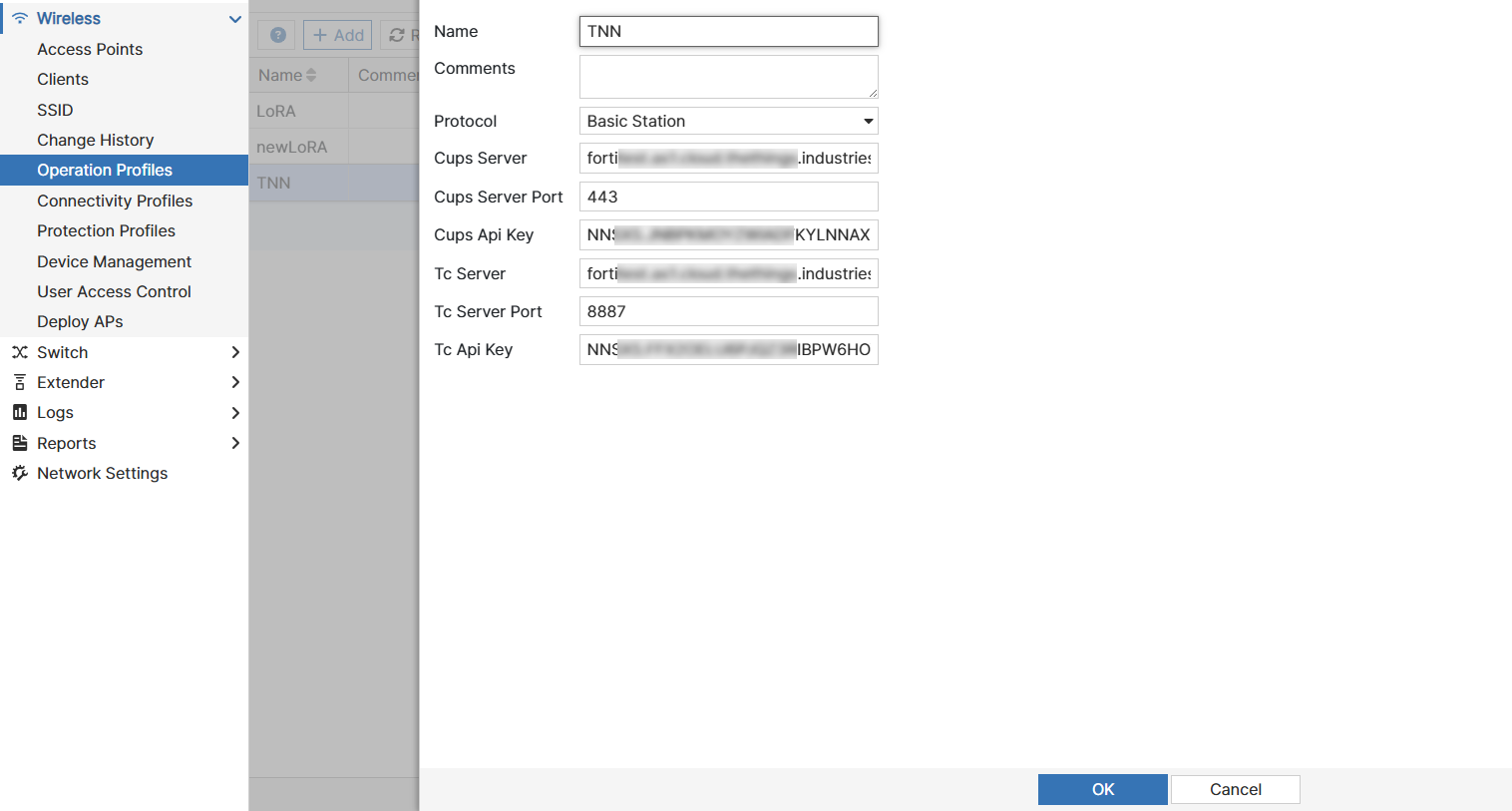
Configure the following fields for the profile:

  • Name: Enter a unique identifier for the profile.

  • Comments: Add a descriptive note about the profile.

  • Protocol: This determines the communication protocol used between the gateway and the server. Select a protocol from the drop-down list.

CUPS (Configuration and Update Server) Settings

The CUPS server manages the gateway's configuration and firmware updates.

  • Cups Server: The URL or IP address of the configuration server.

  • Cups Server Port: The communication port for the CUPS server.

  • Cups Api Key: The security key used to authenticate the gateway with the CUPS server.

TC (Traffic Concentrator) Settings

The TC settings refer to the LoRaWAN Network Server (LNS) connection. This channel handles the actual transmission of sensor data (uplink/downlink).

Tc Server: The URL or IP address of the Network Server that processes the data.

Tc Server Port: The communication port for data traffic.

Tc Api Key: The security key used to authenticate the data connection with the Network Server.

Note: Once this profile is saved, it must be assigned to the FortiAP's WTP Profile (Wireless Termination Point profile) to enable the LoRaWAN gateway functionality on the device.

LoRaWAN Profile Configuration

LoRaWAN Profile Configuration

LoRaWAN is a Low-Power, Wide-Area Network (LPWAN) protocol optimized for connecting battery-powered IoT devices to the internet over long distances. It facilitates critical communication for applications such as smart cities, building automation, and agriculture.

The FortiAP (such as the 222KL outdoor model) supports this technology by acting as a LoRaWAN Gateway. The device relays radio frames from LoRaWAN capable sensors to a LoRaWAN Network Server (LNS) without deciphering the payload, ensuring secure data transmission across the network.

The LoRaWAN operation profile can now be configured using the FortiEdge Cloud GUI.

Navigate to Wireless > Operation Profiles. Select the LoRaWAN Profile tab.

Configure the following fields for the profile:

  • Name: Enter a unique identifier for the profile.

  • Comments: Add a descriptive note about the profile.

  • Protocol: This determines the communication protocol used between the gateway and the server. Select a protocol from the drop-down list.

CUPS (Configuration and Update Server) Settings

The CUPS server manages the gateway's configuration and firmware updates.

  • Cups Server: The URL or IP address of the configuration server.

  • Cups Server Port: The communication port for the CUPS server.

  • Cups Api Key: The security key used to authenticate the gateway with the CUPS server.

TC (Traffic Concentrator) Settings

The TC settings refer to the LoRaWAN Network Server (LNS) connection. This channel handles the actual transmission of sensor data (uplink/downlink).

Tc Server: The URL or IP address of the Network Server that processes the data.

Tc Server Port: The communication port for data traffic.

Tc Api Key: The security key used to authenticate the data connection with the Network Server.

Note: Once this profile is saved, it must be assigned to the FortiAP's WTP Profile (Wireless Termination Point profile) to enable the LoRaWAN gateway functionality on the device.