

Configuring an IPsec VPN connection

|
FortiClient 7.4.5 does not support IPsec VPN IKEv1. Configure IPsec VPN IKEv2 if using FortiClient 7.4.5. |
FortiClient (Linux) does not support creating personal IPsec VPN tunnels.
To configure an IPsec VPN connection:
- On the Remote Access tab, click Add New VPN.
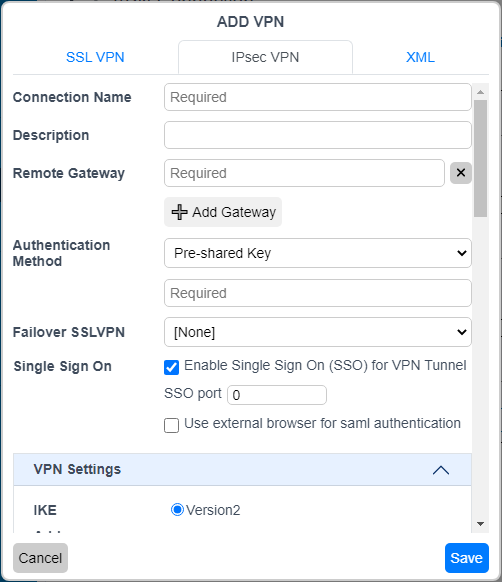
- On the IPsec VPN tab, configure the following settings:
Option
Description
Connection Name
Enter a name for the connection.
Description
(Optional) Enter a description for the connection.
Remote Gateway
Enter the remote gateway IP address/hostname. You can configure multiple remote gateways. If one gateway is not available, the VPN connects to the next configured gateway.
Authentication Method
Select X.509 Certificate or Pre-shared Key in the dropdown list. When you select x.509 Certificate, select Prompt on connect or a certificate from the list.
Authentication (EAP)
Select Prompt on login, Save login, or Disable.
Failover SSL VPN
If the IPsec VPN connection fails, FortiClient attempts to connect to the specified SSL VPN tunnel.
Single Sign On
Enable SAML SSO for the VPN tunnel. For this feature to function, the administrator must have configured the necessary options on the service and identity providers (IdP).
SSO port
Enter the port number that FortiClient uses to communicate with the FortiGate, which acts as the SAML service provider.
Use external browser for saml authentication
FortiClient can use a browser as an external user-agent to perform SAML authentication for VPN tunnel mode instead of the FortiClient embedded login window. If a user already authenticated using SAML in the default browser, they do not need to reauthenticate in the FortiClient built-in browser. Available if you enable Enable Single Sign On (SSO) for VPN Tunnel. See Using a browser as an external user-agent for SAML authentication in an SSL VPN connection.
On FortiClient (macOS), if Non-Secure site connections > Warn before connecting to a website over HTTP is enabled in Safari and using an external browser for SAML authentication is configured, VPN connection may fail.
VPN Settings
IKE
Only Version2 is available for selection.
Address Assignment
Only Mode Config is available for selection.
Encapsulation
Configure one of the following for the encapsulation (or transport) mode:
- IKE UDP Port: UDP encapsulation (transport) mode. This is the default and used for most VPN connections. Configure a custom port number if desired.
- IPsec over TCP: TCP transport mode. This is recommended for use in restrictive networks. Configure a custom port number if desired.
- Auto: FortiOS dynamically selects the transport mode.
IKE UDP Port
Configure a custom port number if desired.
IKE TCP Port
Configure a custom port number if desired.
Phase 1
Select the encryption and authentication algorithms used to generate keys for protecting negotiations and add encryption and authentication algorithms as required.
You need to select a minimum of one and a maximum of two combinations. The remote peer or client must be configured to use at least one of the proposals that you define.
IKE Proposal
Select symmetric-key algorithms (encryption) and message digests (authentication) from the dropdown lists.
DH Group
Select one or more Diffie-Hellman groups. At least one of the DH group settings on the remote peer or client must match one the selections on the FortiGate unit. Failure to match one or more DH groups results in failed negotiations.
Key Life
Enter the time (in seconds) that must pass before the IKE encryption key expires. When the key expires, a new key is generated without interrupting service. The key life can be from 120 to 172,800 seconds.
Local ID
Enter the local ID (optional). This local ID value must match the peer ID value given for the remote VPN peer’s peer options.
Dead Peer Detection
Select this checkbox to reestablish VPN tunnels on idle connections and clean up dead IKE peers if required.
Enable Local LAN
Enable local LAN when using a full tunnel. This setting does not apply to split tunnels.
Phase 2
Select the encryption and authentication algorithms that are proposed to the remote VPN peer. You can specify up to two proposals. To establish a VPN connection, at least one of the proposals you specify must match configuration on the remote peer.
IKE Proposal
Select symmetric-key algorithms (encryption) and message digests (authentication) from the dropdown lists.
Key Life
The Key Life setting sets a limit on the length of time that a phase 2 key can be used. The default units are seconds. Alternatively, you can set a limit on the number of kilobytes (KB) of processed data, or both. If you select both, the key expires when the time has passed or the number of KB have been processed. When the phase 2 key expires, a new key is generated without interrupting service.
Enable Replay Detection
Replay detection enables the unit to check all IPsec packets to see if they have been received before. If any encrypted packets arrive out of order, the unit discards them.
Enable Perfect Forward Secrecy (PFS)
Select the checkbox to enable perfect forward secrecy (PFS). PFS forces a new Diffie-Hellman exchange when the tunnel starts and whenever the phase 2 key life expires, causing a new key to be generated each time.
DH Group
Select one Diffie-Hellman (DH) group. This must match the DH group the remote peer or dialup client uses.
+
Select the add icon to add a new connection.
-
Select a connection and then select the delete icon to delete a connection.
- Click Save to save the VPN connection.