
 DOCUMENT LIBRARY
1.0.0
DOCUMENT LIBRARY
1.0.0
DOCUMENT LIBRARY
1.0.0
DOCUMENT LIBRARY
1.0.0

Use this guide to add GitHub as a secured SaaS application in FortiCASB-SSPM SaaS Security platform.
Login to GitHub as an organization owner and open https://github.com/apps/FortiCASB-SSPM-ai/installations/new/
Select the organization where you want to install FortiCASB-SSPM app.
Choose "All repositories" and click "Install & Authorize".
Open GitHub organization settings to identify the installation-id, the URL looks like https://github.com/organizations/
Create a new user for GitHub that will be used as a service account. This user must be an "Owner" (and associated to the selected organization). It is possible (but not recommended) that a current "Owner" will serve as the service account. Notice that a TOTP secret will have to be generated and saved for the connection phase.
Click on GitHub from the "App Store" tab on the Applications page
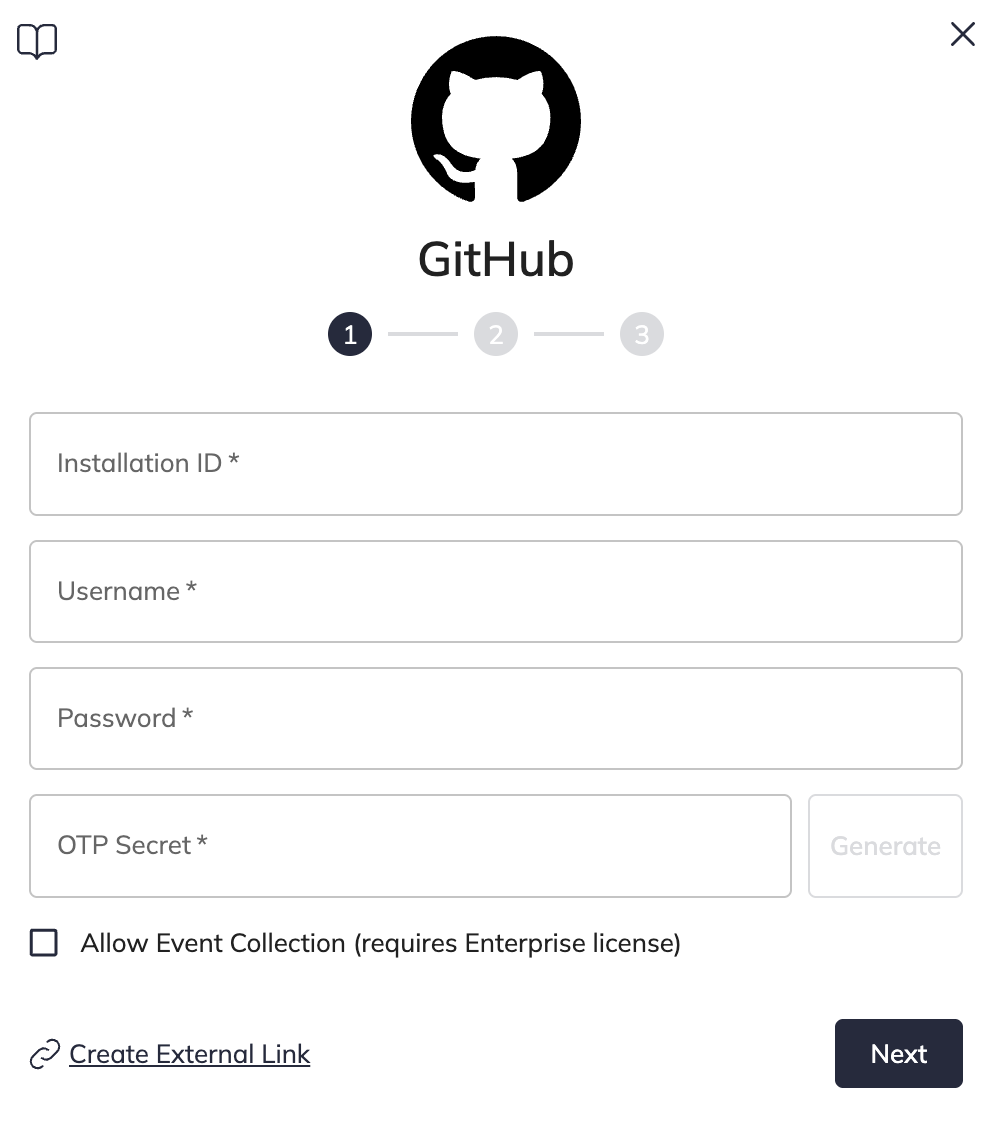
Insert the new user details that were created and the installation-id
To enable Two-factor for this account, please follow "Enable Two Factor" manual (specified in part C)
To enable the "Activities" collection, check the checkbox (notice - an enterprise license is required)
Click Next
If the organization has SSO (not mandatory), choose the SSO provider and fill in the SSO username, password and TOTP secret (click on Generate to validate that the TOTP secret is correct).
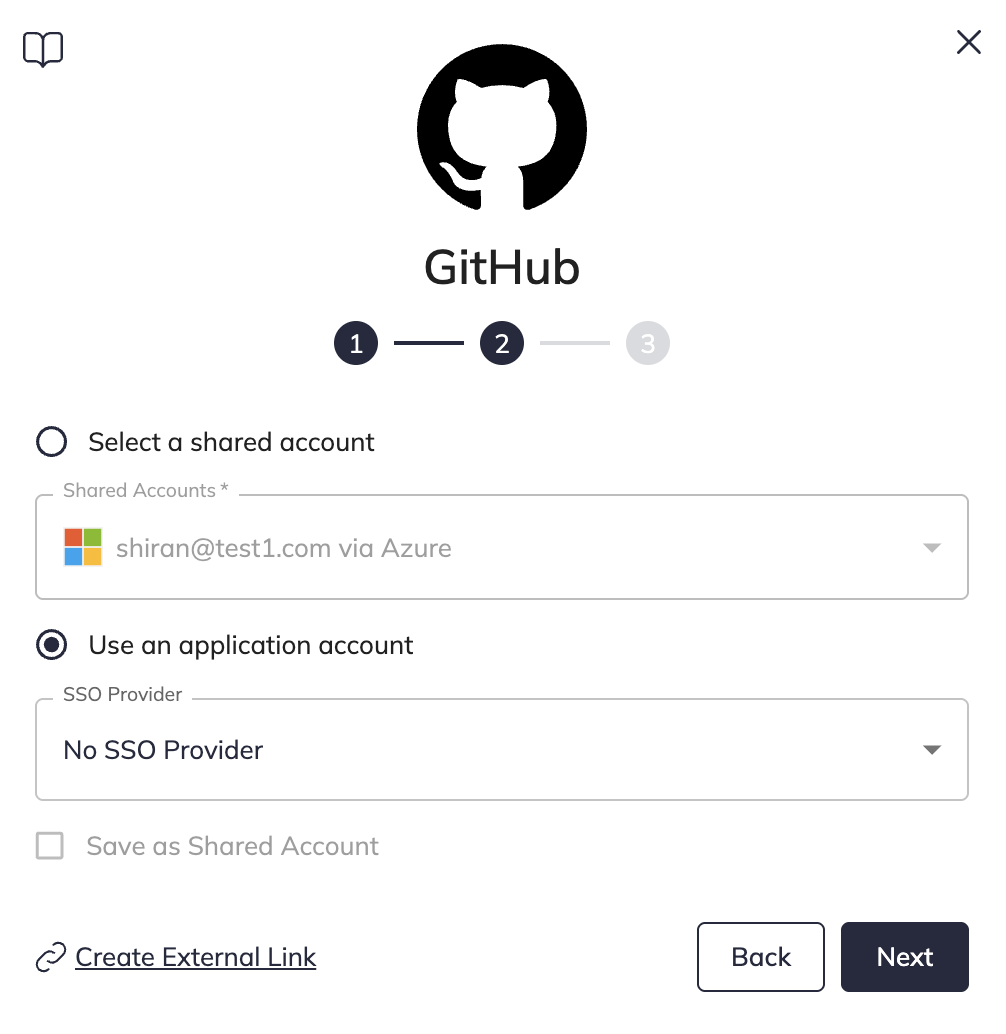
Click Connect.
On FortiCASB-SSPM adding new application select "Two-factor Enabled" checkbox
Go to https://github.com/settings/two_factor_authentication/setup/intro
Login with the service account you created
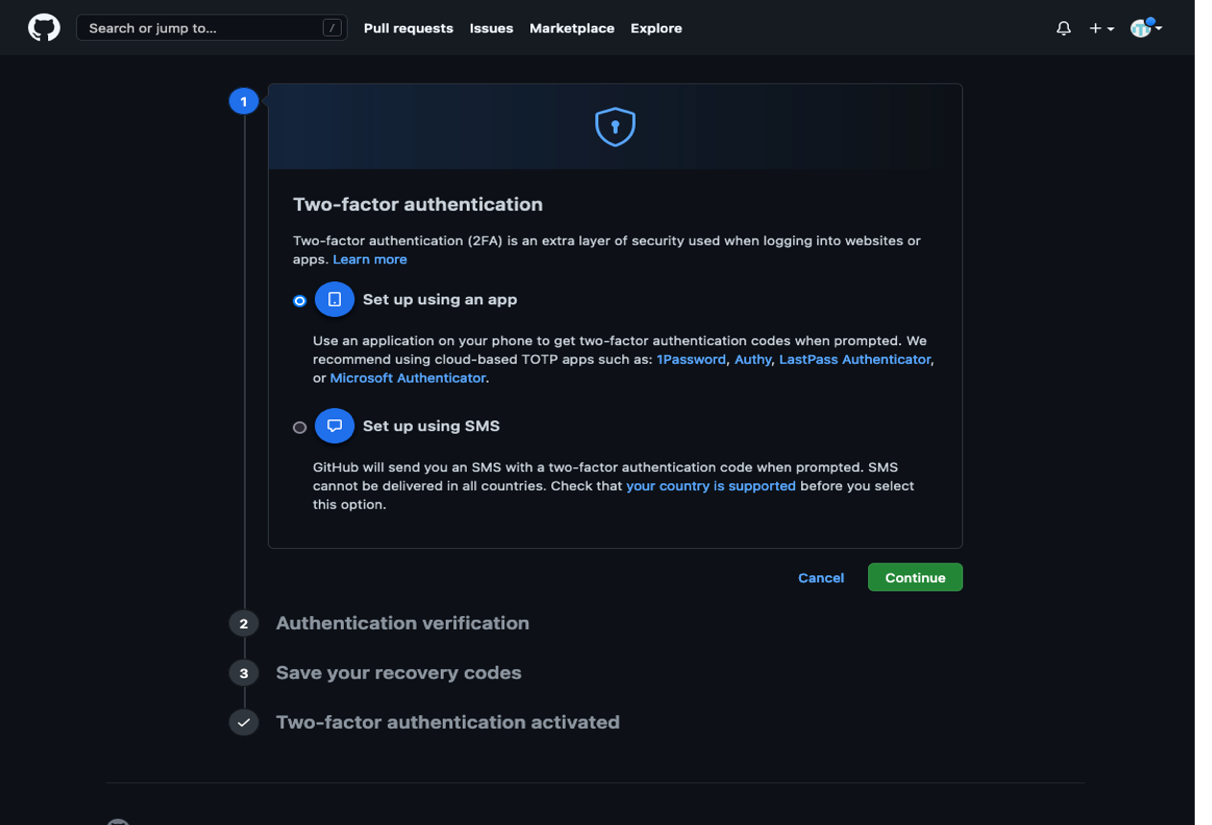
Choose "Set up using an app" and click Continue
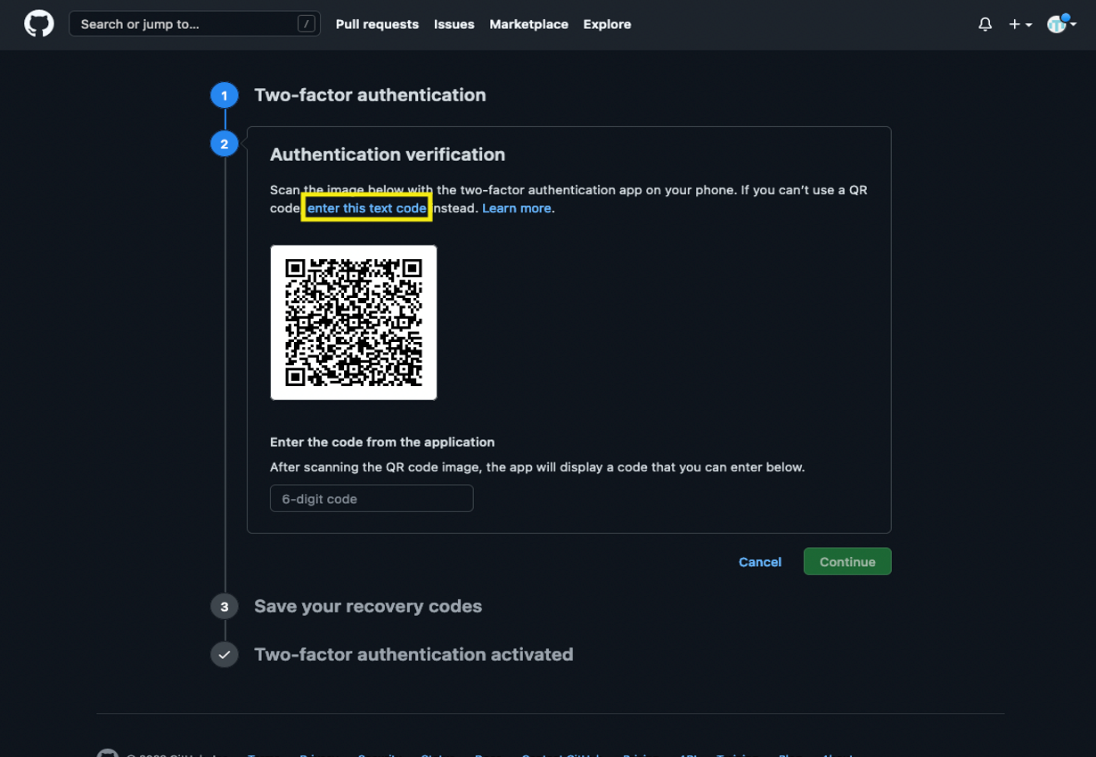
On "Authentication verification" click on "enter this text code"
Copy the "two-factor secret" into the OTP secret in the FortiCASB-SSPM GitHub application screen and click Next
You will receive a 6-digit code from FortiCASB-SSPM, and paste it on GitHub in "Enter the code from the application" input field. Click Continue to complete the Two-factor process
On the FortiCASB-SSPM GitHub application click "Connect" to complete the connection.
That's it! You're all set.
Your SaaS security is our priority!
The FortiCASB-SSPM team

Use this guide to add GitHub as a secured SaaS application in FortiCASB-SSPM SaaS Security platform.
Login to GitHub as an organization owner and open https://github.com/apps/FortiCASB-SSPM-ai/installations/new/
Select the organization where you want to install FortiCASB-SSPM app.
Choose "All repositories" and click "Install & Authorize".
Open GitHub organization settings to identify the installation-id, the URL looks like https://github.com/organizations/
Create a new user for GitHub that will be used as a service account. This user must be an "Owner" (and associated to the selected organization). It is possible (but not recommended) that a current "Owner" will serve as the service account. Notice that a TOTP secret will have to be generated and saved for the connection phase.
Click on GitHub from the "App Store" tab on the Applications page
Insert the new user details that were created and the installation-id
To enable Two-factor for this account, please follow "Enable Two Factor" manual (specified in part C)
To enable the "Activities" collection, check the checkbox (notice - an enterprise license is required)
Click Next
If the organization has SSO (not mandatory), choose the SSO provider and fill in the SSO username, password and TOTP secret (click on Generate to validate that the TOTP secret is correct).
Click Connect.
On FortiCASB-SSPM adding new application select "Two-factor Enabled" checkbox
Go to https://github.com/settings/two_factor_authentication/setup/intro
Login with the service account you created
Choose "Set up using an app" and click Continue
On "Authentication verification" click on "enter this text code"
Copy the "two-factor secret" into the OTP secret in the FortiCASB-SSPM GitHub application screen and click Next
You will receive a 6-digit code from FortiCASB-SSPM, and paste it on GitHub in "Enter the code from the application" input field. Click Continue to complete the Two-factor process
On the FortiCASB-SSPM GitHub application click "Connect" to complete the connection.
That's it! You're all set.
Your SaaS security is our priority!
The FortiCASB-SSPM team