

Getting started with the FortiCare Elite Portal
To access the FortiCare Elite Portal:
- Log in to Customer Service & Support.
- Register the FortiCare Elite license to the Asset Management portal.
- FortiGate Cloud synchronizes all newly registered licenses from FortiCare every ten minutes. For FortiGate models up to 200F, FortiCare Elite Portal automatically configures the devices. For device models above 200F, you must activate FortiGate Cloud logging on the device by doing the following:
- Log in to the FortiOS GUI.
- Activate FortiGate Cloud using the same FortiCloud account.
- Enable cloud logging with FortiGate Cloud under Security Fabric > Fabric Connectors.
- Log in to the FortiCare Elite Portal with your FortiCloud credentials.
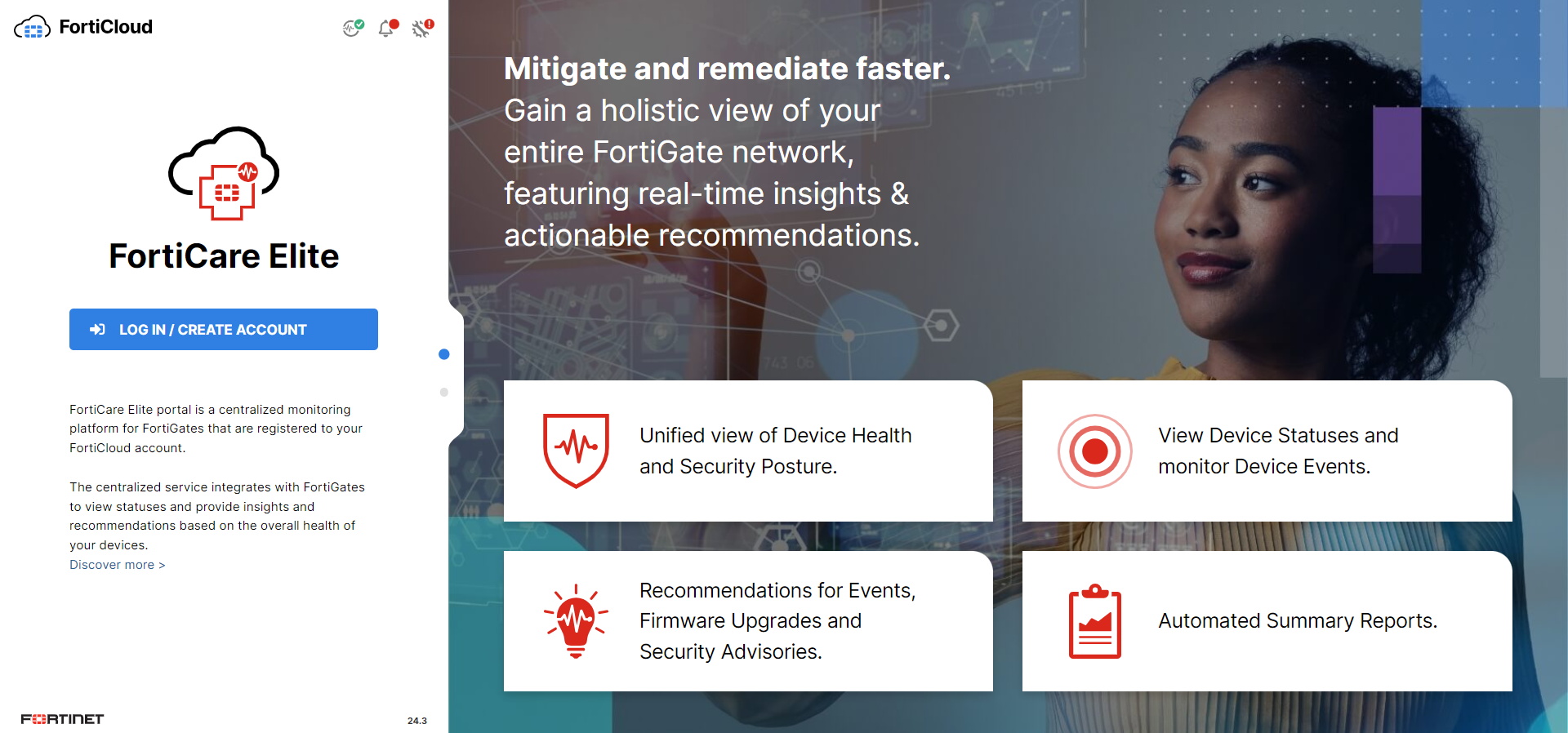
- Select the desired organization unit (OU) or account to access FortiCare Elite Portal. If the OU or account includes a device with an Elite license, FortiCare Elite Portal opens to the Dashboard. If the OU or account does not have any devices with an Elite license, a page displays from where you can review the license benefits and go to the Fortinet Support site, from where you can renew licenses.
To return to the OU tree, select the dropdown list in the upper right corner of the GUI, which displays the OU that you are logged in to. Select the desired OU or account from the dropdown list. You can also select your username in the upper right corner of the GUI, then select Switch Accounts.
The FortiCare Elite Portal landing page also offers the option of accessing a demo site, from which you can experience the benefits of FortiCare Elite Portal without registering for an account. Click Demo Site.