
Fortinet white logo
Fortinet white logo

Administration Guide

Adding a FortiGate HA cluster

Adding a FortiGate HA cluster

You can add an offline FortiGate HA cluster by using the Add Model Device method. The process of adding an offline FortiGate HA cluster is similar to adding a model device using FortiGate serial numbers. See Example: Adding an offline device by serial number. You can add the two FortiGate devices as model devices to be part of the HA cluster.

You can define a device blueprint for an HA cluster and use it to add the model HA cluster. See Using device blueprints for model devices.

When adding a FortiGate HA cluster, certain configurations and templates set for the model device will be applied to both the primary and secondary devices, including:

  • The number of provisioned instances

  • Pre-run CLI templates

You can also add an operating FortiGate HA cluster. Adding an operating FortiGate HA cluster to the Device Manager pane is similar to adding a standalone device. Specify the IP address of the primary device. FortiManager handles a cluster as a single managed device. You cannot use FortiManager to configure high availability (HA) on real FortiGate devices.

If you are using an HA cluster, you can promote a secondary device to a primary device. Go to Device Manager > Device & Groups > Managed FortiGate > [HA_Cluster_Name]. The System:Dashboard pane shows the cluster members under Cluster Members. Click Promote to promote a secondary device to a primary device.

FortiGate devices in an HA cluster should not use ha-mgmt-interface or standalone-mgmt-vdom to establish the FGFM connection.

To add a model FortiGate HA cluster:
  1. If using ADOMs, ensure that you are in the correct ADOM.

  2. Go to Device Manager > Device & Groups.

  3. Click Add Device. The wizard opens.

  4. Select Add Model HA Cluster.

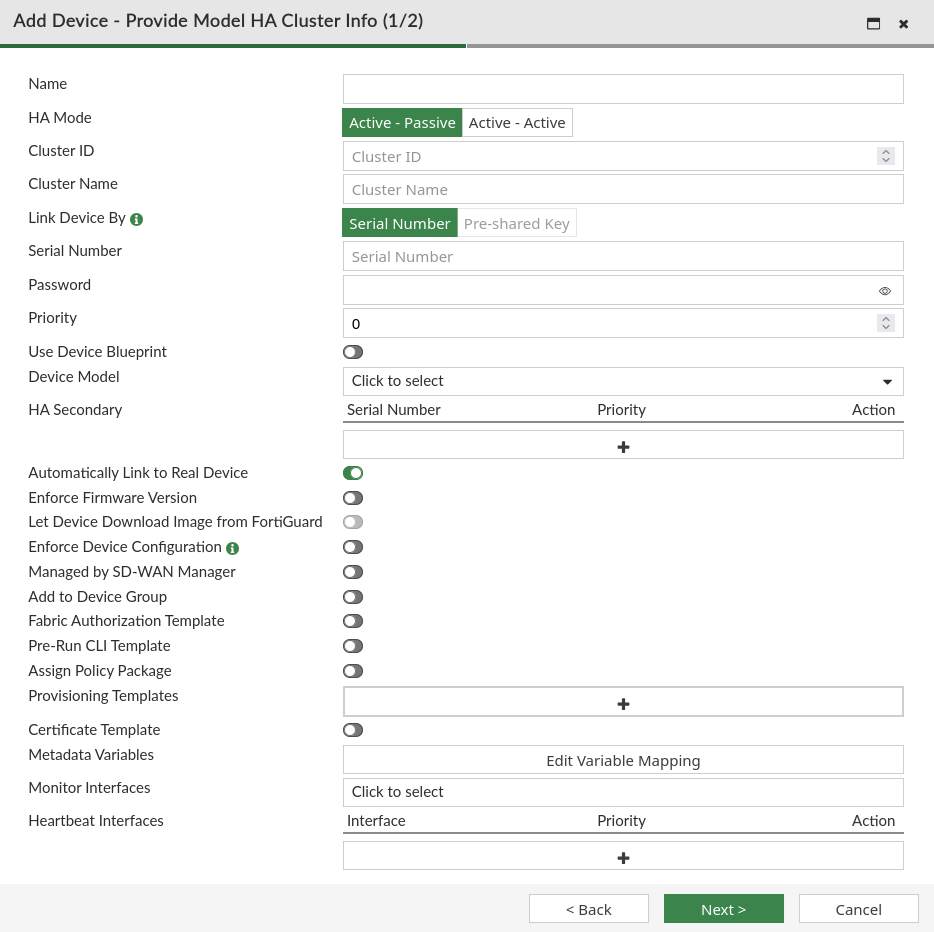
  5. Populate the mandatory fields Name, HA Mode, Cluster ID, Cluster Name, and Serial Number.

  6. Add the serial number of the secondary device in the HA Secondary field, and set the Priority.

  7. Click Edit Variable Mapping to configure metadata variables used for the HA cluster. Click the expand option next to the variable name to view and configure the mapping value for secondary devices.

  8. Configure the remaining settings as needed, and click OK. For more information on optional settings, see Adding offline model devices.

    1. Optionally, you can enable Use Device Blueprint and select or create a Device Blueprint. See Using device blueprints for model devices.

    2. Optionally, enable Enforce Device Configuration. The Enforce Device Configuration option allows auto-link to push changes on FortiGate management interface during ZTP/LTP. When enabled, this option will provision the configuration to the real device, as is. Misconfiguration of the FortiGate management interface may cause the device to not be able to connect to the FortiManager.

    3. Optionally, you can disable Automatically Link to Real Device. When auto-linking is enabled, auto-link will start after all cluster members are connected. You can edit model devices added to FortiManager to enable or disable the Automatically Link to Real Device setting.

    4. Optionally, apply a Fabric Authorization Template and a Certificate Template to the HA cluster.

    5. Optionally, you can choose to enable or disable Enforce Firmware Version. You can also enable Let Device Download Image from FortiGuard to allow the real FortiGate devices to download the firmware image directly from FortiGuard.

      Both the FortiGate devices to be added to the HA cluster must be on the same firmware version. If not, the devices will be enforced with the same version as selected in the Enforce Firmware Version field in the Add Device dialog if enabled.
    Adding a FortiGate HA cluster

    The FortiGate device with a higher node priority will be considered as the primary device of the HA cluster.

    FortiManager adds both the FortiGate devices as model devices and creates an HA cluster. Based on device node priorities, both the devices will come online and show up in FortiManager one after the other. You can view the status of the HA cluster and information about each of the nodes of the HA cluster in Device Manager.

Viewing the status of the HA cluster

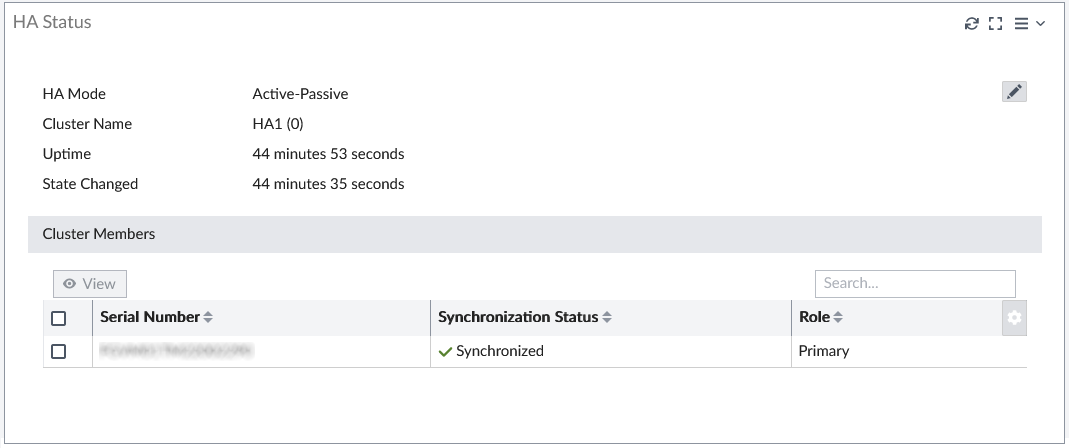
You can view the synchronization status of cluster members in Device Manager > Device & Groups, the device database, or while editing cluster member devices.

These views display information about the HA cluster, including the Synchronization Status and Role of HA members. The Synchronization Status is displayed as one of the following:

  • Synchronized: The FortiGate HA cluster member is in sync.

  • Out of Sync: The FortiGate HA cluster member is out of sync.

  • Unknown: The FortiGate HA cluster members is offline.
Editing HA cluster information

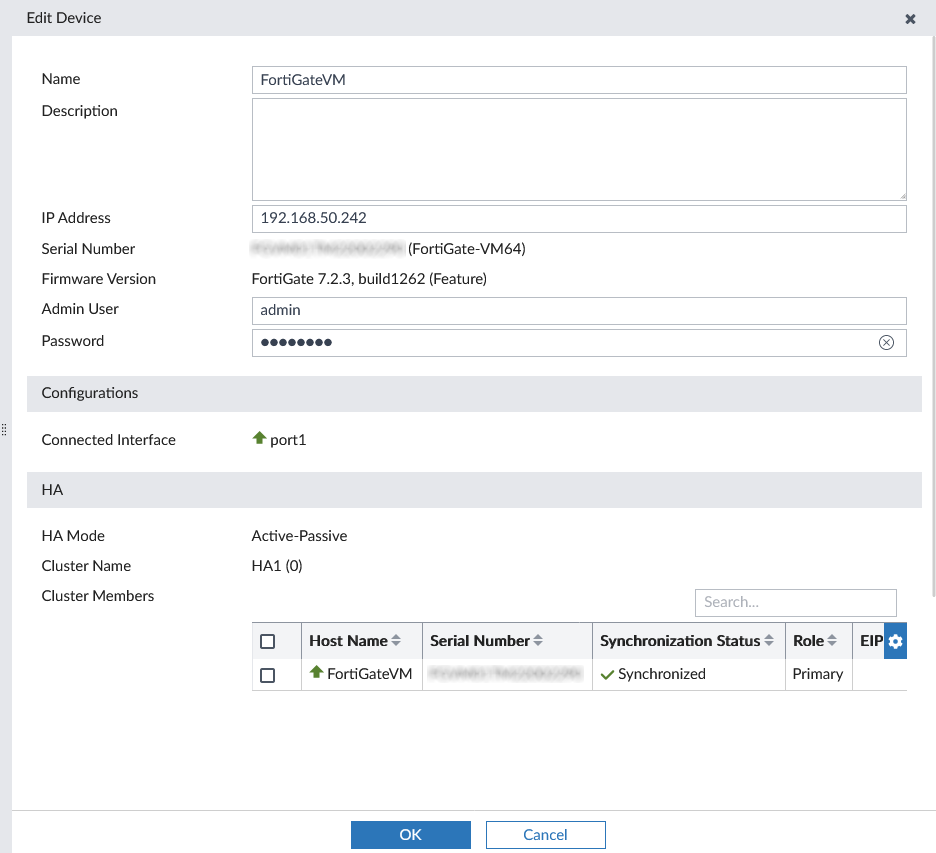
You can edit the HA cluster device information. Use the Edit Device screen to modify the HA cluster information by modifying the fields IP Address, Admin User, Password. See Configuring model HA cluster members.
Editing a FortiGate HA cluster

Adding a FortiGate HA cluster

Adding a FortiGate HA cluster

You can add an offline FortiGate HA cluster by using the Add Model Device method. The process of adding an offline FortiGate HA cluster is similar to adding a model device using FortiGate serial numbers. See Example: Adding an offline device by serial number. You can add the two FortiGate devices as model devices to be part of the HA cluster.

You can define a device blueprint for an HA cluster and use it to add the model HA cluster. See Using device blueprints for model devices.

When adding a FortiGate HA cluster, certain configurations and templates set for the model device will be applied to both the primary and secondary devices, including:

  • The number of provisioned instances

  • Pre-run CLI templates

You can also add an operating FortiGate HA cluster. Adding an operating FortiGate HA cluster to the Device Manager pane is similar to adding a standalone device. Specify the IP address of the primary device. FortiManager handles a cluster as a single managed device. You cannot use FortiManager to configure high availability (HA) on real FortiGate devices.

If you are using an HA cluster, you can promote a secondary device to a primary device. Go to Device Manager > Device & Groups > Managed FortiGate > [HA_Cluster_Name]. The System:Dashboard pane shows the cluster members under Cluster Members. Click Promote to promote a secondary device to a primary device.

FortiGate devices in an HA cluster should not use ha-mgmt-interface or standalone-mgmt-vdom to establish the FGFM connection.

To add a model FortiGate HA cluster:
  1. If using ADOMs, ensure that you are in the correct ADOM.

  2. Go to Device Manager > Device & Groups.

  3. Click Add Device. The wizard opens.

  4. Select Add Model HA Cluster.

  5. Populate the mandatory fields Name, HA Mode, Cluster ID, Cluster Name, and Serial Number.

  6. Add the serial number of the secondary device in the HA Secondary field, and set the Priority.

  7. Click Edit Variable Mapping to configure metadata variables used for the HA cluster. Click the expand option next to the variable name to view and configure the mapping value for secondary devices.

  8. Configure the remaining settings as needed, and click OK. For more information on optional settings, see Adding offline model devices.

    1. Optionally, you can enable Use Device Blueprint and select or create a Device Blueprint. See Using device blueprints for model devices.

    2. Optionally, enable Enforce Device Configuration. The Enforce Device Configuration option allows auto-link to push changes on FortiGate management interface during ZTP/LTP. When enabled, this option will provision the configuration to the real device, as is. Misconfiguration of the FortiGate management interface may cause the device to not be able to connect to the FortiManager.

    3. Optionally, you can disable Automatically Link to Real Device. When auto-linking is enabled, auto-link will start after all cluster members are connected. You can edit model devices added to FortiManager to enable or disable the Automatically Link to Real Device setting.

    4. Optionally, apply a Fabric Authorization Template and a Certificate Template to the HA cluster.

    5. Optionally, you can choose to enable or disable Enforce Firmware Version. You can also enable Let Device Download Image from FortiGuard to allow the real FortiGate devices to download the firmware image directly from FortiGuard.

      Both the FortiGate devices to be added to the HA cluster must be on the same firmware version. If not, the devices will be enforced with the same version as selected in the Enforce Firmware Version field in the Add Device dialog if enabled.

    Adding a FortiGate HA cluster

    The FortiGate device with a higher node priority will be considered as the primary device of the HA cluster.

    FortiManager adds both the FortiGate devices as model devices and creates an HA cluster. Based on device node priorities, both the devices will come online and show up in FortiManager one after the other. You can view the status of the HA cluster and information about each of the nodes of the HA cluster in Device Manager.

Viewing the status of the HA cluster

You can view the synchronization status of cluster members in Device Manager > Device & Groups, the device database, or while editing cluster member devices.

These views display information about the HA cluster, including the Synchronization Status and Role of HA members. The Synchronization Status is displayed as one of the following:

  • Synchronized: The FortiGate HA cluster member is in sync.

  • Out of Sync: The FortiGate HA cluster member is out of sync.

  • Unknown: The FortiGate HA cluster members is offline.

Editing HA cluster information

You can edit the HA cluster device information. Use the Edit Device screen to modify the HA cluster information by modifying the fields IP Address, Admin User, Password. See Configuring model HA cluster members.
Editing a FortiGate HA cluster