

Using IP Forwarding mode with Edge
To configure IP Forwarding mode with Edge browser:
- Download the FortiIsolator certificate (
ca.crt) and import it into your Edge browser:- In the Edge browser address bar, type
http://<internal_IP_address>/ca.crt(for example,http://192.168.1.100/ca.crt).where <
internal_IP_address> value is the IP address of the FortiIsolator internal interface. For example , the IP address of the internal interface that you configured in step 3 of Installing FortiIsolator 1000F.
- In the security warning at the bottom of the browser, click Save to download the certificate.

- Click Open to import the
ca.crtcertificate into Edge.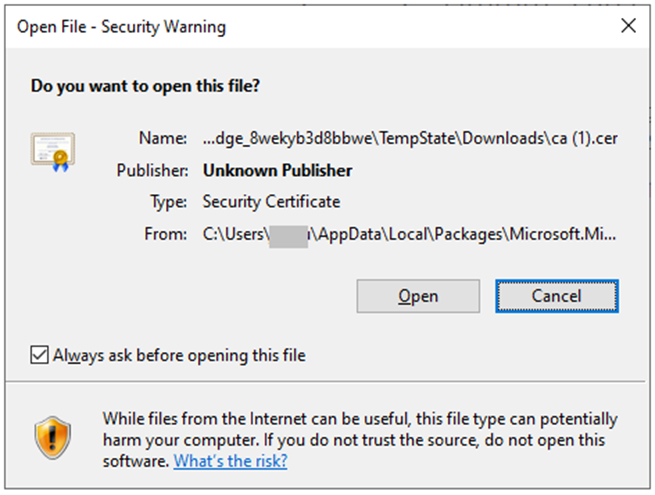
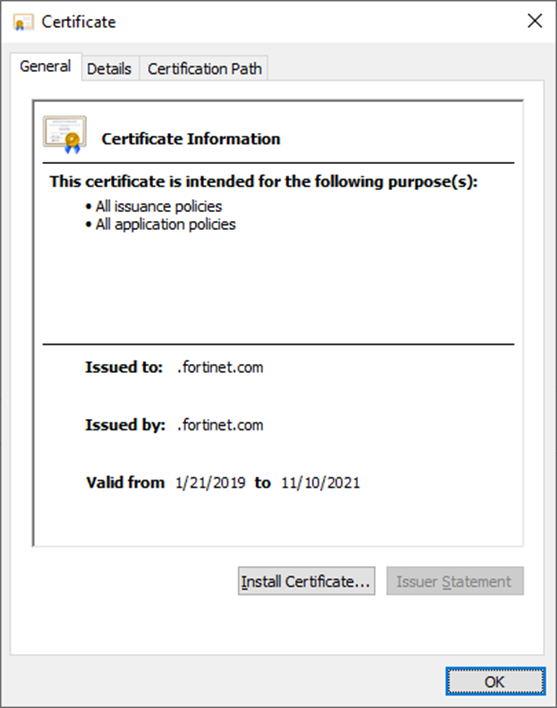
- Click Install Certificate.
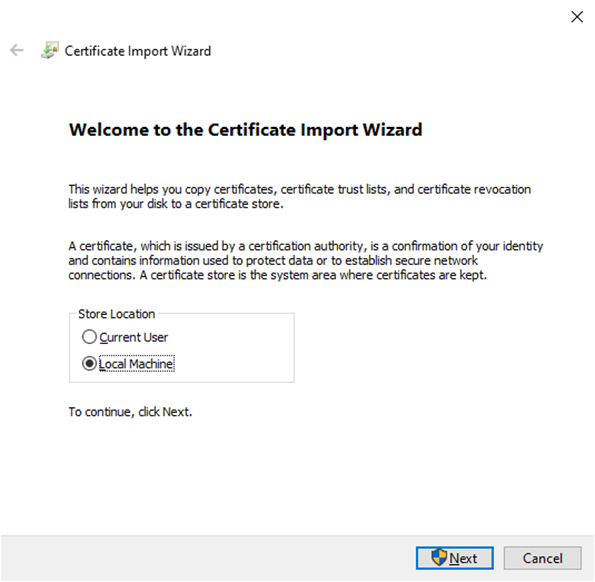
- Select Local Machine, and click Next.
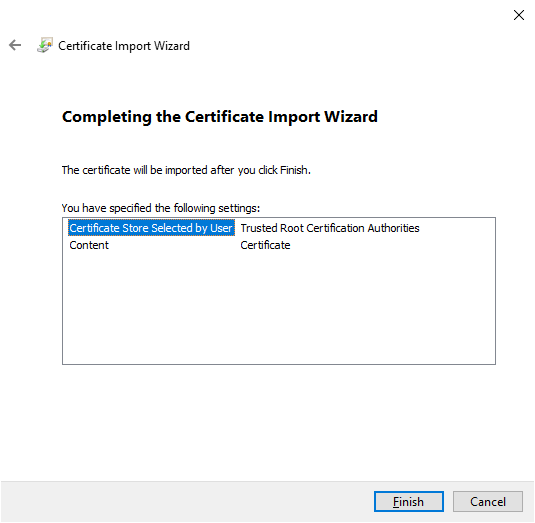
- Select Trusted Root Certification Authorities, and click OK.

- Completing the Certificate Import Wizard.
- In the Edge browser address bar, type
-
In the Edge browser address bar, type
where <https://<internal_IP_address>/isolator/https://www.<website-url>.com(for example,https://172.30.157.14/isolator/https://www.google.com)internal_IP_address> value is the IP address of the FortiIsolator internal interface.
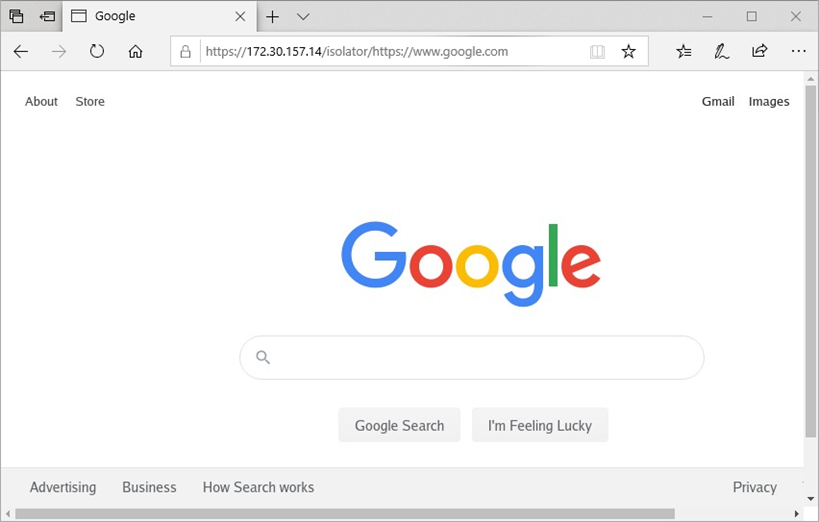
You can also omit the /isolator/https://www.<website-url>.com portion when typing the URL in the address bar, in which case you will then be prompted to specify the destination URL of the website to browse.
