What's new
The FortiEDR 7.2.1 GA build includes the following features, enhancements, and changes:
- Secure browser
- Forensics Viewer
- Improvements to Collector filtering
- Customizing time zone for an organization
- Login enhancement for multi-tenancy
- GUI enhancements
Secure browser
This feature is disabled by default. See the FortiEDR 7.2.1 Administration Guide for more details.
Forensics Viewer
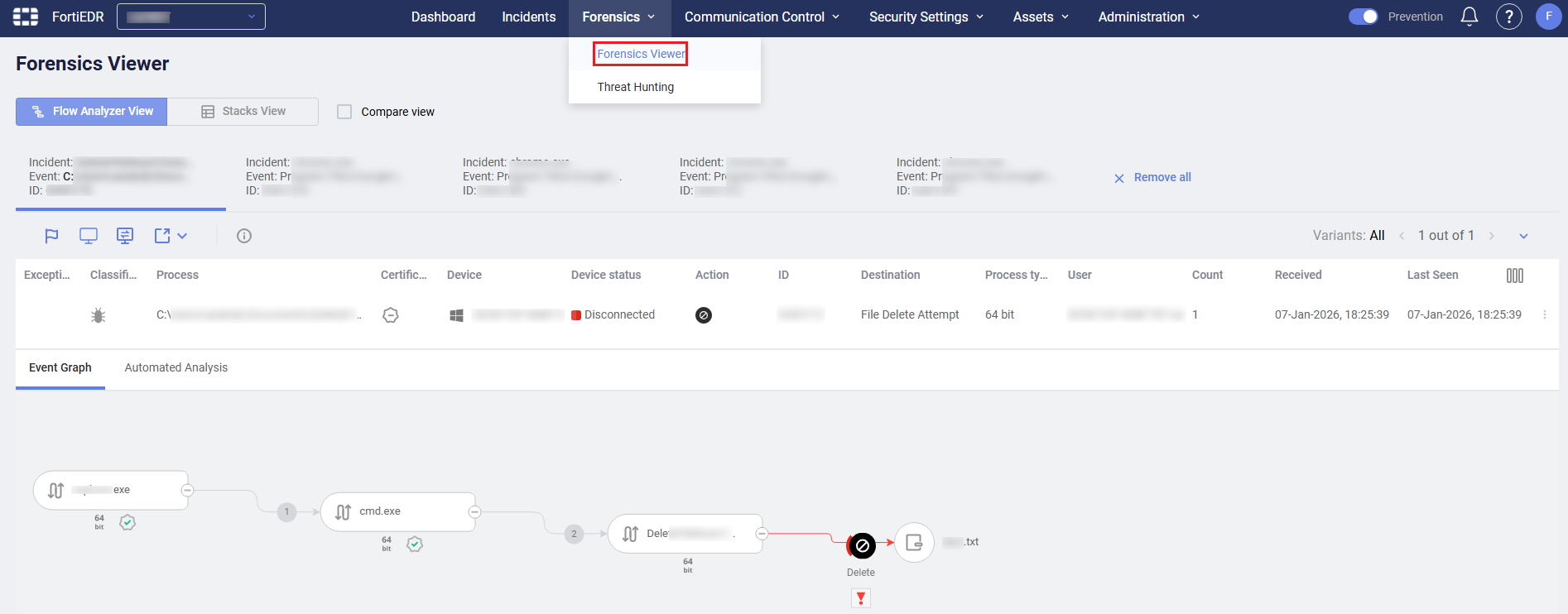
FortiEDR 7.2.1 adds back the Forensics Viewer with flow analyzer view, stacks view, and compare view. You can access it from the Forensics > Forensics Viewer menu or the Forensics button in Incidents view. The Threat Hunting menu has been moved under Forensics instead.

|
The Forensics functionality is unavailable for mobile incidents or secure browser incidents. |
Improvements to Collector filtering
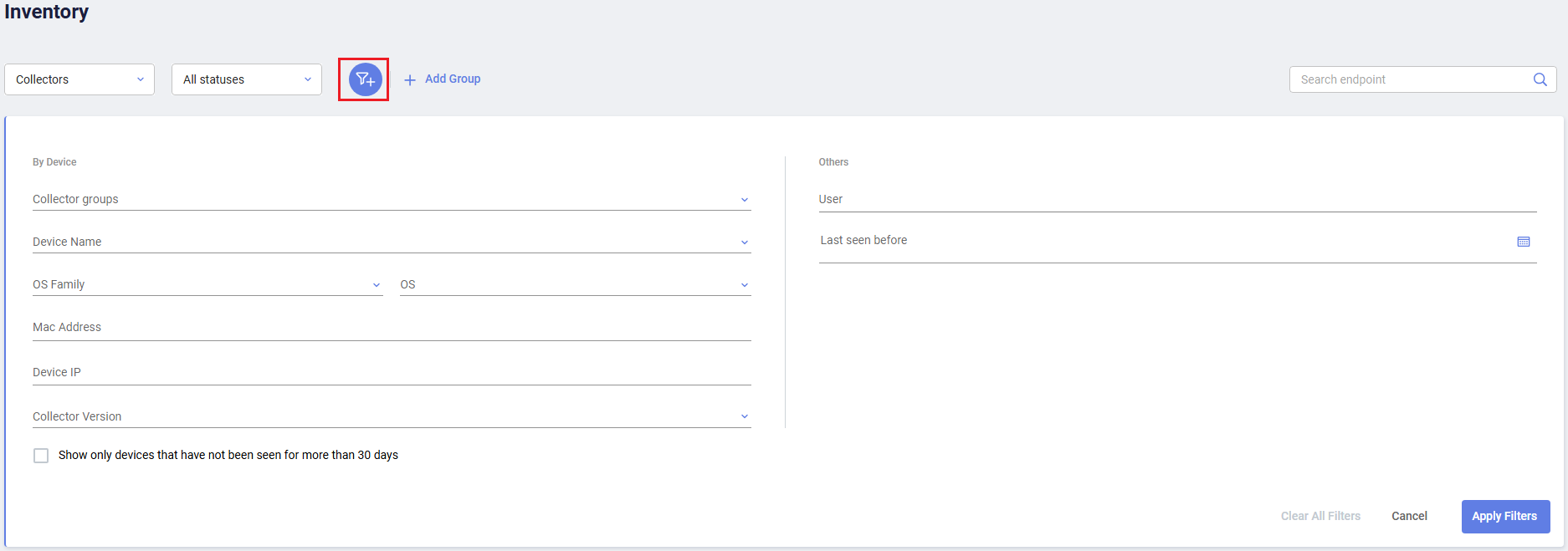
In the Assets > Inventory page, use the new Filter ( ) button to narrow down the list of Collectors to display by various dimensions. The Show only devices that have not been seen for more than 30 days option allows you to display devices that have not been connected for more than 30 consecutive days, which are not counted for licensing purposes. Such devices are in the Disconnected (Expired) status.
Customizing time zone for an organization
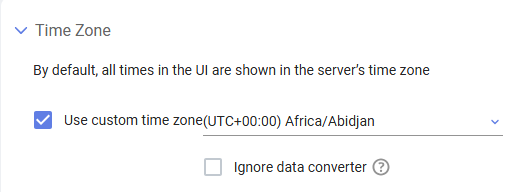
You can now configure the time zone for each organization under Administration > Settings > Time Zone to override the configured system time during deployment. By default, the time zone configuration applies globally. You can enable the Ignore data converter option to limit the time zone configuration to the displayed system time only while keeping the deployment system time for the following modules: Incidents, Inventory, System Events, and Audit Trail.
For example, for a FortiEDR environment with the system time zone set to UTC-08:00 during deployment, if you change the time zone of an organization to UTC-07:00 with the Ignore data converter option enabled, the displayed system time for users in the organization will be adjusted to UTC-07:00 while the timestamp for incidents will remain in UTC-08:00.
|
|
The time zone configuration only applies to users associated with a specific organization. Hoster users are not affected. |
Login enhancement for multi-tenancy
Users of multi-tenancy environments no longer need to specify the organization name during login.
GUI enhancements
FortiEDR 7.2.1 includes the following enhancements to the GUI:
-
"Raw data item" is renamed "variant"
- Usability improvements on device security card in Inventory
- Loading exceptions on supported Collectors only: FortiEDR 7.2.1 enforces that an exception is loaded only on Collectors supporting the fields in the exception. When you create an exception, warnings will appear if a specific field does not support some Collector versions.
- Added validation and float errors for the following fields when creating or editing a user:
- 2FA
- Password
- Role Capability
- Role
- Enhanced validation to exclusion fields
- Error reporting when reputation service is configured but not connected
- Error reporting for AV signature update failure
-
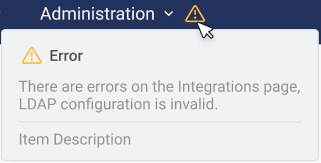
Warning icon on Administration menu in case of error under the admin pages :